Key Concepts
Understanding a few core concepts makes the rest of the Docwize documentation easier to follow.

What this page covers
- What a document means in Docwize
- How metadata is used, and how it organises documents
- How workflows affect user tasks
- Why permissions change what users can see and do
Documents
In Docwize, a document is more than just a file. It usually combines:
- one or more files
- metadata
- relationships to workflows, revisions, attachments, transmittals, or other documents
See Document Details for more detail on one of the main document-level views available to users.
Metadata
Metadata is the structured information attached to a document, such as description, type, date, project, reference number, and related parties.
Some metadata is standard, while other fields may be introduced through custom field configuration.
How metadata organises documents
Metadata lets users find and group documents without anyone filing them by hand. The illustrations below use a construction project where an administrator has set up custom fields for WBS element (the part of the project a document belongs to), discipline (the engineering field, such as mechanical or electrical), and document type (such as a drawing or a specification). The fields, codes, and views available in each organisation depend on how Docwize has been configured.
Taken together, a document's codes work like an address. Each combination points to one document, and the document number can be built from the same codes.
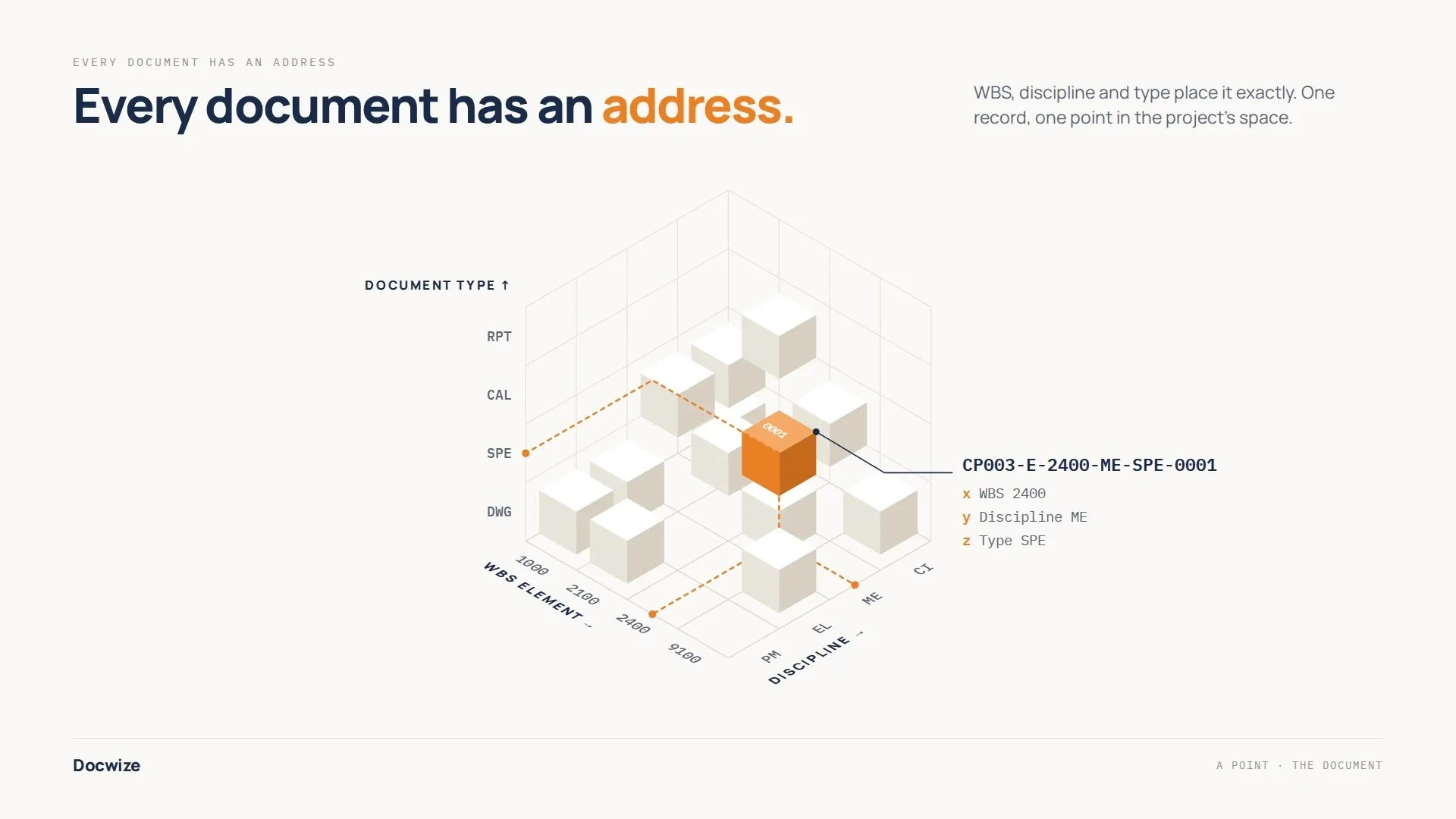
Each document's codes place it at one point in the project
Fixing one code gives a slice of the project. For example, filtering on WBS 2400 returns every document for that WBS element, whatever its discipline or type.
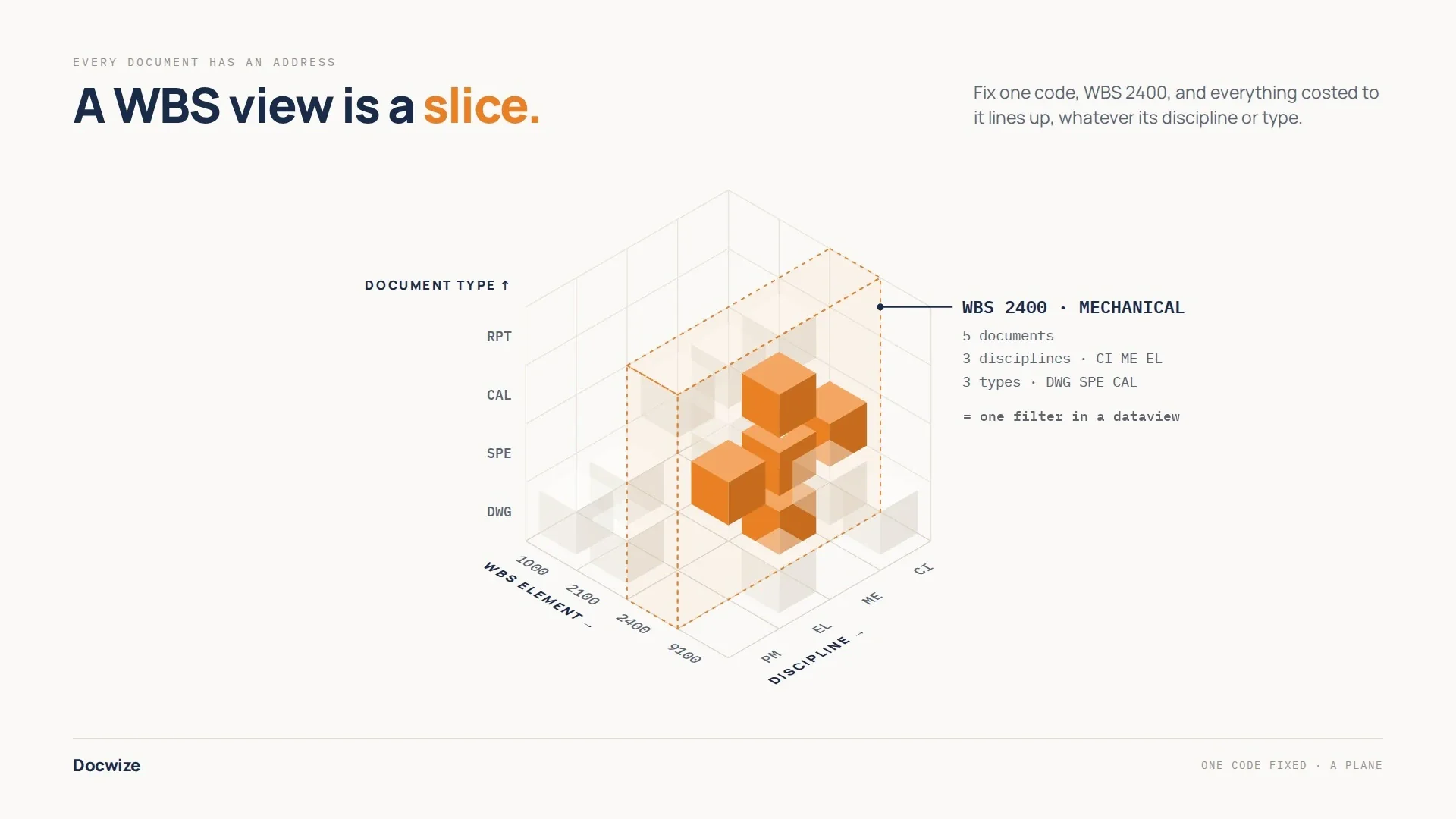
Filtering on one code returns a slice of the project
Fixing two codes narrows the slice further. A dataview that filters on discipline ME and type SPE lists every mechanical specification across the project. A dataview runs its query each time it is opened, unless an administrator has turned on caching for it, so the list stays current as documents are added or changed.
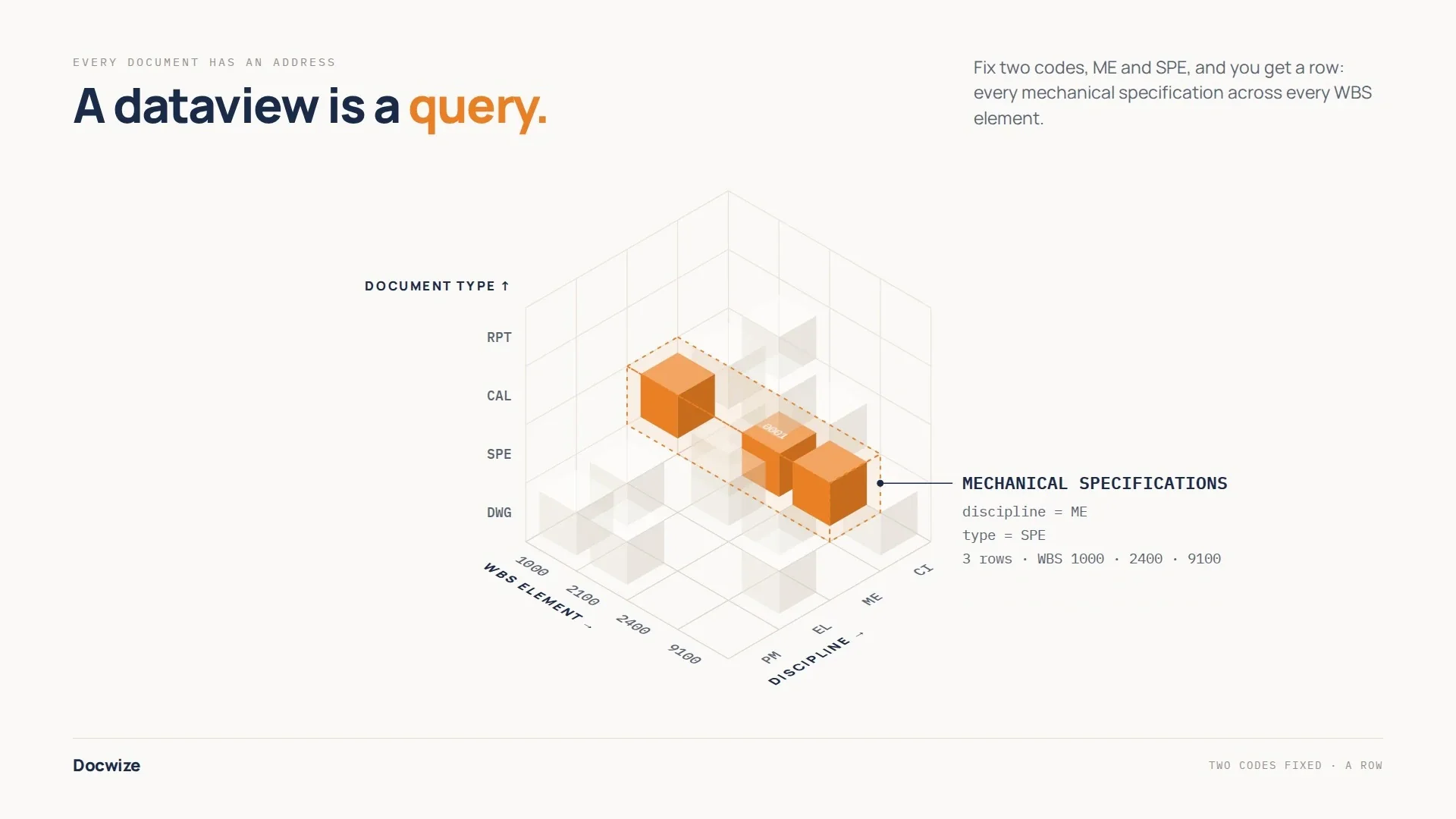
A dataview filtering on two codes returns a row
A tag works like an extra code. Because a tag is another code on the document, one tag can gather documents from anywhere in the project without moving them. For example, a package tag can pull together every deliverable for one contract, whatever its WBS element or document type. A handover tag can do the same across every discipline.
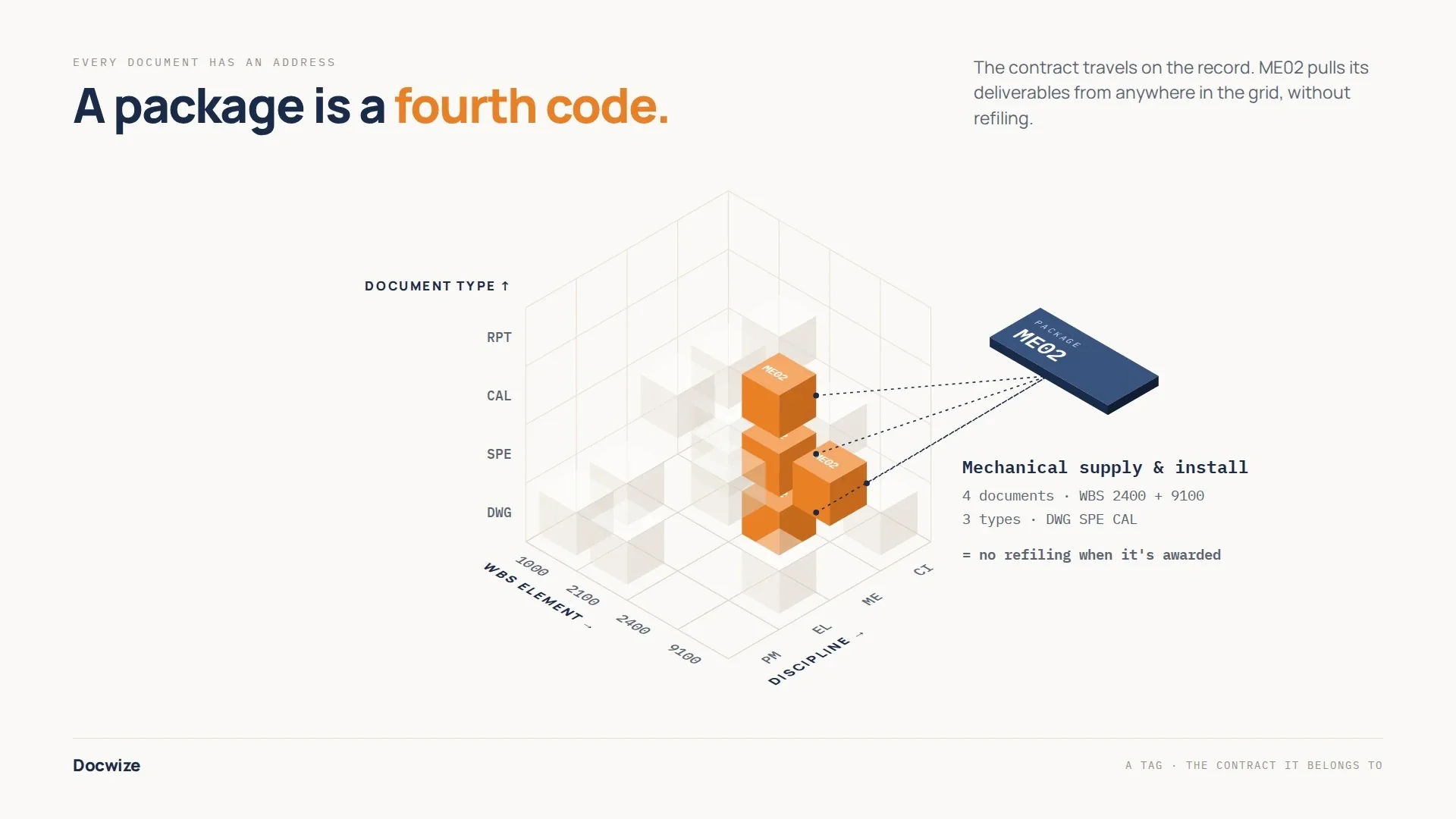
A tag gathering documents from across a project
A transmittal is a set of documents chosen for issue. It records which documents were issued, to whom, and when.
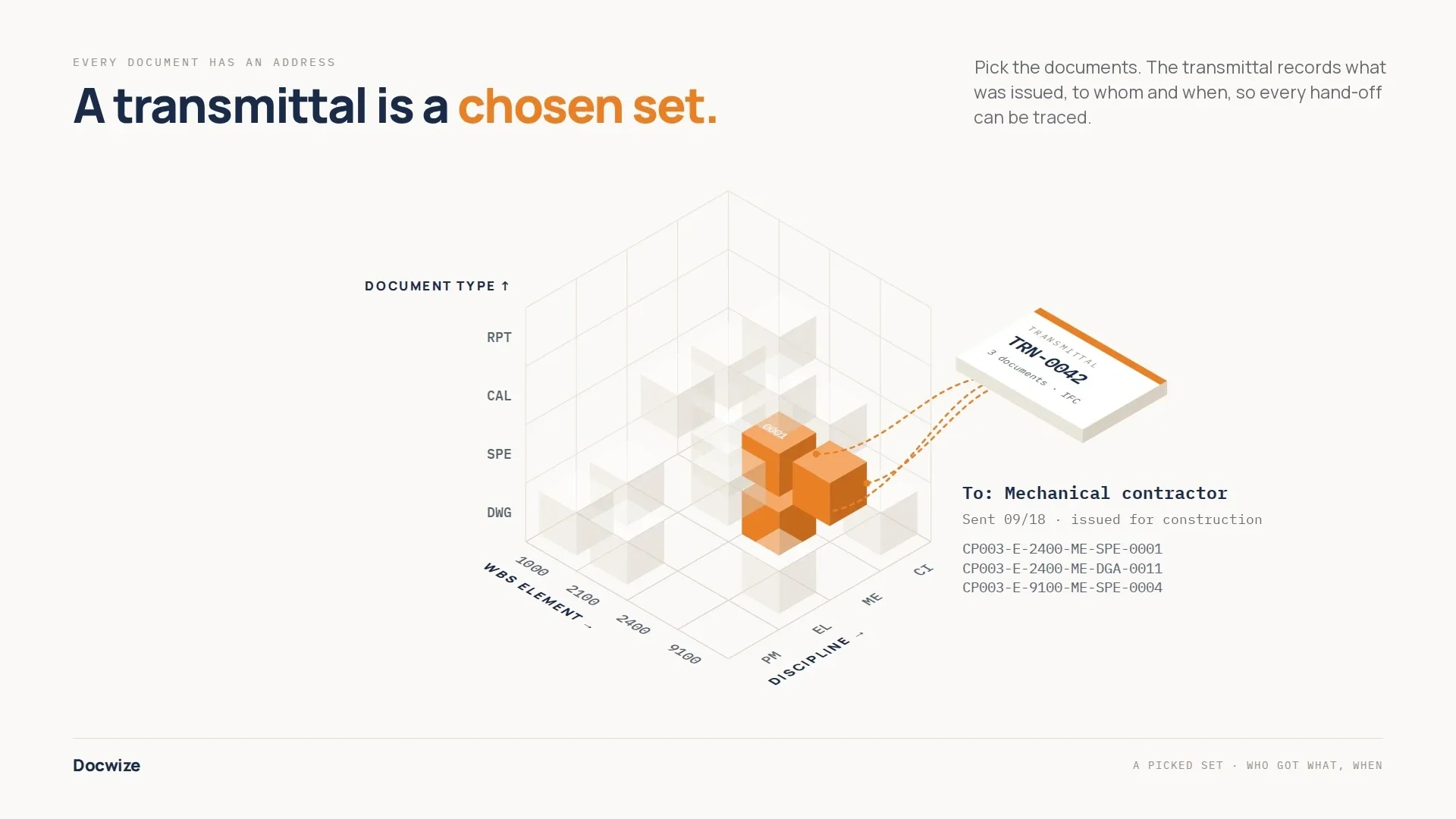
A transmittal records a chosen set of documents and who it went to
A folder is where a team goes to find its documents. One document can sit in several folders at once, so each team can find it in the place it expects. Every folder shows the same document, so nothing is copied and a new revision is current in every folder.
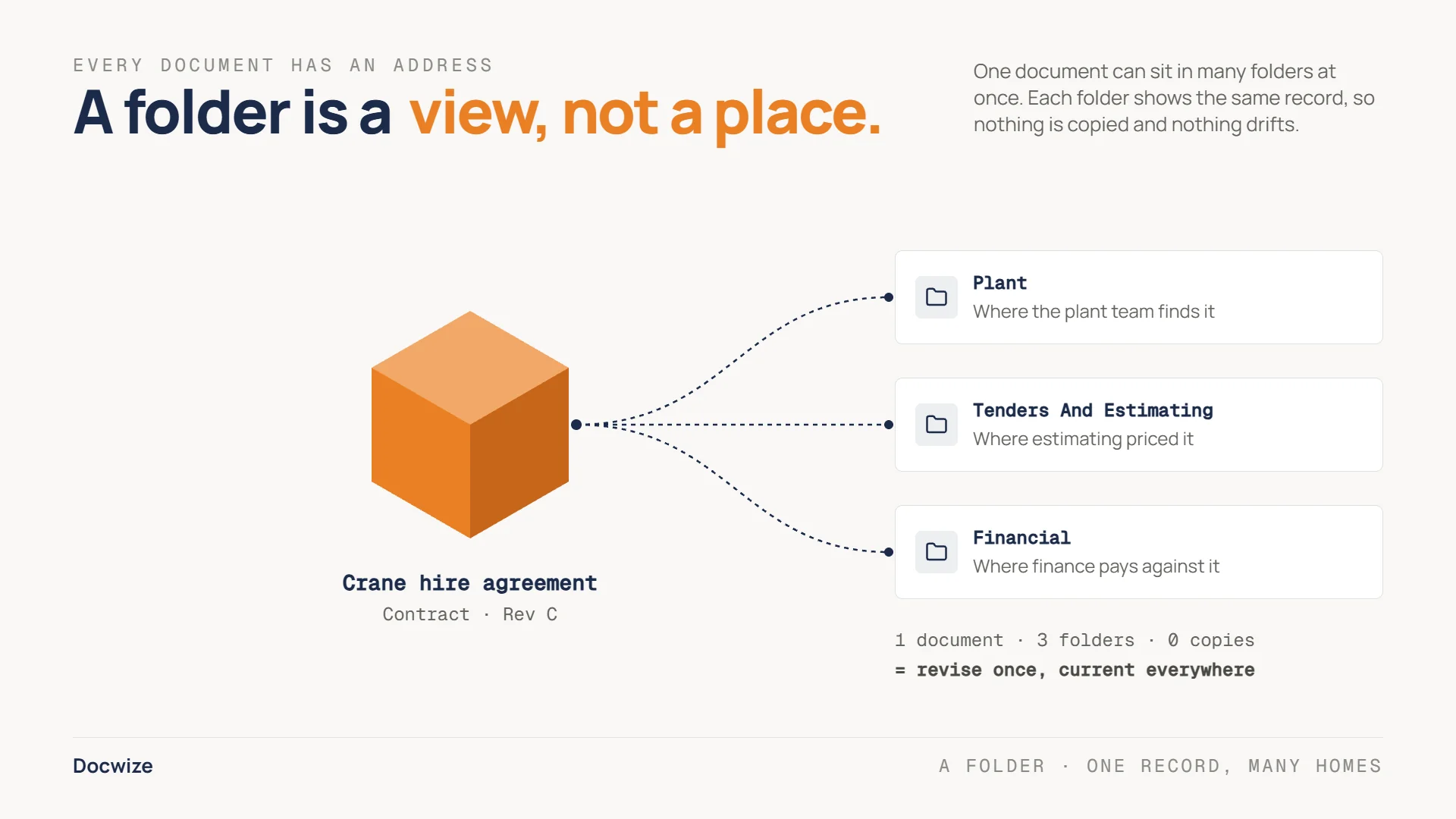
One document can appear in several folders
The same codes can also be counted. A chart in an interface can count documents by a metadata field such as discipline. The chart reads its virtual view each time it loads, so it updates as documents change.
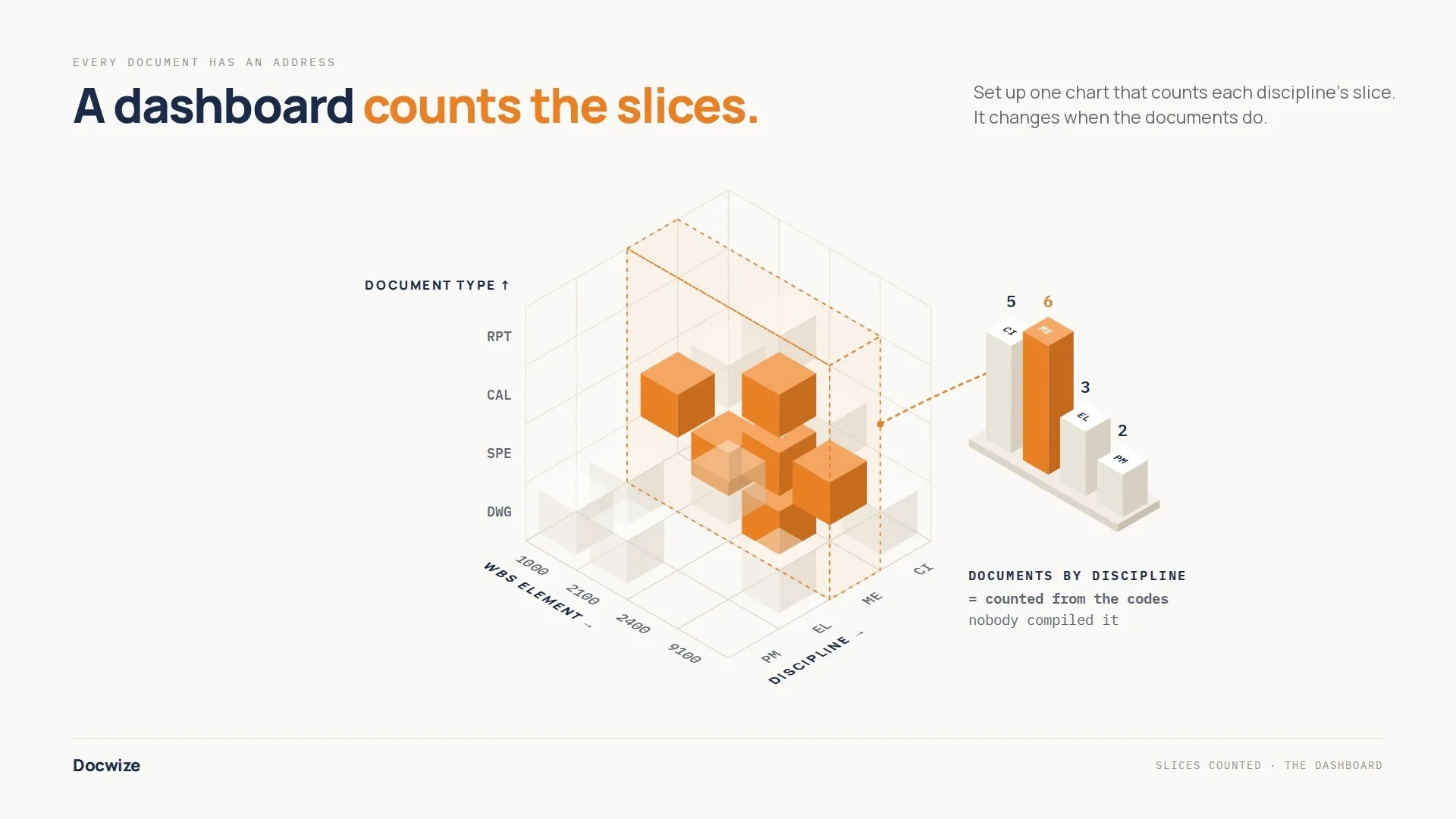
A chart counting documents by discipline
Workflows
Workflows route documents or tasks between users, or through machine-based steps, for review, approval, sign-off, data capture, or automated processing.
An administrator builds a workflow once, as a process map. Each time it runs, the document passes through people and system steps, and each reply decides which step comes next. For example, a rejection can send the document back to its author for correction.
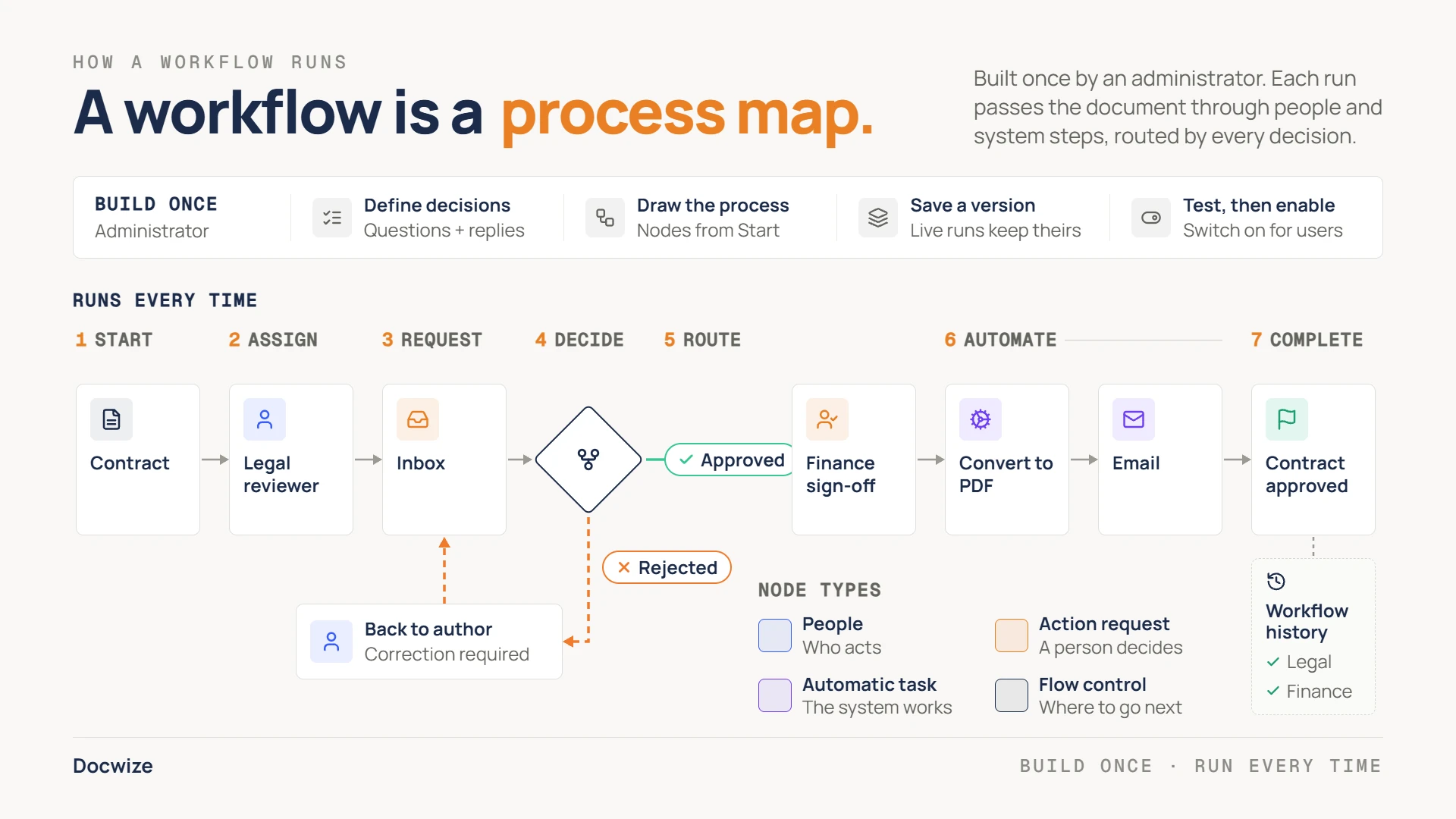
A workflow is built once and routes each run by the replies given
End users usually encounter workflows in the Inbox, while administrators manage workflow templates in System Configuration.
Permissions and visibility
What a user can see or do depends on security settings, role permissions, and access to folders, projects, views, or modules.
For configuration details, see the Admin Console and Controls docs.