Docwize Atlas
Docwize Atlas shows how the records, documents and projects in your tenant are linked. Start from a project, a saved view or one of the ready-made questions, then read the answer as a priority list, a map, a table or a timeline.
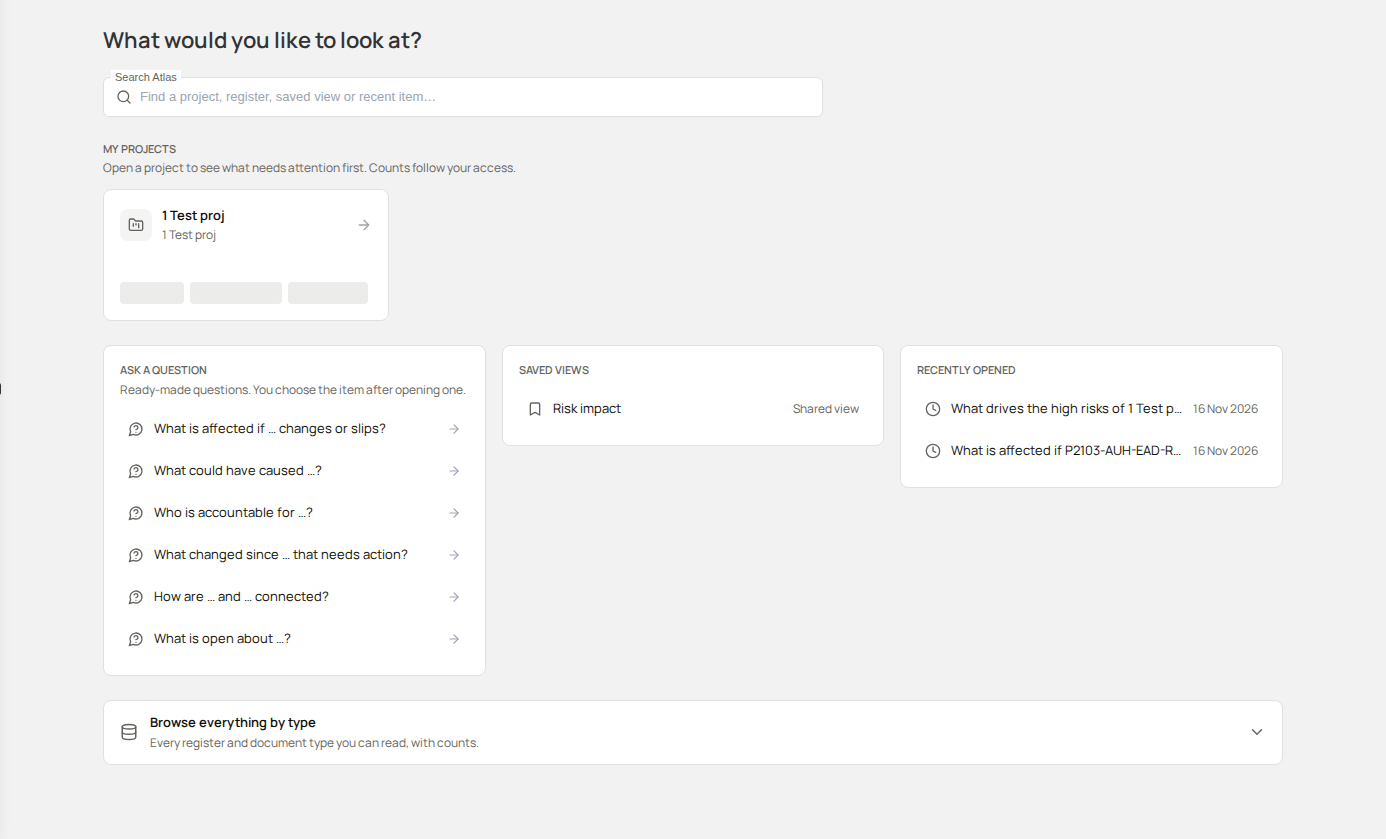
What you can do in Docwize Atlas
- See which projects need attention first, in My projects. The counts follow your access.
- Ask one of the ready-made questions about an item, in Ask a question.
- Browse every register and document type you can read, with the number of items you can read in each, in Browse everything by type.
- Open a saved view, in Saved views.
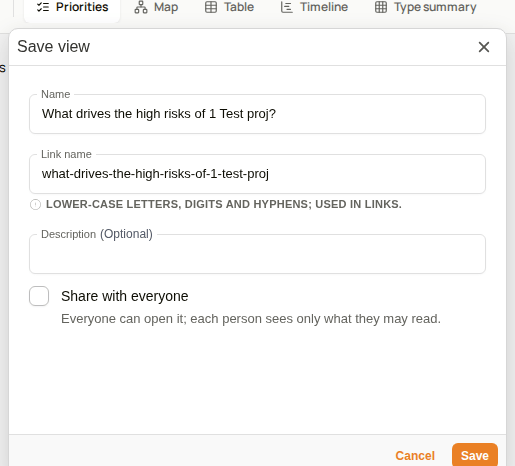
- Save the result on screen as a view, with Save view, and share it with everyone if you hold the Manage Shared Graph Views permission.
Ask a question
The Ask a question section lists six ready-made questions. Each one asks about one item. Choose the type of item first, then the item, then run the question:
- What is affected if … changes or slips?
- What could have caused …?
- Who is accountable for …?
- What changed since … that needs action?
- How are … and … connected?
- What is open about …?
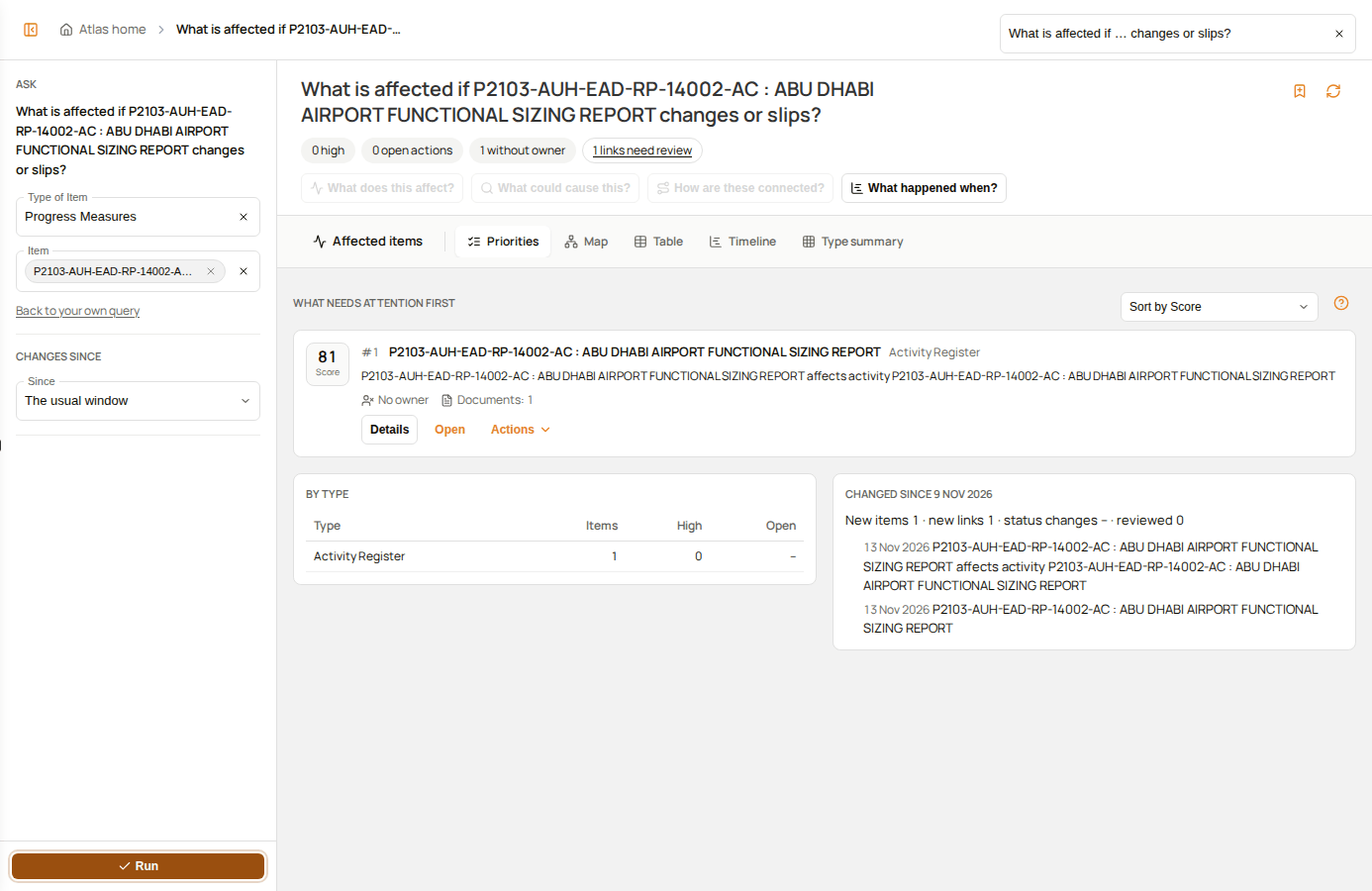

| Step | What to do |
|---|---|
| 1 | On the homepage, select the Docwize Atlas tile. |
| 2 | In Ask a question, select a question. |
| 3 | Under Type of Item, select the type of item the question is about. |
| 4 | Under Item, select an item. |
| 5 | Select Run. |
Under Priorities, the answer lists the affected items it found, ranked by what needs attention first, with the reason for each rank. The header shows how many links need review. Switch between Priorities, Map, Table, Timeline and Type summary to read the same result in each form.
Example: Asking a question about an item in Docwize Atlas
Browse by type
Select Browse everything by type to open the list of every register and document type you can read.
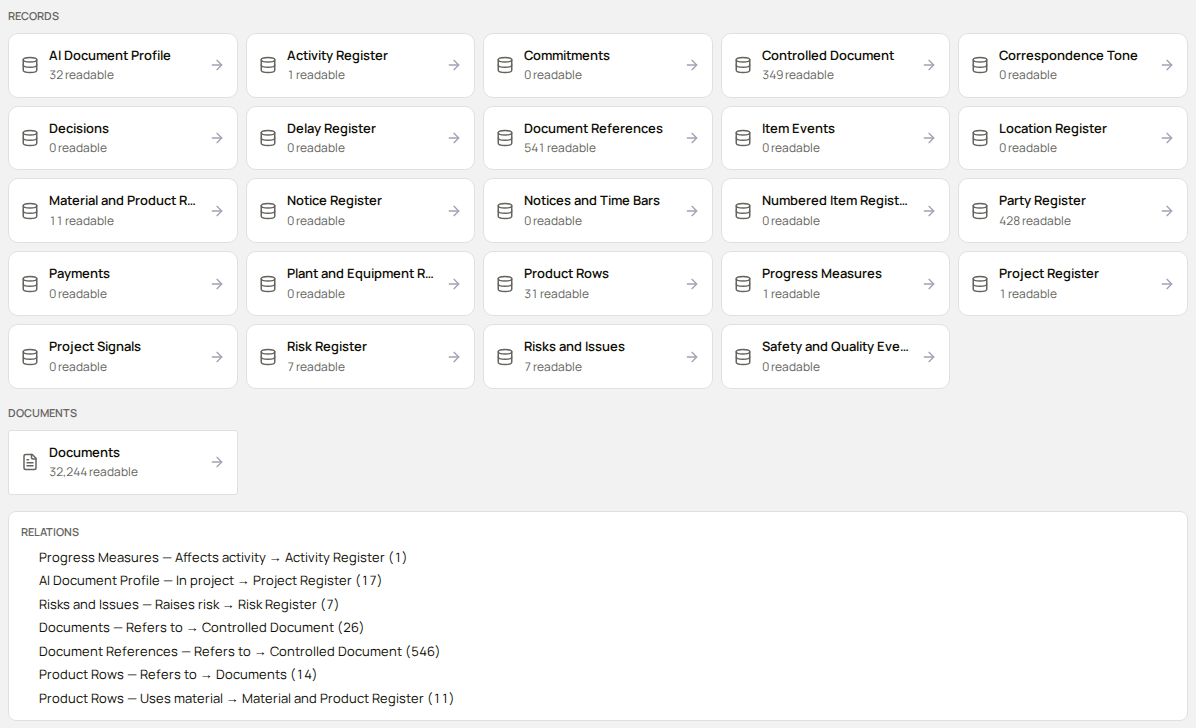
The types are grouped as Records, Documents and Relations. Each type shows how many of its items you can read.
Saved views and sharing
- Saved views lists the views you can open. A shared view shows Shared view beside its name.
- A view can need a value before it runs. A saved view of a project, for example, shows Project is needed to run this. until you choose a project.
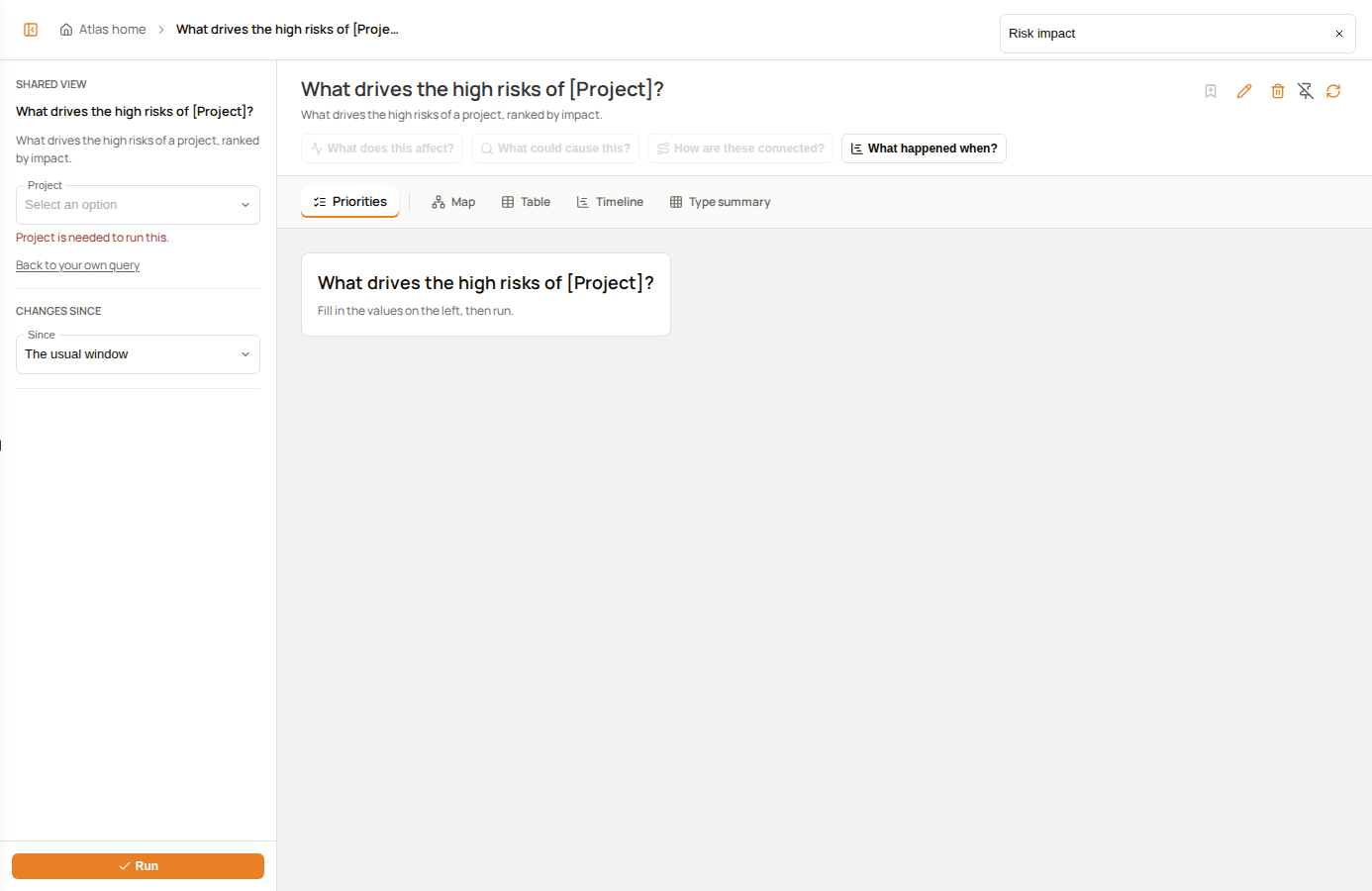
- Save view saves the result on screen as a view. The dialog offers Share with everyone only when you hold Manage Shared Graph Views. Everyone can open a shared view, and each person sees only the records and documents they may read.
- With the same permission, a shared view shows Edit view. Without it, you can edit only the private views you own.
For how to give that permission, see Admin Console permissions.