Digital Signing
Sometimes a user is requested to complete a signing action request. The signature is burnt into the document, turning Word, Excel, and other document formats into a PDF. The digital signature prevents tampering with the contents of the document. Databases can be configured so that MFA is required for signatures. Documents can be signed or initialed in Docwize.
What users can do in Digital Signing
- Create and manage saved signatures or initials
- Place a signature on a workflow document
- Use right-click options on a placed signature
- Complete a signing action request from the Inbox

Digital Signature
Signature Panel
Clicking the Signature icon in the vertical toolbar of a document opens the Signature panel. This panel lists all saved signatures and provides options to manage them.

Signature icon in the toolbar
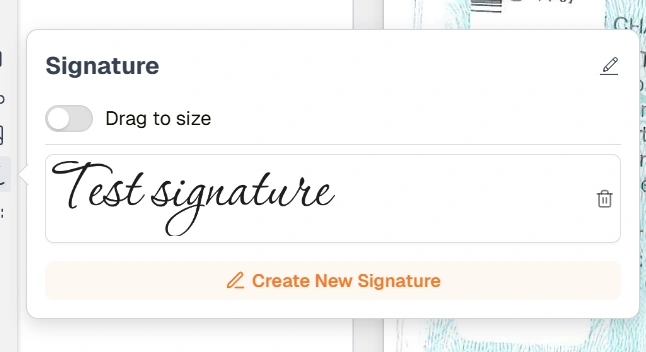
Signature Panel
| Item | Description |
|---|---|
| Drag to size | When enabled, a placed signature can be resized by dragging. |
| Saved signature | Each saved signature is listed and can be selected for placement. Click the delete icon to remove a signature. |
| Edit (pencil icon) | Opens the signature for editing. |
| Create New Signature | Opens the ‘Create Signature’ dialog to add a new signature. |
Creating a Signature
Clicking Create New Signature opens the ‘Create Signature’ dialog. Users can create a signature using one of three methods:
| Tab | Description |
|---|---|
| Text | Type a signature name. Docwize renders it in a signature-style font. |
| Draw | Draw a signature freehand. |
| Upload | Upload a pre-existing signature image from the user’s device, then crop it before it is processed. |
Cropping an uploaded signature
After uploading an image on the Upload tab, users drag a resizable frame over the image to select the signature area, then click Process. The background is removed automatically, leaving the signature only. Users can click Back to adjust the crop and process again, or save the result.
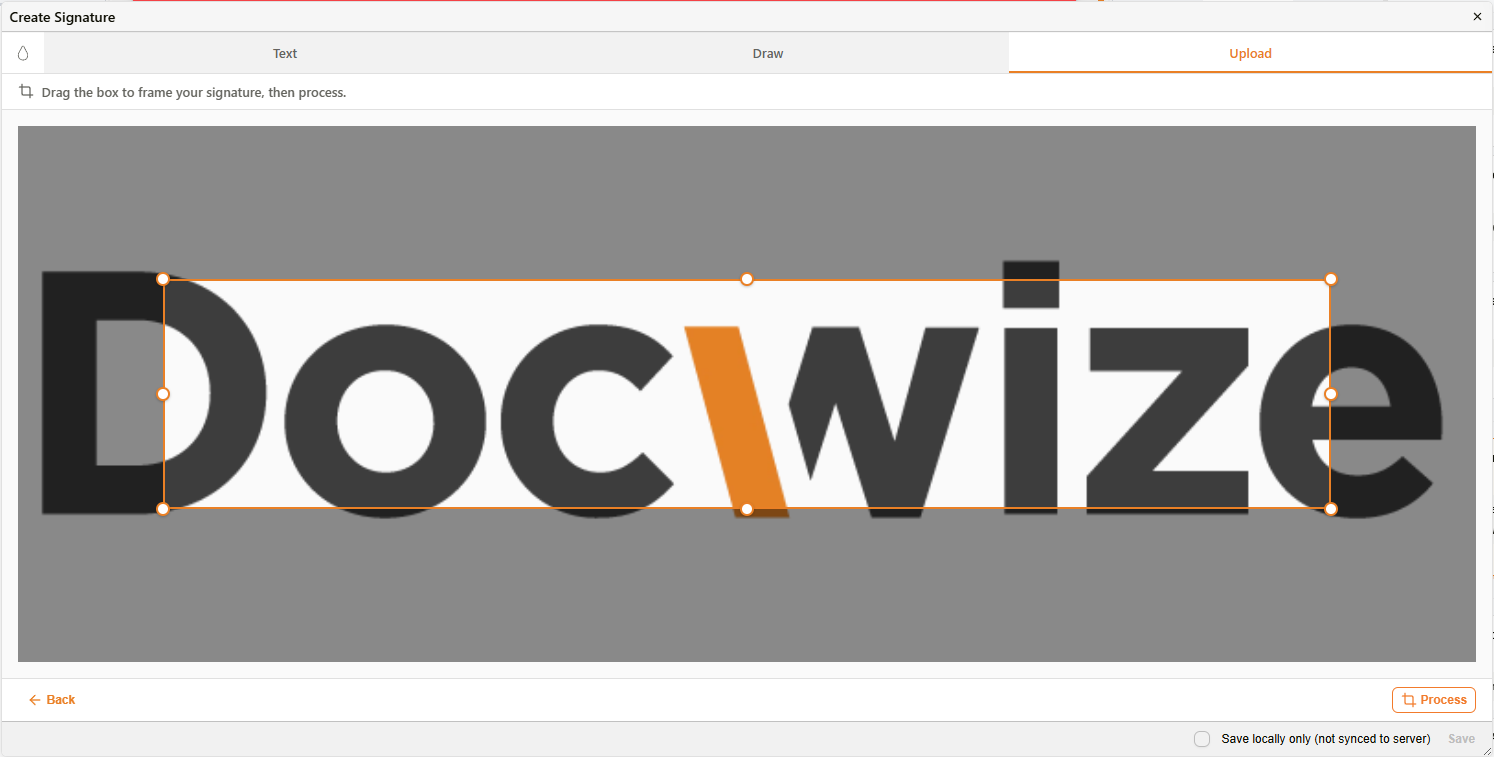
Cropping an uploaded signature
| Field | Description |
|---|---|
| Save locally only (not synced to server) | When checked, the signature is saved to the local device only and is not synced to the Docwize server. |
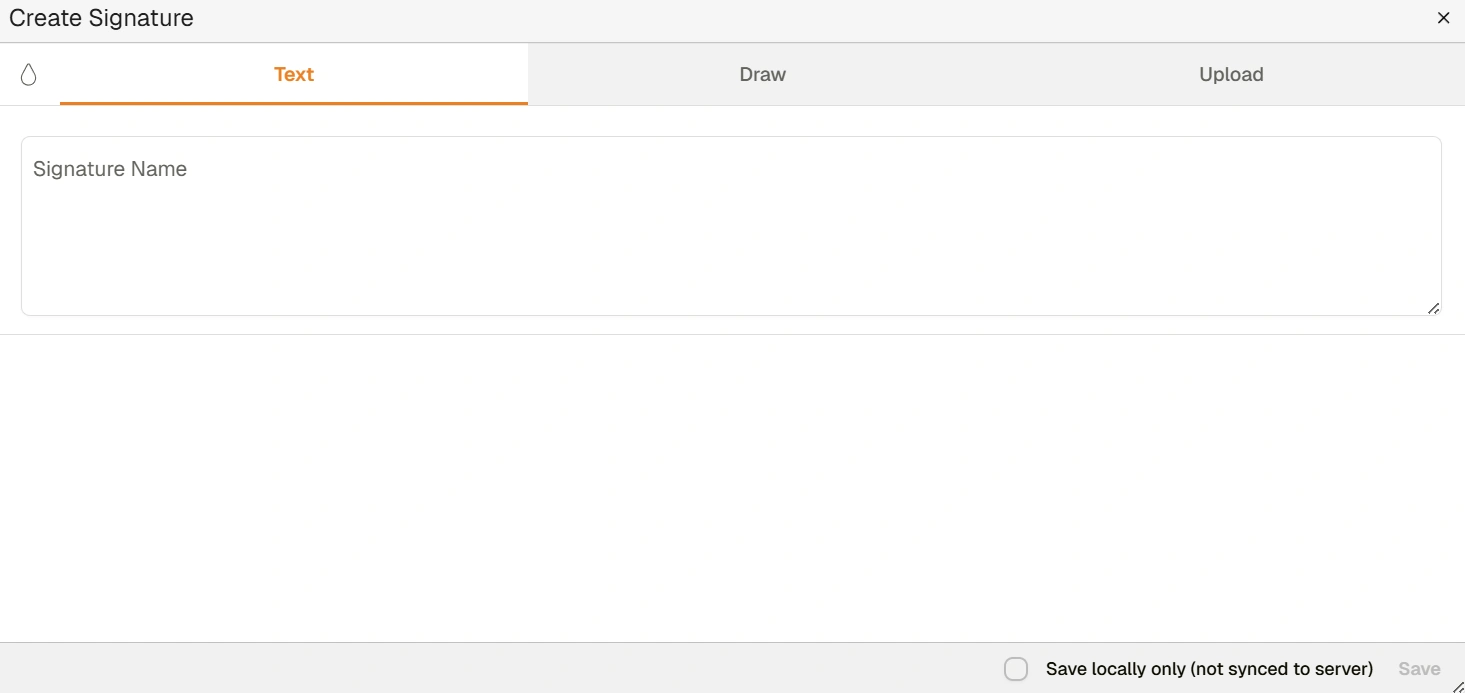
Create Signature Dialog
Right-click signature options
Once a signature is placed on a document, users can right-click on it to access further options.
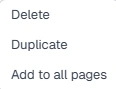
Signature right-click menu
| Field | Description |
|---|---|
| Delete | Deletes the selected signature |
| Duplicate | Enables users to duplicate the signature. |
| Add to All Pages | Enables users add initials/a signature to every page. This feature is more convenient in instances where each page requires initials. |
How to sign a document in a workflow
| Step | Description |
|---|---|
| 1 | Click Complete on the relevant action request card. |
| 2 | Click the Signature icon in the vertical toolbar. |
| 3 | Select an existing signature, or click Create New Signature to create one. |
| 4 | Place the signature in the relevant position on the document. |
| 5 | Click Complete Action and select the relevant reply option. |
| 6 | Click Submit. |
If a response requires a signature and none has been placed yet, Submit stays disabled and a message explains why: "A signature is required. Please place a signature on the document before submitting." A Show me how link opens a help article walking through signature placement.
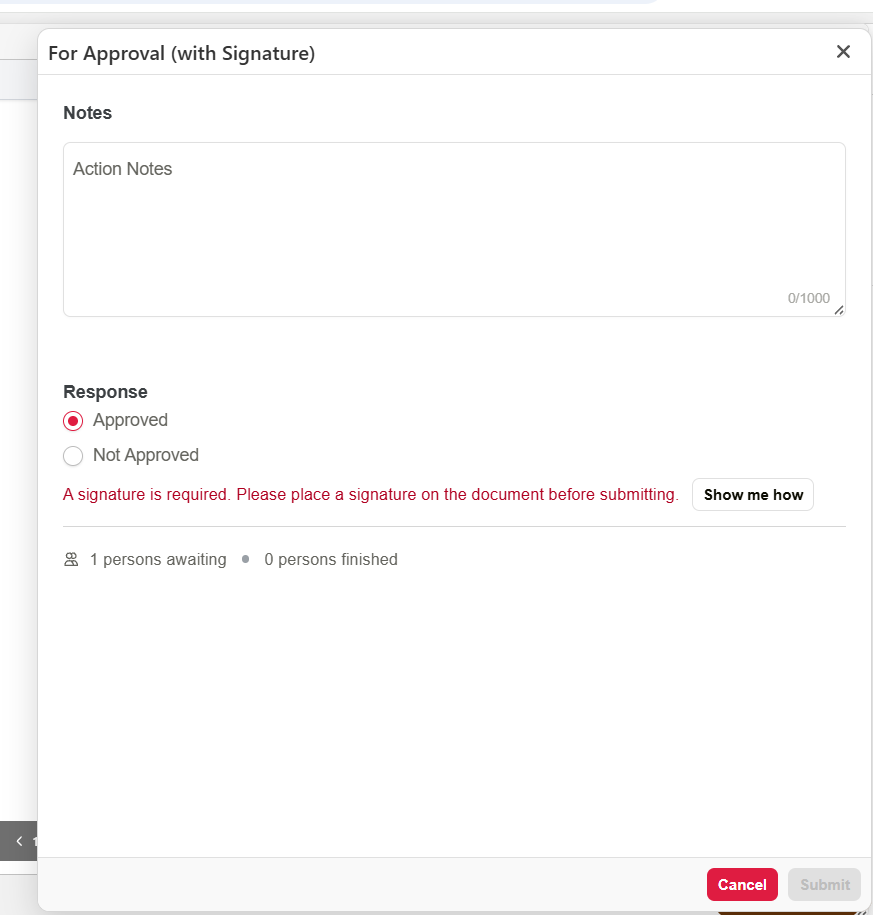
Signature required — submission blocked until a signature is placed
Here is an example of signing a document in a workflow:
Example: Signing a Document