Virtual Folders
A virtual folder sorts the documents of a dataview into folders by the values they have, for example by document type and then by project. Nothing is moved or copied: the folders are worked out from each document's details, so a document always appears where its details put it, and it is still in its ordinary folders too. Use a virtual folder when you know what you are looking for, such as the contracts on one project, but not which folder it was filed in. Your administrator sets up virtual folders, and they are listed on the Virtual Folders tab of Explorer.

What you can do in Virtual Folders
- Expand a virtual folder, level by level, to see how its documents are grouped
- Open the documents at any level, in the current tab or a new one
- Search, sort and filter the documents you have opened, and assign or export them
The Virtual Folders tab
The Virtual Folders tab lists each virtual folder by name. The tab's icon is labelled Folder Views when you hover over it. Each level of a virtual folder groups the documents by one of their details. The example below groups them by document type, then by project: Contract is expanded, and its only project, DOCS Sample Project North, is open on the right.
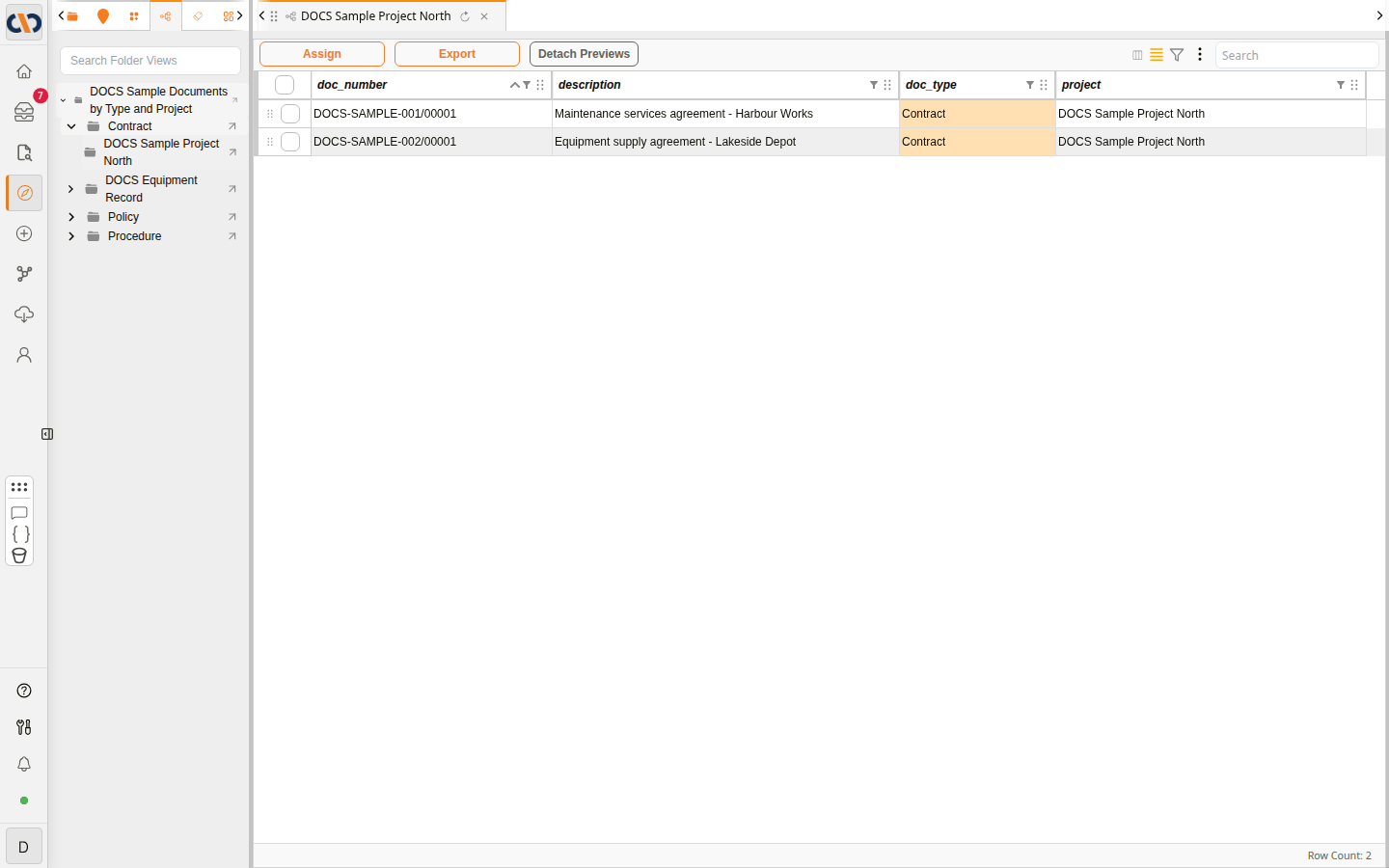 The Virtual Folders tab, with a folder open
| Item | Description |
|---|---|
| Arrow on the left | Shows or hides the level below. The folders in a level are listed in alphabetical order, unless your administrator has set another order. The last level has no arrow. |
| Folder name | Opens the documents in that folder on the right, replacing what the current tab shows. The tab is named after the folder. Select the virtual folder's own name to open all of its documents. |
| Open in new tab (arrow icon on the right) | Opens the folder in a new tab, so you can keep the current one open. |
If a folder is already open in a tab, selecting it again takes you to that tab instead of opening another. If a virtual folder you need is not listed, ask your administrator.
Working in an open virtual folder
An open folder shows its documents in the same grid as a dataview, with Assign, Export and Detach Previews above it and Row Count at the bottom right. Type in Search to narrow the documents to those containing that text, and use the column headers to sort and filter. See Working in an open dataview.
To compare two folders, open one, then open the other with Open in new tab. In the example below, the policies are open in a second tab, and the contracts are still open in the first.
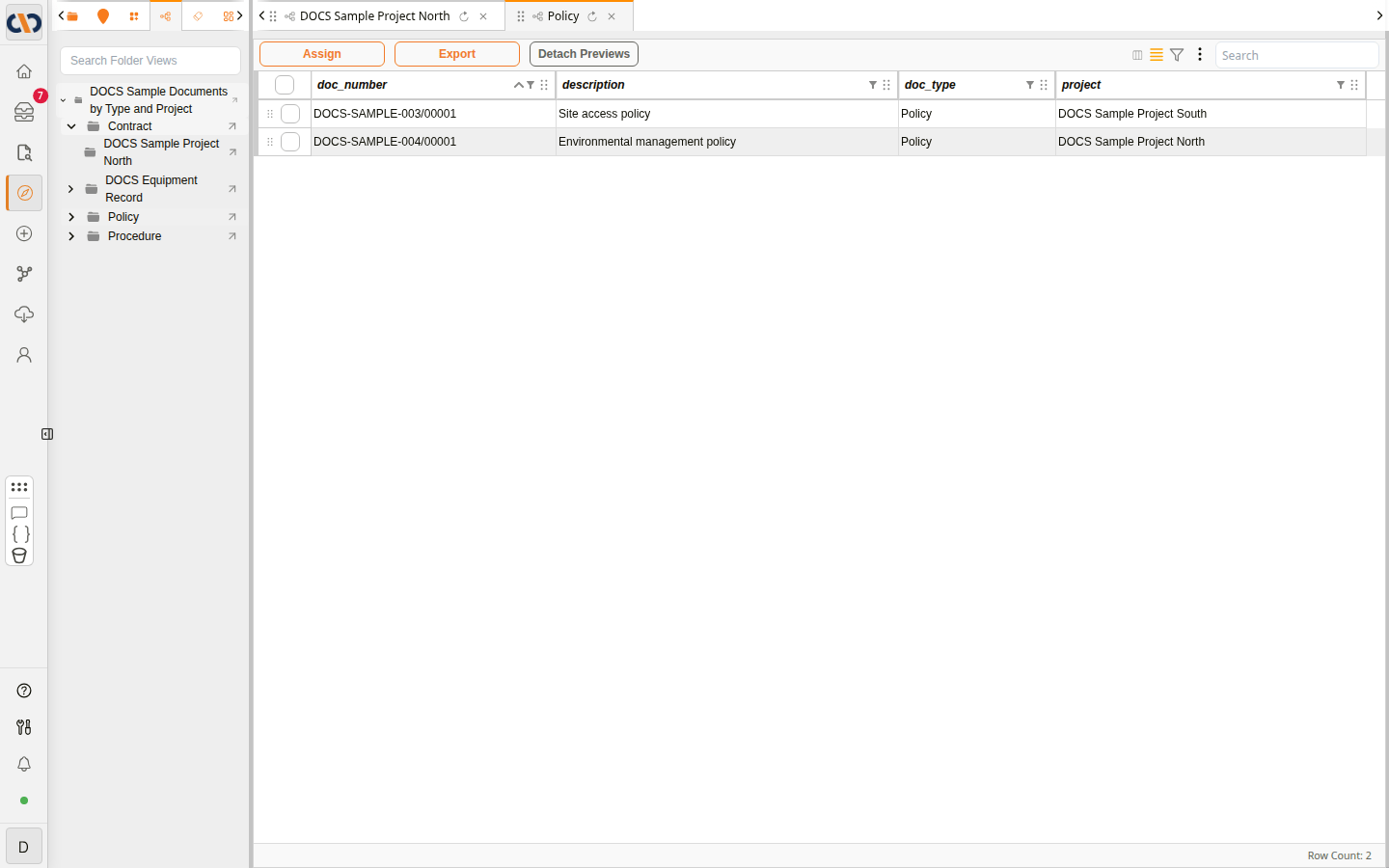 Two folders open in separate tabs
How to open a virtual folder
| Step | Description |
|---|---|
| 1 | In Explorer, select the Virtual Folders tab. |
| 2 | Select the arrow next to the virtual folder's name to show its first level. Expand further levels the same way. |
| 3 | Select a folder's name to open its documents in the current tab, or Open in new tab (the arrow on the right) to keep the current tab open. |
The video below opens the virtual folder, opens one project's contracts, then opens the policies in a new tab.
Example: Opening a Virtual Folder