Dataviews
A dataview is a ready-made list of documents or other data that your administrator has built for a particular job: for example, every contract on a project, or a count of documents by type. It shows the columns, filters and colours that suit that job, so you don't have to set them up yourself each time. Dataviews are listed on the Dataviews tab of Explorer, and interfaces, which combine charts and grids, are listed with them.
What you can do in Dataviews
- Open a dataview, in the current tab or a new one
- Search, sort and filter its rows
- Open, assign or export the documents in it
- Drill down from a figure to the rows behind it
- Read a dataview's notes
- Change a dataview's settings and pin it to a homepage, if you have permission
The Dataviews tab
The Dataviews tab lists dataviews and interfaces under named groups. Select a group's name to show or hide what is in it. The tab's icon is labelled Reports when you hover over it.
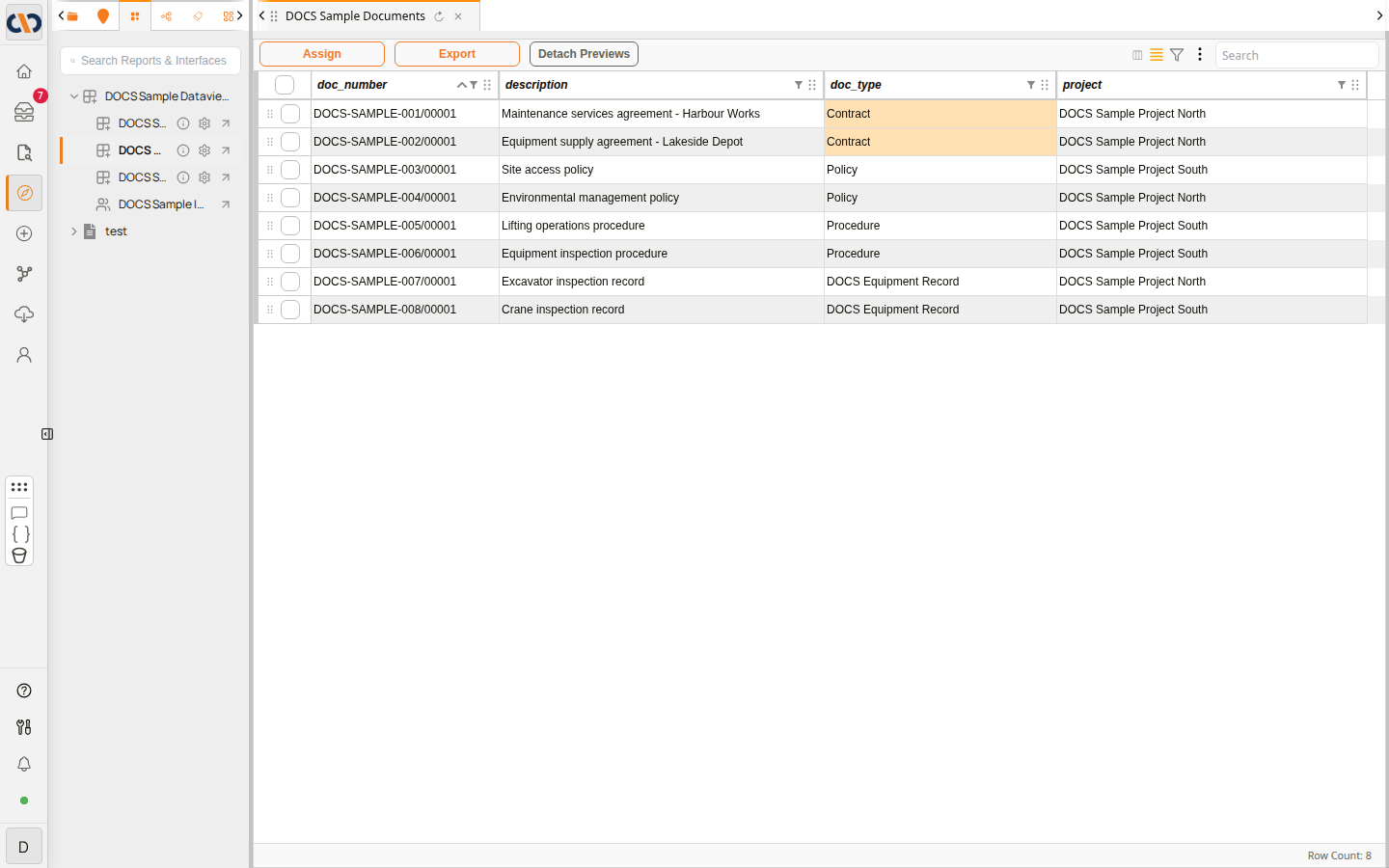 The Dataviews tab, with a dataview open
| Item | Description |
|---|---|
| Search Reports & Interfaces | Finds a dataview or interface by name. |
| Dataview name | Opens the dataview on the right, replacing what the current tab shows. |
| Dataview notes (information icon) | Opens the dataview's notes. Shown only when the dataview has notes. See Dataview notes. |
| Dataview settings (gear icon) | Opens the dataview's settings. Shown only if you have permission to change dataview settings. See Dataview settings. |
| Open in new tab (arrow icon) | Opens the dataview or interface in a new tab, so you can keep the current one open. |
| People icon | Marks an interface. See Interfaces. |
Working in an open dataview
An open dataview shows its rows in the order and colours your administrator has set: in the example above, the type of each contract is highlighted. Row Count at the bottom right shows how many rows the dataview has. The Doc Grid features work here as they do elsewhere: type in Search to narrow the rows to those containing that text, and use the column headers to sort and filter.
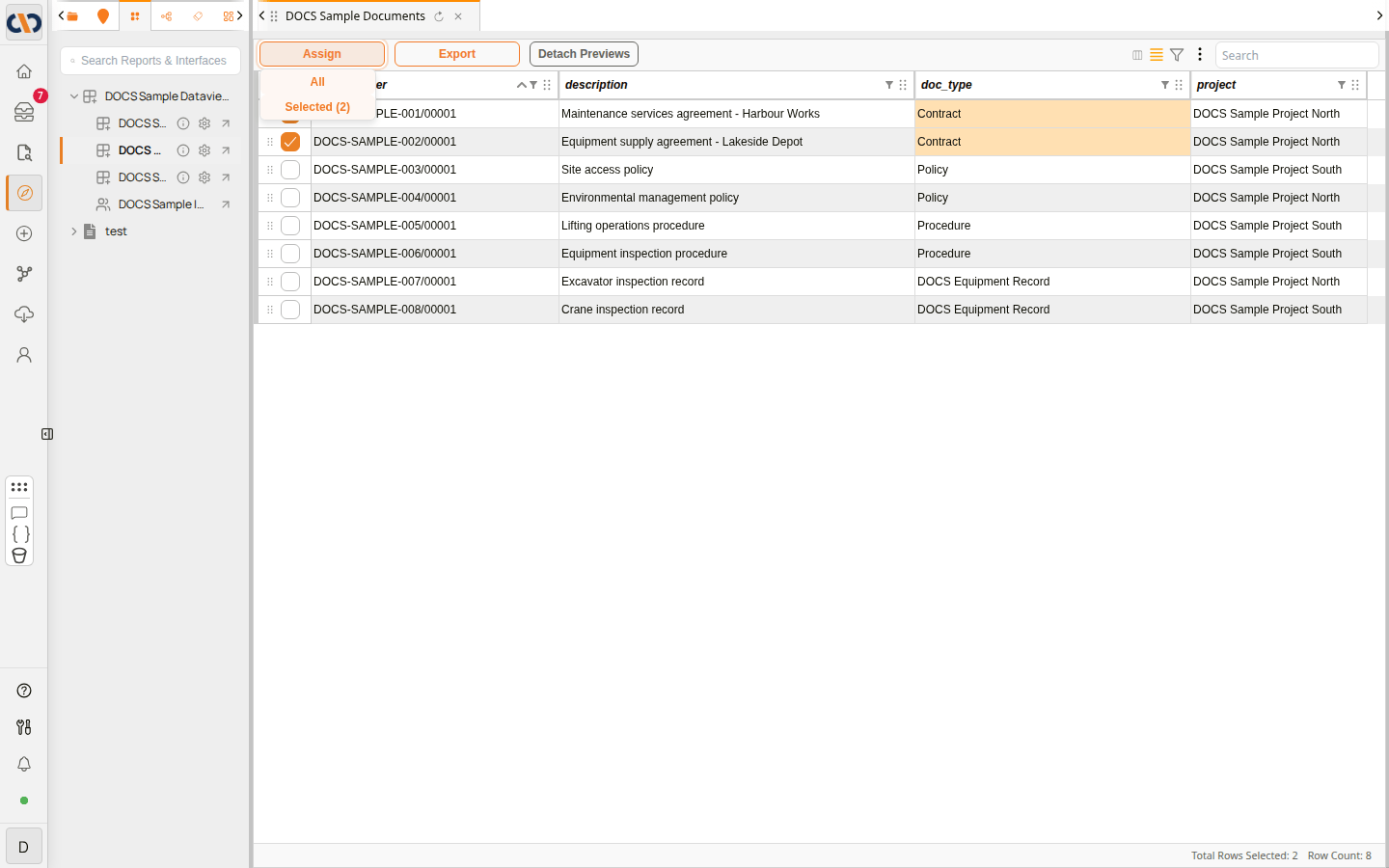 Assigning the selected rows
| Button | Description |
|---|---|
| Assign | Opens Bulk Assign for all the documents in the dataview, or only the ticked ones, so you can add tags, folders, workflows and more. Shown when the dataview lists documents. See Assigning Docs. |
| Export | Opens Export Options for all the rows, or only the ticked ones. See Exports & Downloads. |
| Detach Previews | Opens document previews in a separate window. See Detach Previews. |
Assign and Export each offer All and Selected, followed by the number of rows you have ticked.
Right-click options
When a dataview lists documents, right-click a row for the actions you can take on that document.
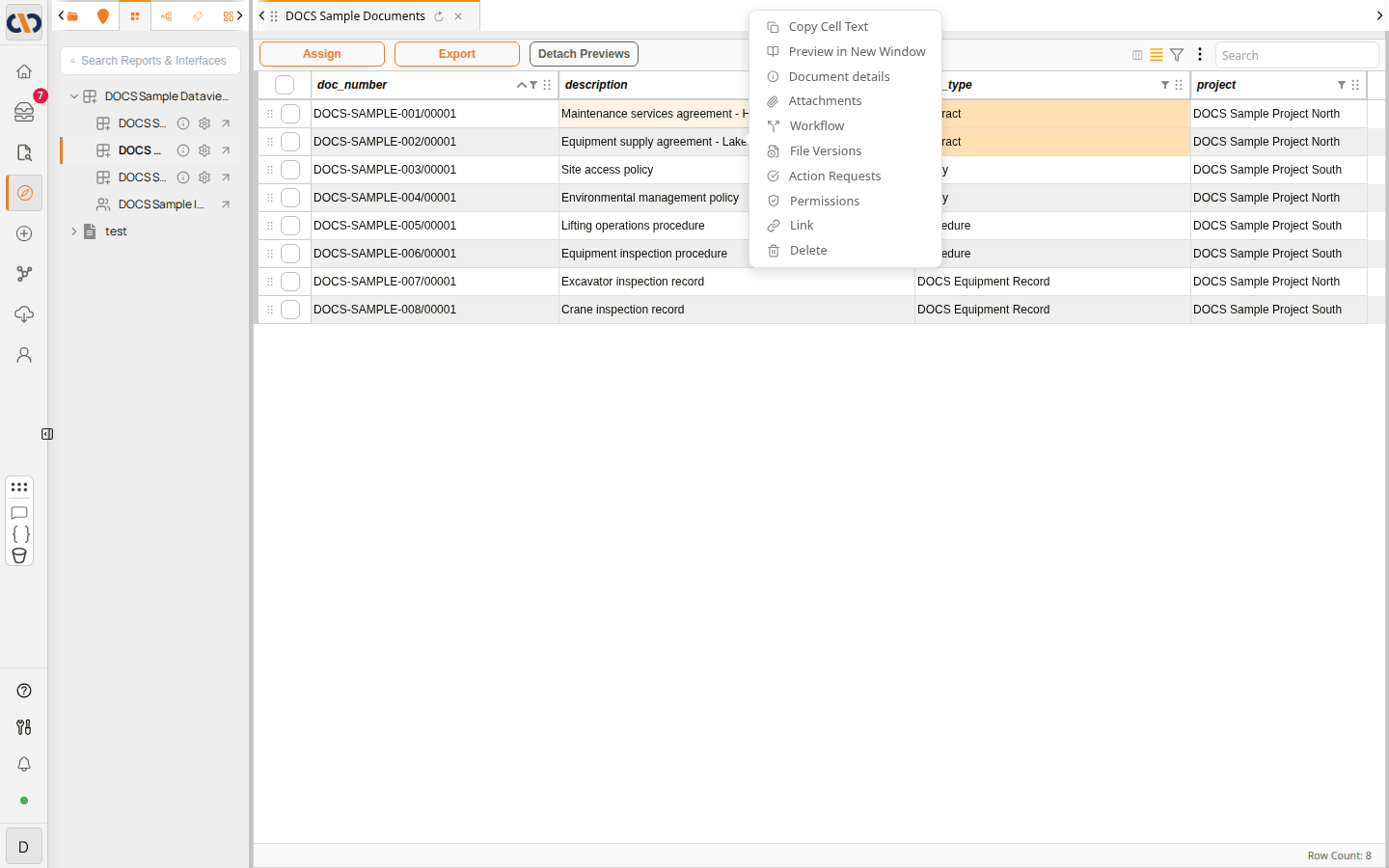 The right-click menu of a dataview row
These are the same options as in a folder. See Right-click document options for what each one does.
Drilldowns
Some dataviews summarise documents, for example by counting them by type. A value shown in orange and underlined is a drilldown: select it to open a Drilldown window listing the rows behind that value. The window has the same toolbar and right-click options as a dataview, so you can open, assign or export those documents from there.
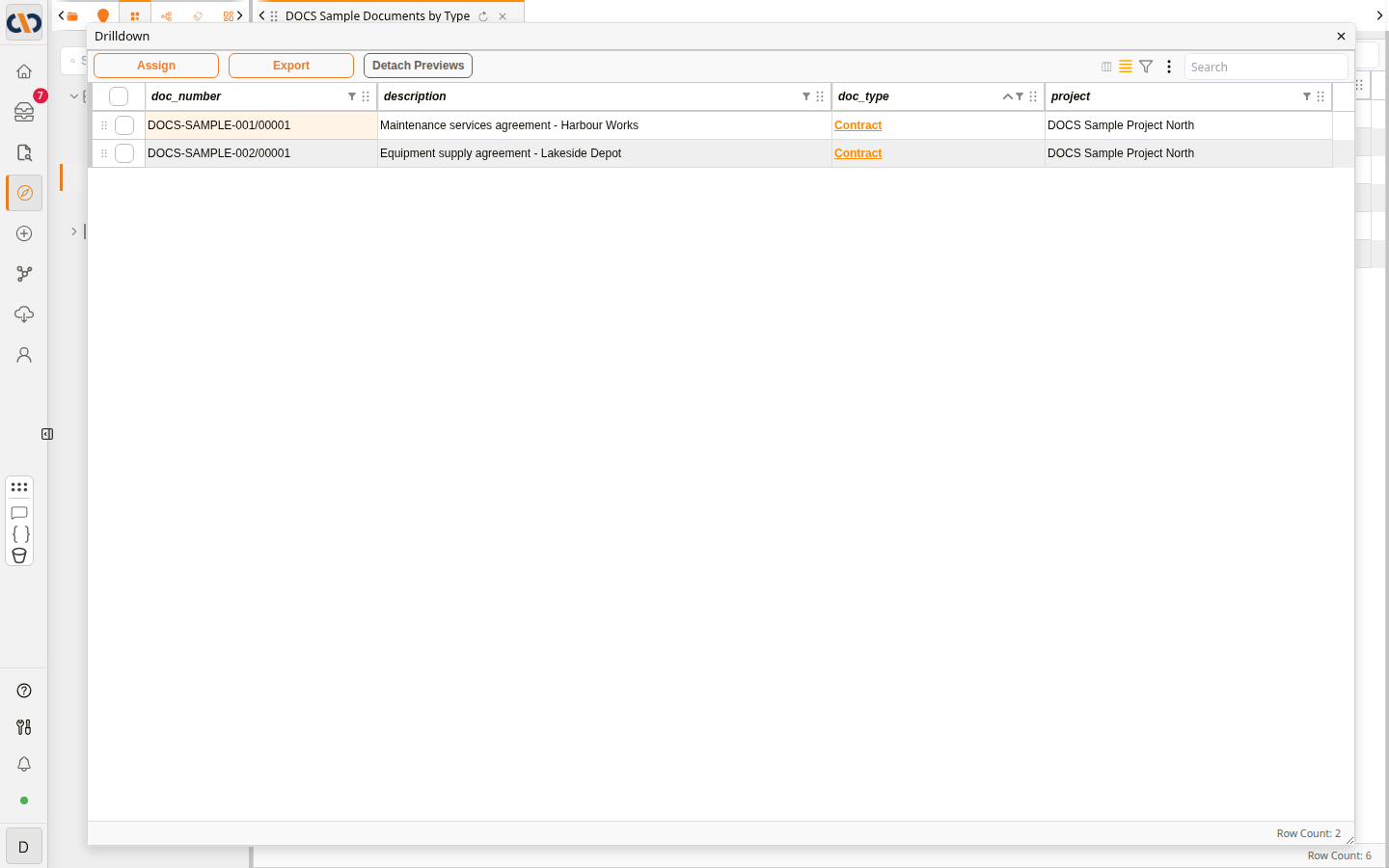 The rows behind a value, in the Drilldown window
Built-in filters
A dataview can have conditions built in by whoever set it up, for example to show only contracts, or only documents from one project. These conditions apply every time the dataview is opened, and you cannot remove them. Anything you search or filter in the grid narrows the rows further, within what the dataview already shows. To see rows a dataview leaves out, open a different dataview or ask your administrator.
For how these conditions are set up, see the Conditions tab in Query Builder.
Dataview notes
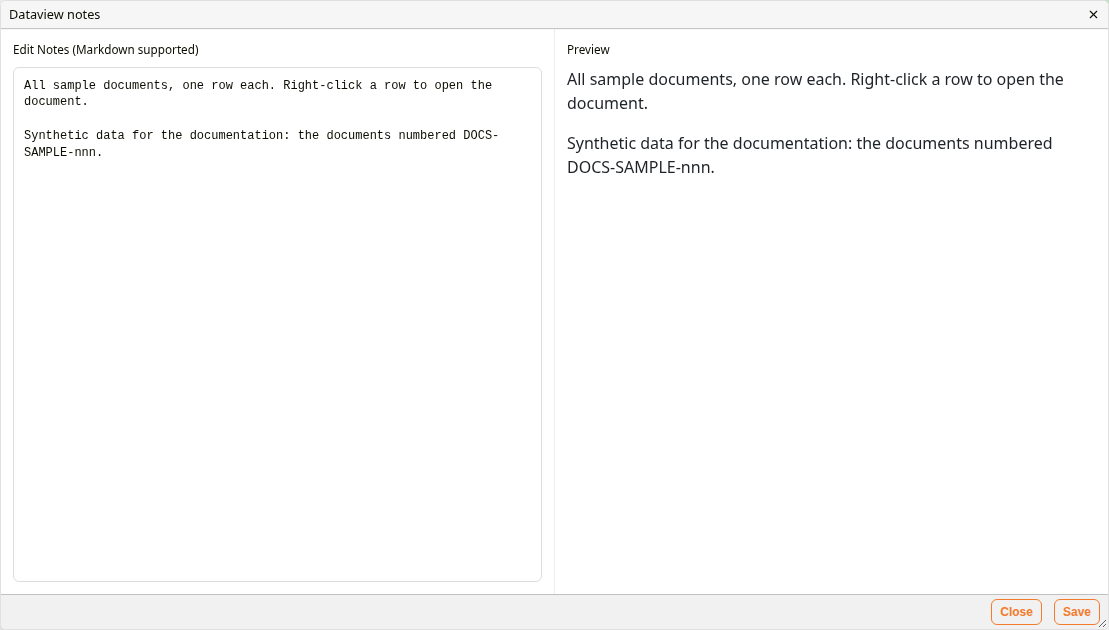
Notes explain what a dataview is for, or how to use it. Select Dataview notes next to the dataview's name to read them. Preview on the right shows the notes as they are meant to be read.
 Dataview notes
If you have permission to change dataview settings, you can also edit the notes on the left, in Markdown, and select Save.
Dataview settings
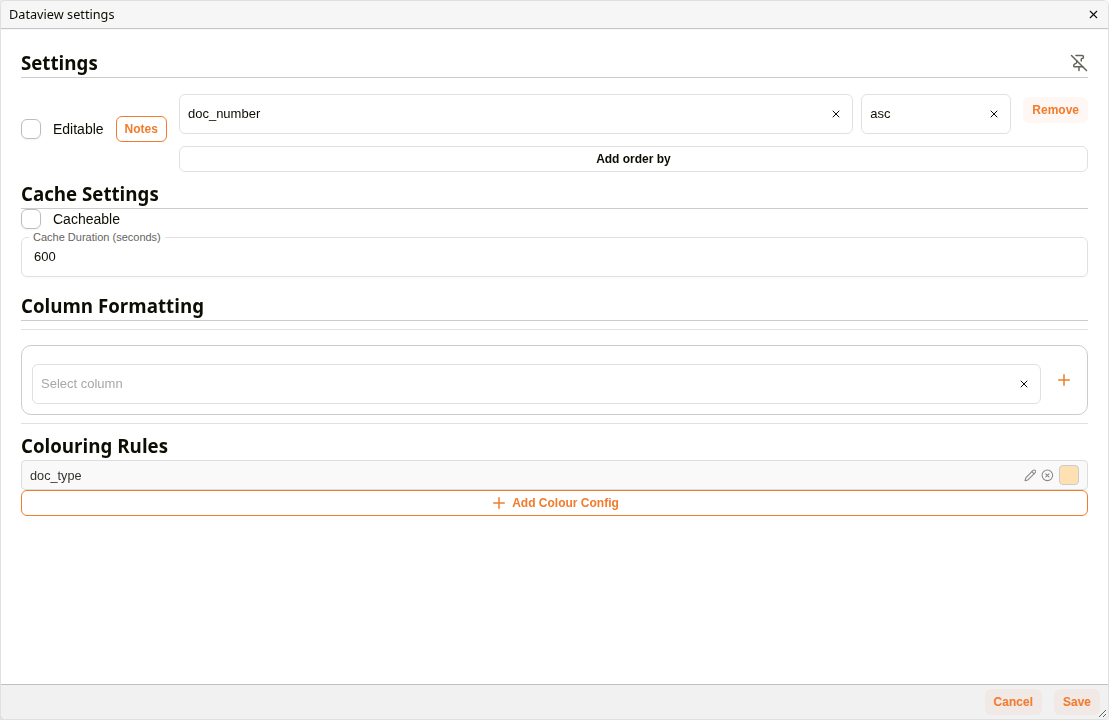
If you have permission to change dataview settings, select Dataview settings next to a dataview's name to change how it behaves for everyone who opens it.
 Dataview settings
| Section | Description |
|---|---|
| Settings | Editable lets the dataview's data be edited, where the dataview supports it. Notes opens the dataview's notes. Add order by adds a column to sort by, ascending (asc) or descending (desc); Remove takes it away again. The pin icon at the top right pins the dataview to a homepage (see How to pin a dataview to your homepage). |
| Cache Settings | Cacheable keeps the dataview's results for the number of seconds in Cache Duration (seconds), so it opens faster but may not show the latest changes until then. |
| Column Formatting | Choose a column in Select column and select + to change how its values are shown. |
| Colouring Rules | Lists the rules that colour cells, for example contracts highlighted in orange. Add Colour Config adds a rule. |
Select Save to keep your changes, or Cancel to close without changing anything.
How to open a dataview
| Step | Description |
|---|---|
| 1 | In Explorer, select the Dataviews tab. |
| 2 | Select the name of the group the dataview is in, or type its name in Search Reports & Interfaces. |
| 3 | Select the dataview's name to open it in the current tab, or Open in new tab (the arrow on the right) to keep the current tab open. |
The video below opens a dataview, searches it, then opens the rows behind a value (see Drilldowns).
Example: Opening a Dataview, Searching It and Drilling Down
How to assign or export rows
| Step | Description |
|---|---|
| 1 | Open the dataview, and tick the rows you want. Skip this step to use every row. |
| 2 | Select Assign or Export. |
| 3 | Select Selected for the ticked rows, or All for every row. Bulk Assign or Export Options opens. |
| 4 | Finish as described in Assigning Docs or Exports & Downloads. |
How to pin a dataview to your homepage
Pin a dataview you use every day, so you can open it straight from your homepage. Pinning is done from Dataview settings, so you need permission to change dataview settings. If you don't see Dataview settings next to a dataview's name, ask your administrator.
 Pinning a dataview
| Step | Description |
|---|---|
| 1 | Select Dataview settings next to the dataview's name. |
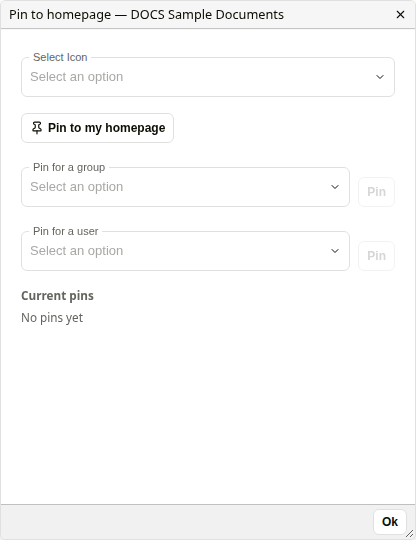
| 2 | Select the pin icon at the top right of Settings. Pin to homepage opens. |
| 3 | Optionally, choose an icon for the card in Select Icon. |
| 4 | Select Pin to my homepage. The button changes to Unpin from my homepage, and the pin is listed under Current pins. |
| 5 | Select Ok, then Cancel to close Dataview settings. |
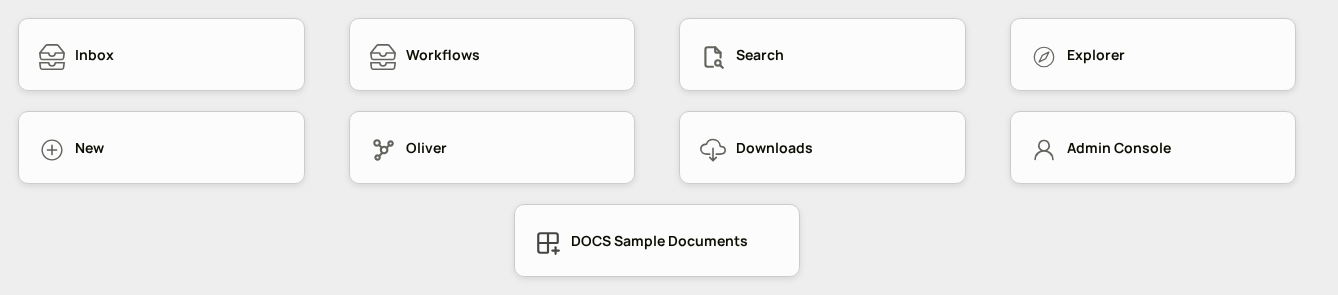
The dataview appears as a card on your homepage, after the module cards. Select the card to open the dataview.
 A pinned dataview on the homepage
To remove the card, open Pin to homepage again and select Unpin from my homepage, or select the remove icon (a circle with a cross) next to the pin under Current pins.
If you are a user administrator, you can also pin a dataview for everyone in a group with Pin for a group, or for one person with Pin for a user: choose the group or person, then select Pin.
Related pages
- Explorer: overview of the Explorer module
- Interfaces: views that combine charts and grids, listed on the same tab
- Query Builder: how administrators build dataviews