Email Builder
The email builder allows users to build Jinja template emails for email distribution. The Jinja templates will populate specific information, creating customized emails for distribution. The Jinja code that users can select from for creating the templates is located in the floating toolbar.
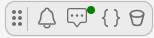
Floating Toolbar
The 'Email Template Builder' section is located in the 'New' module, under 'Custom Fields'.

'Email Template Builder' button
Email Template Homepage
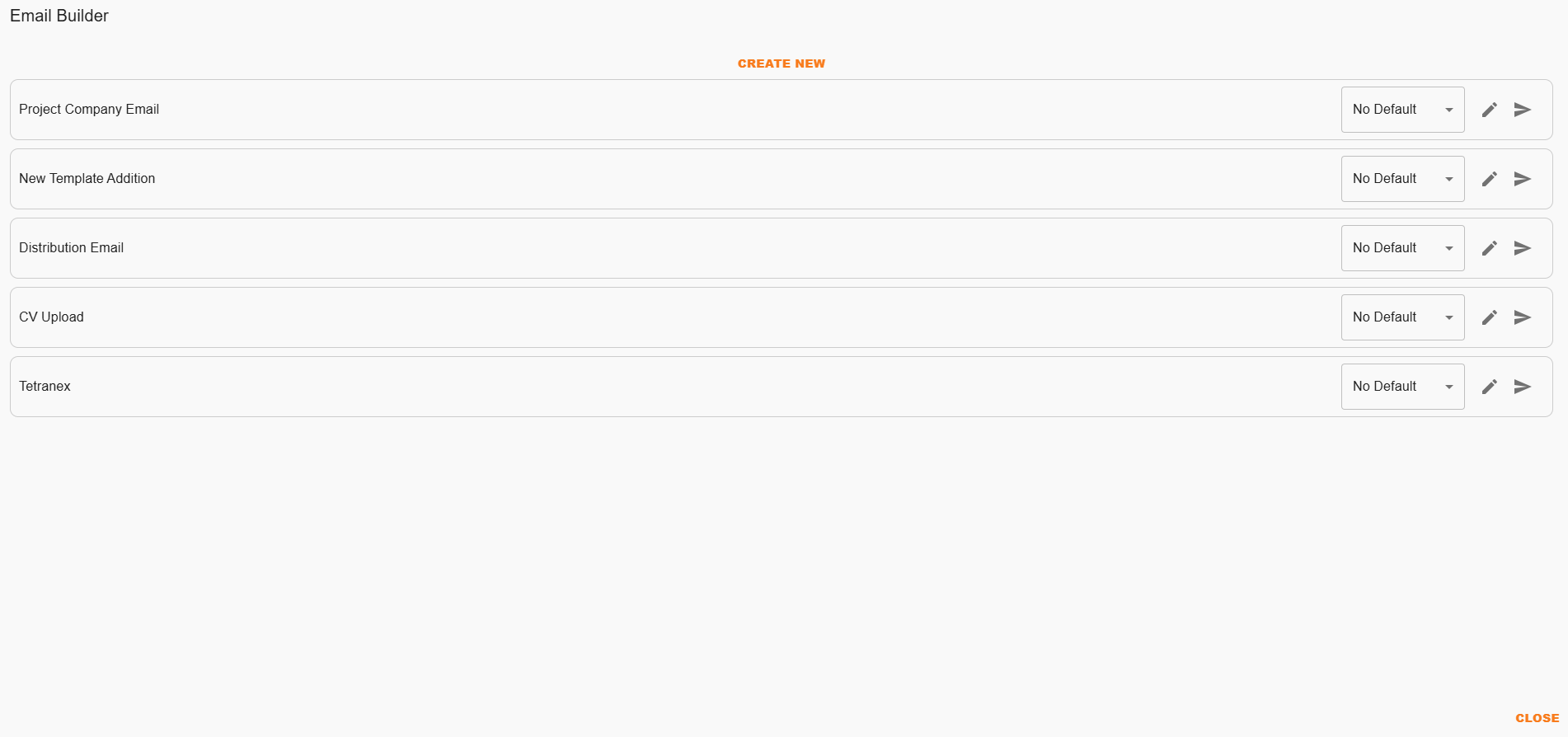
Example: Email Template Homepage
| Field | Description |
|---|---|
| Search templates | A user can search by template name. |
| Create New Template | A user can create a new template via this feature. |
| Name of Email template | Indicates the name of the email template. |
| Default for: | If the template has been set as a default for a particular action, it will indicate it here. |
| Drop-down menu | A drop-down menu that allows a user to select the relevant template for action requests or for distribution. |
 | Activates a template tester. |
‘Create New’ Template Interface
If a user clicks the ‘Create New’ button, they will be able to create a new template.
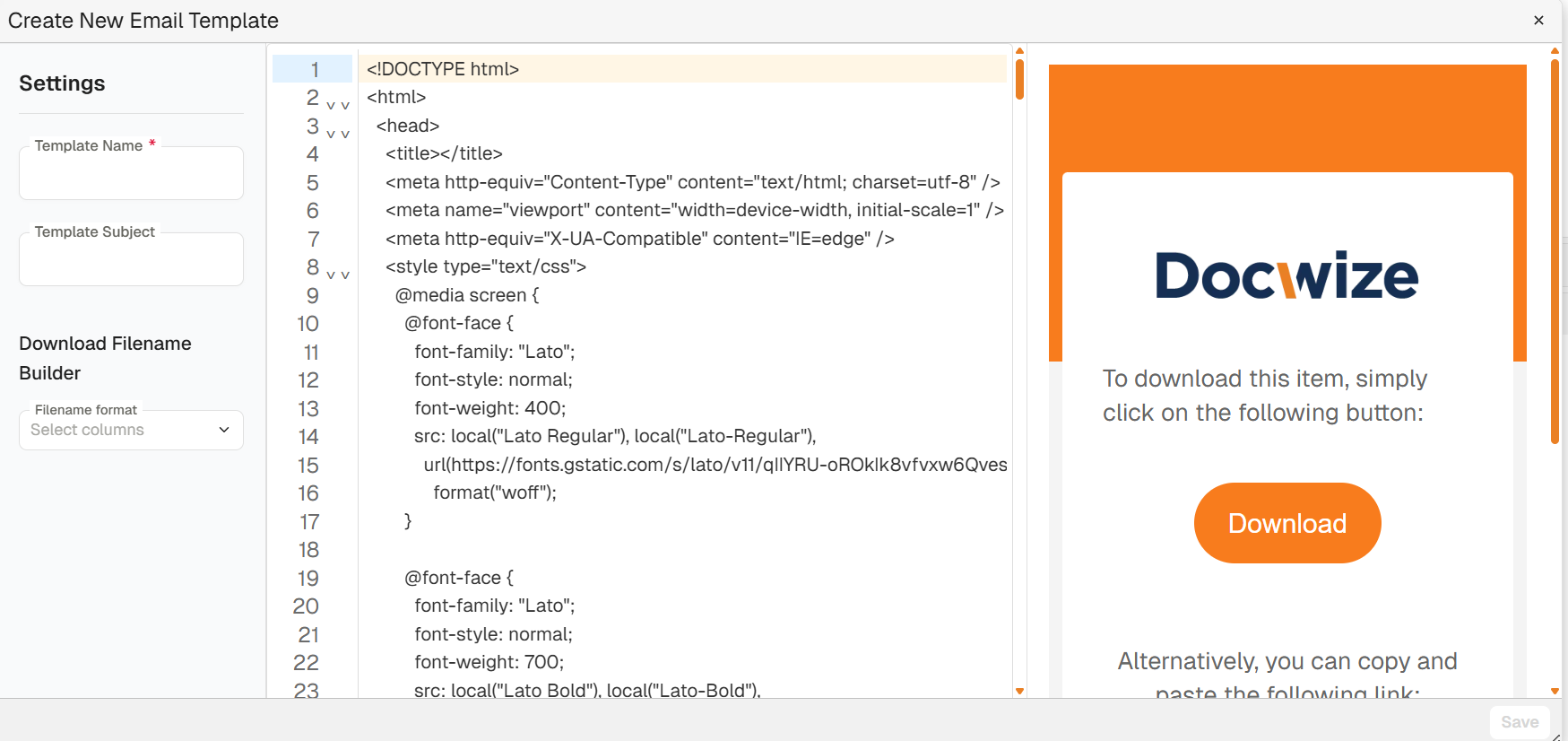
'Create New' Template
| Field | Description |
|---|---|
| Template name | Navigates to the page for a user to create a new email template. |
| Template subject | A user can insert the subject heading for the template here. When recipients receive an email, this subject heading will reflect as the email’s subject. |
| Download Filename Builder | Enables a user to set the template structure of file names for when distributed documents are downloaded. |
The interface includes the html format of the template as well as a preview of the end-result. Users can customize the content and style of the template by adjusting the html code and inserting Jinja references where needed.
How to Build an Email Template
| Step | Description |
|---|---|
| 1 | Navigate to the Email Template Builder section. |
| 2 | Select ‘Create New’ and name the template. |
| 3 | Populate the html template with relevant Jinja code so that it pulls details and populates content as desired. |
| 4 | Save the template. |
| 5 | Optional: click on the ‘Test template’ icon and send a document to the relevant email address. Check your email inbox for the test email to confirm the outcome is as desired. |