SharePoint Connectors
SharePoint Connectors sync document libraries from SharePoint sites into Docwize folder structures. Each connector is configured using Azure App Registration credentials and maps a SharePoint site to a target folder in Docwize.
Who configures this
Users with the Manage Connectors permission, accessible from New > Third Party Connectors > SharePoint Connectors.
SharePoint Connectors panel
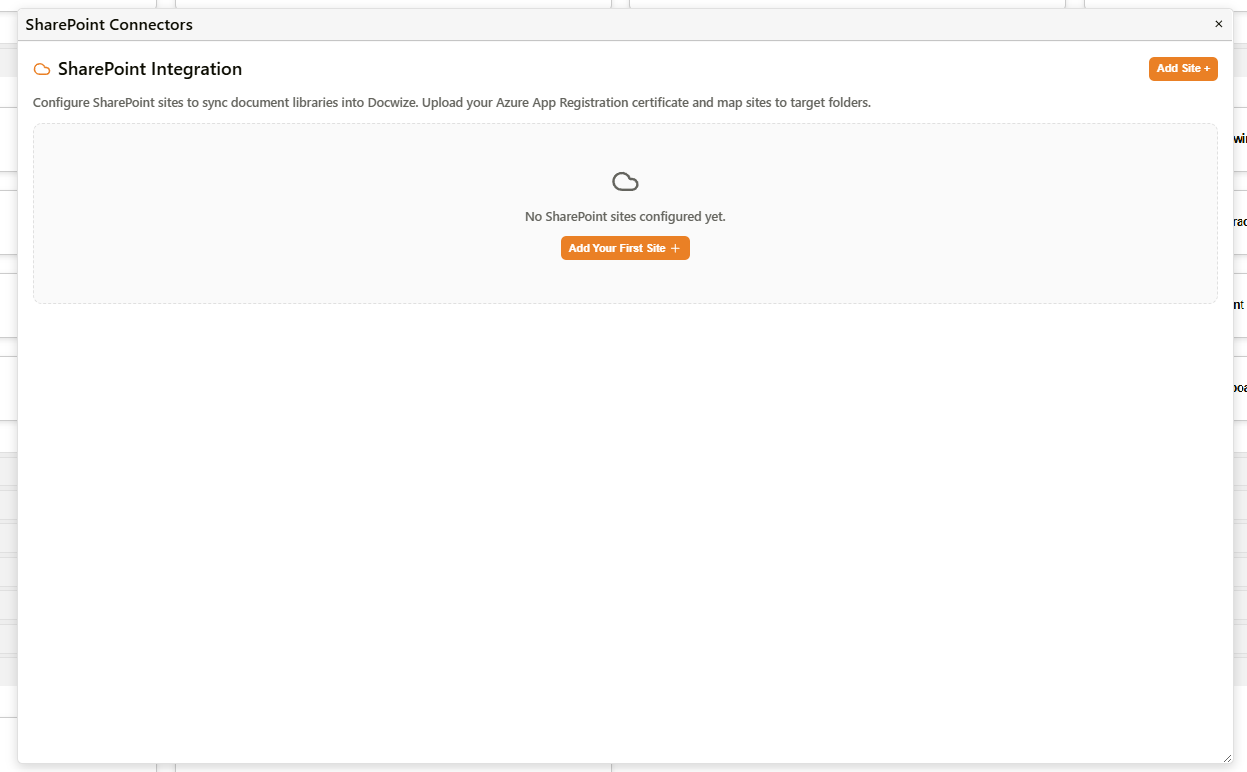
SharePoint Connectors panel
| Control | Description |
|---|---|
| Add Site + | Opens the New SharePoint Integration wizard to configure a new site connector. |
| Add Your First Site + | Appears in the empty state. Opens the same wizard. |
New SharePoint Integration
Adding a site opens a four-step wizard. Complete all steps in sequence to save the connector.
Step 1 — Credentials
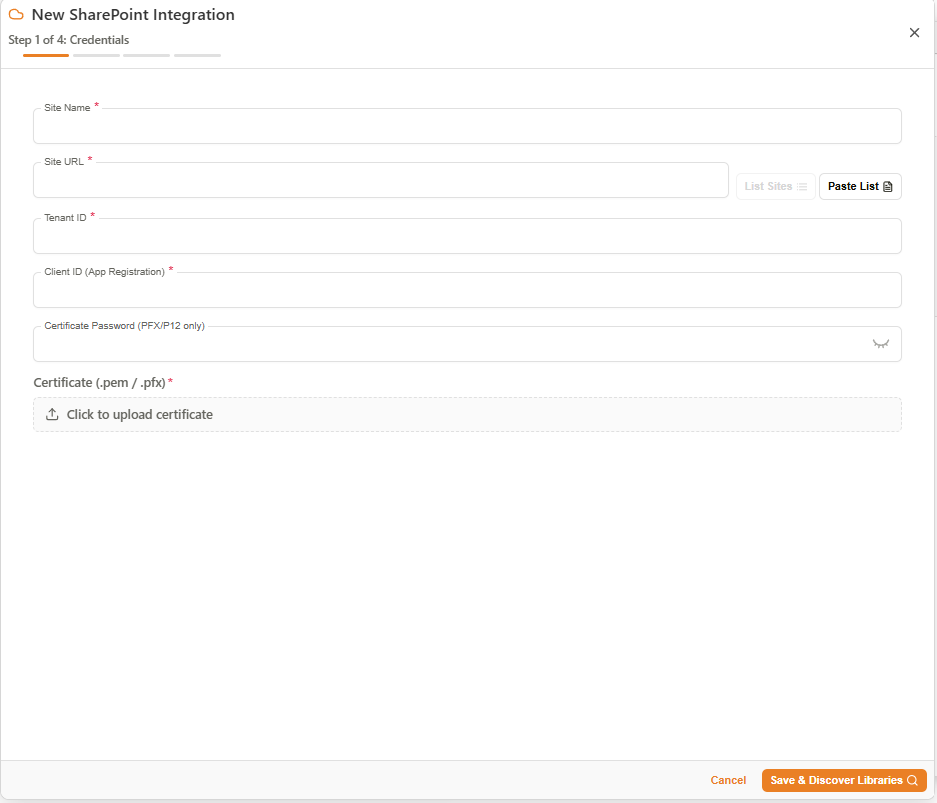
New SharePoint Integration — Step 1: Credentials
| Field | Required | Description |
|---|---|---|
| Site Name | Yes | A display name for this connector, shown in the panel list. |
| Site URL | Yes | The URL of the SharePoint site to connect. Use List Sites to retrieve available sites from the tenant, or Paste List to bulk-import site URLs. |
| Tenant ID | Yes | The Azure Active Directory tenant ID for the organisation. |
| Client ID (App Registration) | Yes | The Application (client) ID from the Azure App Registration used for authentication. |
| Certificate Password (PFX/P12 only) | No | The password for the certificate file, if a PFX or P12 format is used. Leave blank for PEM certificates. |
| Certificate (.pem / .pfx) | Yes | The certificate file used to authenticate the App Registration. Upload a .pem or .pfx file. |
Select Save & Discover Libraries to validate the credentials and proceed to Step 2.
Steps 2–4
Related configuration
- Permissions — the Manage Connectors permission controls access to this area