Access Control
Access Control determines which users can see and open documents in Docwize, and where applicable, whether they can edit them. It operates across four independent layers — explicit document-level security, folder security, project security and register row security — any combination of which may apply to a given document.
Every layer works by explicit grants. A folder or project is visible only to the users and groups it has been granted to, and one that nobody has been granted is visible to no one, administrators included. Whoever creates a folder is granted it automatically. A register row grant lets its users and groups view the documents linked to that row.
This page is a reference for users and implementation leads. Access control changes may affect document visibility as soon as they are saved. Review the impact before changing folder, project, group, or explicit document access.
How access control layers work
A document's visibility to a given user depends on which access layers apply to it. The diagram below shows the conditions under which access is granted.
Each pathway grants access independently. A user who has explicit access to a document can see it regardless of which folder or project the document belongs to, and so can a user granted a register row the document is linked to.
| Layer | What it controls | Where it is configured |
|---|---|---|
| Explicit user and group security | Direct access grants on the document itself | Document Permissions dialog |
| Folder security | Which folders a user or group has been granted | Folders tab of a user's or group's Settings in the Admin Console, and the options in Create New Folder |
| Project security | Which projects a user or group has been granted | Projects tab of a user's or group's Settings in the Admin Console |
| Register row security | Which register rows a user or group has been granted, and through them the documents linked to those rows, read only | Row permissions on a row in Manage Registers, the Row security tab of the register's template, and the Register row access tab of a user's or group's Settings |
Explicit user and group security
Explicit access is granted directly on a document. A user or group with explicit access can see the document, whichever folder or project the document is in. Editing rights, where available, are configured separately within the same dialog.
Explicit access is granted in two ways:
- Automatically — workflows can grant explicit access to a document as part of a workflow action step, typically when the document is sent to a user for review or action.
- Manually — by a user using the Document Permissions dialog on the document.
Security rules are applied to a document immediately at the point of creation, rather than via a background process. This means access controls take effect as soon as a document is created.
The Document Permissions dialog
To open the dialog, right-click the document in a grid and select Permissions. The option is offered to users who hold the Document Permissions permission. The dialog's title is Document Permissions with the document's ID.
The dialog opens on a summary of the document's effective access and three tabs:
| Part | What it shows |
|---|---|
| Effective document access | Three counts of people: how many can view the document, how many have a file-edit grant, and how many have incomplete inherited access. A person is counted once, however many paths reach them. |
| Who has access (N) | Each person who can view the document, with the path or paths that give them access. |
| Incomplete paths (N) | People whose folder or project reaches them, but not both, so they cannot view the document. |
| Manage direct grants | The users and groups granted this document directly, and the controls to add and remove them. |
Under the counts, the summary lists the folders the document is in and its project. A document in no folder shows No folders, and a document with no project shows Project: None.
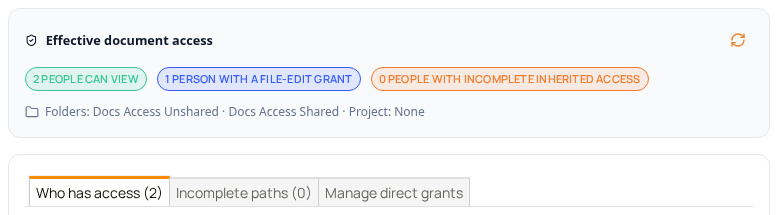 The summary and the tabs of the Document Permissions dialog
Who has access
Each person on the Who has access tab has a badge, Can view, or Can view · File edit granted if they have a file-edit grant, and one line for each path that gives them access. A path names the grant that reaches the person:
| Path | Shown as | When it applies |
|---|---|---|
| Direct grant on the document | Directly granted on this document | The person was granted the document on the Manage direct grants tab. |
| Direct group grant on the document | Document grant · Group: name | The group was granted the document directly. |
| Folder AND project | Folder: folder (how) AND project: project (how) | The document is in a folder and a project, and the person reaches both. Each side names the user or group that grants it. |
| Folder only | Folder: folder · how (no project) | The document is in a folder and no project. |
| Project only | Project: project · how (no folder) | The document is in a project and no folder. |
| Linked register row | Linked register: register, row #number · how (read only) | The document is linked to a register row granted to the person. It gives view access only, never a file-edit grant. See Register row security. |
A person who reaches a document through a folder and a project, or through several paths, has a line for each. The dialog lists a person once.
 A person who reaches a document through a folder AND a project
A folder that nobody has been granted adds nobody. The dialog still lists it in the folder line, but no person's path runs through it.
Incomplete paths
A person who holds only one half of a folder and project pair is not granted the document. For example, a group is granted the folder but not the project. Such a person is on the Incomplete paths tab, with the badge Not granted by these sources and the line that names what is missing. The tab says No incomplete folder/project paths when there are none.
 A person on the Incomplete paths tab
Direct grants
A direct grant reaches its user or group without the folder and project intersection. Someone granted a document directly can view it even if they hold neither its folder nor its project. A person who creates a document is granted it directly, with a file-edit grant, so on a document you created the dialog lists you under Directly granted on this document. The Manage direct grants tab says so: Direct grants bypass folder/project intersections. Removing one does not revoke access through other paths.
On the Manage direct grants tab:
- Add user or Add group chooses who to grant the document to.
- File edit on the new grant, or the switch beside an existing one, gives that user or group a file-edit grant.
- Grant saves the new grant. Remove takes the grant away. Removing a direct grant takes away only the path it gave; a person who also reaches the document through a folder and project keeps that access.
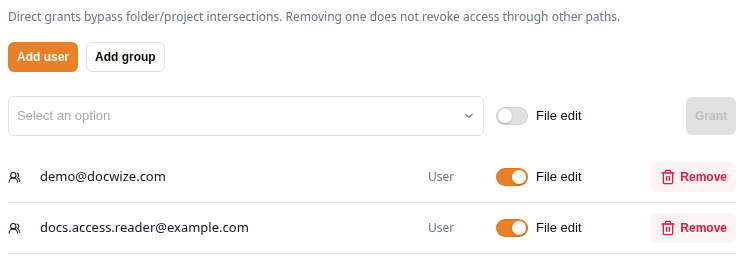 The Manage direct grants tab
Group access works through membership: if a user belongs to a group listed in the dialog, they gain the access assigned to that group. Removing a user from a group may remove access that the user inherited through that group, unless they retain access through another group, explicit document access, folder access, or project access.
Explicit access is independent of folder and project security. A user with explicit access to a document can see it regardless of which folder or project it belongs to.
Folder security
Docwize folders are a tree structure for organising documents. A user's access to a folder determines which documents in that folder they can see — subject to any project restriction that also applies (see When folder and project security combine).
Who is granted a new folder
The person who creates a folder is granted it, whichever option they choose, so a new folder is always visible to its creator. The options in Create New Folder add to that:
| Option | Who else is granted the folder |
|---|---|
| No Additional Security - Visible Only to You | Nobody. |
| Apply Parent Folder Security | The users and groups of the folder it is created in. A top-level folder has no parent, so this adds nobody. |
| Apply User Security | Nobody beyond the creator. |
| Apply Security to All Groups that you are part of | Every group the creator belongs to. |
See Folders for how to create a folder.
Folder access states
In the Folders tab of a user's or group's Settings, each folder shows how that user or group reaches it. The colour and the icon of its row show the state.
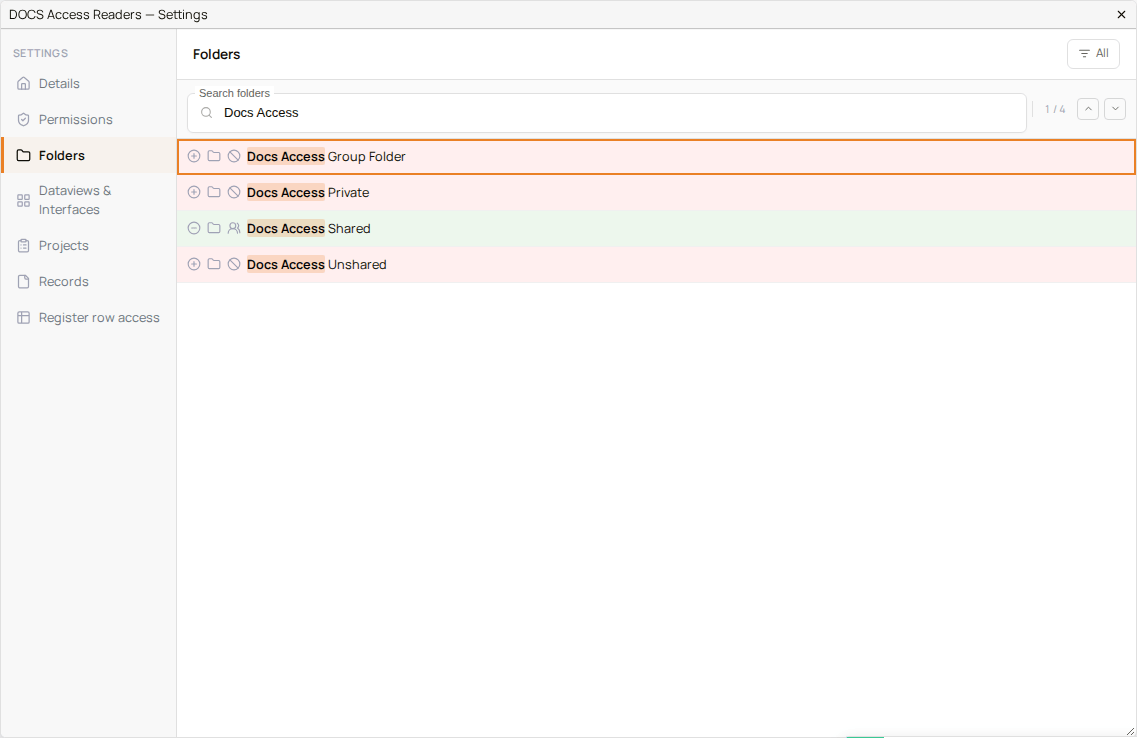 The Folders tab of a group: one folder granted to the group, the others not
| State | What it means |
|---|---|
| Explicit user access | The folder has been granted to this user directly, independent of any group membership. Shown with a person icon. |
| Explicit group access | The folder has been granted to a group. Shown with a group icon, in the group's own Settings and in the Settings of each of its members. |
| No access | The user or group has not been granted the folder. Shown with a crossed circle on a red row. |
A folder that nobody has been granted shows No access for every user and group, and is visible to no one, administrators included. The Admin Console still lists it, so an administrator can grant it to a user or group.
Configuring folder access
Folder access is granted per group or per user. Granting a folder to a group gives it to every current and future member of the group, and takes effect at once. The video below shows an administrator sharing a folder with a group: open the group's Settings, select Folders, search for the folder, select the plus beside it and confirm with Add. The row turns green.
Sharing a folder with a group
A user's Folders tab works the same way: select the plus beside a folder to grant it to the user directly, or the minus to take the user's direct grant away.
When folder access is sufficient
If a document is in a folder and not assigned to a project, a user with access to that folder can see the document.
If the document is in a folder and assigned to a project, folder access alone is not sufficient — see When folder and project security combine.
Project security
A project is a metadata field that can be assigned to a document. Project security controls which users can see documents within a project.
A user can access the documents of a project when the project has been granted to them, in one of two ways:
- They are assigned to the project, directly or through a group they belong to, or
- The project is granted to Everyone, which makes its documents visible to every user.
A project that nobody has been assigned to, and that is not granted to Everyone, is visible to no one.
For a document that is in a project and not in any folder, project access is enough. For a document that is in a project and in a folder, the user needs access to both the project and the folder. See When folder and project security combine.
Project security is managed by users with the required permissions. In the Projects tab of a user's or group's Settings, a project assigned to the user or group is Allowed, a project that is not is No Access, and a project granted to everyone is Everyone. The filter at the top of the tab lists the projects in each state.
 The filter of the Projects tab: All, Allowed, No Access and Everyone
The Dataviews & Interfaces tab has the same four filters. The Folders tab has no Everyone filter, because a folder is never open to everyone: it is visible only to the users and groups it has been granted to.
When folder and project security combine
If a document is assigned to both a folder and a project, the user needs access to both to see it:
- Access to the folder alone is not enough.
- Access to the project alone is not enough.
- Both must be granted.
This is a common cause of access denial when setting up new projects: a user is assigned to the project but not the folder (or vice versa), and cannot see the documents.
Register row security
A register holds rows of data, such as an equipment register or a supplier register (see Manage Registers). Documents can be linked to a row, for example every inspection sheet for one piece of equipment. Register row security decides who can see each row, and it is also a way to share documents: everyone a row is granted to can view the documents linked to it, even when they hold neither the documents' folder nor their project.
A register starts open: while none of its rows has been granted to anyone, everyone who can use the register sees all of its rows. Granting any row restricts the register. From then on, each row is visible only to the users and groups it has been granted to, and a row that nobody has been granted is visible to no one, administrators included.
Can view and Can edit
Each row is granted at one of two levels:
| Access | What it gives |
|---|---|
| Can view | See the row and the documents linked to it. |
| Can edit | Also change, delete, link and unlink the row. The documents linked to it stay read-only. |
A register row only ever gives view access to its documents, never a file-edit grant. In the Document Permissions dialog, a person who reaches a document through a row has the badge Can view and the path Linked register: register, row #number · how (read only).
 A person who views a document through a register row
Removing the grant takes away the row and the documents linked to it, unless another path still reaches the person.
Linking documents to a row
Documents are linked to a row with the Grid Links tab of Bulk Assign (see How to link documents to grid link entries). Linking a document needs the row to be visible to you and the right to edit the document. In Manage Registers, the orange number on each row is how many documents are linked to it.
Where row access is set
Granting access to register rows needs the Group and User Admin permission. Document Permissions alone is not enough.
| Where | What it does |
|---|---|
| Row permissions, the lock on a row in Manage Registers | Sets who can view and who can edit one row. |
| Row security tab of the register's template | Grants or revokes access on many rows at once. |
| Register row access tab of a user's or group's Settings in the Admin Console | Lists the rows granted to that user or group, by register, and removes access. |
| Row security panel of the Add Row form | Sets who can see a new row as you add it. |
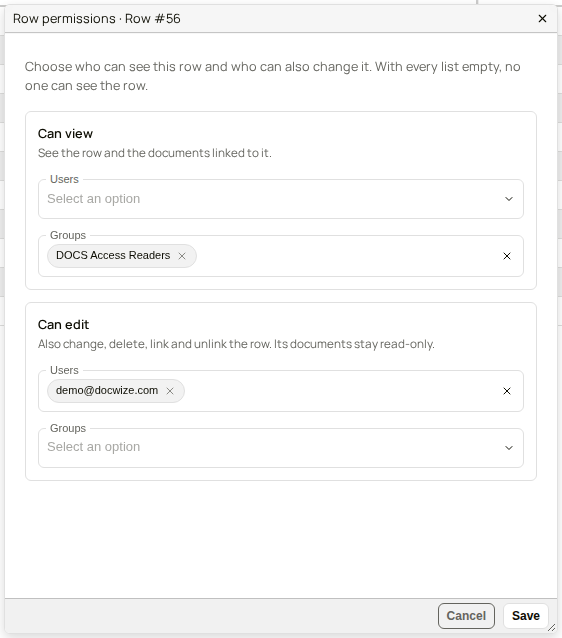 Row permissions for one row
 The register rows granted to a group
Adding a row to a restricted register
The person who adds a row to a restricted register can edit it. When you hold the Group and User Admin permission, the Add Row form has a Row security panel. Left as it is, it says Only you: the row is granted to you alone. Choose users and groups under Can view and Can edit, or select one of the suggestions, to grant the row to other people as well.
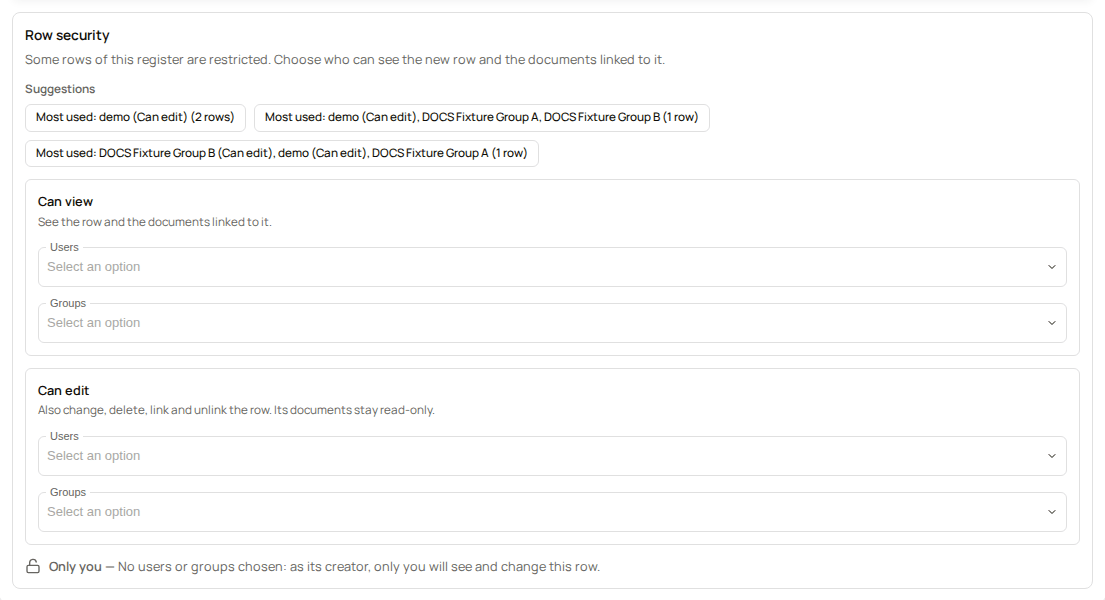 Row security in the Add Row form
Before changing access settings
Understand what is in scope before restricting access. If you remove a group's access to a folder, users in that group may lose access to documents in that folder — unless they retain access through another group, explicit document access, or project access.
Plan group-based folder access before adding users. Folder access assigned to a group typically applies to all current and future members of that group. Adding a user to a group may grant them access to folders and documents accessible to that group.
Check for workflow interactions before restricting documents. Workflows may automatically grant explicit document access as part of their action steps. Restricting access at the folder or project level may not remove explicit access that a workflow has already granted. Workflow-granted explicit access persists until manually removed — it is not automatically revoked when the workflow closes.
Do not rely on document-level explicit access as a substitute for group and folder planning. Granting access document-by-document is difficult to manage at scale and does not integrate with group-based reporting or auditing.
Confirm the intended state before inviting users. Users who accept invitations before access control is correctly configured may gain insufficient or incorrect access immediately on joining.
Common risks
| Risk | How it typically happens | What to check |
|---|---|---|
| User cannot see a document they should | Document has both a folder and a project; user has access to one but not the other | Check both folder assignment and project assignment for that user |
| User can see documents they should not | A project may be granted to Everyone; the user may be in a group with broader access than intended; or the document is linked to a register row granted to the user | Read the user's paths on Who has access in the document's Permissions dialog; review which projects are granted to Everyone, and the folders, projects and register rows granted to each of the user's groups |
| Colleagues cannot see a folder someone created | A new folder is granted to its creator, plus whatever the Create New Folder options add | Share the folder with a group or user in the Admin Console, or tick the options when creating it |
| Removing a user from a group causes unexpected loss of access | Group had folder or project access the user relied on | Check all access routes for the user before removing group membership |
| Access granted by a workflow persists after the process ends | Workflows grant explicit document access that is not automatically revoked when the workflow closes | Check the Manage direct grants tab of the Document Permissions dialog on affected documents and remove any explicit access entries that are no longer required |
Testing access-control changes
Before applying changes in a live environment:
- Identify a test user account with the same group memberships as the affected users.
- Apply the intended access change (folder, project, or explicit access).
- Log in as the test user — or ask a trusted colleague with that account — and verify:
- Can they see the folders they should?
- Can they open the documents in scope?
- Are they seeing any documents they should not?
- In the Admin Console, open the user's Settings and check the Folders and Projects tabs: they show how the user reaches each folder and project, or that they do not.
- Open the Document Permissions dialog on affected documents, as described in How to check who can access a document, to confirm there is no unintended explicit access remaining.
Docwize does not have an impersonate user or view-as-user feature. A separate test account is required to verify access changes from a user's perspective.
How to check who can access a document
Use the Document Permissions dialog to see who can view a document and why, for example before you move it to another folder or project.
| Step | Description |
|---|---|
| 1 | Open the folder that holds the document in Explorer. |
| 2 | Right-click the document and select Permissions. |
| 3 | Read the summary: how many people can view the document, and how many have a file-edit grant. |
| 4 | On Who has access, read each person's path to the document. Type in Search people or access paths… to narrow the list. |
| 5 | Select Incomplete paths to see the people who hold only one half of a folder and project pair. |
| 6 | To grant the document to a user or group directly, select Manage direct grants, then Add user or Add group, choose the person or group, and select Grant. Turn on File edit to give a file-edit grant as well. Select Remove to take a direct grant away. |
Who can see a document, and why
How to share the documents of a register row with a group
Use a register row when people need the documents of one record, such as one piece of equipment or one supplier, but should not be granted the folders or projects those documents are filed in. You need the Group and User Admin permission.
| Step | Description |
|---|---|
| 1 | Link the documents to the row: select them in a grid, right-click one and choose Assign Gridlinks, choose the register in Custom Field Template, tick the row and select Allocate to Selection. |
| 2 | Select New > Custom Fields & Configuration > Manage Registers and open the register. |
| 3 | Select the lock beside the row. Row permissions opens. |
| 4 | Under Can view, choose the group in Groups. To let the group change the row as well, choose it under Can edit instead. |
| 5 | Select Save. |
| 6 | To check, open the Permissions dialog of one of the documents. The group's members are on Who has access, each with the path Linked register: …. |
Sharing the documents of a register row with a group
How to grant access to several register rows at once
| Step | Description |
|---|---|
| 1 | Select New > Custom Fields & Configuration > Custom Fields. |
| 2 | Find the register with Search templates and open it. |
| 3 | Select the Row security tab. It lists the rows, with who can view and who can edit each one. |
| 4 | Tick the rows, then select Grant access. |
| 5 | Under Access, choose Can view or Can edit. Choose the Users and Groups. |
| 6 | Select Grant access. |
To take access away, tick the rows, select Revoke access, choose the users and groups, and select Revoke access.
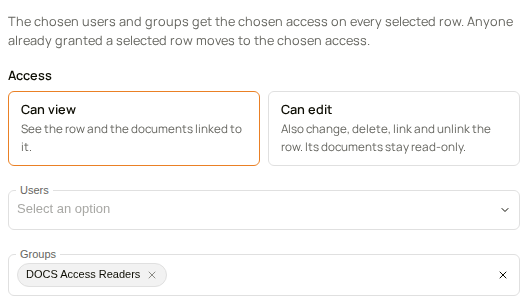 Granting several rows at once
How to remove a group's access to a register row
| Step | Description |
|---|---|
| 1 | In the Admin Console, open the group's Settings. |
| 2 | Select Register row access. The rows granted to the group are listed by register. |
| 3 | Select Remove access (the bin) beside the row. |
The group's members lose the row and the documents linked to it, unless another path still reaches them.
Related configuration
- Groups — assign folder access to groups; manage group membership
- Users — assign folder access and explicit permissions at the individual user level
- Permissions — permission levels required to manage project security and other admin areas
- Projects — create and manage projects; assign users to projects
- Folders — folder structure and navigation from the user perspective
- Manage Registers — the rows of each register, and the documents linked to them