freee HR
The freee HR connector links a Docwize workspace to one freee HR (freee人事労務) company. Once connected, users can link freee employees to existing Docwize people, and create new freee employees from Docwize people after reviewing every value that will be sent.
What you can configure
- Connect the workspace to a freee HR company, and reconnect it when access expires.
- Approve the connected company as the destination for employee data, or stop sending to it.
- Choose the person register, and choose or create the link register that stores which Docwize person is which freee employee.
- Link an existing freee employee to a Docwize person.
- Map person or résumé fields as the source of each freee employee field.
- Create a freee employee from a Docwize person, either as a payroll employee or outside payroll calculation.
Who configures this
The connector is opened from New > Third Party Connectors > freee HR.
| Task | Permissions required |
|---|---|
| Connect, reconnect and view the employee list | Manage Connectors |
| Register configuration, person links and source fields | Manage Connectors and Manage Document Custom Fields |
| Approve the destination and stop sending | Manage Connectors |
| Create employees in freee | Manage Connectors and Manage Document Custom Fields |
Employee creation is available in every workspace unless Docwize has switched it off for that workspace. When it is switched off, neither Send employee data to freee nor Create a freee employee from a Docwize person is shown.
Setup steps
The connector guides the setup in five steps. The step bar at the top shows them in order, with a ✓ on each step that is done; select a step to open it. When the connector opens, it shows the first step that is not done yet.
| Step | What it does |
|---|---|
| 1. Connect | Connect the workspace to a freee HR company. |
| 2. Registers | Choose the person register, and choose or create the link register. |
| 3. Source fields | Choose where each freee employee value is read from. |
| 4. Approve sending | Approve the connected company as the destination for employee data. |
| 5. Employees | Create freee employees from Docwize people, and link existing freee employees to Docwize people. |
Next moves to the following step once the current one is done. Approve sending is optional for viewing employees. Refresh next to the step bar reloads the connection.
Before you start
In freee HR:
- The user who connects the workspace must be able to manage employees in the freee company.
- To create payroll employees, the company's payroll settings must already exist: at least one closing/pay-day group (締め日支払い日) and one working-hours setting (勤務・賃金設定).
In Docwize:
- A person register: a custom field template with one row per person, a person ID field and a name field.
- A link register that stores the person reference, the system, the freee company ID and the freee employee ID. Docwize can create it for you in the Registers step. An existing one can be used instead; it must enforce a unique system/company/employee identity and a foreign key to the person register.
Connect freee HR
This is the Connect step.
| Step | Action |
|---|---|
| 1 | Open New > Third Party Connectors > freee HR. |
| 2 | Select Connect freee HR. freee opens in the browser. |
| 3 | Sign in to freee, choose the company and approve access. |
| 4 | freee returns to Docwize. The panel shows Connected with the company name and company ID. |
What you see in freee
freee shows its own pages, in Japanese, between steps 2 and 4.
If you are not signed in to freee, the freee IDでログイン page opens first. Sign in with a freee account that can manage the company.
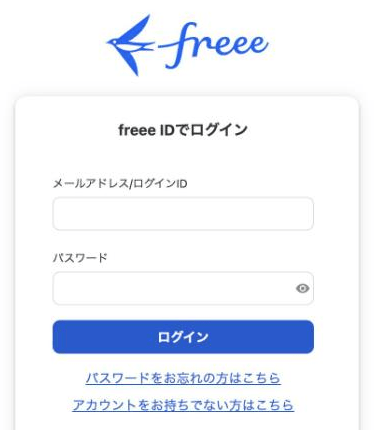
Signing in to freee
freee then asks you to approve the Docwize app (アプリ連携を開始しますか?). It names the app, your freee user and the company, and lists the access Docwize asks for: reading employees, and adding, changing and deleting employees in freee HR. Select 許可する to approve and return to Docwize.
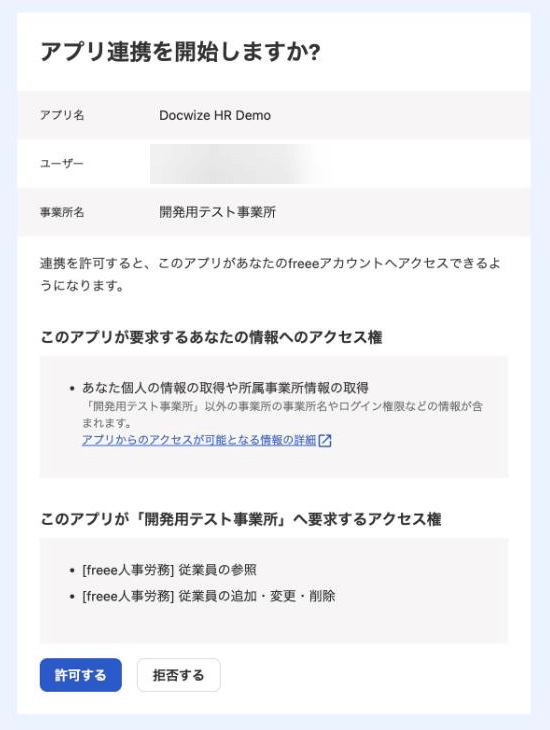
Approving Docwize in freee
If your freee account belongs to more than one company, freee asks you to choose the company before this page.
Select Reconnect freee HR to renew access, or to switch the workspace to another freee company. Reconnecting replaces the existing connection for the whole workspace. Reconnecting to a different company, or disconnecting, also stops sending employee data until a company is approved again.
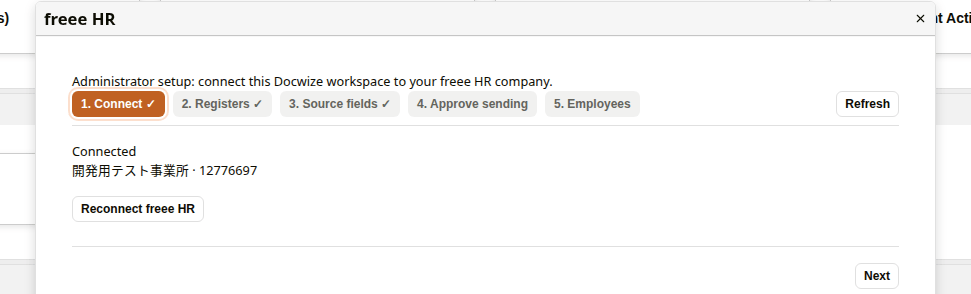
Connected to a freee HR company
Approve freee as the destination for employee data
This is the Approve sending step. freee is an optional sub-processor. Connecting freee lets Docwize read the company and its employees, but nothing is sent to freee until a user with Manage Connectors approves the connected company under Send employee data to freee. Until then, Create a freee employee from a Docwize person is not shown.
| Step | Action |
|---|---|
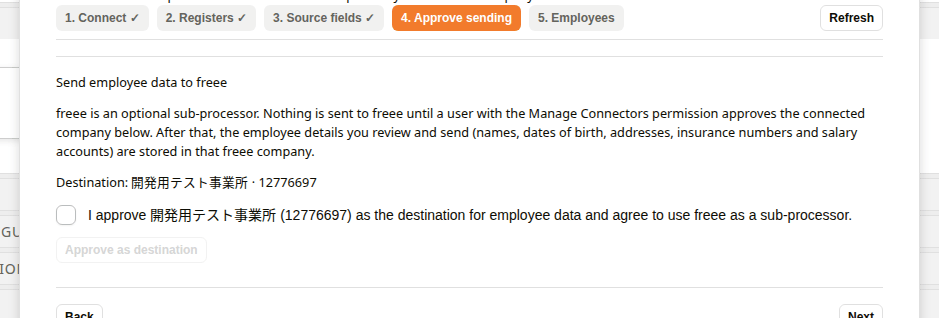
| 1 | Under Send employee data to freee, check that Destination shows the company name and company ID you expect. |
| 2 | Select the consent checkbox, which names the company and its ID. Approve as destination stays unavailable until it is selected. |
| 3 | Select Approve as destination. The step is marked done and the connector moves on to Employees, where Create a freee employee from a Docwize person now appears. Opening Approve sending again shows the approved company and the date it was approved. |
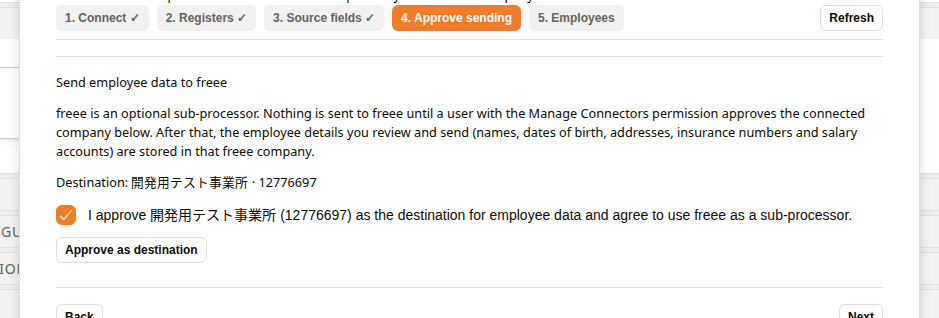
Consent to freee as the destination
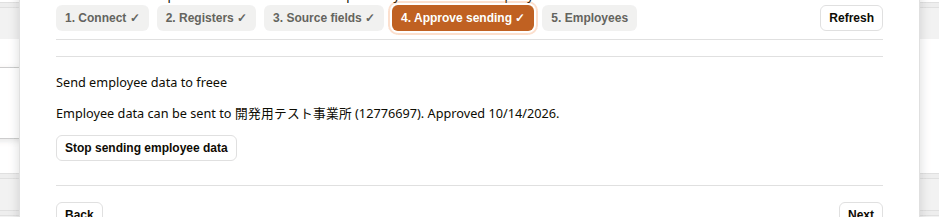
Destination approved
Users without the permission see A user with the Manage Connectors permission must approve this company before employee data can be sent.
When the connection cannot create employees, the section shows This connection cannot create employees. Reconnect and allow access to employee information (write). Reconnect and allow employee write access in freee.
Stop sending employee data
Select Stop sending employee data. The approval is removed and employee creation is hidden again. Employees already created in freee are not changed. To send again, approve the company again.
Sending stopped
Person register configuration
This is the Registers step. It sets which registers hold people and their freee identity.
| Step | Action |
|---|---|
| 1 | In Person register, choose the register that holds one row per person. The person ID and name fields are pre-selected when their names make it clear (for example ID or 番号, and name or 氏名); check them and change them if needed. |
| 2 | If there is no link register yet, select Create the link register for me. Docwize creates a register named freee employee links for the chosen person register, with the person link, system, company and employee fields and the required unique key, and selects its fields. To use an existing register instead, choose it and its fields. |
| 3 | Select Save register configuration. The step shows Register configuration saved with both registers. |
To change the configuration later, open Registers and select Edit register configuration.
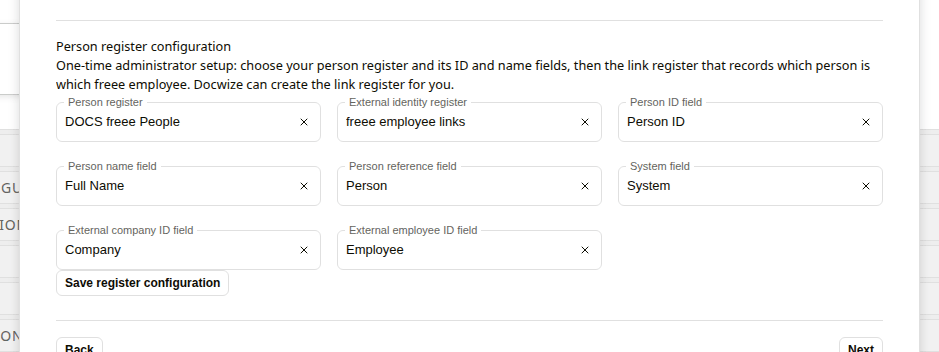
Person register configuration
| Field | Description |
|---|---|
| Person register | The template that holds one row per person. |
| Person ID field | The field in the person register that identifies the person. |
| Person name field | The field in the person register that holds the person's name. |
| External identity register | The link register: the template that stores the link to the freee employee. |
| Person reference field | The field in the external identity register that points to the person. |
| System field | The field that records the external system. |
| External company ID field | The field that records the freee company ID. |
| External employee ID field | The field that records the freee employee ID. |
Employees in freee
This is the Employees step. The Employees in freee table lists the employees of the connected company, with their Name, Employee number and freee employee ID. Employees that are already linked show Verified and linked.
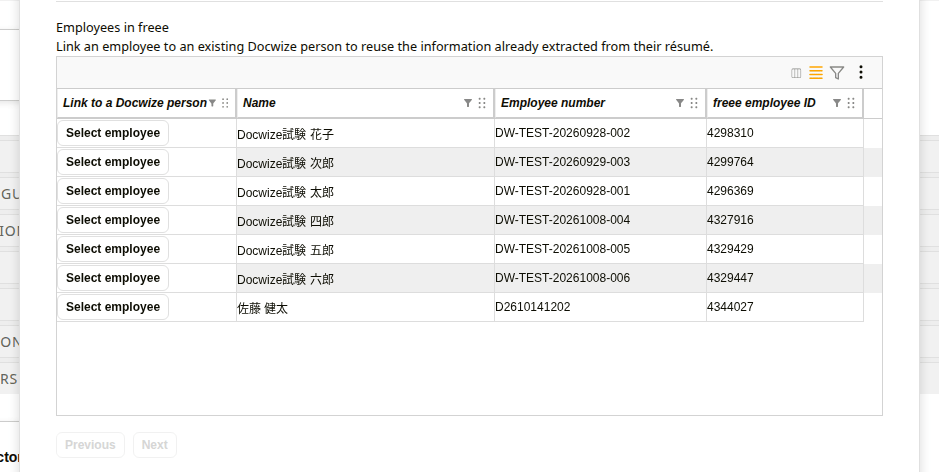
Employees in freee
Linking an employee to an existing Docwize person lets Docwize reuse the information already extracted from that person's résumé. No extraction is run when a link is saved.
How to link an employee to a Docwize person
| Step | Action |
|---|---|
| 1 | In the employee's row, select Select employee. |
| 2 | In Search person ID or name, search for the person, then choose them in Docwize person. |
| 3 | Check that the employee and the person are the same individual. |
| 4 | Select Save person link. |
A freee employee can be linked to only one Docwize person.
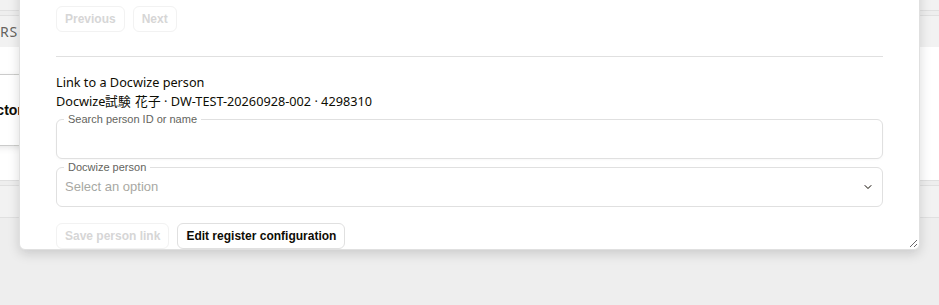
Link to a Docwize person
Configure source fields
This is the Source fields step. Source fields tell Docwize where to read each freee employee value, so the review form starts filled in. This is a one-time administrator setup.
| Field | Description |
|---|---|
| Person field containing the résumé document ID | Optional. A person register field that holds the ID of the person's résumé document. Required when any value is read from the résumé. |
| Résumé field template | Optional. The field template that holds the extracted résumé values. |
| One row per freee field | Choose the person register field or résumé field to read. Leave a row unmapped to enter the value during review. |
Source fields can be text, sequential reference, date, date and time, number, whole number, choice list, currency or checkbox fields. Full names are not split into surname and given name, so map the surname and given name to separate fields.
For choice fields, common Japanese labels are converted to the freee value. For example, 男性 becomes Male, 月給 becomes Monthly, 契約社員 becomes Contract and 普通 becomes Ordinary. A value that is not a freee value is shown as Not a freee value, choose one for the reviewer to correct.
Select Save source fields to save the mapping. Saving with every row unmapped is allowed: all values are then entered during review.
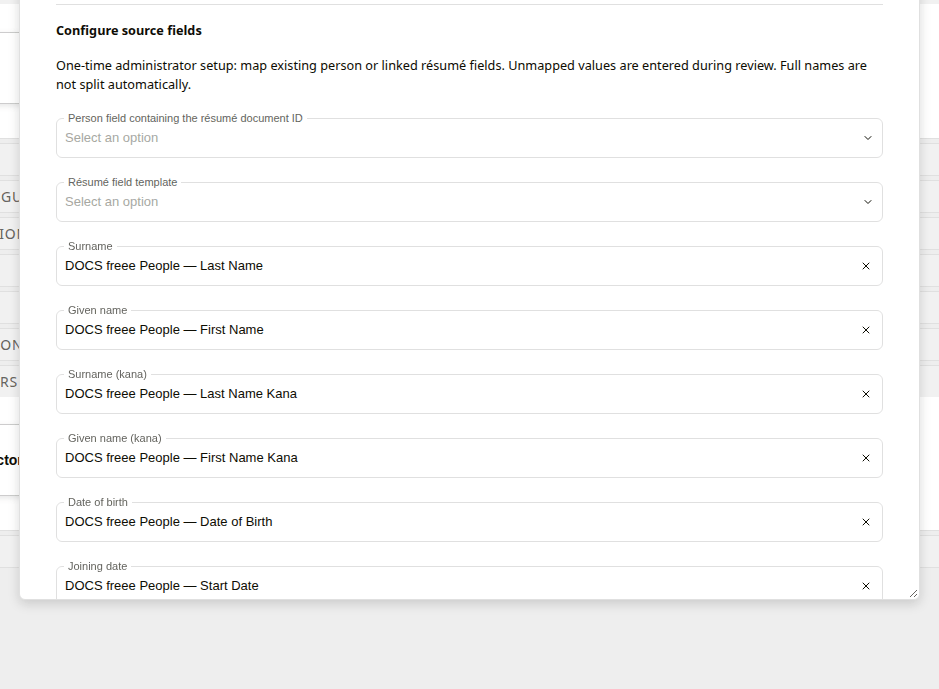
Configure source fields
Create a freee employee from a Docwize person
Employees are created as payroll employees unless Create outside payroll calculation (personnel record only) is selected.
| Option | What is created |
|---|---|
| Payroll employee (default) | A freee employee included in payroll calculation. Pay type and Base pay (yen) are required. The other sections are written to freee after the employee is created. |
| Create outside payroll calculation (personnel record only) | A personnel record with the basic details and Basic pension number. The other sections are hidden. |
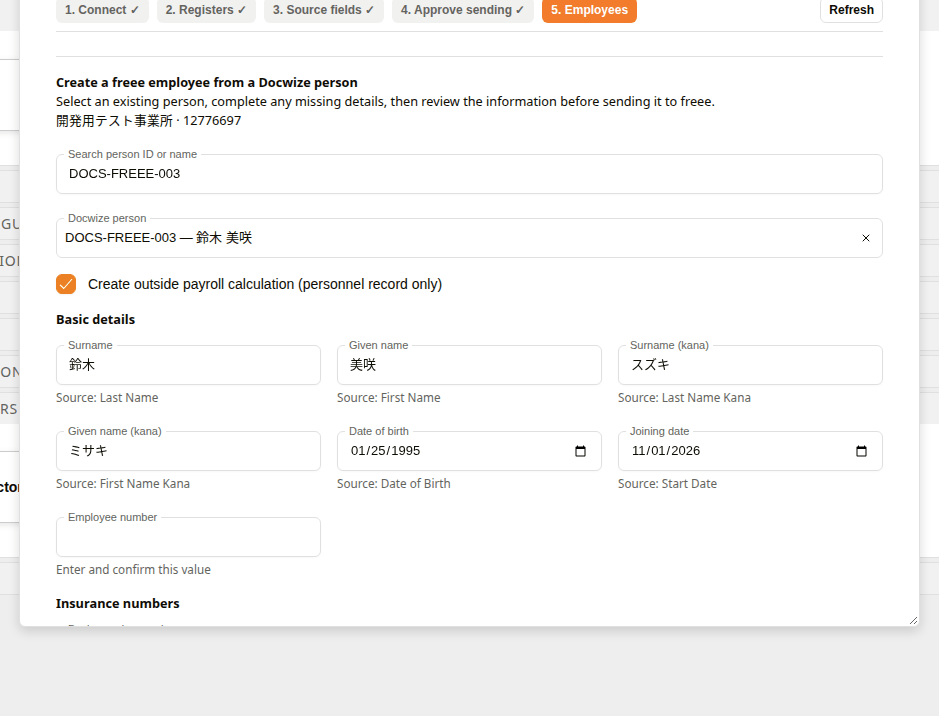
Outside payroll calculation
Review form sections
Fields filled from a source field show where the value came from. Fields with no source show Enter and confirm this value.
| Section | Fields |
|---|---|
| Basic details | Surname, Given name, Surname (kana), Given name (kana), Date of birth, Joining date, Employee number, Gender |
| Payroll | Pay type (Monthly, Daily or Hourly), Base pay (yen), Working-hours setting name, Closing/pay-day group name |
| Insurance numbers | Basic pension number, Employment insurance number |
| Employment | Employment type, Job title, Spouse |
| Contact | Phone, Email |
| Address on residence record (住民票) | Postcode, Prefecture, Address (city onwards), Address (kana) |
| Current address | Postcode, Prefecture, Address (city onwards), Address (kana) |
| Salary account | Bank code, Bank name, Bank name (kana), Branch code, Branch name, Branch name (kana), Account type, Account number, Account holder (kana) |
When Working-hours setting name or Closing/pay-day group name is left empty, freee uses the company's default setting. When a name is entered, it must match the name of an existing setting in freee.
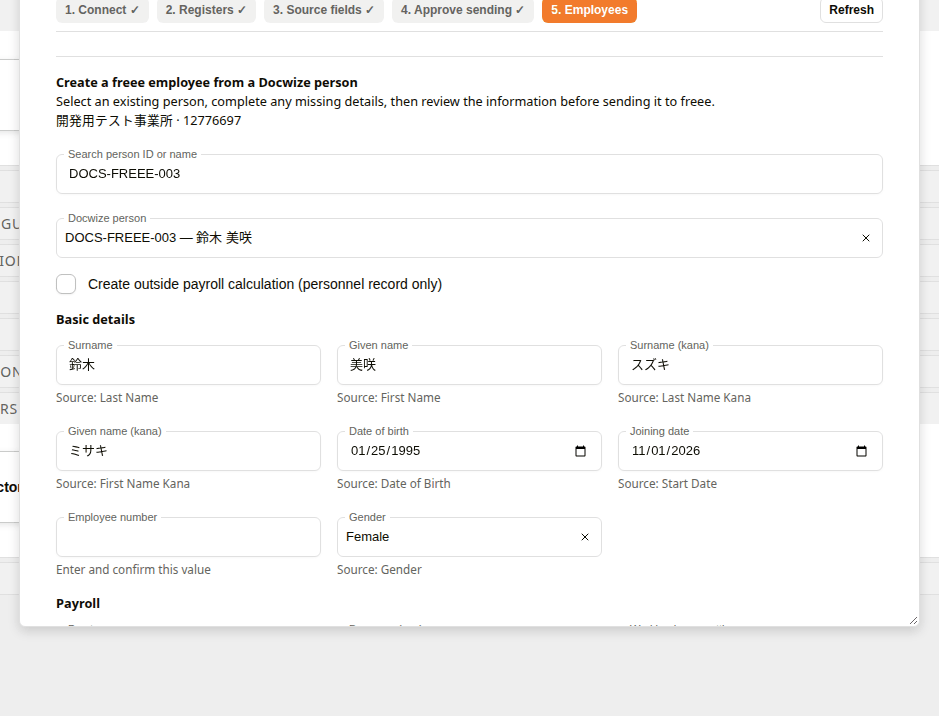
Review form
Values checked before sending
Docwize checks and normalises the values when the preview is built:
| Value | Rule |
|---|---|
| Basic pension number | 10 digits. Hyphens and full-width digits are accepted, for example 1234-567890. |
| Employment insurance number | 11 digits. Hyphens are accepted, for example 1234-567890-1. |
| Postcode | 7 digits, for example 810-0001. |
| Phone | Three groups of digits, for example 03-1234-5678. |
| Bank code / Branch code | 4 digits / 3 digits. |
| Account number | Up to 7 digits. Shorter numbers are padded with leading zeros. |
| Account holder (kana) | Katakana or Latin letters. Half-width katakana is converted to full-width. |
| Salary account | When any salary account field is filled, Bank code, Branch code, Account type, Account number and Account holder (kana) are required. |
| Addresses | An address needs its Prefecture. |
| Joining date | Not earlier than Date of birth. |
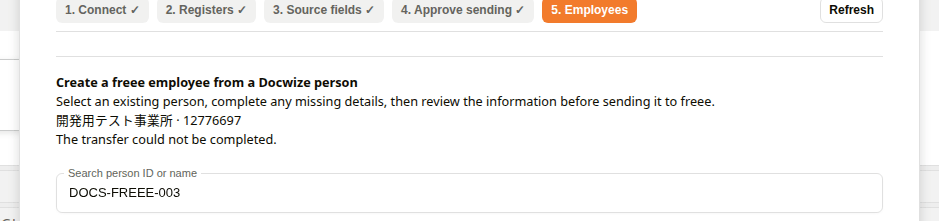
An address without a prefecture is refused
How to create an employee
| Step | Action |
|---|---|
| 1 | Under Create a freee employee from a Docwize person, search in Search person ID or name and choose the person in Docwize person. |
| 2 | Complete or correct the values in each section. Select Create outside payroll calculation (personnel record only) only for an employee who is not paid through freee payroll. |
| 3 | Select Preview employee. Docwize checks the values and opens Review new freee employee. |
| 4 | Check the person, the freee company and every value in the review. |
| 5 | Select I have checked this person and the information to send., then Create employee in freee. |
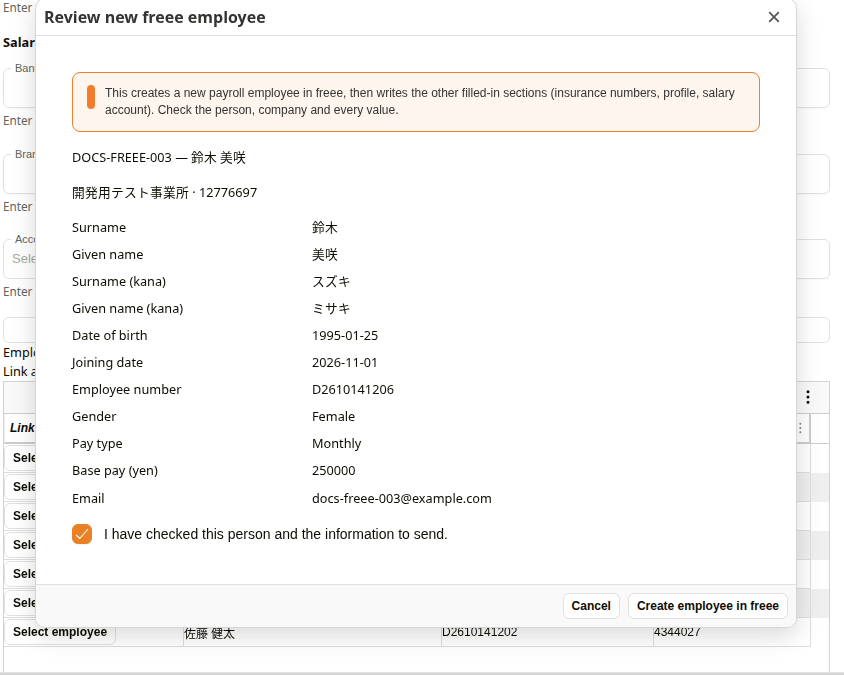
Review new freee employee
Docwize creates the employee in freee, reads the employee back to verify it, and links the employee to the Docwize person. The other filled-in sections are then written to freee from the joining month onward.
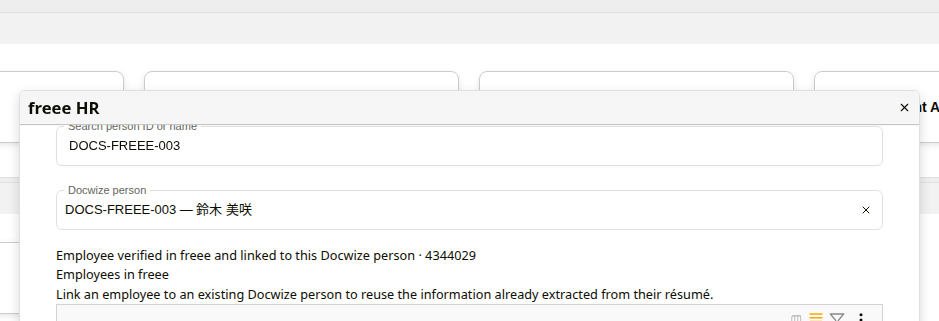
Employee verified and linked
The employee in freee
In freee HR, the new employee appears under 従業員 > 従業員情報 (the employee list) from the month of the joining date, with the employee number you entered. Open the employee to check the details that were sent, such as name, kana, joining date, date of birth and gender.
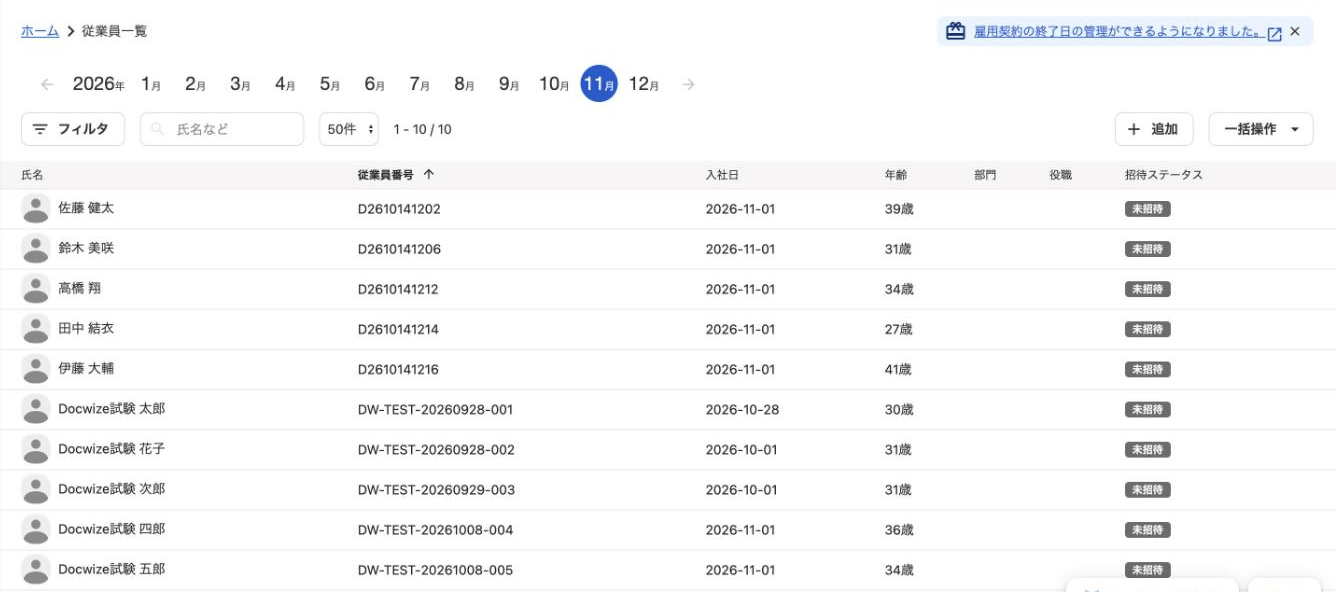
The employees in freee HR
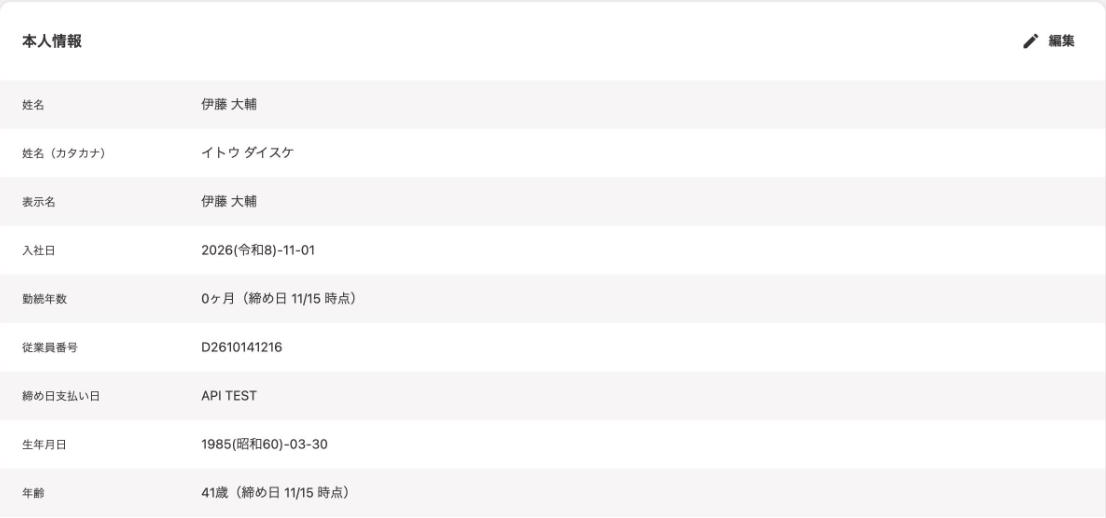
The employee's details in freee HR
Transfer status
| Status | Meaning |
|---|---|
| Review saved; not sent | The review was saved and nothing was sent to freee. |
| Submission in progress; do not create another employee | The employee is being created. |
| Employee verified in freee and linked to this Docwize person | The employee was created, verified and linked. |
| Employee created and linked; some details are not saved yet | The employee exists and is linked, but freee did not accept one of the follow-up sections. Select Retry saving the remaining details to send them again, or Correct the remaining details to change them first. Only the sections written after creation can be changed, and clearing a section skips it. Neither action creates the employee again. |
| Employee created; verification or linking still needs completion | Select Verify and finish linking. |
| Creation rejected; correct the details or permissions before reviewing again | freee did not create the employee. Correct the values or permissions and preview again. |
| Creation outcome is uncertain. Check freee before any further creation. | Docwize could not confirm the result. Check the employee list in freee before creating the employee again. |
Related configuration
- Permissions — the Manage Connectors and Manage Document Custom Fields permissions control access to this area