Completing a Record
Here is an overview of completing a record, followed by more detailed explanations.
How to complete a record
| Step | Description |
|---|---|
| 1 | Navigate to the 'New' module and select the relevant record template from the 'Records' section. |
| 2 | Complete the sections in the record: upload any required attachments, fill in form fields, and add rows to grids as needed. |
| 3 | Click 'Save' to submit the record. The 'Save' button becomes active once all required fields have been completed. |
Example: Completing a record
For a description of the record interface itself — the sections, fields, and left sidebar controls — see Records.
What you can do after completing a record
- generate another record
- preview the completed document
- open Document Details
- download or search the completed record output
Once a record's required fields are completed and it's saved, the Completed Record dialog appears with options.
Completed Record dialog
The Completed Record dialog shows the result as a grid. Its columns depend on which sections were configured on the record template — none are fixed:
| Column | Appears when the template has… |
|---|---|
| Reference Number | a Reference Number Template section |
| Open Dataview | one or more Dataview Section entries — one button per configured dataview |
| Open Workflow | a Workflow Section |

Completed Record dialog — Reference Number and Dataview example
Each row also has icons on the left:
| Icon | Action |
|---|---|
| 🔍 (magnifying glass) | Previews the item. |
| ⓘ (info) | Opens Document Details. |
| ⬇ (download) | Downloads the item. Only appears if the record produced an actual document — records that only generate a reference number or dataview entry don't show this icon. |
Generate another [template name] creates a new instance of the same record template. The grid's toolbar — column selector, row density, filter, kebab menu, and search — works the same as other grids across Docwize.
When completing a record starts a workflow
Some record templates include a Workflow Section, which starts a workflow automatically on submission. For these templates, the Completed Record dialog includes an Open Workflow column alongside any other configured columns. A template with only a Workflow Section — no reference number or dataview — shows just that column:
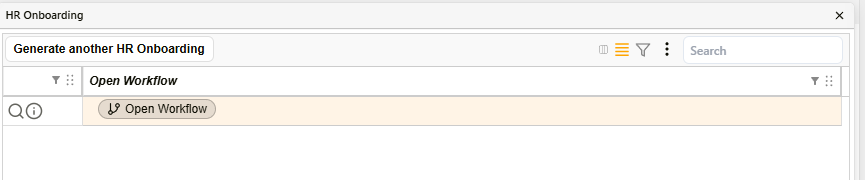
Completed Record dialog for a template with only a Workflow Section
Clicking Open Workflow opens the item directly in the Inbox. From there, the workflow may involve a single action or a multi-stage approval sequence, with each stage potentially requiring a file attachment before it can be completed. See Completing Action Requests for how to work through these stages, including the workflow summary rail and attachment requirements.