Upload in Folder View
When a folder is open in Explorer, you can add documents to it. Use New in the folder's toolbar to create a blank document or to upload files or a whole folder, or drag files from your computer onto the folder.
What you can do in Folder View uploads
- Create a blank document, on its own or with a new Word, Excel or PowerPoint file
- Upload a blank document's file from its Document Details
- Upload several files at once with Bulk Upload Files
- Upload a folder with its subfolders and files with Bulk Upload Folder
- Drag files from your computer onto a folder
- Check and change each file's details before it is uploaded
- Skip files that are already in the folder
- Extract ZIP files as they are uploaded
The New menu
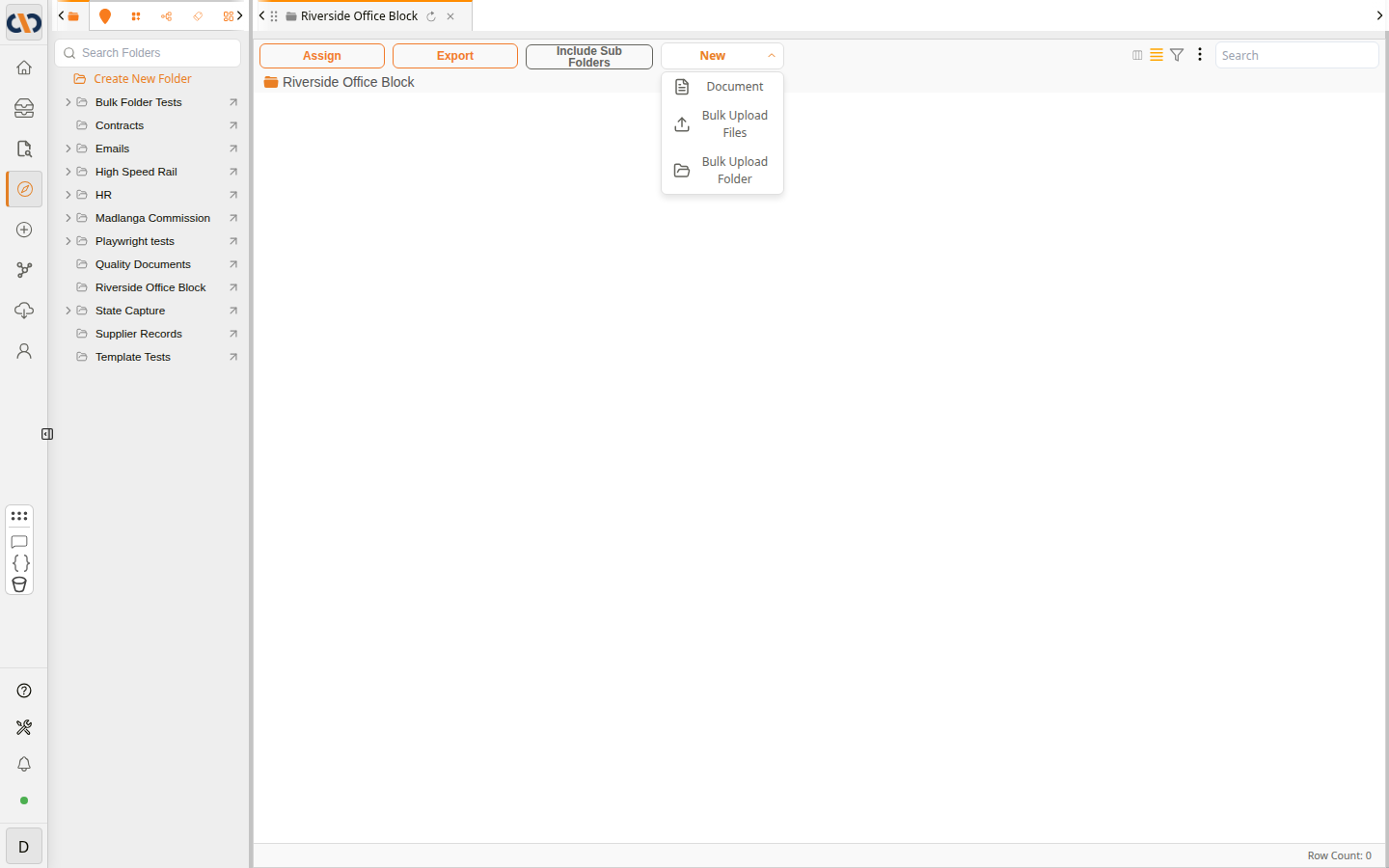
New is in the toolbar of a folder you open from the folder tree. It is shown only if you are allowed to create documents. If you do not see it, ask your Docwize administrator.
| Option | Description |
|---|---|
| Document | Opens Create New Blank Document, to add a document to the folder without uploading a file. You can upload its file afterwards. |
| Bulk Upload Files | Opens your computer's file browser. The files you choose open in the Bulk Uploader. |
| Bulk Upload Folder | Opens your computer's folder browser. The folder you choose opens in the Bulk Uploader with its subfolders and files. |
Everything you add goes into the folder that is open.
Create New Blank Document
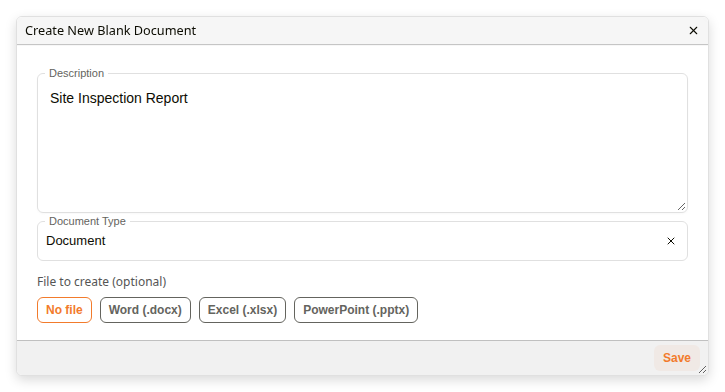
| Field | Description |
|---|---|
| Description | The document's name. Required. |
| Document Type | The type of document. Required. |
| File to create (optional) | No file creates the document without a file. Word (.docx), Excel (.xlsx) or PowerPoint (.pptx) also creates a blank file of that kind for the document. |
Save is unavailable until both Description and Document Type are set. Saving adds the document to the open folder and opens its Document Details, where you can complete its other details.
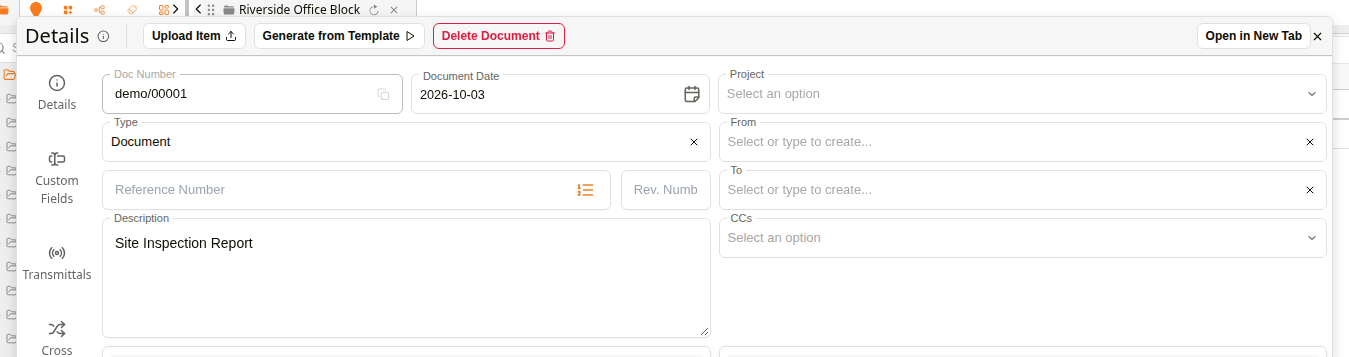
While the document has no file, the header of Document Details shows Upload Item. Click it and choose a file on your computer to add it to the document. Once the file is attached, Preview Item and Download Item take its place.
Bulk Uploader
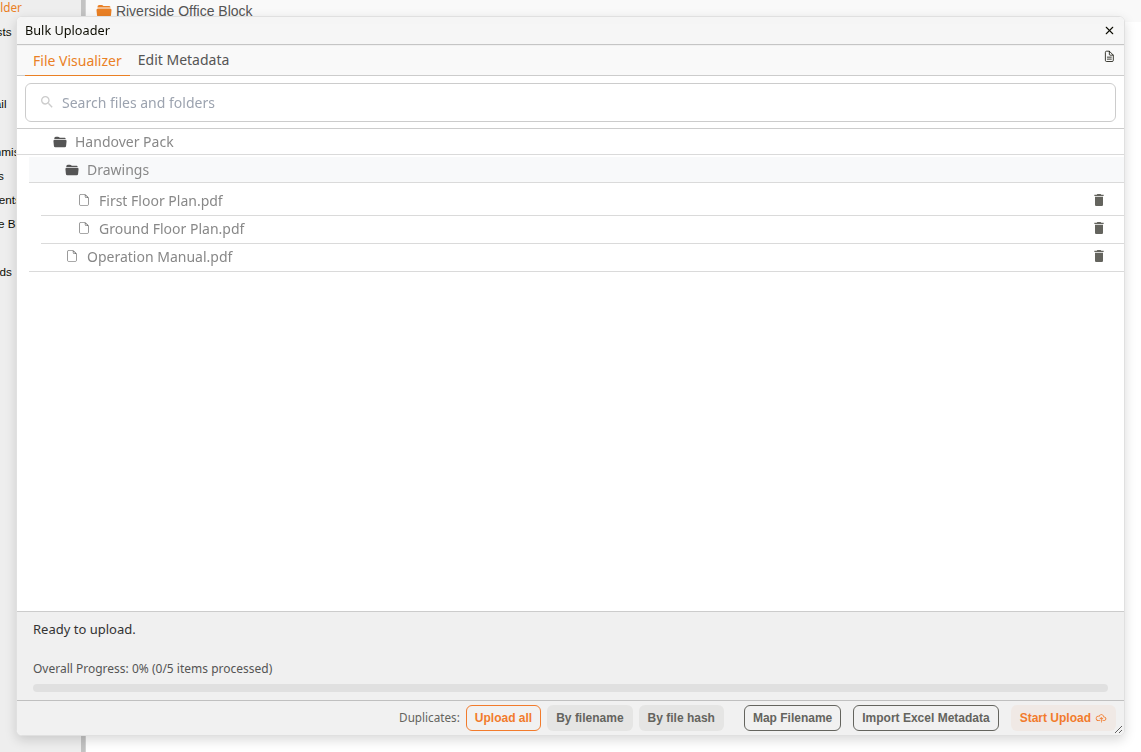
The Bulk Uploader opens with the files and folders you chose or dropped. Nothing is uploaded until you click Start Upload.
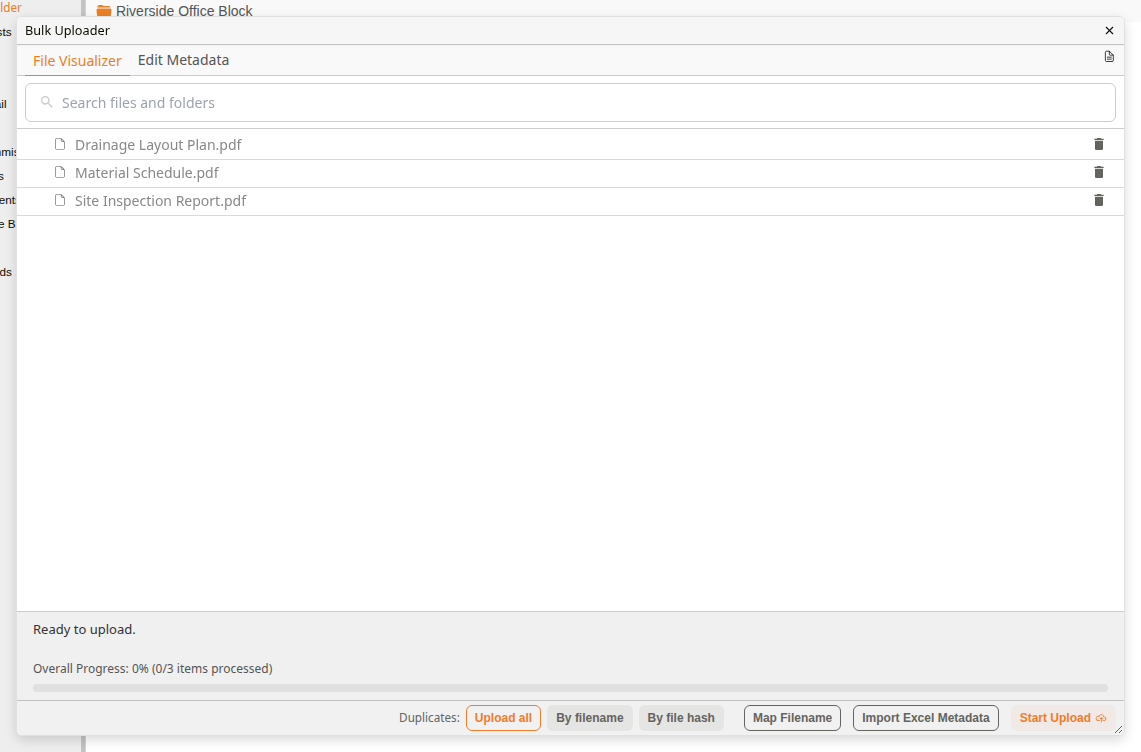
| Control | Description |
|---|---|
| File Visualizer | Lists the files and folders to upload. Click a folder to show what is in it. |
| Edit Metadata | Shows the details each file will be uploaded with, in a table you can change. See Edit Metadata. |
| Export To Excel (document icon) | Downloads the list of files and their details as an Excel workbook. |
| Search files and folders | Filters the list by name. |
| Delete (bin icon) | Removes a file from the upload. |
| Duplicates: | Decides whether files already in the folder are uploaded again. See Duplicates. |
| Map Filename | Opens Map Filename to Fields, where you choose the fields to fill with each file's name, without its extension. |
| Import Excel Metadata | Opens Import Metadata from Excel, to fill in the files' details from an Excel workbook. |
| Start Upload | Uploads everything in the list. |
Edit Metadata
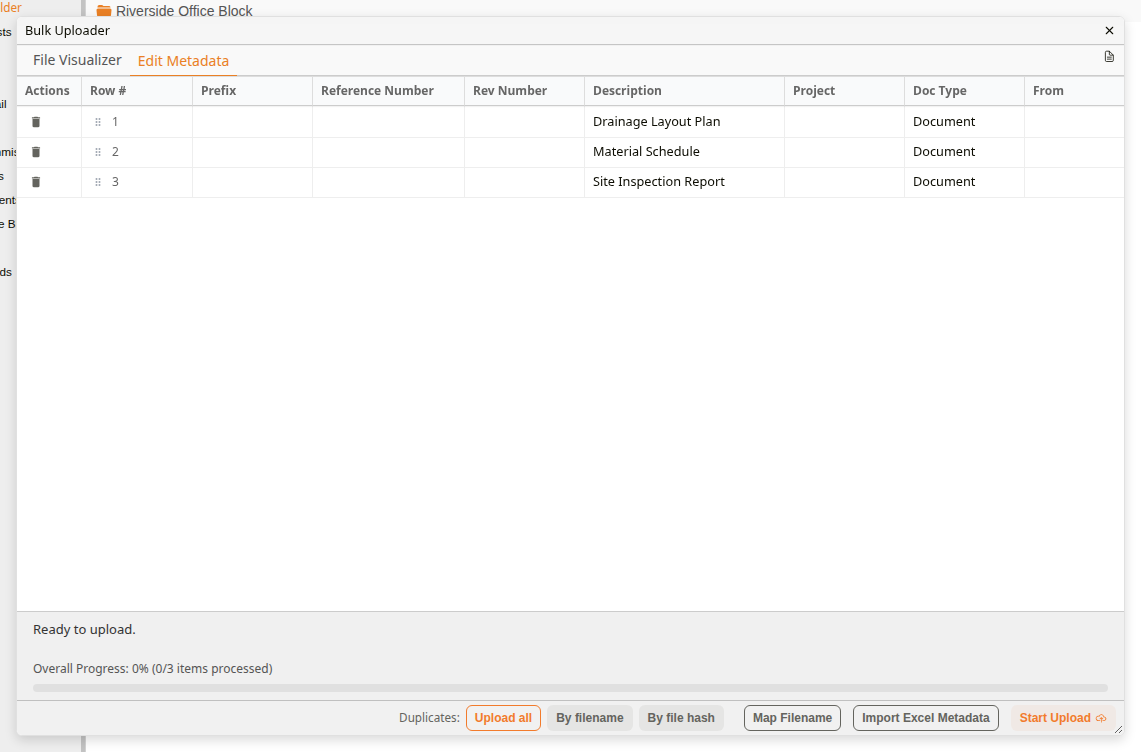
Each file starts with its file name, without the extension, as its Description, and Document as its Doc Type. To change a value, double-click its cell, type the new value and press Enter.
Duplicates
| Option | Description |
|---|---|
| Upload all | Uploads every file, even if one with the same name or content is already in the folder. This is the default. |
| By filename | Skips a file if a file with the same name is already in the same folder, in this upload or from before. |
| By file hash | Skips a file if a file with identical content is already in the same folder, in this upload or from before. |
Map Filename to Fields
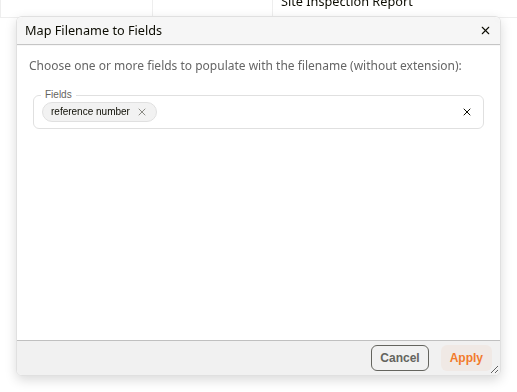
Choose one or more fields in Fields, then click Apply. Reference Number is chosen when the dialog opens. To leave the details as they are, click Cancel.
When the upload finishes
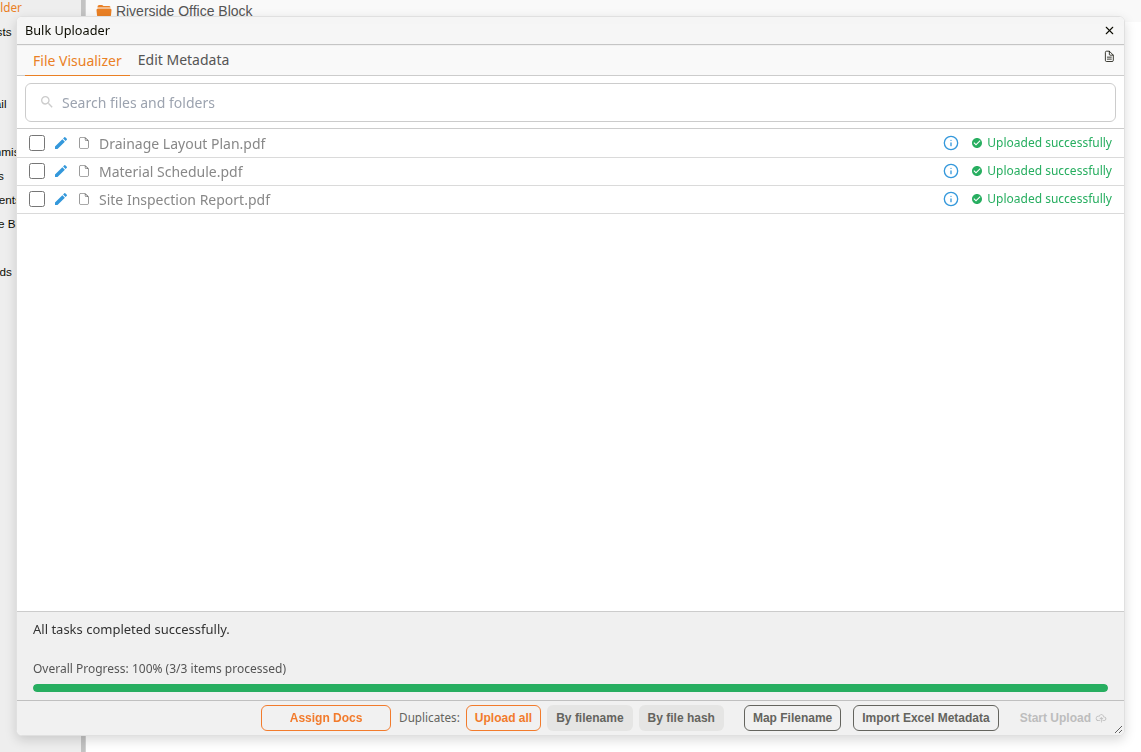
Each file is marked Uploaded successfully and the progress area reads All tasks completed successfully. Close the Bulk Uploader to see the documents in the folder.
Dragging files onto a folder
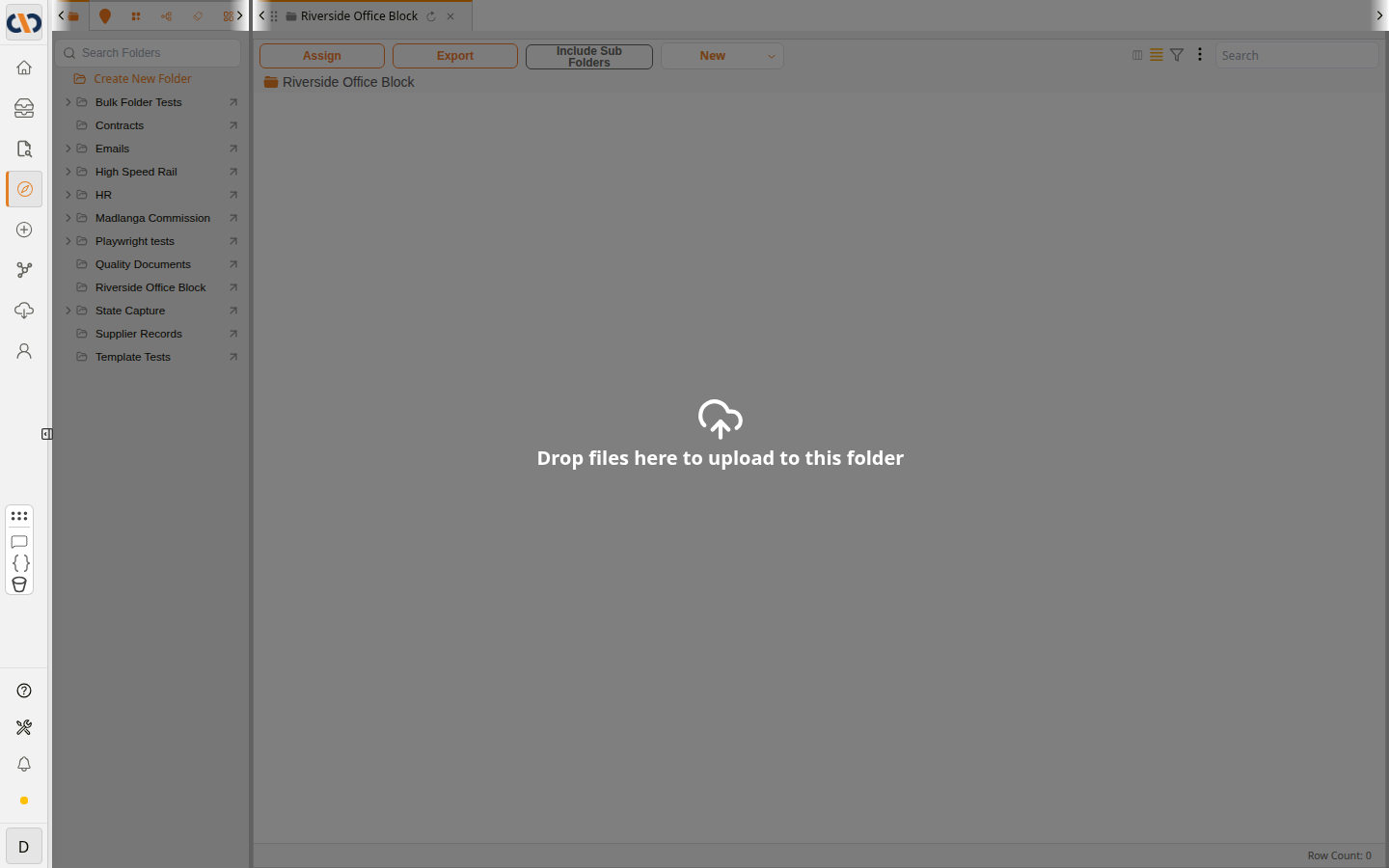
While you drag files over an open folder, it shows Drop files here to upload to this folder. When you drop them, they open in the Bulk Uploader. To upload a folder together with its subfolders, use Bulk Upload Folder instead.
ZIP files
A ZIP file you upload is extracted into the folder by default: its files are added beside it and its own folders are created as subfolders. See Extracting Archives.
How to create a blank document
| Step | Description |
|---|---|
| 1 | Open the folder in Explorer, click New and select Document. |
| 2 | Enter a Description and choose a Document Type. |
| 3 | Optional: under File to create (optional), choose Word (.docx), Excel (.xlsx) or PowerPoint (.pptx) to create a blank file for the document. |
| 4 | Click Save. The document is added to the folder and its Document Details open. |
| 5 | Optional: to add the document's file, click Upload Item in the header of Document Details, select the file and click Open. When Preview Item and Download Item appear, the file is attached. |
How to bulk upload files
| Step | Description |
|---|---|
| 1 | Open the folder in Explorer, click New and select Bulk Upload Files. |
| 2 | Select the files on your computer and click Open. They open in the Bulk Uploader. |
| 3 | Optional: on Edit Metadata, change any file's details. |
| 4 | Optional: under Duplicates:, choose By filename or By file hash to skip files already in the folder. |
| 5 | Click Start Upload. When it finishes, close the Bulk Uploader. The documents are in the folder. |
How to upload a folder
| Step | Description |
|---|---|
| 1 | Open the folder to upload into, click New and select Bulk Upload Folder. |
| 2 | Select the folder on your computer. It opens in the Bulk Uploader with its subfolders and files. |
| 3 | Click Start Upload. |
The folder you chose is created inside the open folder, with the same subfolders, and each file is uploaded into its own subfolder.
How to drag and drop files into a folder
| Step | Description |
|---|---|
| 1 | Open the folder in Explorer. |
| 2 | Select the files on your computer and drag them onto the folder. |
| 3 | When the folder shows Drop files here to upload to this folder, release them. They open in the Bulk Uploader. |
| 4 | Click Start Upload. |