Default Upload Extraction
Default Upload Extraction controls how Docwize's AI populates standard document fields when a file is uploaded. Users can configure whether OCR is queued, whether image embeddings are generated, and the AI prompts used to extract each standard metadata field.
Access via New > Custom Fields & Configuration > Default Upload Extraction.
Who configures this
Users with the Default extraction config permission (Metadata and Interfaces category). See Permissions for how to assign this.
OCR Contents
The OCR Contents section controls whether the system queues optical character recognition and generates image embeddings at upload time.
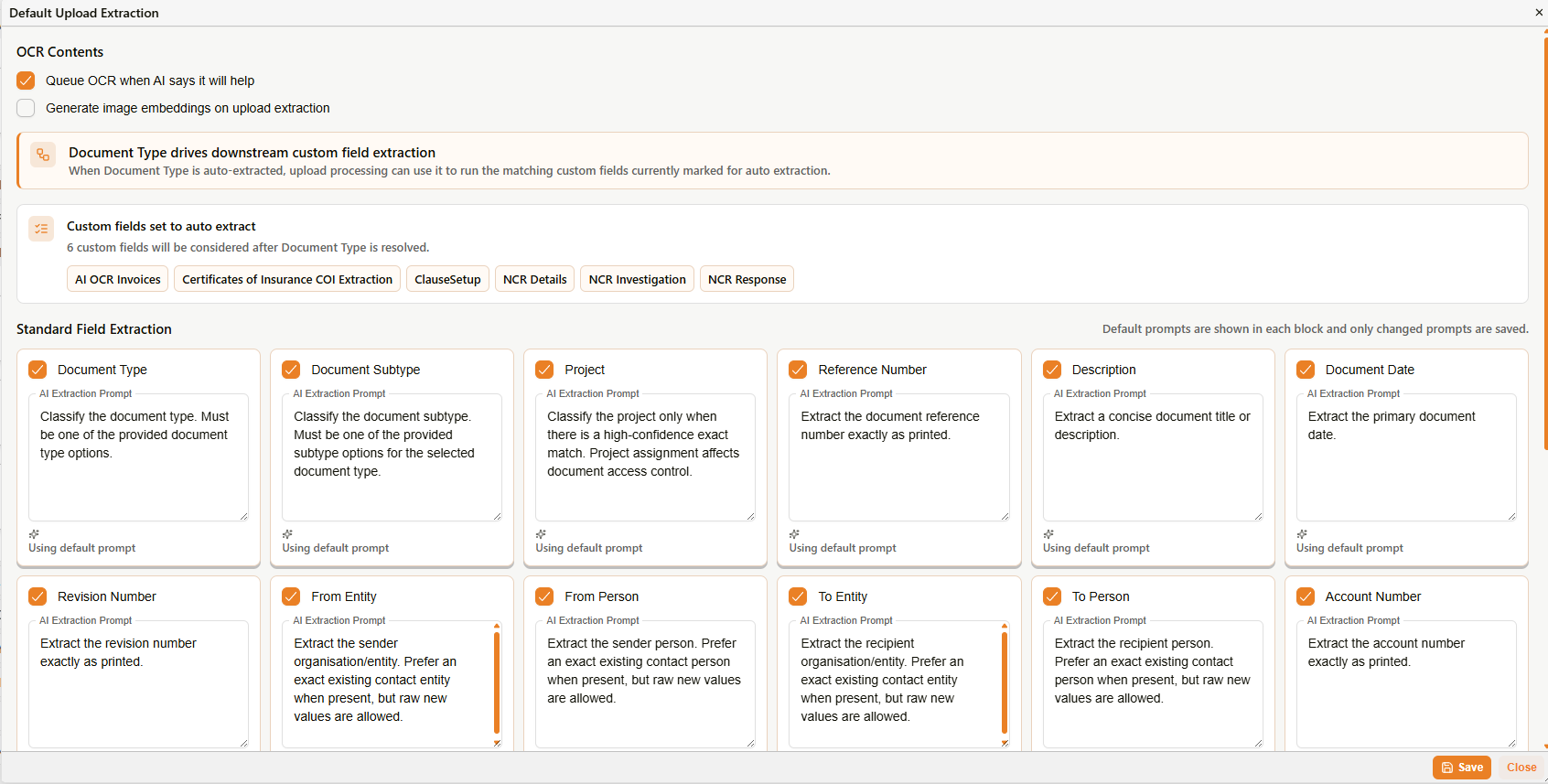
Default Upload Extraction — OCR Contents and Standard Field Extraction
| Setting | What it does |
|---|---|
| Queue OCR when AI says it will help | When enabled, the system queues an OCR pass if the AI determines OCR would improve extraction accuracy. When disabled, OCR is not queued on upload, regardless of document type. |
| Generate image embeddings on upload extraction | When enabled, image embeddings are generated at upload time. Image embeddings support image-based search and similarity features. |
Document Type and custom field extraction
Two info panels below the checkboxes explain how Document Type extraction links to downstream custom field extraction.
Document Type drives downstream custom field extraction — when Document Type is auto-extracted from an uploaded document, Docwize can use the resolved Document Type to run any custom field templates that are marked for auto extraction and match that type.
Custom fields set to auto extract — lists the custom field templates currently configured to auto extract after Document Type is resolved. Templates appear as tags. To configure which custom fields are eligible, edit the relevant custom field template and enable the auto extract setting.
Standard Field Extraction
The Standard Field Extraction section shows the AI extraction prompts used for each standard metadata field. Each field has a card containing an editable prompt text area.
Default prompts are shown in each card for reference. Only changed prompts are saved — if a prompt matches the default, Docwize uses the default internally. Each card shows a Using default prompt status when the default is active.
| Field | Default extraction prompt |
|---|---|
| Document Type | Classify the document type. Must be one of the provided document type options. |
| Document Subtype | Classify the document subtype. Must be one of the provided subtype options for the selected document type. |
| Project | Classify the project only when there is a high-confidence exact match. Project assignment affects document access control. |
| Reference Number | Extract the document reference number exactly as printed. |
| Description | Extract a concise document title or description. |
| Document Date | Extract the primary document date. |
| Revision Number | Extract the revision number exactly as printed. |
| From Entity | Extract the sender organisation/entity. Prefer an exact existing contact entity when present, but raw new values are allowed. |
| From Person | Extract the sender person. Prefer an exact existing contact person when present, but raw new values are allowed. |
| To Entity | Extract the recipient organisation/entity. Prefer an exact existing contact entity when present, but raw new values are allowed. |
| To Person | Extract the recipient person. Prefer an exact existing contact person when present, but raw new values are allowed. |
| Account Number | Extract the account number exactly as printed. |
| Actual Submission Date | Extract the actual submission or received/delivered date. |
| Response Due | Extract the response due date. |
| Response Date | Extract the actual response date. |
| Other No | Extract Other No (WField3) exactly as printed. |
| Initiator | Extract Initiator (WField4) exactly as printed. |
| Phase | Extract Phase (WField5) exactly as printed. |
| Code | Extract Code (WField6) exactly as printed. |
To customise a prompt, edit the text in the relevant card and click Save. Only the fields where the prompt differs from the default are stored; all others continue to use the default at extraction time.
Troubleshooting
| Issue | Detail |
|---|---|
| A standard field is not being populated on upload | Check that the field's card is enabled (orange checkbox ticked) in the Standard Field Extraction grid. For image-based documents, also verify that Queue OCR when AI says it will help is enabled — OCR availability affects whether text is available for extraction. |
| Document Type is not triggering custom field extraction | Confirm that the relevant custom field templates appear under Custom fields set to auto extract in the OCR Contents section. If a template is missing, open it in the Custom Fields editor and enable the auto extract setting. |
| Extraction behaviour has changed unexpectedly | Custom prompts override the defaults. If extraction results have changed, check whether the prompt for the affected field has been customised. To revert to the default, clear the custom text in the field card and save. |