Lookup Lists
Lookup lists are predefined sets of values used to populate dropdown fields in custom field templates. Examples include document type lists, project code lists, or constrained options for AI extraction such as yes / no / unsure. Lookup lists are configured in the Lookup List Builder and draw their values from a custom field template or a virtual view.
Who configures this
Users with access to the New module. The Lookup List Builder is accessible from New > Custom Fields & Configuration > Lookup List Builder.
Before you start
- A Grid Link custom field template containing the values to populate the list must be created and saved before the lookup list can be configured. See Custom Field Templates.
- If the list should filter or transform the source data, configure the relevant virtual view in the Query Builder first. See Query Builder.
Lookup List List panel
The Lookup List List panel displays all configured lookup lists in the database. It is opened from New > Custom Fields & Configuration > Lookup List Builder.
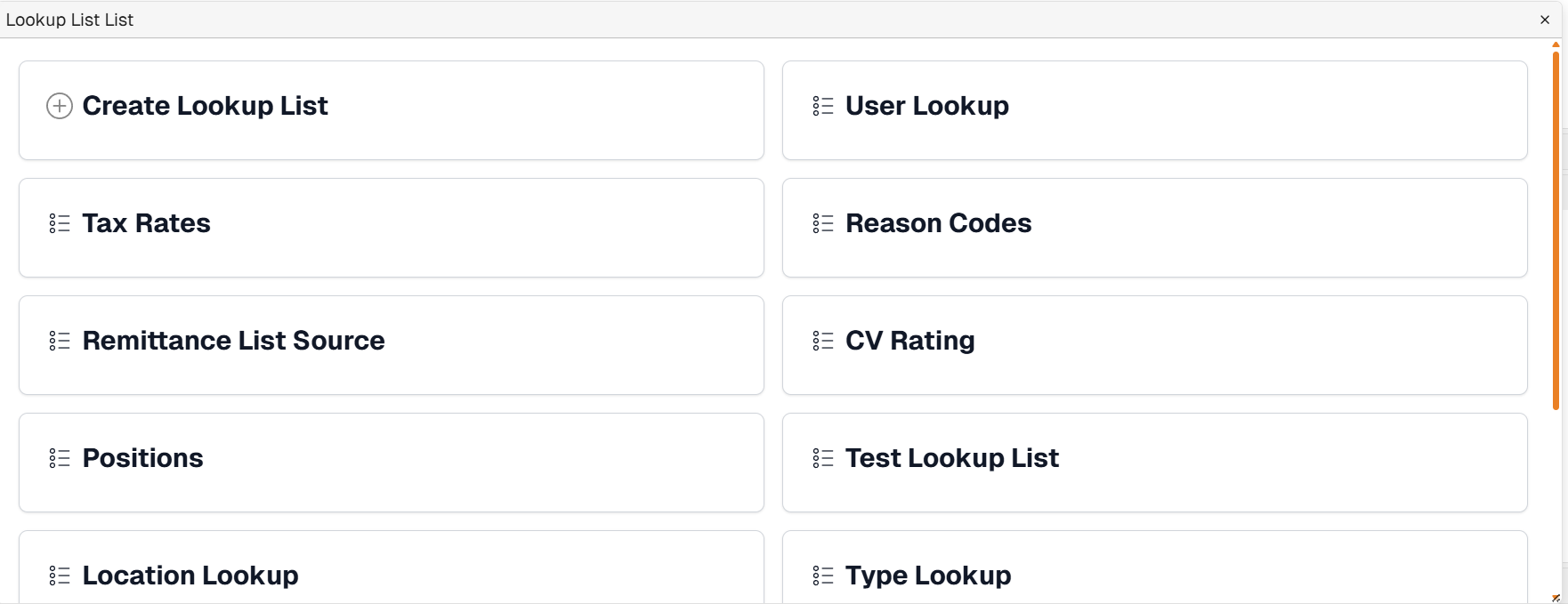
Lookup List List panel
| Control | Description |
|---|---|
| Create Lookup List | Opens the Manage Lookup List editor to configure a new lookup list. |
Each row in the panel represents one configured lookup list. Clicking a list name opens the Manage Lookup List editor for that list.
Manage Lookup List editor
The Manage Lookup List editor opens when creating a new lookup list or selecting an existing one from the panel.
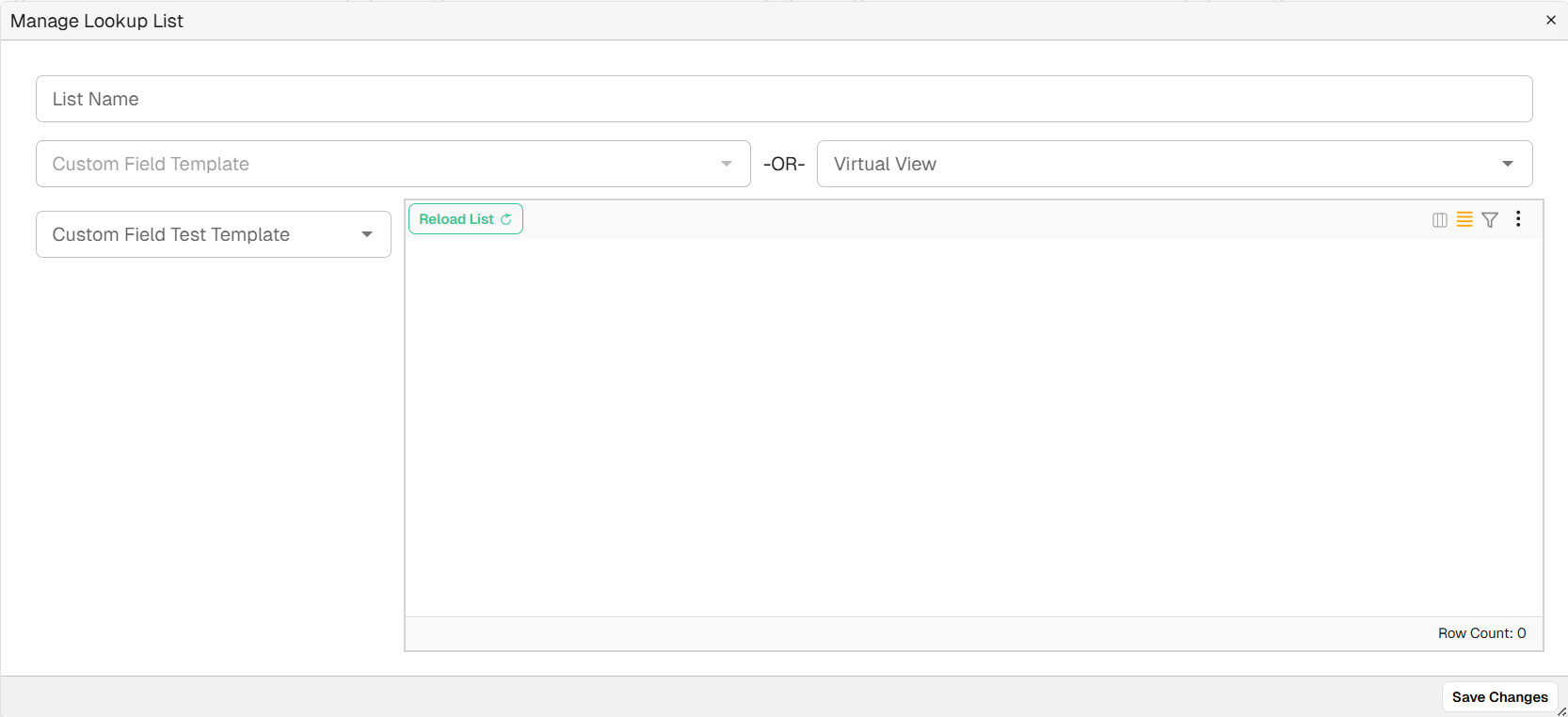
Manage Lookup List editor
| Field | Description |
|---|---|
| List Name | The name of the lookup list. This name is used when assigning the list to a LookupList or LookupListMulti field type in a template. |
| Custom Field Template / Virtual View | Selects the source type for the lookup list. Choose Custom Field Template or Virtual View — only one source is used per lookup list. |
| Template picker | When Custom Field Template is selected as the source, a second dropdown appears populated with available custom field templates. Select the template to source the lookup list values from. |
| Reload List | Loads the current values from the selected source into the editor preview. |
| Row Count | Displays the number of rows loaded from the selected source. |
| Save Changes | Saves the lookup list configuration. |
How to create a lookup list
| Step | Description |
|---|---|
| 1 | Create a Grid Link custom field template with the relevant fields for the lookup list. The field names become the column keys in the list. Save the template. See Custom Field Templates. |
| 2 | In Manage Registers, open the template and add the rows that should appear as options in the dropdown. See Manage Registers. |
| 3 | If filtering or transforming the source data is needed, configure a virtual view in the Query Builder. See Query Builder. |
| 4 | Navigate to New > Custom Fields & Configuration > Lookup List Builder and click Create Lookup List. |
| 5 | Enter a List Name, select the relevant Custom Field Template or Virtual View, click Reload List to confirm the values appear, then click Save Changes. |
| 6 | In the template where the lookup list should appear, set the relevant field's Field Type to LookupList or LookupListMulti and select the lookup list by name. |
Troubleshooting
| Risk | Detail |
|---|---|
| No values appear after clicking Reload List | The selected Custom Field Template may be empty, or the Virtual View may be filtering out all rows. Verify the source data and the query configuration. |
| Lookup list not visible in field type options | The lookup list must be saved before it becomes available in the Field Type dropdown in the template editor. |
| Wrong values appearing in the dropdown | If the list is sourced from a Virtual View, verify that the underlying query is selecting the correct rows and columns. |
| Row Count shows 0 | Either the source template has no rows, or the Virtual View returns no results. Confirm data exists in the source and the query is not over-filtering. |
Related configuration
- Custom Fields overview — introduction to the custom fields configuration sequence
- Custom Field Templates — create the Grid Link template that sources lookup list values
- Manage Registers — populate the Grid Link template with the rows that become lookup options
- Query Builder — configure the virtual view used to filter lookup list values