Buckets
Docwize buckets can be created by users for collecting documents, which can then be shared with other users or groups. This feature is located in the floating toolbar.
What you can do in Buckets
- Create buckets
- View and manage bucket contents
- Share buckets with users or groups
- Pin buckets to the floating toolbar
Buckets dialog
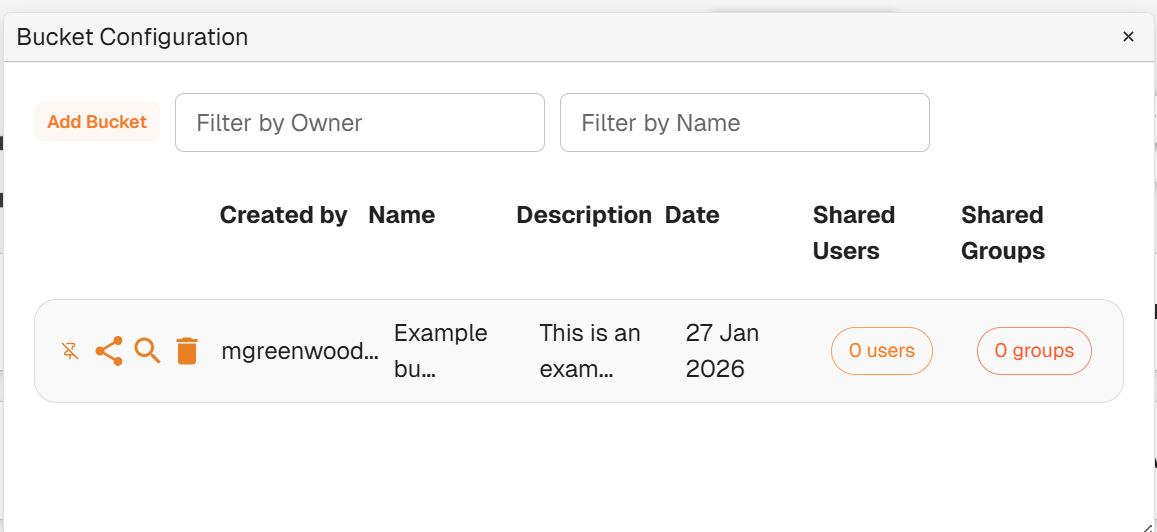
Bucket Configuration Dialog
| Field | Description |
|---|---|
| Add Bucket | Users can click here to create a new bucket. |
| Filter by Owner | Enables users to filter through listed buckets by the owner, or creator, of the bucket. |
| Filter by Name | Enables users to filter through listed buckets by the name of the bucket. |
 | Enables users to pin the specific bucket to the floating toolbar. |
 | Enables users to share the bucket with other Docwize users/groups. |
 | Enables users to view the content of the bucket, or to add content. |
 | Enables users to delete the bucket. |
Add Bucket dialog
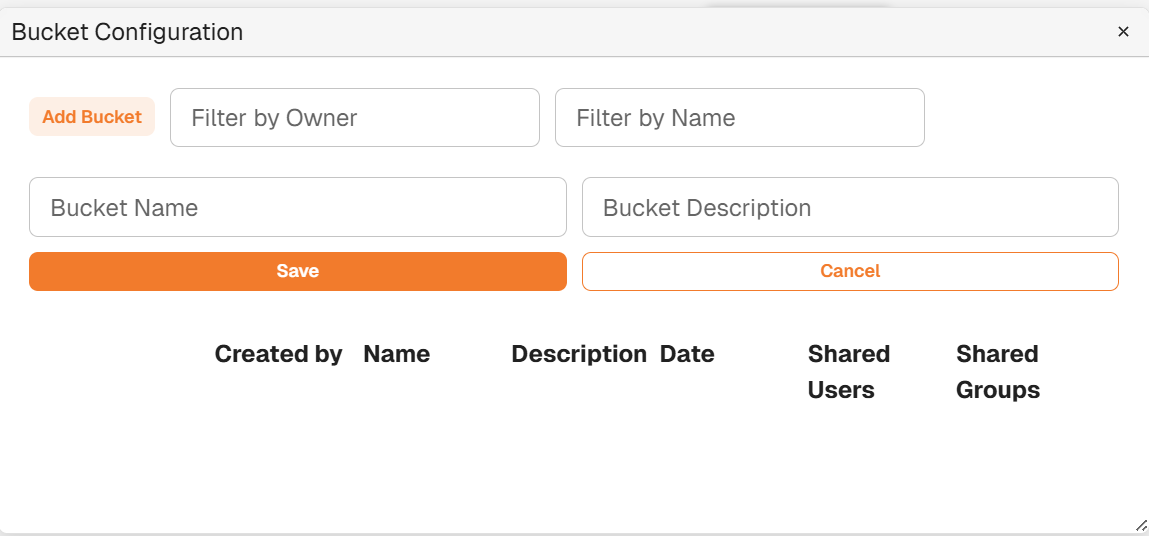
Add Bucket Dialog
| Field | Description |
|---|---|
| Bucket Name | Users can enter the relevant bucket name here. |
| Bucket Description | Users can enter a description of the bucket here. |
| Save | Saves the created bucket. |
| Cancel | Cancels the creation of the bucket. |
How to create and share a bucket
| Step | Description |
|---|---|
| 1 | Navigate to the 'Bucket' icon in the floating toolbar. Click on ‘Add Bucket’ and input a bucket name and description. |
| 2 | Click ‘Save’. |
| 3 | Optional: pin the bucket to the floating toolbar for easy access. |
| 4 | Optional: share your bucket with specific Docwize users and/or groups. |
Docwize Buckets