Completing a Record
Here is an overview of completing a record, followed by more detailed explanations.
What you can do after completing a record
- generate another record
- preview the completed document
- open Document Details
- download or search the completed record output
Example: Completing a record
When users want to complete a record, they can navigate to the relevant record under the New module and click on it. Once they have completed the required fields and saved it, the Completed Record dialog appears with options.
Completed Record dialog
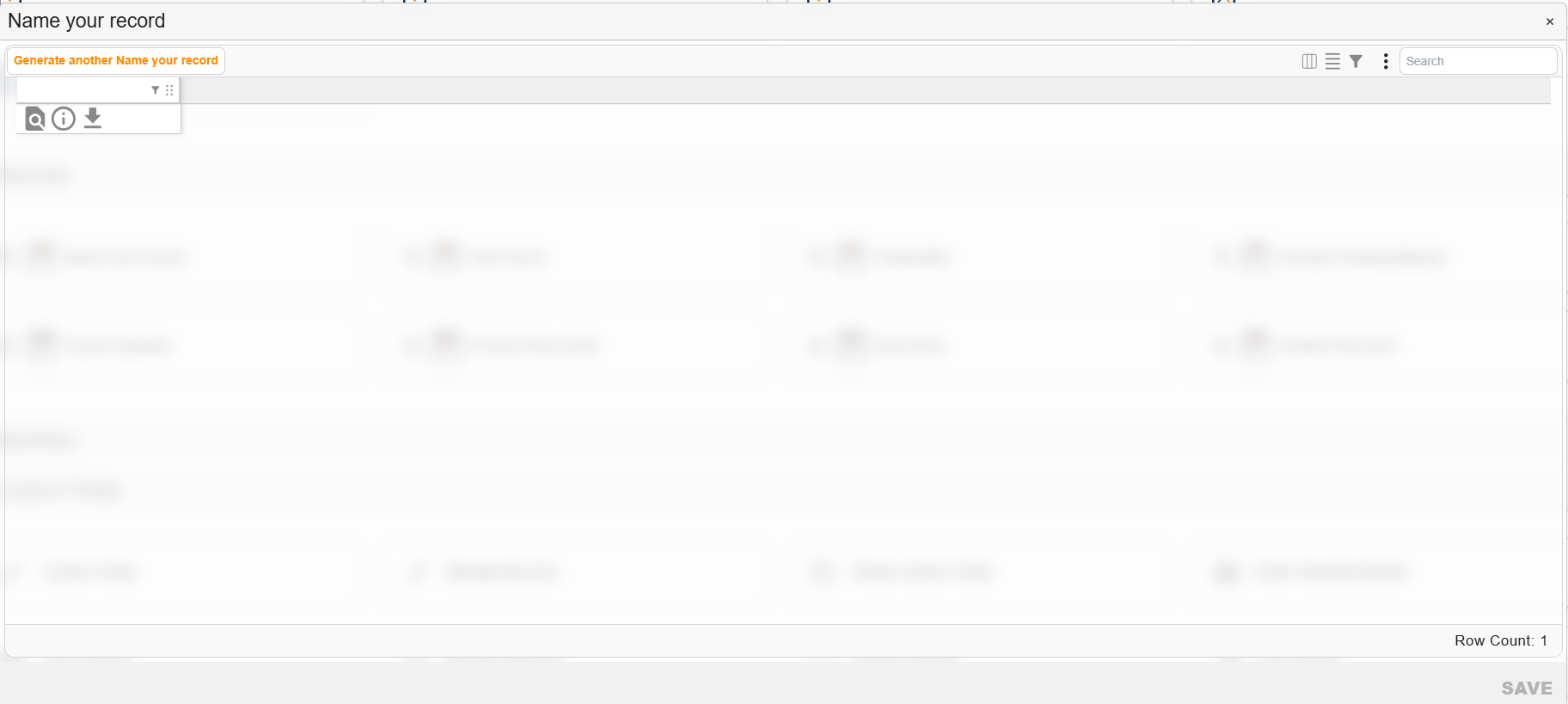
Completed Record dialog
| Field | Description |
|---|---|
| Generate Another | Allows a user to generate a new record. |
 | Previews document. |
 | Accesses Document Details dialog. |
 | Downloads record. |
 | Enables users to select conditions for filtering fields. |
 | Enables users to drag item. |
 | Enables users to select and pin a field. |
 | Broadens or shrinks the cell size of fields so that all text is visible or not, as needed. |
 | Enables users to export the grid content to Excel. |
| Search | Enables users to search across all cells of information displayed in the grid. |
How to complete a record
| Step | Description |
|---|---|
| 1 | Navigate to the ‘Record’ selection and click on the relevant record. |
| 2 | Complete the information, as prompted to, in the record. Note: this will vary, depending on the record template that was created. |
| 3 | Click ‘Save’ to complete the record-making process. |