左サイドバー
左サイドバーには、Inbox に届いた workflow タスクの一覧が表示されます。ツールバーには、一覧をフィルタリングしたり、フィルターを再利用可能なビューとして保存したり、表示するフィールドをカスタマイズしたりするための機能があります。
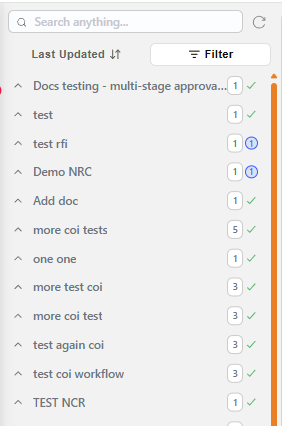
例:Inbox の左サイドバー
並べ替え・フィルターコントロールは、画面幅が十分にある場合はラベル付きボタン(例:Last Updated、Filter)として表示され、画面が狭い場合はアイコンのみのボタンに折りたたまれます。どちらも同じパネルを開きます。
| フィールド | 説明 |
|---|---|
| Search | workflow の件名、またはworkflowに送信されたドキュメント名の中から、キーワードやフレーズを検索できます。 |
| 並べ替え・ステータスコントロール(↕アイコン、ラベル表示時は Last Updated) | 一覧の並べ替えや、ステータス・日付によるクイックフィルタリングを行うパネルを開きます。詳細は後述の並べ替えとクイックフィルターを参照してください。 |
| ビュー・フィルターコントロール(☰アイコン、ラベル表示時は Filter) | 保存済みビューの選択、高度なフィルター条件の作成、一覧の表示設定を行うパネルを開きます。詳細は後述のビューとフィルターを参照してください。 |
| Refresh | Inbox 内の workflow 一覧を最新の状態に更新します。 |
| Workflow タスクアイテム | 矢印をクリックすると、該当する workflow タスクの詳細が展開/折りたたまれます。展開すると、workflow タスクの開始時に送信されたすべてのドキュメントの一覧が表示されます。Blue icon: 指定したドキュメントのアクションリクエストが未完了であることを示します。Green tick: 指定したドキュメントのアクションリクエストが完了していることを示します。 |
| (可変) | workflow の件名の横に表示される数字は、workflow の開始時に含まれていたドキュメントの数を示します。 |
並べ替えとクイックフィルター
並べ替え・ステータスコントロールをクリックすると、完全なフィルター条件を作成しなくても、一覧の並べ替え順を制御したり、ステータスや日付でクイックに絞り込んだりできるパネルが開きます。
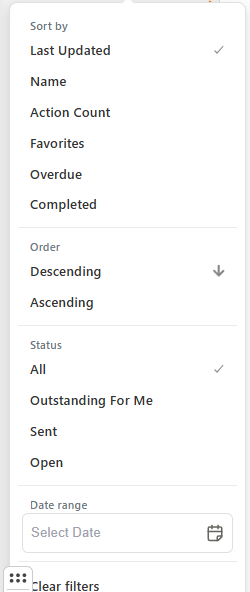
例:並べ替えとクイックフィルターパネル
| フィールド | 説明 |
|---|---|
| Sort by | 一覧を Last Updated、Name、Action Count、Favorites、Overdue、Completed のいずれかで並べ替えます。 |
| Order | 並べ替え方向を設定します:Descending または Ascending。 |
| Status | 一覧を All、Outstanding For Me、Sent、Open でフィルタリングします。 |
| Date range | 選択した日付範囲内のアイテムに一覧をフィルタリングします。 |
| Clear filters | このパネル内のすべての選択済みフィルターを解除します。 |
ビューとフィルター
ビュー・フィルターコントロールをクリックすると、現在の View、高度な Filters、および表示設定へのリンクという3つの部分から成るパネルが開きます。
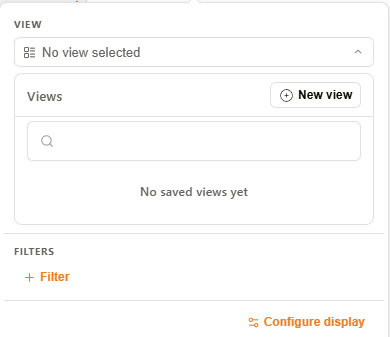
例:ビューとフィルターパネル
| セクション | 説明 |
|---|---|
| VIEW | 現在選択されているビュー、または No view selected を表示します。クリックすると Views パネルが展開されます — 詳細は後述のビューを参照してください。 |
| FILTERS | + Filter をクリックすると、高度なフィルター条件を作成できます — 詳細は後述のInbox 一覧のフィルタリングを参照してください。 |
| Configure display | Display settings ダイアログを開きます — 詳細は後述の表示設定を参照してください。 |
ビュー
ユーザーは、名前付きのフィルター設定を再利用可能な view として保存し、Views パネルから管理できます。
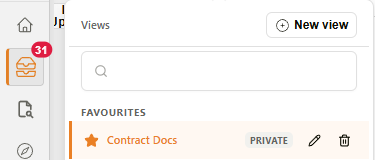
例:Views パネル
| フィールド | 説明 |
|---|---|
| New view | Create View ダイアログを開き、新しいビューをゼロから作成します。詳細は後述のビューの作成と編集を参照してください。 |
| Search | 保存済みビューの一覧を名前でフィルタリングします。 |
| Favourites | お気に入りとしてマークされたビューのグループです。 |
| ★(星のアイコン) | ビューがお気に入りとしてマークされているかどうかを切り替えます。 |
| ステータスバッジ | ビューの公開範囲を示します:Private(デフォルト — 作成者のみに表示)、Shared(特定のユーザーまたはグループに表示)、または Public(すべてのユーザーに表示)。Sharing タブから設定します — 詳細は後述のビューの作成と編集を参照してください。ビューが会社のデフォルトとして設定されている場合、このバッジは基になる Public/Private/Shared の設定に関わらず、代わりに Company Default と表示されます。 |
| Company default(建物アイコン) | そのビューを組織内の全員のデフォルトとして設定します — 自分自身でビューを選択していないユーザーに対して自動的に開きます。ビューを会社のデフォルトとして設定すると、そのビューは Public にもなります。アイコンを再度クリックすると会社のデフォルトから解除されますが、ビューはその後も Public のままとなり、以前の公開範囲には戻りません。 |
| Edit(鉛筆アイコン) | ビューを Create View ダイアログで開き、編集できるようにします。 |
| Delete(ゴミ箱アイコン) | ビューを削除します。 |
表示設定
Display settings ダイアログでは、現在のセッションにおいて、一覧内の各 workflow・ドキュメントエントリの下にサブ行として表示するフィールドをカスタマイズできます。
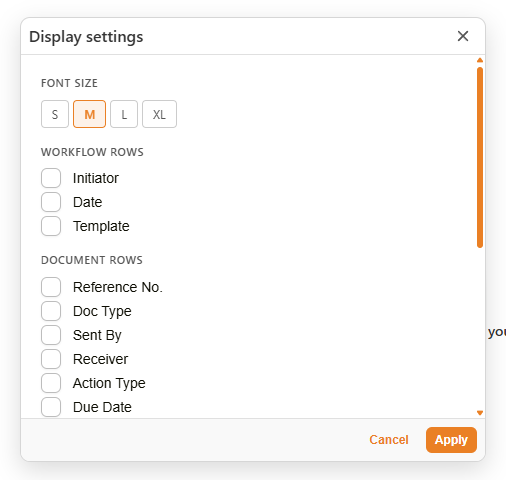
例:表示設定ダイアログ
| フィールド | 説明 |
|---|---|
| Font size | 一覧のテキストサイズを設定します:S、M、L、または XL。 |
| Behaviour | Automatically open my next action — チェックすると、アクションリクエストを完了した際に一覧内の次の保留中アクションが自動的に開きます。デフォルトでチェックされています。 |
| Workflow Rows | workflow レベルのフィールドをサブ行として表示するチェックボックスです:Initiator、Date、Template。 |
| Document Rows | ドキュメントレベルのフィールドをサブ行として表示するチェックボックスです:Reference No.、Doc Type、Sent By、Receiver、Action Type、Due Date。 |
| Custom Fields | すべてのテンプレートにわたるカスタムフィールドの検索可能な一覧で、サブ行として表示できます。 |
| Cancel / Apply | 選択した表示設定を破棄または適用します。 |
Inbox 一覧のフィルタリング
FILTERS セクションの + Filter をクリックすると、高度なフィルター条件を作成するためのビルダーが開きます。検索可能なフィールド一覧、演算子(例:Equals、Contains、Begins With、Is Null、Is Not Null)、および値を指定します。
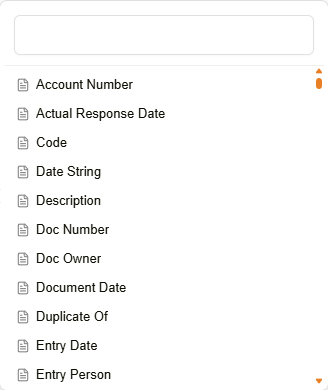
例:フィルターフィールドの選択
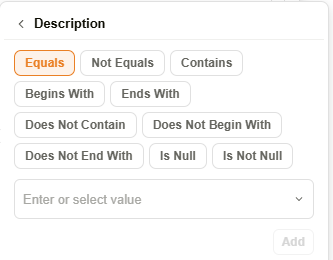
例:フィルター条件ビルダー
テキストフィールドの場合、値の選択メニューにはフィールドの実際のデータ値と並んで (blank) オプションも表示されます。これを選択すると、フィールドが空文字列であるレコードに一致します。これは、値が全く存在しないことを判定する Is Null / Is Not Null 演算子とは異なります。
条件を追加すると、FILTERS セクションにチップとして表示され、さらに以下のオプションが表示されます。
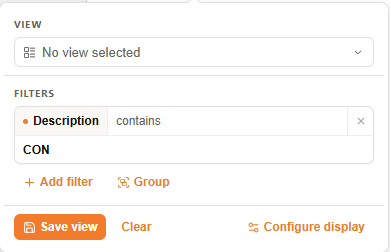
例:アクティブなフィルター
| ボタン | 説明 |
|---|---|
| Add filter | フィルターに新しい条件行を追加します。 |
| Group | 現在の条件をグループ化し、より複雑な AND/OR ロジックを可能にします。 |
| Save view | 現在のフィルターを新しいビューとして保存します。Create View ダイアログが開き、Query Parameters タブに現在の条件が事前入力されます。詳細は後述のビューの作成と編集を参照してください。 |
| Clear | フィルターからすべてのアクティブな条件を削除します。 |
ビューの作成と編集
Views パネルの New view をクリックするか、アクティブなフィルターから Save view をクリックすると、Create View ダイアログが開きます。既存のビューは、Views パネルの鉛筆アイコンから同じダイアログで編集できます。すべてのビューには、名前、任意の説明、そして4つのタブがあります。
| タブ | 説明 |
|---|---|
| Display Settings | 単独の表示設定ダイアログと同じフィールド・フォントサイズオプションが、このビューの一部として保存されます。 |
| Filters | ビューがアクティブなときに表示される実行時入力です — Add dynamic filter をクリックすると、値をビュー自体に固定する代わりに、ビューを開くたびにユーザーに値の入力を求めるようになります。 |
| Sharing | ビューを表示できるユーザーを設定します。 |
| Query Parameters | 上記のInbox 一覧のフィルタリングと同じフィールド/演算子/値の条件ビルダーを使用して、ビューのフィルター条件を作成します — Add condition と Add inner group は、Add filter と Group と同様に機能します。条件はデフォルトで AND ロジックを使用して結合されます。 |
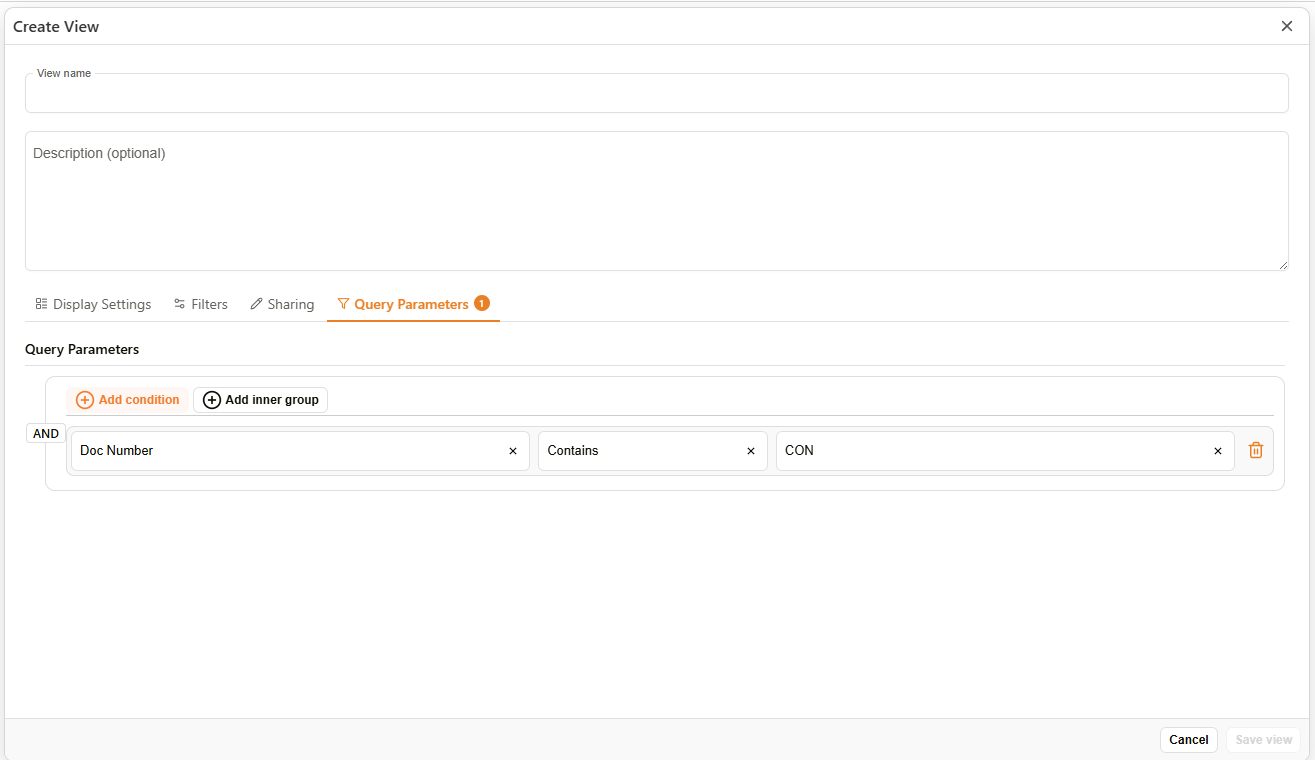
例:Create View ダイアログ — Query Parameters タブ
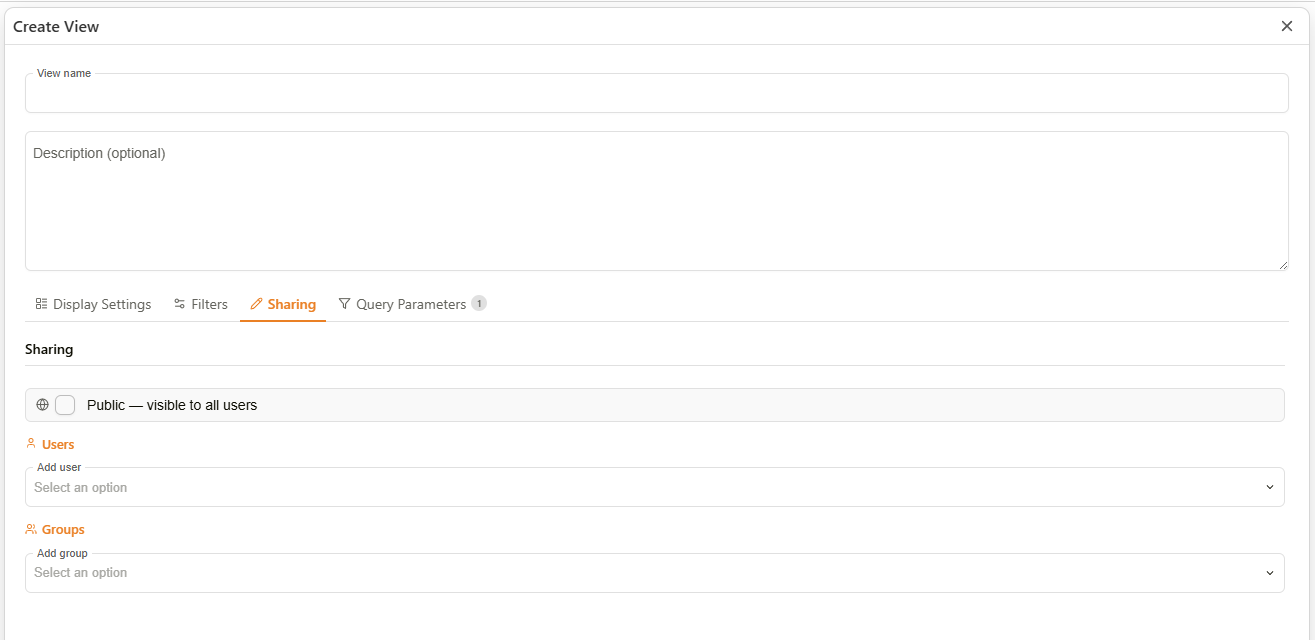
例:Create View ダイアログ — Sharing タブ
| フィールド | 説明 |
|---|---|
| Public — visible to all users | チェックすると、そのビューはすべてのユーザーに表示されます。 |
| Users | ビューを共有する特定のユーザーを追加します。 |
| Groups | ビューを共有する特定のグループを追加します。 |
Public のチェックを外し、ユーザーやグループを追加しない場合、そのビューは Private となり、作成者のみに表示されます。
ビューの公開範囲は、Views パネルから組織のデフォルトとして設定することの副作用として Public に設定されることもあります — 上記のCompany default(建物アイコン)を参照してください。