3D モデルレビュー
Docwize では、3D モデルを文書のプレビューで開けます。モデルを動かして確認し、計測できるほか、モデル上の正確な位置にピン留めするコメントである「モデル注記」を追加できます。文書全体に対して付ける通常のノートとは異なり、モデル注記はピン留めした位置にあるモデルの要素に紐付きます。
3D モデルレビューでできること
- 3D モデルを文書のプレビューで開く
- モデルを回転させる、全体を表示する、断面で切断する、標準のビューに切り替える
- IFC モデルで長さ、エッジ、角度、面積を計測する
- モデル上の任意の位置に注記をピン留めする
- 注記にタイトル、説明、ステータスを設定する
- ピン、カード、またはリンクから注記を開く
- 自分が追加した注記を編集または削除する
- モデルノートパネルを折りたたむ、もう一度開く
開かれるビューアー
ほとんどの 3D モデルは文書のプレビューでそのまま開きます。そのため、モデルをレビューする人は、設計ソフトウェアをインストールしなくてもモデルを確認し、計測し、コメントできます。Docwize は、ファイルの種類に応じてモデルの開き方を決めます。
| ファイルの種類 | 開かれるもの |
|---|---|
| IFC | 3D ビューアー(計測ツール付き) |
| STEP、IGES、OBJ、STL、DAE、FBX、3DS、3DM、GLB、GLTF、PLY、XYZ 点群 | 3D ビューアー |
| RVT、RFA、NWD、NWC | 設定されている場合は、別のビューアー。RVT、RFA、NWD、NWC モデルを参照してください。 |
| SAT、X_T、E57、DTM、NWF | ブラウザーでは表示できません。元のファイルをダウンロードを使用してください。 |
| DWG、DXF、DGN、DWF、DWFX | 通常の文書プレビュー |
モデルは、必要なデータがすべてファイル内に含まれている必要があります。別のテクスチャファイルやリソースファイルに依存するモデルは開きません。また、ビューアーのサイズ上限を超えるモデルは、表示されずにダウンロードの案内になります。
これが特に問題になるのは glTF ファイルです。glTF は、形状データを別の .bin ファイルに、テクスチャをその隣に保存することがよくあります。そのような .gltf をアップロードすると、プレビューに「このモデルを開けませんでした」と表示され、その理由が説明されます。モデルを .glb 形式、またはリソースを埋め込んだ .gltf 形式でアップロードすると、3D ビューアーで開きます。
モデルの操作
3D ビューアーでは、モデルの上部にツールバーが表示されます。モデル上をドラッグすると、ビューが回転します。レビューの目的に合わせてコントロールを使い分けてください。たとえば、図面と見比べるときは標準の正面ビューに、内部を確認したいときは断面に切り替えます。
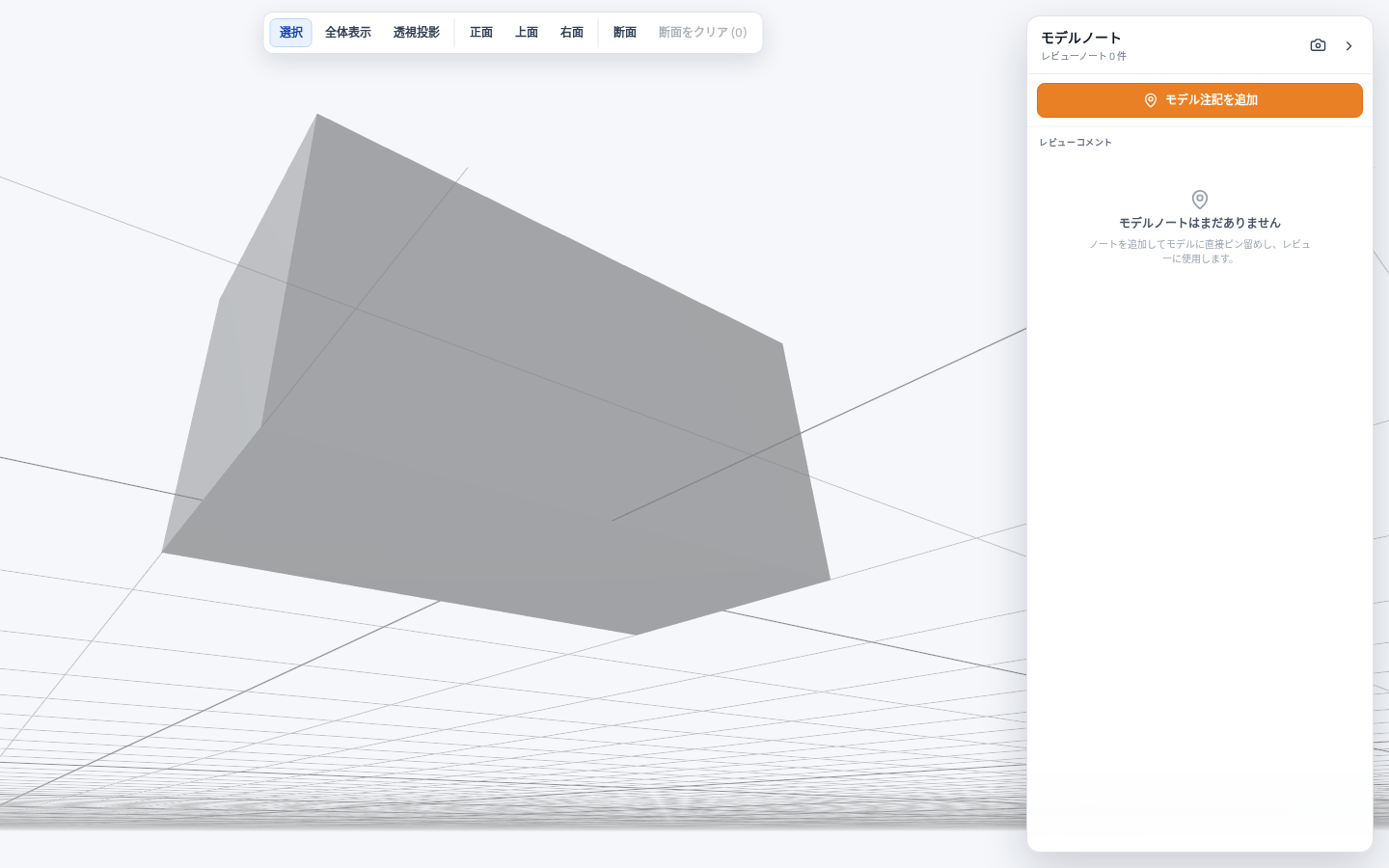
| コントロール | 説明 |
|---|---|
| 選択 | 要素をクリックすると選択されます。要素の名前が、クリアボタンの付いたバーに表示されます。 |
| 全体表示 | モデル全体が収まるように表示します。 |
| 透視投影 / 平行投影 | カメラの投影方法(透視投影または平行投影)を切り替えます。ボタンには現在のモードが表示されます。 |
| 正面、上面、右面 | カメラを標準のビューに移動します。 |
| 断面 | 面をクリックすると、その位置でモデルを切断します。 |
| 断面をクリア (n) | すべての断面を削除します。断面が 1 つ以上あるときに使用できます。 |
IFC モデルのツール
IFC は、建築情報モデルのやり取りに使われるオープンな形式です。IFC モデルは形状だけでなく、各要素が何であるかも記述しています。そのため IFC モデルは、ナビゲーション用のコントロールに加えて、計測ツールとモデル情報ツールを備えた状態で開きます。レビュー中に寸法や面積を確認したり、設計ソフトウェアでモデルを開かずに要素が何であるかを調べたりするときに使います。
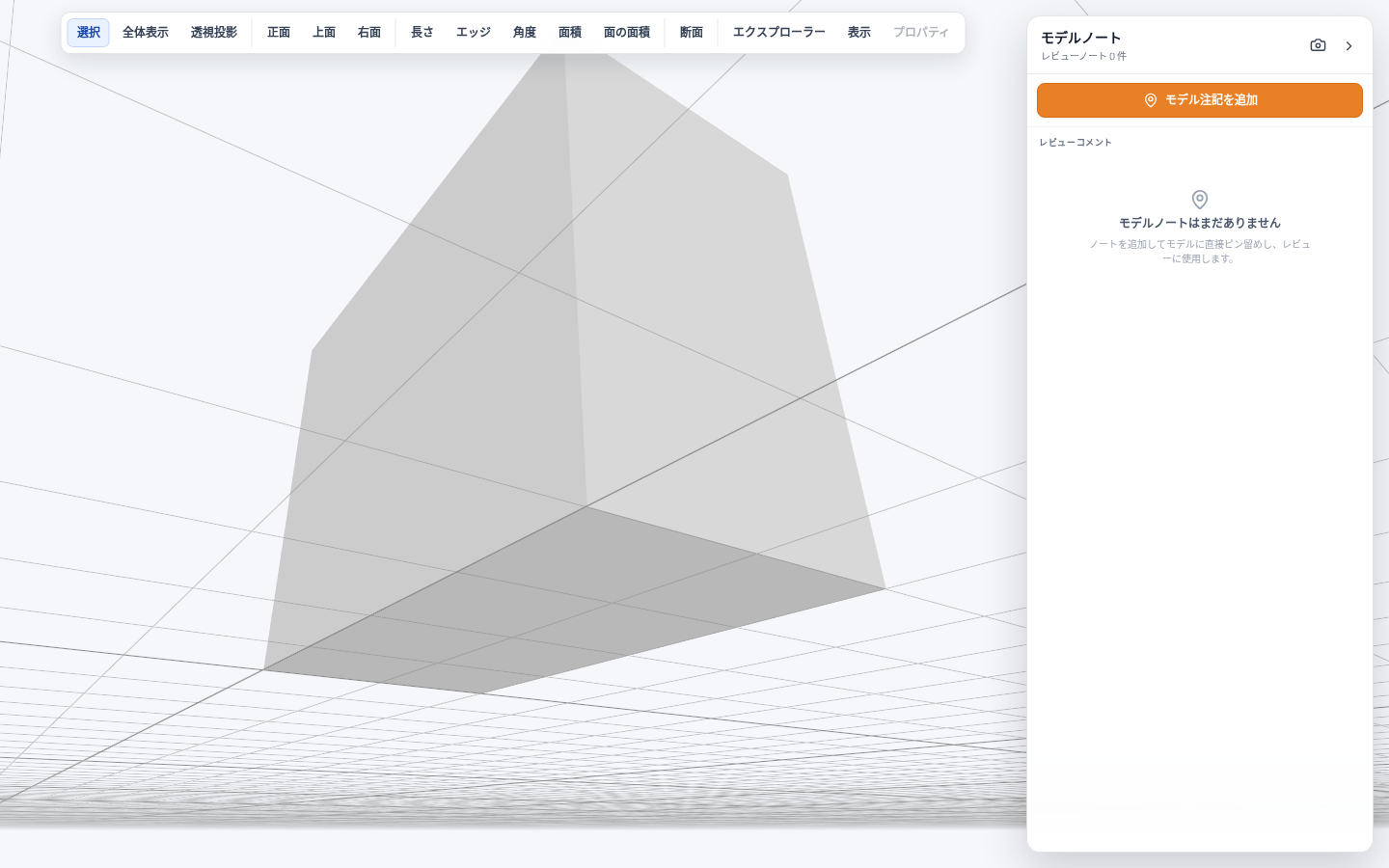
| ツール | 説明 |
|---|---|
| 長さ | 長さ: スナップした 2 点をクリックします。点・エッジ・面のスナップが有効です。 |
| エッジ | エッジ長さ: エッジにカーソルを合わせてクリックすると、そのエッジ全体を測定します。 |
| 角度 | 角度: スナップした 3 点をクリックします。 |
| 面積 | 面積: ポリゴンの頂点をクリックし、「面積を確定」または Enter を押します。 |
| 面の面積 | 面の面積: モデルの面にカーソルを合わせてクリックすると測定します。 |
| エクスプローラー | モデルエクスプローラーを開きます。 |
| 表示 | モデルの階とカテゴリを表示したり、分離したりします。 |
| プロパティ | 選択した要素のプロパティを表示します。要素を選択しているときだけ使用できます。要素を選択すると、プロパティが自動的に開きます。× で閉じます。 |
計測ツールを選択すると、その使い方がツールバーの下に表示されます。
ツールバーは、モデルノートパネルの横のスペースに収まります。計測をクリアが表示されたときなど、幅が足りない場合は、ツールバーを横にスクロールして残りのツールを使用します。
計測
計測値は、その値とともにモデル上に描画されるため、何を測ったのかをそのまま確認できます。長さは 2 点を結ぶ線、面積は強調表示された図形、面の面積は面全体に表示されます。
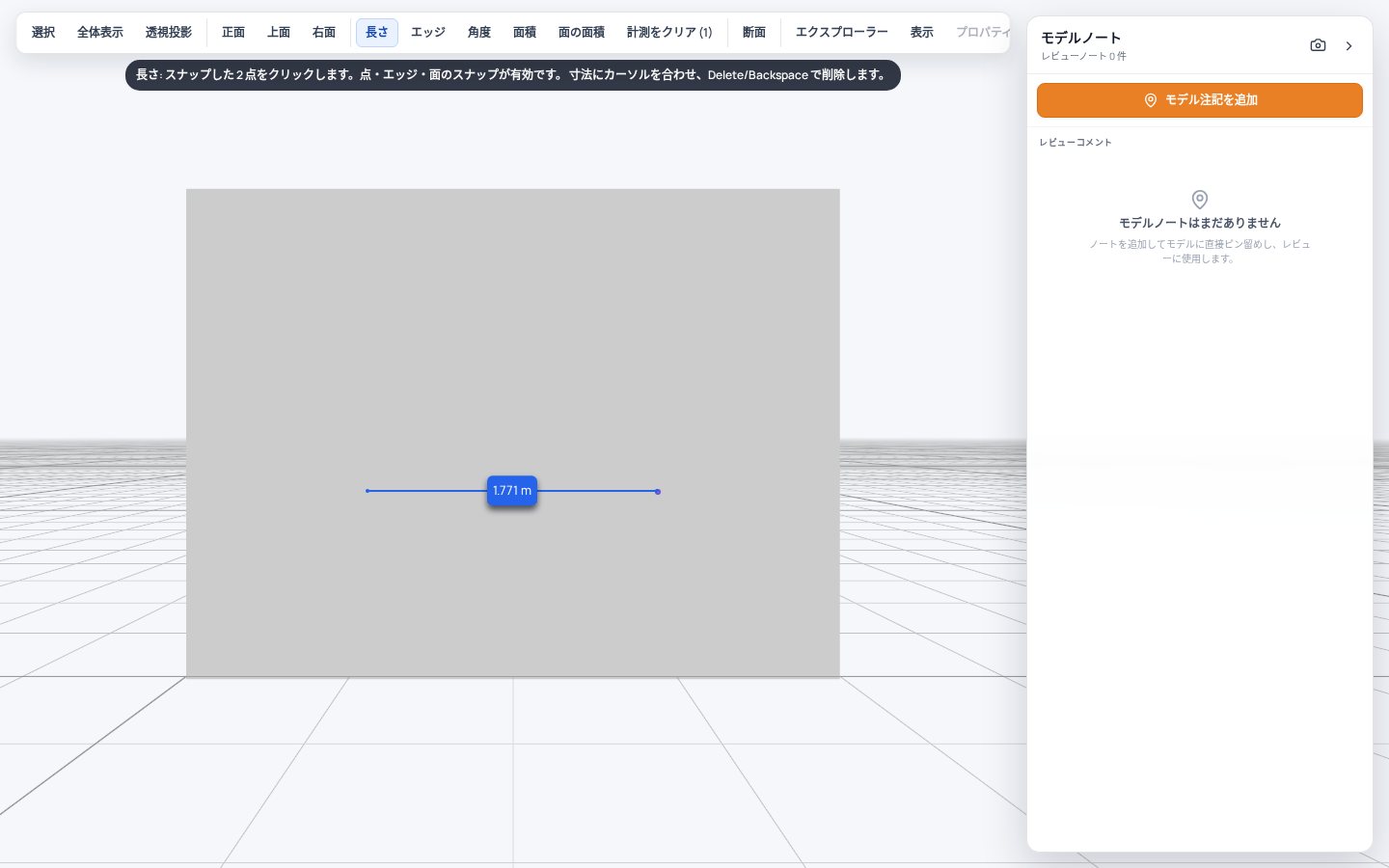
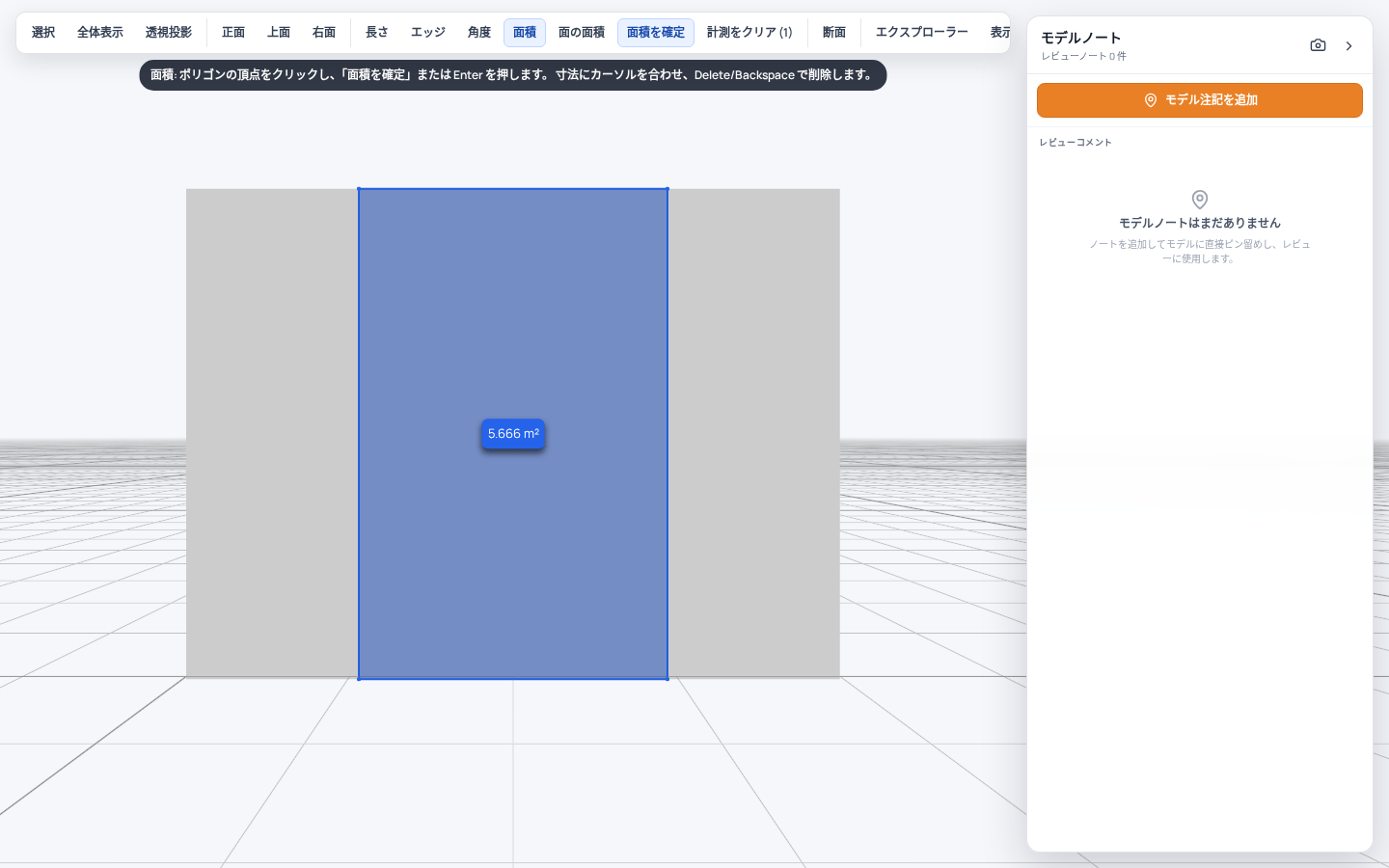
面積を計測するとき、頂点は近くのエッジや点にスナップします。エッジの近くに置いた頂点は、そのエッジ上に移動します。値を使う前に、輪郭を確認してください。
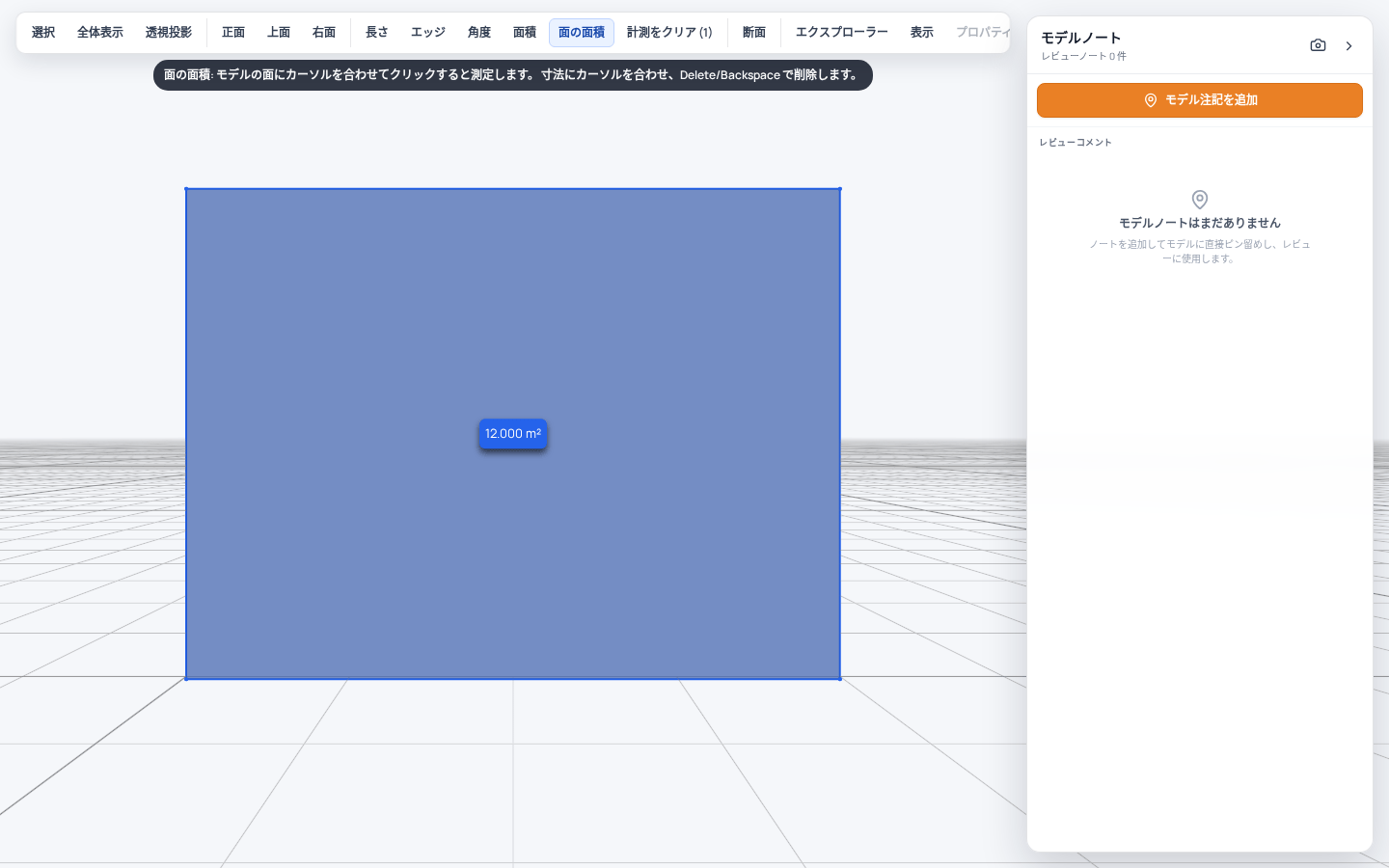
計測値は、点、エッジ、面にスナップします。長さはメートル(m)、面積は平方メートル(m²)、角度は度(°)で表示され、いずれも小数点以下 3 桁までです。
整理したいときや、やり直したいときは、次の操作を使います。
| 操作 | 方法 |
|---|---|
| すべての計測を削除する | 計測をクリア (n) をクリックします。このボタンは、計測が 1 つ以上あるときに表示されます。 |
| 1 つの計測を削除する | 計測ツールを選択した状態で、計測にカーソルを合わせて Delete または Backspace を押します。 |
| 作成中の計測を取り消す | Esc を押します。ビューアーは選択に戻ります。 |
RVT、RFA、NWD、NWC モデル
設定されている場合、RVT、RFA、NWD、NWC モデルは、独自のツールバーを持つ別のビューアーで開きます。
| アイコン | 説明 |
|---|---|
| 回転 | モデルを中心にビューを回転させます。既定のナビゲーションツールです。 |
| パン | 回転させずにビューを移動します。 |
| ズーム | ビューを拡大または縮小します。 |
| ウォーク | 一人称視点でモデルの中を移動します。 |
| カメラ | Fit to View、Field of View、Roll を含むサブメニューを開きます。 |
| 断面解析 | X、Y、Z のいずれかの平面、またはボックス領域でモデルを切断し、内部を確認します。 |
| 計測 | モデル上の距離、角度、または位置を計測します。 |
| 分解 | スライダーをドラッグしてモデルの部品を離して表示し、部品同士の組み合わせを確認しやすくします。 |
| モデル構造 | モデルツリーを開きます。モデルの要素が、表示の切り替えと検索機能とともに一覧表示されます。 |
| プロパティ | 選択したモデル要素のプロパティを表示します。 |
| 設定 | ビューアーの構成、ナビゲーション、外観の設定を開きます。 |
| 全画面表示 | モデルのプレビューを画面いっぱいに表示します。 |
モデルノートパネル
モデル注記は、レビュー担当者が 3D モデルにコメントするための機能です。各注記は対象となる正確な位置にピン留めされるため、注記を受け取った人は、どこを見ればよいかの説明を読まなくても、その場で問題を確認できます。モデルの横にあるモデルノートパネルには、すべての注記が一覧表示され、新しい注記を追加することもできます。
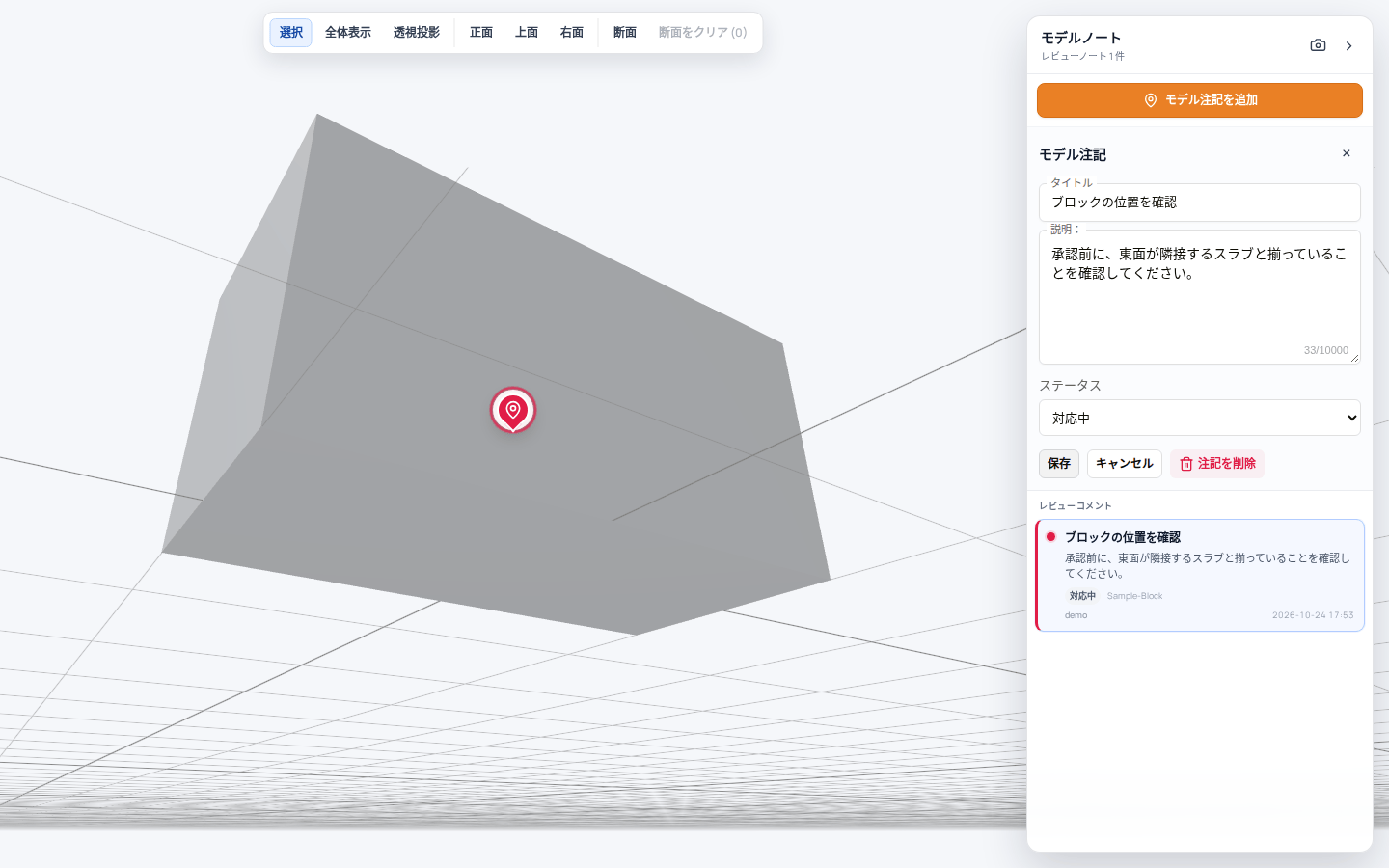
| 項目 | 説明 |
|---|---|
| モデルノート | パネルの見出しです。モデル上の注記の件数が表示されます。 |
| カメラアイコン | 現在の表示をプレビューに設定。確認のうえ、現在のビューをモデルの代表画像として使用します。 |
| › | モデルノートを折りたたむ。パネルを、注記の件数を表示するフローティングピンに縮小します。ピンをクリックすると、パネルがもう一度開きます。 |
| モデル注記を追加 | 新しい注記のモデルへのピン留めを開始します。 |
| レビューコメント | モデル上のすべての注記です。各カードには、注記のタイトル、説明、ステータス、ピン留めされている要素、追加した人と日時が表示されます。 |
| ピン | 注記が追加された位置を示します。ピンの色は注記のカードの色と同じです。ピンまたはカードをクリックすると、その注記が開きます。 |
モデル注記へのリンクを開くと、その注記が選択された状態でモデルが開きます。
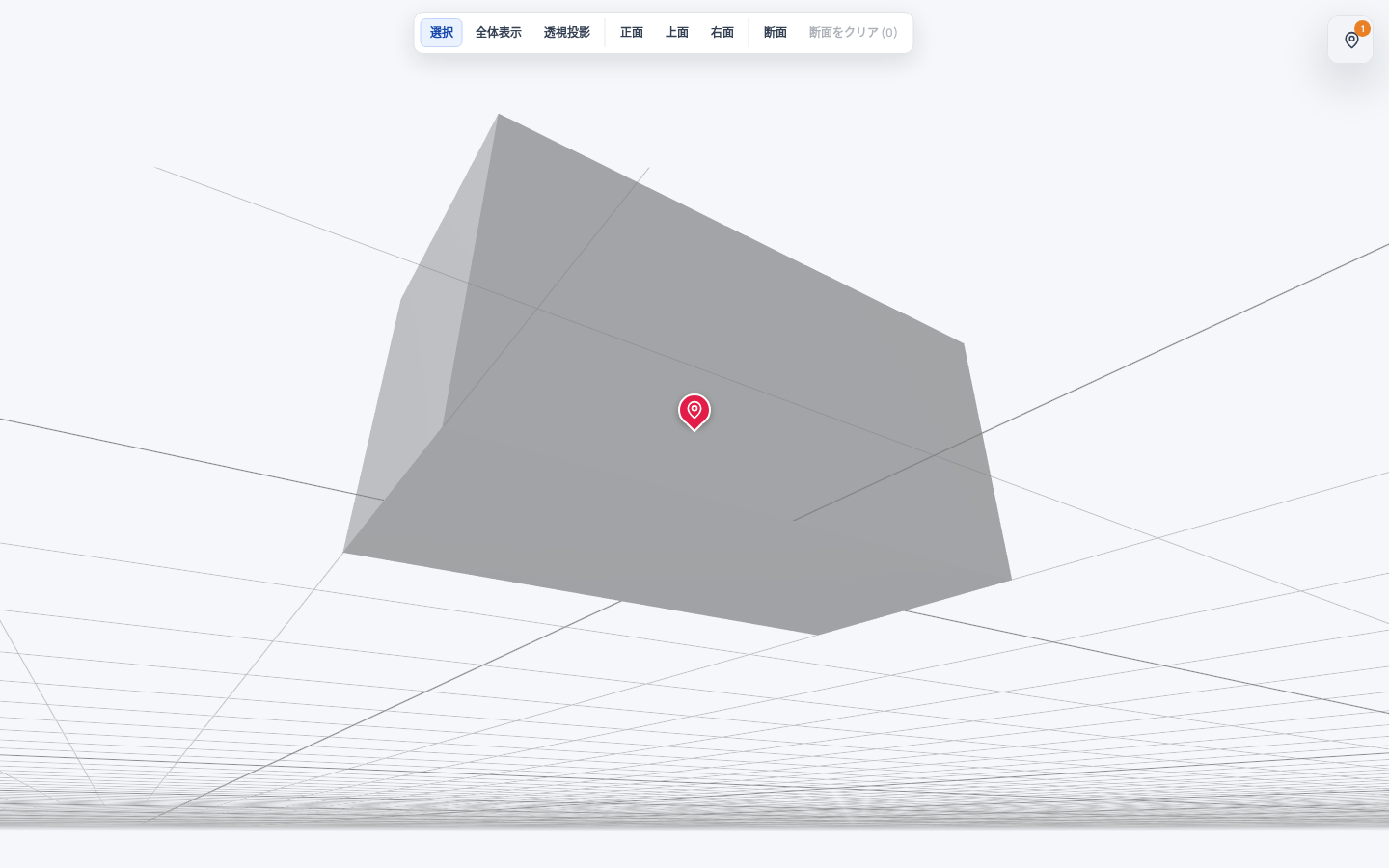
モデル注記の項目
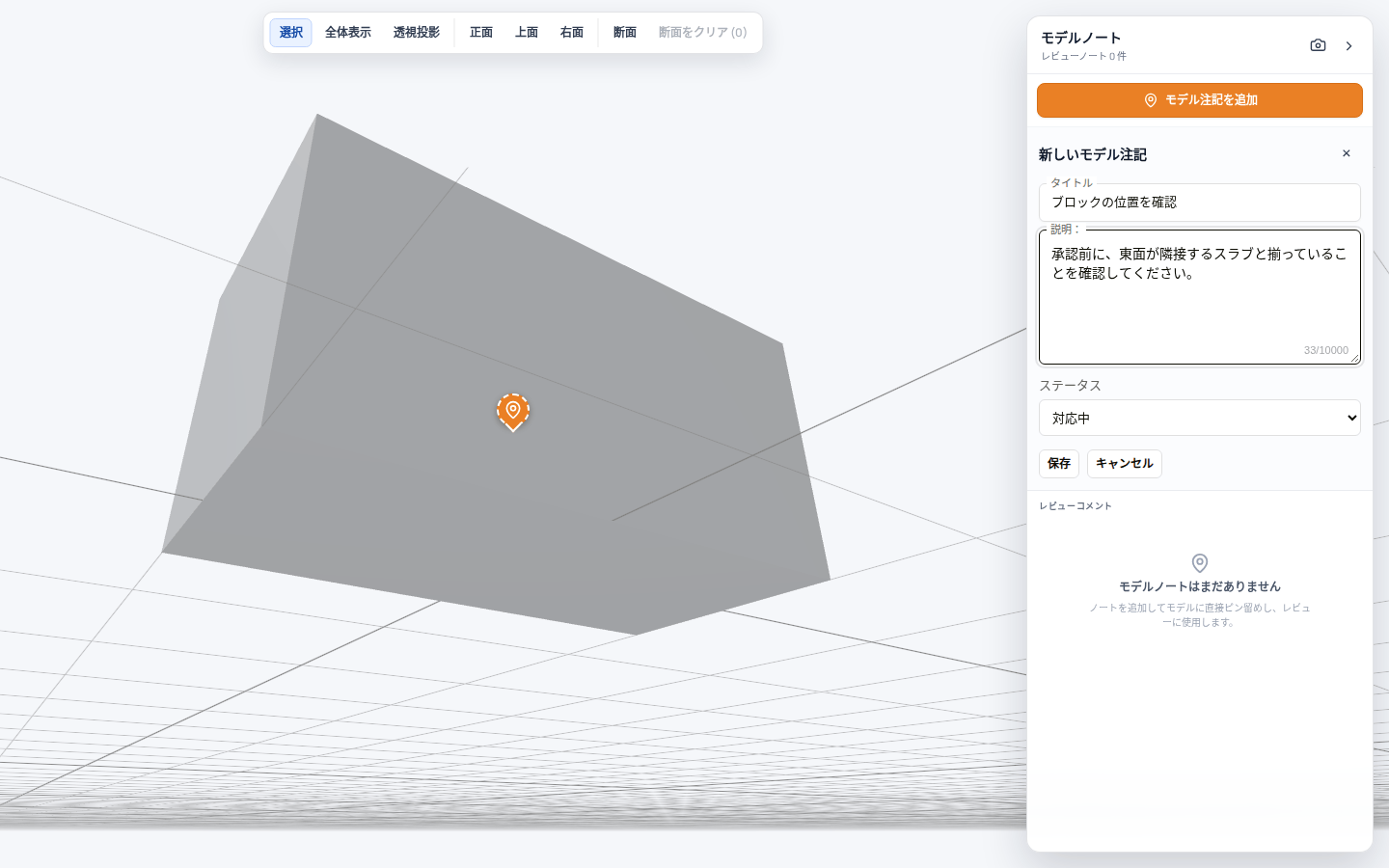
| 項目 | 説明 |
|---|---|
| タイトル | 注記の短い見出しです。160 文字まで入力できます。既定値は「モデル注記」です。必須項目です。 |
| 説明 | 注記の本文です。10,000 文字まで入力できます。入力欄の下のカウンターに、使用している文字数が表示されます。 |
| ステータス | 未解決、対応中、解決済み。既定値は未解決です。問題への対応が進んだら更新してください。どの注記にまだ対応が必要かを、全員が確認できるようになります。 |
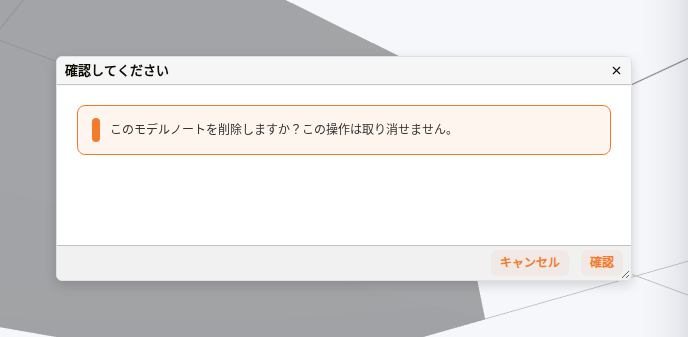
モデル注記のタイトル、説明、ステータスを編集したり、注記を削除したりできるのは、その注記を追加したユーザーだけです。他のユーザーが追加したモデル注記は、読み取り専用で開きます。注記を削除するときは、確認を求められます。
モデル注記を追加する方法
| 手順 | 説明 |
|---|---|
| 1 | モデル注記を追加をクリックします。パネルに「モデル上の点を選択」と表示されます。 |
| 2 | モデル上の、注記を付けたい位置をクリックします。必要に応じて、先にナビゲーション用のツールバーを使ってモデルを見やすくしてください。 |
| 3 | タイトルと説明を入力し、ステータスを選択します。 |
| 4 | 保存をクリックします。注記が一覧に追加され、そのピンがモデル上に表示されます。 |
タイトルが空の間は、保存を使用できません。保存せずにやめるときは、キャンセルをクリックします。
3D モデルを計測し、その計測についてモデル注記を追加する例です。
例:モデルを計測してモデル注記を追加する
モデル注記を編集または削除する方法
| 手順 | 説明 |
|---|---|
| 1 | ピンまたはカードから注記を開きます。 |
| 2 | 編集するには、タイトル、説明、またはステータスを変更して、保存をクリックします。 |
| 3 | 削除するには、注記を削除をクリックしてから、確認をクリックします。 |
注記を削除すると、元に戻すことはできません。
長さを計測する方法
| 手順 | 説明 |
|---|---|
| 1 | 長さをクリックします。 |
| 2 | 1 点目、2 点目の順にクリックします。2 点を結ぶ線の上に距離が表示されます。 |
面積を計測する方法
| 手順 | 説明 |
|---|---|
| 1 | 面積をクリックします。 |
| 2 | 計測する範囲の頂点を順にクリックします。 |
| 3 | 面積を確定をクリックするか、Enter を押します。図形の内側に面積が表示されます。 |
面の面積を計測する方法
| 手順 | 説明 |
|---|---|
| 1 | 正面、上面、右面のいずれかをクリックして、計測したい面を正面から見る向きにします。 |
| 2 | 面の面積をクリックします。 |
| 3 | 面をクリックします。その面の上に面積が表示されます。 |