Document Processing Nodes
Document processing nodes read the workflow document and do something with its content: make it searchable, extract data from it with AI, split it into new documents, or convert it. All of them are in the Tools & Tasks palette category.
Most of these nodes hand their work to a background task, and the workflow waits at the node until it finishes. Most have no failure output: if the task fails, the branch stops at the node and the task shows as failed in the workflow. Position Extraction is the exception, with a separate Error output.
| Node | Purpose |
|---|---|
| OCR Task | Makes scanned pages searchable. |
| Index Task | Indexes the document for search and AI. |
| Translation Task | Translates the document. |
| Extract to Standard Fields | Fills document details using AI. |
| Extract to Customfields | Fills a custom field template using AI. |
| Extract to Grid | Runs AI extraction once per row of a dataview. |
| Link Extraction | Links custom field rows using AI. |
| Extract Tables | Finds tables in the document. |
| Position Extraction Node | Reads text from fixed areas of each page. |
| Split Pages | Splits the document into new documents using AI. |
| Split PDF Node | Splits a PDF by page ranges or a SQL view. |
| Convert to PDF | Converts the document to PDF. |
| Extract Attachments | Saves the attachments of an email document. |
| Attachment Split | Starts a sub-workflow for each attachment of an email. |
OCR Task
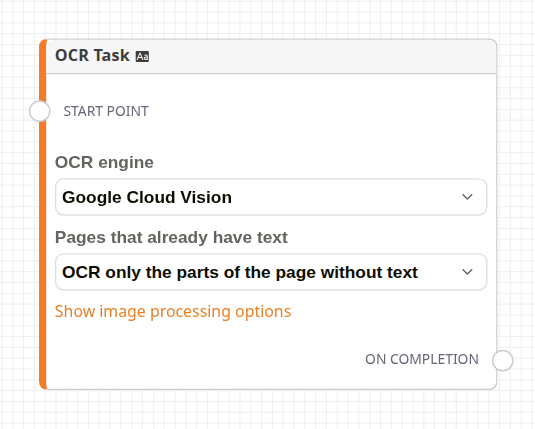
OCR Task node
The card is titled OCR Job. It replaces the document's file with a searchable PDF. The original is kept as an earlier revision, and the document is re-indexed.
| Setting | Description |
|---|---|
| OCR engine | The OCR service to use. Only engines the tenant is set up for are offered. |
| Pages that already have text | Skip pages with existing text, Remove all text and OCR every page, or OCR only the parts of the page without text (the default). |
| Show image processing options | Shows the options below. |
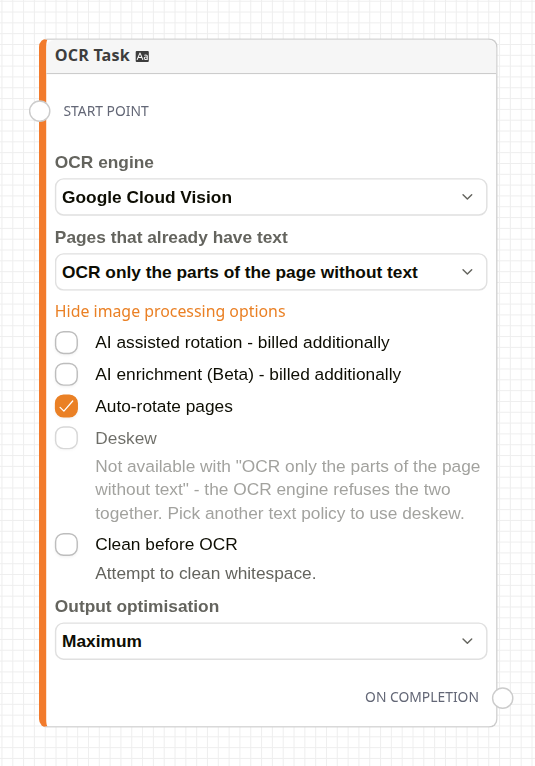
Image processing options
| Option | Description |
|---|---|
| AI assisted rotation - billed additionally | Tries all four orientations and keeps the one read most confidently. |
| AI enrichment (Beta) - billed additionally | Uses AI to improve results on scans and handwriting. |
| Auto-rotate pages | Turns pages upright before reading them. On by default. |
| Deskew | Straightens skewed pages. Not available with OCR only the parts of the page without text, so choose another option above to use it. |
| Clean before OCR | Attempts to clean whitespace from the page before reading it. |
| Output optimisation | None, Lossless, Lossy images or Maximum (the default): the trade-off between file size and quality. |
OCR reads PDF and image files. Put Convert to PDF before it for Office documents. The language of each page is detected automatically. OCR is billed per page.
Index Task
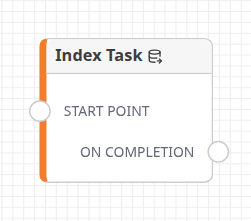
Index Task node
The card is titled Index Contents. It indexes the document for search and prepares its text for the AI extraction nodes, and the workflow waits until that is done. OCR Task already re-indexes on its own. Use Index Task when later steps must not start before indexing finishes.
Translation Task
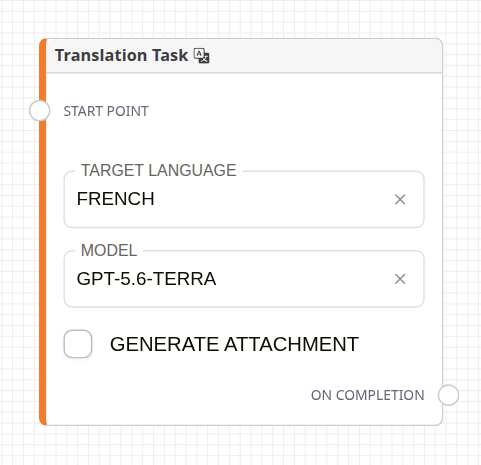
Translation Task node
The card is titled Translate Document. Its settings are Target Language, Model and Generate Attachment. Without a Target Language, it translates into English. Generate Attachment saves the translation as a new attachment of type "Translation", with the translated text laid over the original pages; left unticked, no attachment is created.
Extract to Standard Fields
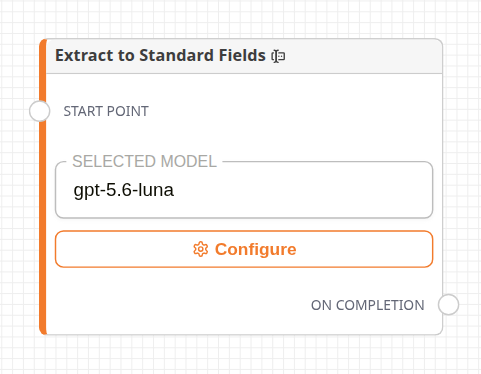
Extract to Standard Fields node
Reads the document and fills its standard details. Configure opens the settings. The card shows the chosen model.
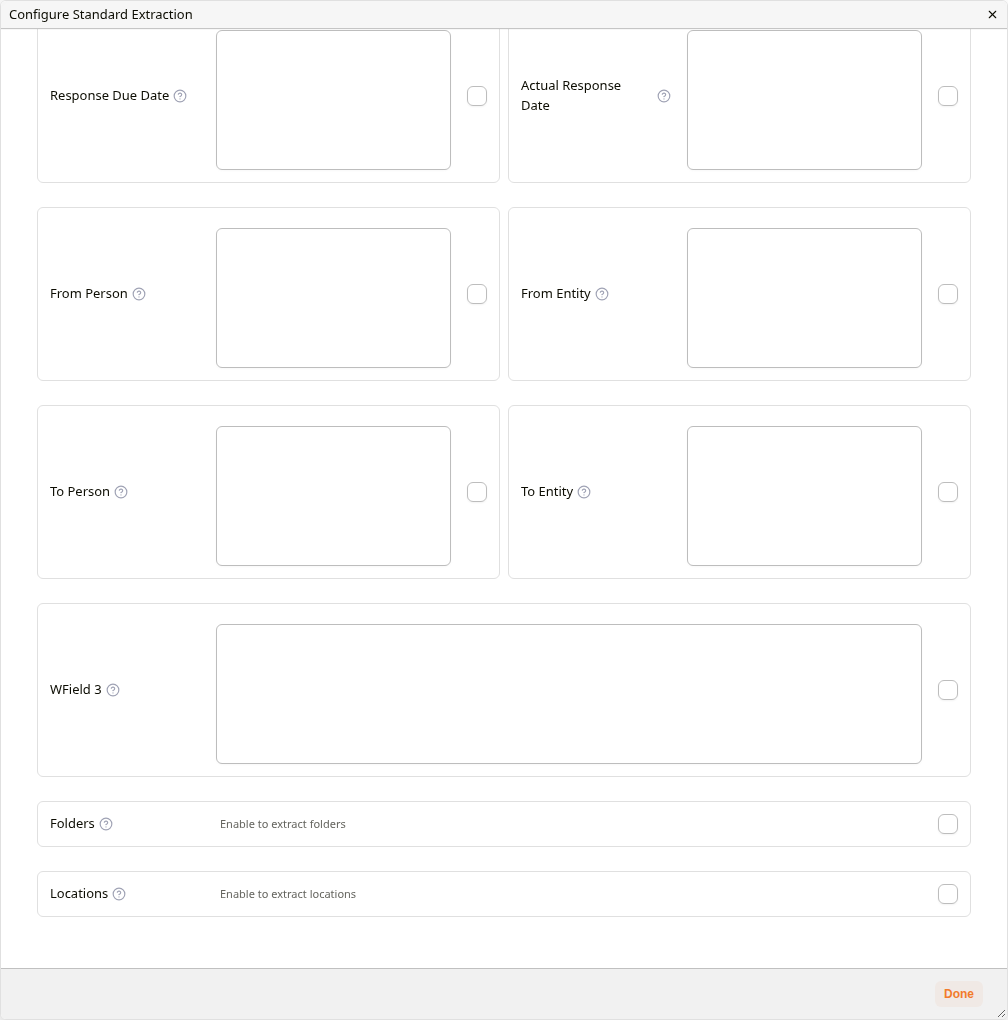
Configure Standard Extraction
| Setting | Description |
|---|---|
| Overall AI Extraction Prompt | General instructions for the extraction. |
| Use Only Extracted Tables | Reads only tables found by Extract Tables, not the full text. |
| Model | The AI model. |
| Field cards | Tick a field to extract it. Each field can have its own prompt. Document Type and Status can be limited to allowed values. Folders and Locations can allow any, or be limited to a tree selection. |
- Only ticked fields are extracted.
- Folders and locations are added to the document; existing ones are kept.
- Run Extract Tables first for table-heavy documents.
Extract to Customfields
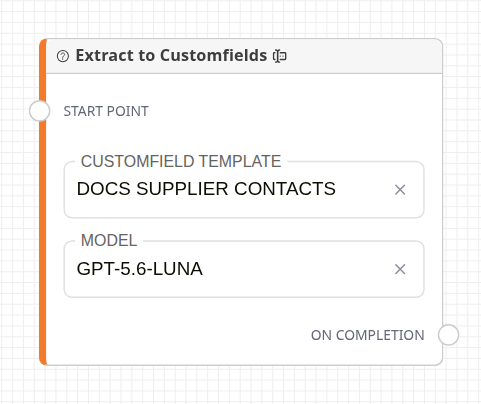
Extract to Customfields node
Fills a custom field template from the document using AI. Customfield Template lists only templates with an AI Extraction Prompt, set under AI Settings in the template's configuration. Model picks the AI model.
Each run replaces the document's existing rows for that template. Linked-column links marked to run on extraction are then created. Ticking Link Extraction Mode runs only that linking step, the same job the Link Extraction node runs, instead of extracting new values.
Extract to Grid
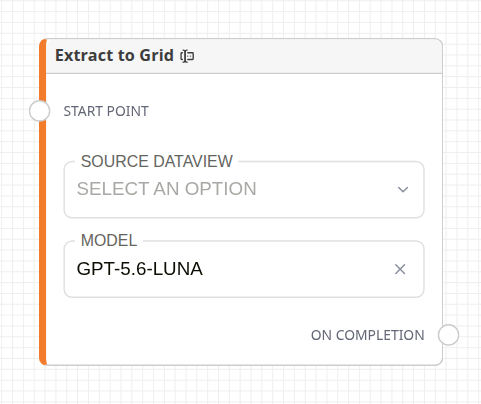
Extract to Grid node
The card is titled Grid Extract to Customfields. It runs a dataview and makes one AI extraction per row, into the dataview's output template. Source Dataview lists dataviews with Enable LLM Research ticked in their research settings. Each row's prompt column steers its extraction, unless the output template has its own AI Extraction Prompt.
Keep the dataview small: every row is a separate AI call.
Link Extraction
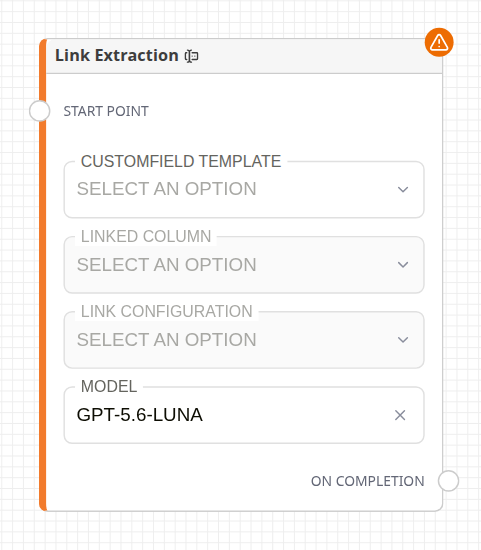
Link Extraction node
Uses AI to link rows between custom field grid templates. Customfield Template lists templates with an AI-enabled link configuration. Linked Column and Link Configuration narrow which links run. With no configuration chosen, only configurations marked to run on extraction run.
The node shows Configuration Error until a template is chosen.
Extract Tables
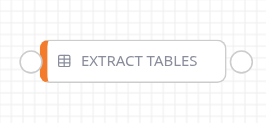
Extract Tables node
Finds the tables in each page and stores them for the AI extraction nodes and the viewer. It has no settings. Once a document has extracted tables, the node skips it on later runs. Place it before the extraction nodes.
Position Extraction Node
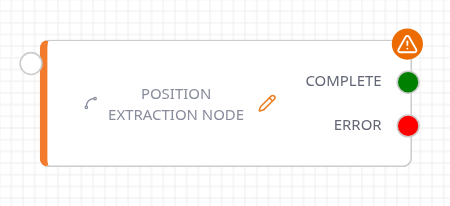
Position Extraction node
Reads the text inside fixed areas of every page and adds each match as a row in a custom field grid. It suits documents with the same layout every time, such as delivery notes.
The pencil icon opens Configure Position Based Extraction:
- Drag a template document with rectangle annotations into the dialog. Each annotation marks an area to read.
- Add the annotations to use. For each, choose the Customfield Template, Template Field, optional Template Page Field, and an optional Extraction Reggex that picks part of the text.
Each match adds a new row; existing rows are not cleared. A misconfigured node, or a document with no file, routes to Error instead of Complete.
Split Pages
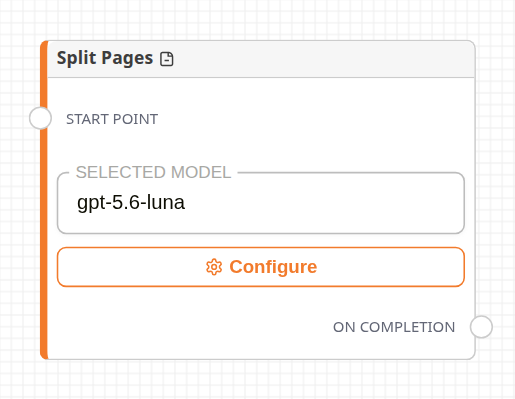
Split Pages node
Uses AI to find where the document should be split, then creates each part as a new attachment of the original. The original is unchanged.
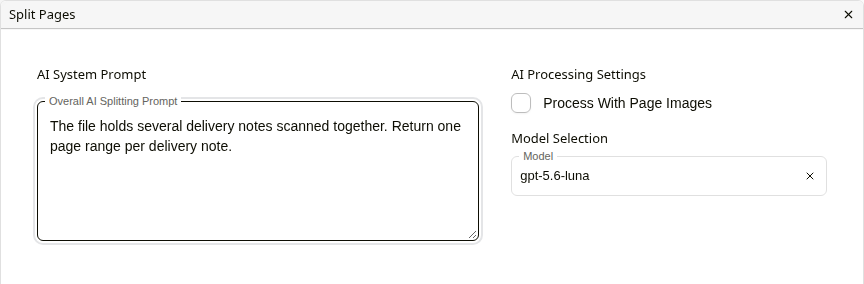
Configure Page Splitting
Overall AI Splitting Prompt is required: describe how the document divides, for example "The document contains multiple reports. Identify the page ranges for each report." Each new document is given the closest matching document type. Process With Page Images sends page images to the AI alongside the text; a document with no extractable text always sends images, whatever this is set to.
Split PDF Node
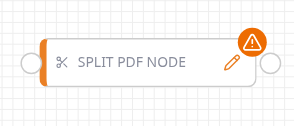
Split PDF node
Splits a PDF into new documents without AI. The node shows Configuration Error until Document Type is set and, depending on the mode: View Mode needs Splitting Viewname; General Mode's Range Mode needs at least one valid range; Page Mode needs nothing further.
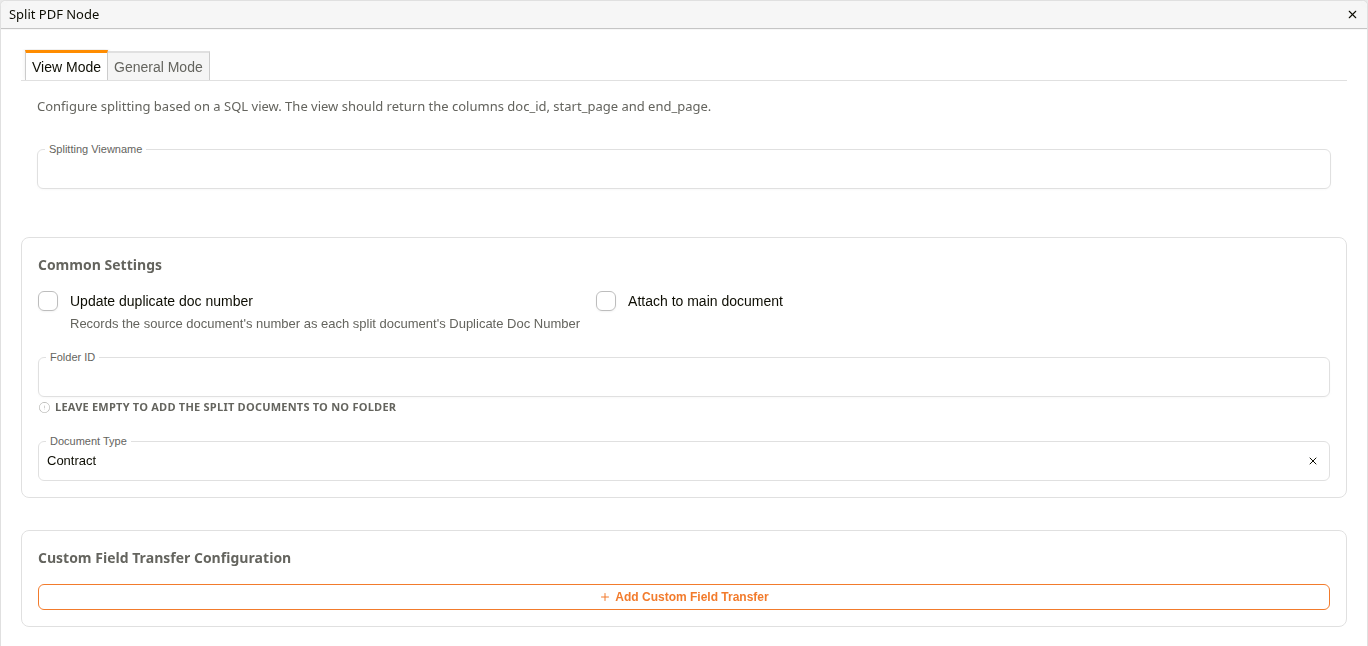
View Mode
View Mode reads the ranges from a SQL view, named in Splitting Viewname. The view must return doc_id, start_page and end_page.
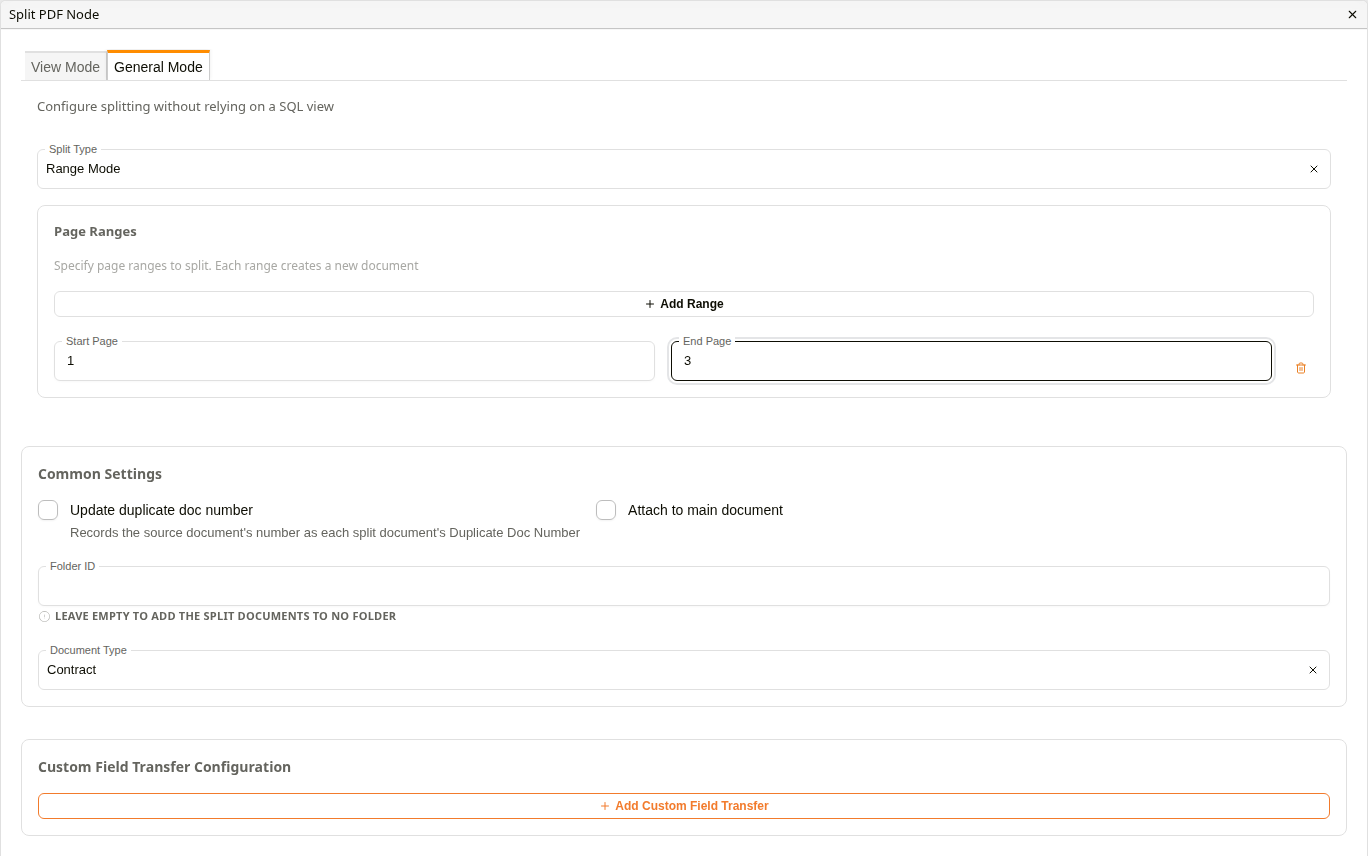
General Mode
General Mode uses Split Type:
- Range Mode: the Page Ranges added with Add Range.
- Page Mode: every page, or groups of a set number of pages.
| Common setting | Description |
|---|---|
| Attach to main document | Creates the parts as attachments of the original instead of separate documents. |
| Folder ID | The folder for the new documents, as a folder ID. |
| Document Type | The type of the new documents. |
| Custom Field Transfer Configuration | Copies grid rows whose page field matches each part's first page, and can set a document field from a transferred value. |
| Update duplicate doc number | Ticked, each part carries the source document's number as its Duplicate Doc Number, tying the family of split documents together. |
Convert to PDF
Convert to PDF node
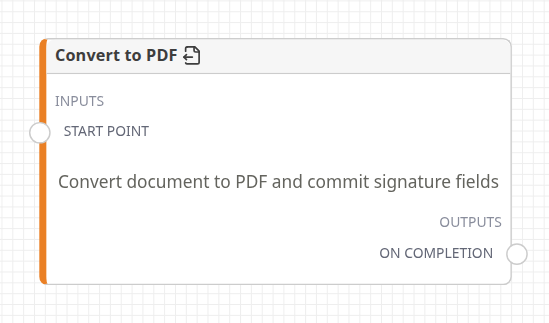
Converts the document's file to PDF and makes it the current revision, keeping the original as an earlier revision. Signature markers in the document become signature fields. It has no settings. Its output is the unlabelled handle beside the title.
If the conversion fails, the task fails with a readable reason.
Extract Attachments
Extract Attachments node
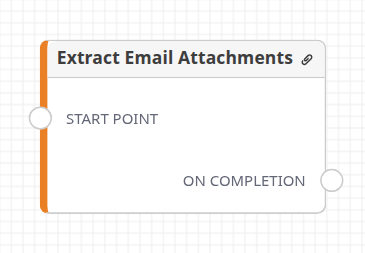
The card is titled Extract Email Attachments. For an email document (.eml or .msg), it saves each attachment as an attachment document in the email's folder. Attachments already saved are skipped, so it is safe to run again. The new documents are visible only to the person who started the workflow.
Attachment Split
Attachment Split rules
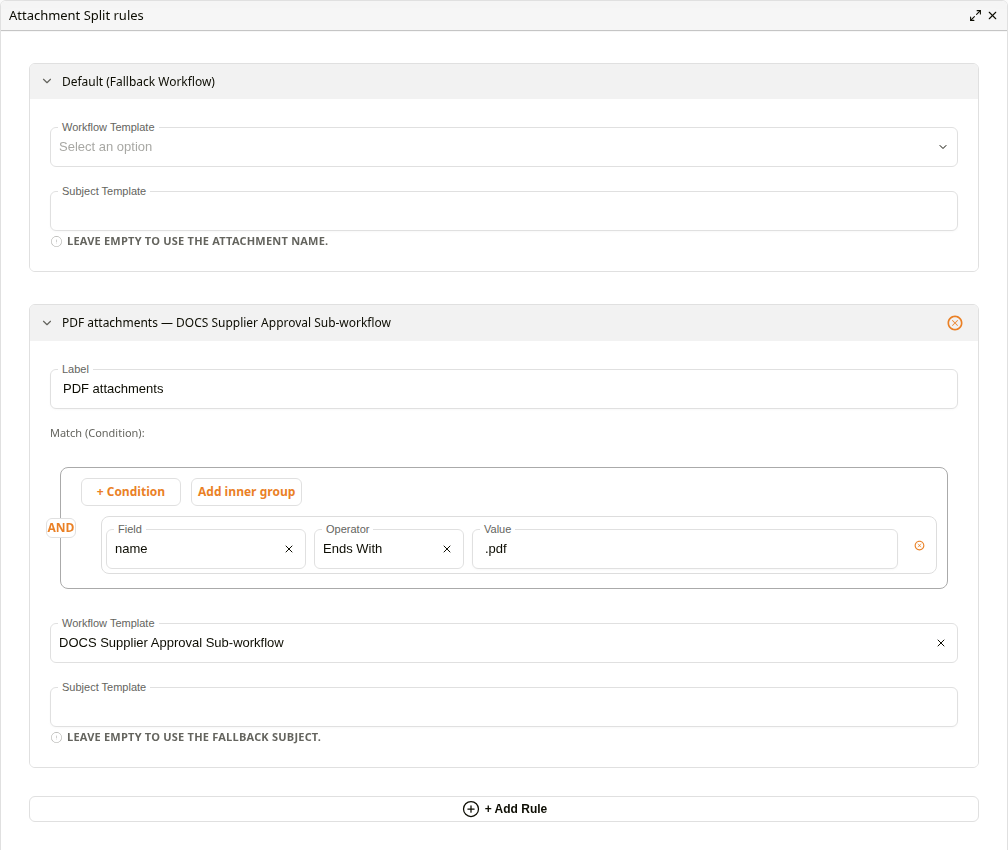
For an email document, saves each attachment as a document, then starts a sub-workflow for it. Configure Rules opens the rules, which can be expanded to fullscreen from the dialog's header.
| Setting | Description |
|---|---|
| Default (Fallback Workflow) | The Workflow Template and Subject Template for attachments no rule matches. |
| Rules | Each rule has a Label, Match (Condition): on the attachment's name, content type or size, and its own Workflow Template and Subject Template. Rules are checked in order and the first match wins. |
Attachment Split node
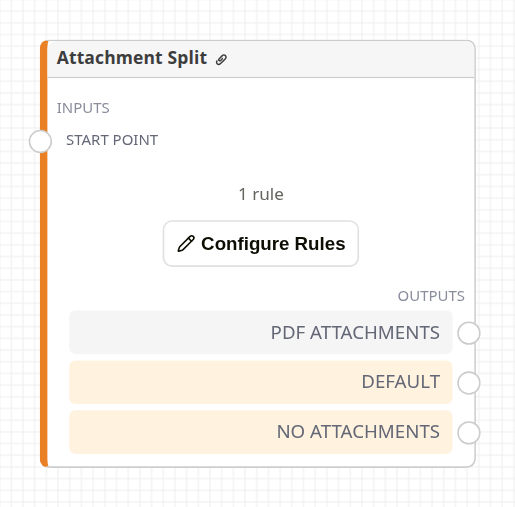
Each rule becomes an output, plus Default and No Attachments. The workflow continues down a rule's output once every sub-workflow started by that rule reaches an Output Node.
- Connect No Attachments so emails without attachments carry on.
- Every sub-workflow template must end in an Output Node, or the workflow never continues.
- A rule with no conditions matches nothing, and the node flags it as a configuration error.
Related configuration
- Flow Control Nodes: sub-workflows and Output nodes
- Data Nodes: importing spreadsheet and CSV data
- Workflow Nodes: the canvas and palette