Flow Control Nodes
Flow control nodes decide where the workflow goes next. They wait for replies, branch on conditions, hand work to sub-workflows, pause until something happens, and end the workflow.
| Node | Palette category | Purpose |
|---|---|---|
| All required (And Node) | System & Flow Control | Waits until every connected action request is answered, and for the round of any connected Review Cycle node to close. |
| Only 1 (Cancel Node) | System & Flow Control | Continues on the first answer and cancels the rest. |
| Passthrough (Placeholder Node) | System & Flow Control | Passes straight through. |
| Condition | Tools & Tasks | Branches True or False on document data. |
| Input Checker | System & Flow Control | Branches on whether an action request would have recipients. |
| Sub Workflow Node | Tools & Tasks | Runs another template as a child workflow. |
| Virtual Group Node | User & Role Management | Groups sub-workflow runs into one child workflow. |
| Output Node | Tools & Tasks | Ends a sub-workflow and hands control back to the parent. |
| Complete Workflow | Tools & Tasks | Marks the whole workflow complete. |
| Webhook Node | Tools & Tasks | Waits for an external system to call Docwize. |
| Trigger | Tools & Tasks | Waits until the document meets a condition. |
| View Batch | System & Flow Control | Starts one workflow item per row of a virtual view. |
| Batch Collect | System & Flow Control | Waits for every View Batch item, then continues. |
All required, Only 1 and Passthrough nodes
And node
Cancel node
Placeholder node
These three nodes sit between an action request's replies and the next step. Each shows as a small pill. The arrow on the pill switches it between the three types without rewiring; the arrow lists the palette names.
| Node | Pill | Behaviour |
|---|---|---|
| All required (And Node) | ALL REQUIRED | Continues once every recipient of every connected Action Request node has answered with a reply that is connected to it, and once the round of any connected Review Cycle node has closed. It also waits for connected task nodes, sub-workflows and attachment sub-workflows to finish. |
| Only 1 (Cancel Node) | ONLY 1 | Continues on the first connected reply, and cancels every still-open request from the Action Request nodes connected to it. |
| Passthrough (Placeholder Node) | PASSTHROUGH | Continues every time anything reaches it, with no checks. Useful as a junction. |
- All required (And Node): a recipient who picks a reply routed elsewhere keeps it waiting, unless that other path cancels the request.
- All required (And Node): a connected Review Cycle node's round can close by a decision, a cancel, or the document's file being replaced.
- Passthrough (Placeholder Node): each arrival runs the next steps again. If every member of a group has a reply wired into it, the next steps run once per reply.
Default Action Node
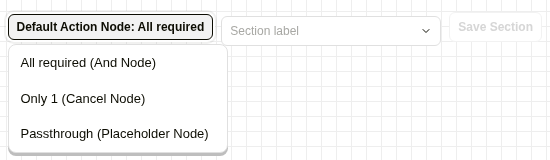
Default Action Node menu
Connecting a reply straight to another Action Request node inserts one of these nodes between them. Default Action Node on the canvas toolbar chooses which: All required (And Node), Only 1 (Cancel Node) or Passthrough (Placeholder Node).
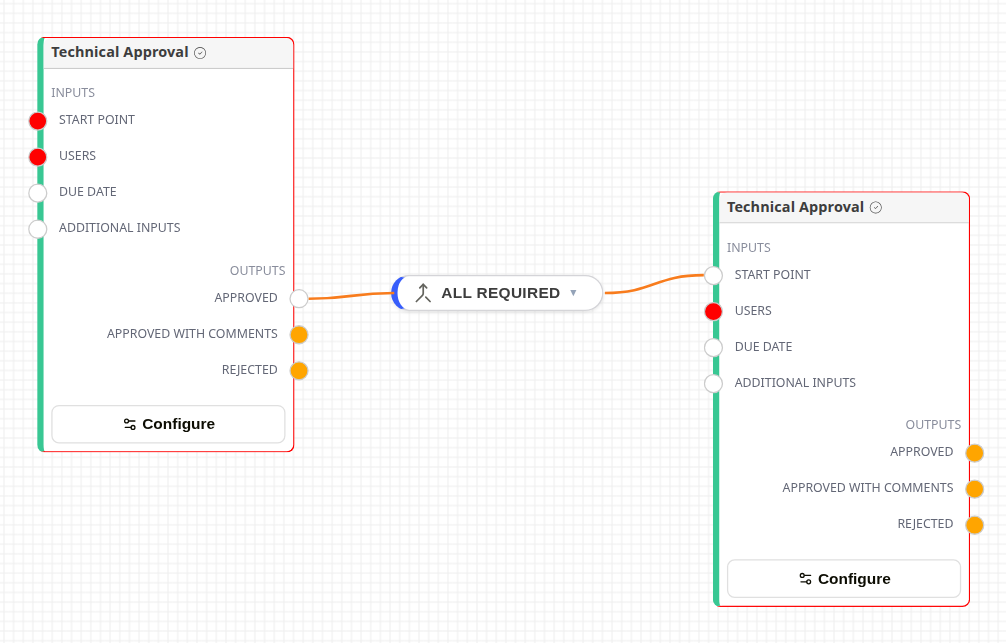
An All required (And Node) inserted between two action requests
Condition
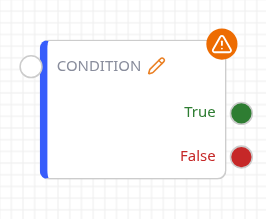
Condition node
Checks the workflow document against rules and continues down True or False. The node shows Configuration Error until it has a rule with a field. Open the rules with the pencil icon.

Condition Rules
Each rule is a field, an operator and a value. Add condition adds a rule and Add inner group adds a nested group. The group label switches between AND, OR, NOT, ANY, ALL, SUM, COUNT, MIN, MAX and AVE. Fields include document details, folders, locations, every custom field (as template.field) and every virtual view column.
Operators are named: text takes Equals through Not In; numbers take Less Than/Greater Than and the rest, plus In; dates take On, Before, After, On or Before, On or After and Between. In and Not In take a list — type a value and press Enter. Between takes a date range, and either end may be left open. ANY and ALL compare a list field's own property; SUM, COUNT, MIN, MAX and AVE compare a total.
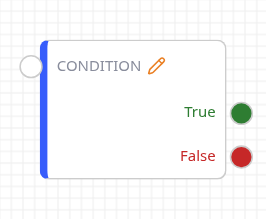
Configured Condition node
- Wire both True and False. A document that matches no rule, or a node with no complete rule, goes down False.
- Equals and In ignore case and surrounding spaces; Contains, Begins With and Ends With ignore case. Dates compare by calendar day.
- For a checkbox field, use Equals Yes, Equals No, or Is Empty.
Input Checker
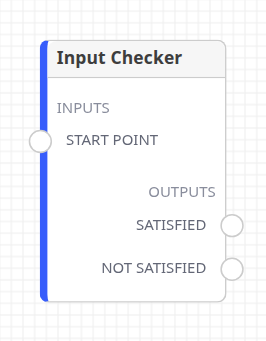
Input Checker node
It checks whether the Action Request nodes connected to Satisfied would have at least one recipient. If any would have none, the workflow continues down Not Satisfied instead. It has no settings.
Use it before an action request whose recipients come from an optional input, with a fallback step on Not Satisfied.
Sub Workflow Node
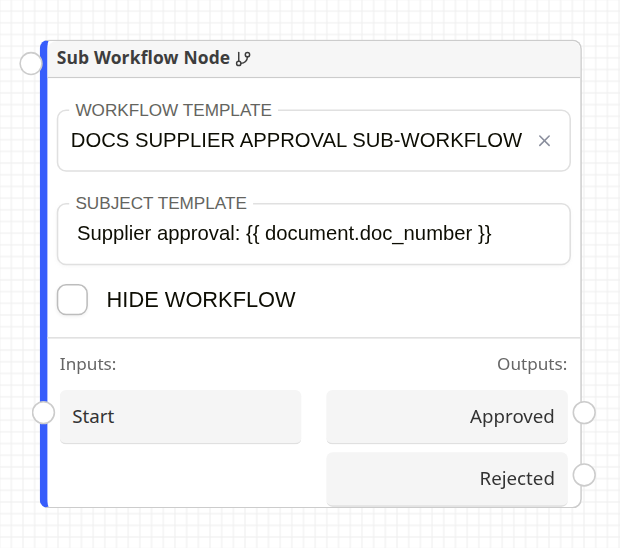
Sub Workflow node
Starts another template as a child workflow on the same document.
| Setting | Description |
|---|---|
| Workflow Template | The template to run. The newest version always runs. |
| Subject Template | The child's subject. It can use document values, for example {{ document.doc_number }}. |
| Hide Workflow | Keeps the child out of workflow lists. It still runs normally, and its action requests can still be answered. |
The outputs are the Output Node labels in the chosen template. The parent continues down an output when the child reaches the Output node with that label. An All required (And Node) after it waits for the child to finish.
Virtual Group Node
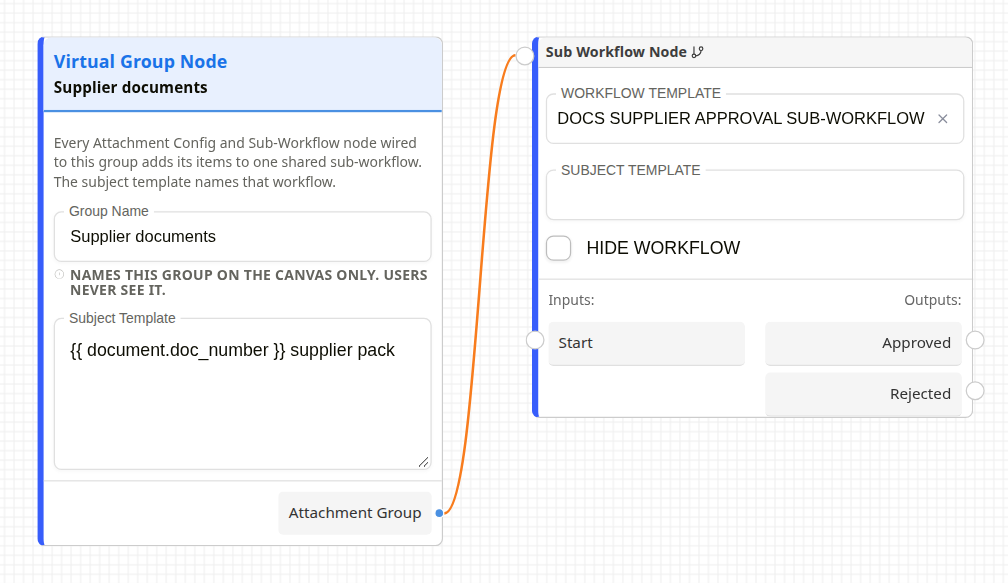
Virtual Group node
Makes a Sub Workflow node put all its runs for the same parent into one child workflow, with one item per document. Connect Attachment Group to the Sub Workflow node's top-left input, or to an Attachment Config node's Virtual Group Node input. Subject Template replaces the connected node's subject. Group Name only labels the card.
Output Node
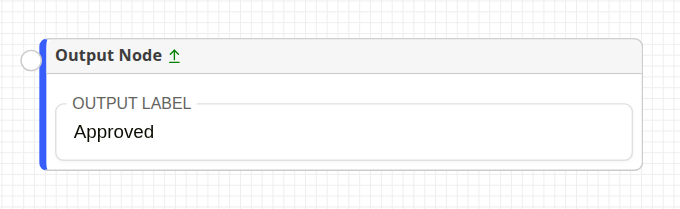
Output node
Ends a path in a template that is used as a sub-workflow. Output Label becomes an output on the parent's Sub Workflow node, and reaching this node sends the parent down it.
- End every path that should hand control back with an Output node, or the parent never continues.
- Give every Output node a unique, non-empty label.
- In a template that is not a sub-workflow, the node does nothing.
Complete Workflow
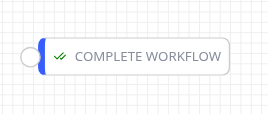
Complete Workflow node
Marks the whole workflow complete. Open action requests and parallel branches are not cancelled. In a sub-workflow, pair it with an Output Node: Complete Workflow alone doesn't resume the parent.
Webhook Node

Webhook node
The workflow pauses here until an external system posts to /apiv2/webhooks/workflow. The request needs:
- a Docwize API token with the workflows scope, sent as
Authorization: Bearer <token>; - a JSON body with
workflow_idanddocument_id.
The body is stored, and a CF Insert Node connected straight after this node can load it as a one-row table.
Webhook key is optional. Send it as webhook_key in the request body. It is needed when several Webhook nodes on the same item can be waiting at once; without a key, a call resumes a node only while it is the only one waiting.
Trigger
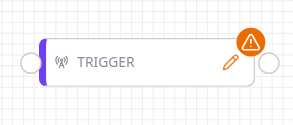
Trigger node
Pauses the workflow until the document meets a condition. The condition is checked every five minutes, so expect up to five minutes' delay after it becomes true. The node shows Configuration Error, with an Add at least one condition alert in the dialog, until it has a rule with a field. If the condition can't be evaluated when it is checked, the node fails and shows why.
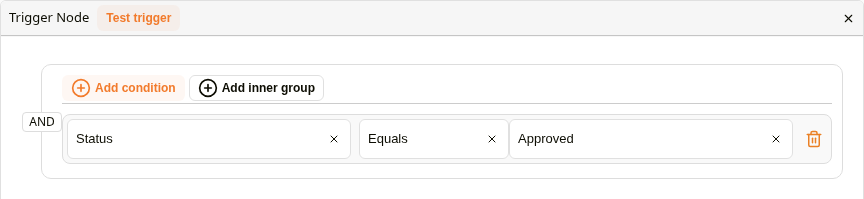
Trigger node rules
The group label switches between AND, OR, ANY and ALL. Test trigger is available once the rule has a condition. It checks the rule against the latest document the current user can open and reports whether it is met, naming that document.
View Batch
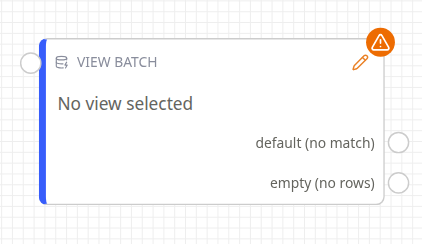
View Batch node
Reads the rows of a virtual view and starts one workflow item per row, in the same workflow. Each row goes down the first branch whose rules it matches. It is most often used in Periodic templates.
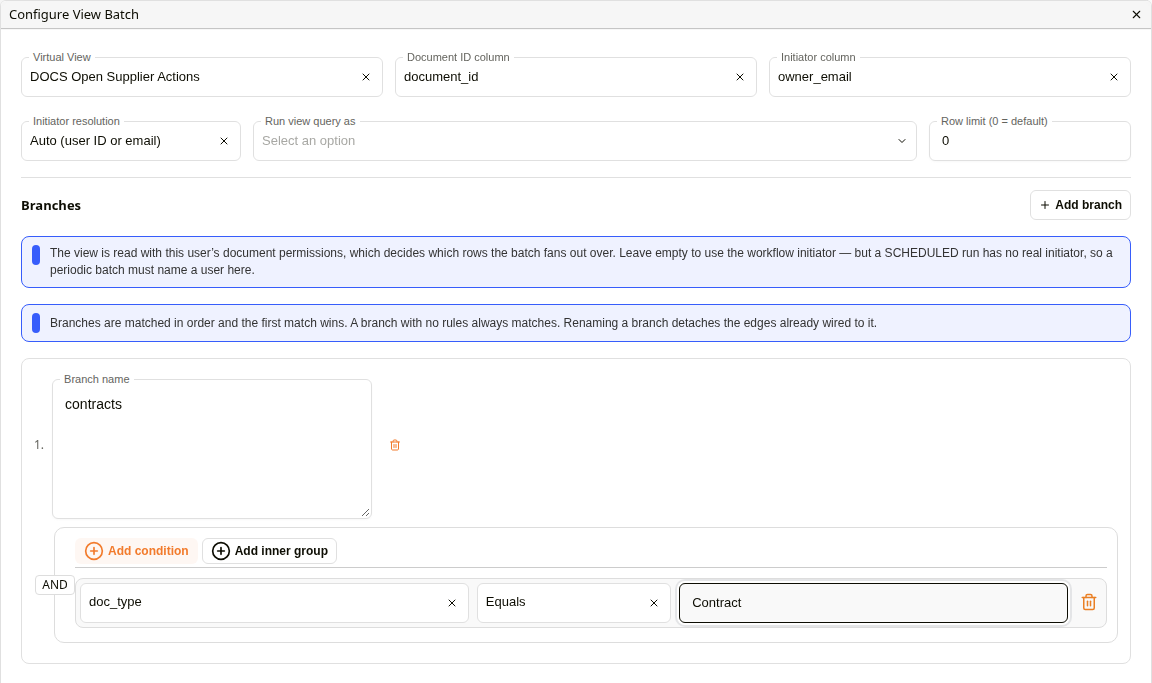
Configure View Batch
| Setting | Description |
|---|---|
| Virtual View | The view to read. |
| Document ID column | The column holding each row's document ID. Required. |
| Initiator column | Optional. The column naming the person each item runs as. |
| Initiator resolution | How that column is read: Auto (user ID or email), User ID or Email. |
| Run view query as | The user whose permissions read the view. Set it for Periodic templates, which have no real starter. |
| Row limit (0 = default) | 0 reads up to 200 rows. The maximum is 1,000. |
| View inputs | Shown when the chosen view asks for runtime inputs. Every run uses the values entered here; the node refuses to run while a required input is blank. |
| Branches | Add branch adds a named branch with rules on the view's columns, combined with AND, OR or NOT. Branches are checked in order. A branch with no rules matches every row. |
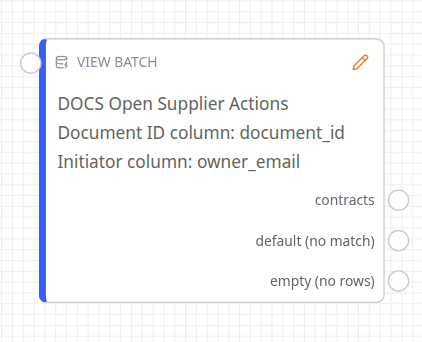
Configured View Batch node
Each branch becomes an output, plus default (no match) and empty (no rows).
- Rows that match no branch are skipped unless default (no match) is connected.
- empty (no rows) runs when the view returns nothing.
- Renaming a branch disconnects its output.
Batch Collect
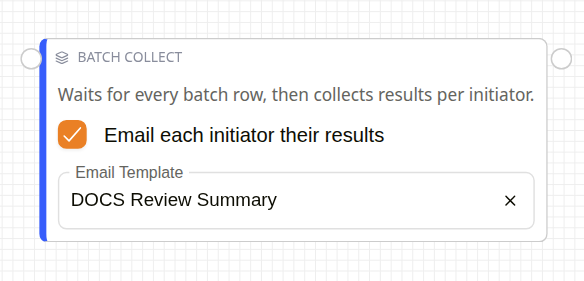
Batch Collect node
Waits until every item started by a View Batch has arrived, gathers the results by initiator, then continues the original workflow once. Connect the last step of every branch to it: a missing arrival holds the workflow.
Email each initiator their results sends each initiator an email with their items. It needs an Email Template, and warns until one is chosen. In the template, greet the person with {{ batch.name or batch.email }}.
Related configuration
- Action Request Nodes: the replies these nodes wait for
- Building Workflow Templates: sub-workflows and template versions
- Workflow Nodes: the canvas and palette