Notification and Distribution Nodes
These nodes email people and send documents out, to Docwize users and to contacts outside Docwize. None of them waits for a reply, except Send LINE message when it is set to.
| Node | Palette category | Purpose |
|---|---|---|
| Email Notification | System & Flow Control | Emails a template to each recipient. |
| Consolidated Notification | System & Flow Control | Emails one summary per group of finished child workflows. |
| Distribution Node | System & Flow Control | Emails recipients download links to the document package. |
| Distribution Group Node | System & Flow Control | Distributes to the distribution groups, users and user groups connected to it or chosen when the workflow starts. |
| Distribution Set | System & Flow Control | Distributes to a set of distribution groups, with action requests for users. |
| Send LINE message | Tools & Tasks | Sends a LINE message, optionally waiting for a reply. |
Emails sent from a workflow test run all go to the person running the test. The same address gets at most three notification emails per workflow in any 15 minutes; further ones are held back.
Email Notification
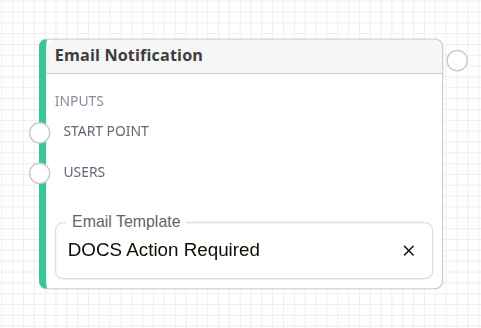
Email Notification node
Emails Email Template to everyone connected to Users, one email each, then continues at once.
- Users accepts users, user groups, distribution groups, Initiator, Custom Field User, Custom Field Email and Workflow Initiation Input.
- Custom Field Email sends to every address in the field, even people without a Docwize account.
- Without an Email Template, each recipient gets a plain Docwize email naming the workflow and its document, with an Open in Docwize link.
Consolidated Notification
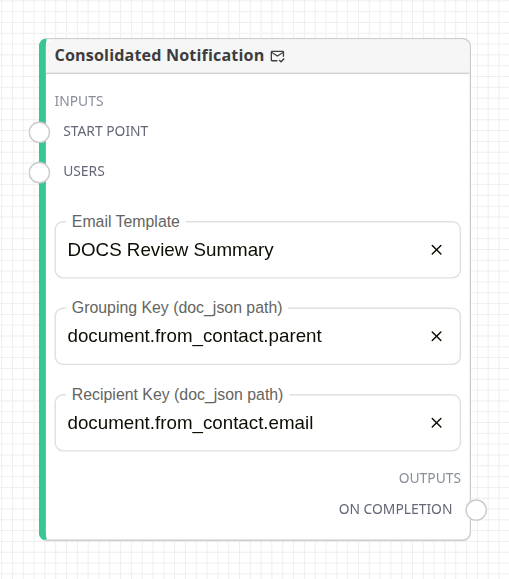
Consolidated Notification node
Used on a parent workflow whose child workflows (from a Sub Workflow Node or Attachment Split) have finished. It groups the finished children and sends one email per group.
| Setting | Description |
|---|---|
| Email Template | The email. It can list the group's children through items. Without one, each group gets a plain email listing its documents, with an Open in Docwize link. |
| Grouping Key (doc_json path) | The document value children are grouped by, for example document.from_contact.parent. Without it, all children form one group. |
| Recipient Key (doc_json path) | The value holding each group's email address. A group with no address goes to everyone connected to Users, as for Email Notification. |
The node sends once, when the workflow reaches it; it does not batch over time. Put it after the children finish, for example after an All required (And Node). Only children that reached their Output Node count.
Distribution Node
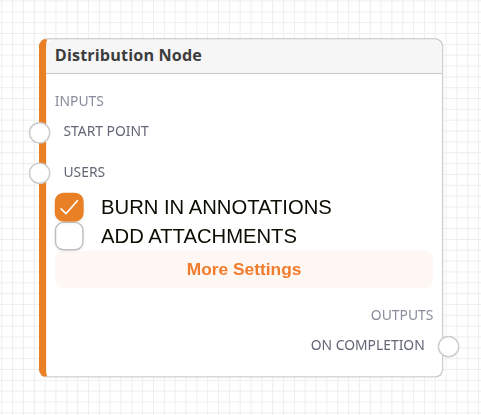
Distribution node
It builds a ZIP package of the document and its transmittal drawings, and emails each recipient links to it. Recipients connect to Users: users, contacts, distribution groups, Initiator, Custom Field Email and start-time choices.
On Completion continues the workflow once the emails are sent.
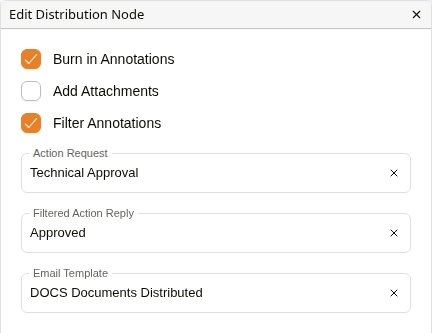
Edit Distribution Node
More Settings opens Edit Distribution Node.
| Setting | Description |
|---|---|
| Burn in Annotations | Burns annotations into the files in the package. |
| Add Attachments | Adds the document's attachments to the package, when annotations are not burnt in. |
| Filter Annotations | Shown while Burn in Annotations is ticked. With Action Request and Filtered Action Reply, burns in only annotations made with that reply. Until a reply is chosen, the node shows Configuration Error. Unticking it clears both. |
| Email Template | The email. Without one, the organisation's distribution template, or a built-in email with a file table and a Download ZIP Package link. |
Each recipient's download links expire after 30 days.
Distribution Group Node
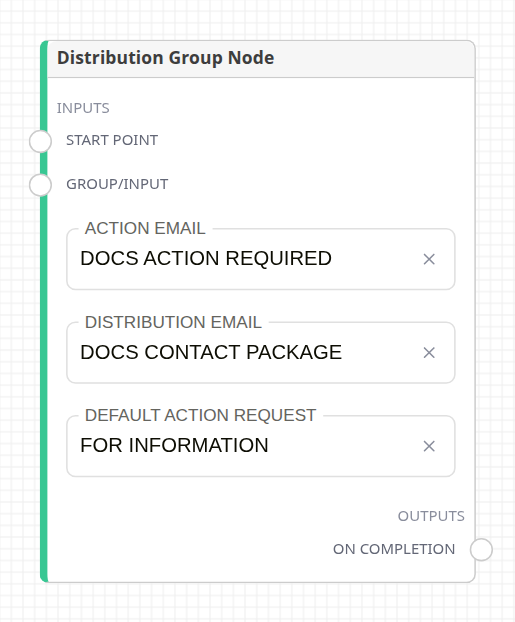
Distribution Group node
It distributes to the recipients connected to Group/Input: distribution groups, users and user groups, plus the choices made through a connected Workflow Initiation Input when the workflow starts. On Completion continues the workflow.
| Setting | Description |
|---|---|
| Action Email | The email for internal members, who each receive an action request. Required. |
| Distribution Email | The email with download links for external contacts. |
| Default Action Request | For members whose group membership names no action request, and for users and user groups connected directly; contacts' emails name it. Falls back to "For Information". |
- Internal members receive their group membership's default action request, otherwise Default Action Request.
- With no Default Action Request and no "For Information" action request, the node shows Configuration Error and the step fails before anything is sent.
- Each contact's download links expire after 30 days.
Distribution Set
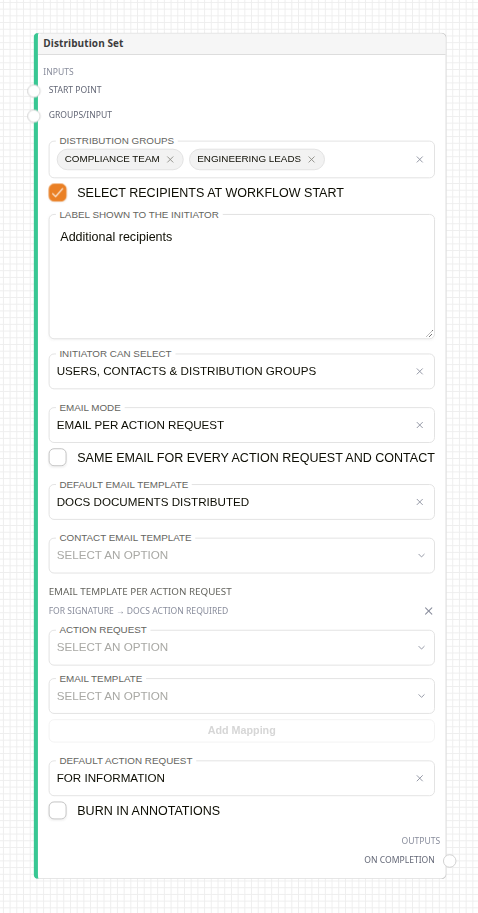
Distribution Set node
Distributes to a set of distribution groups at once. Internal members get an action request, and external contacts get an email with download links. A contact whose email belongs to a Docwize user is treated as that user.
| Setting | Description |
|---|---|
| Distribution Groups | The groups to send to. |
| Select recipients at workflow start | Also asks the starter for recipients. Their choices are added to the groups above. |
| Label shown to the initiator | The tab label in the start dialog. Defaults to "Distribution Groups". |
| Initiator can select | Users, contacts & distribution groups, Users, Contacts or Distribution Groups. |
| Email Mode | Email per action request, or Rolled up per user (one email listing all of a user's action requests). |
| Same email for every action request and contact | Uses Default Email Template for everything. |
| Default Email Template | The fallback email for users and contacts. |
| Contact Email Template | The email for external contacts. |
| Rollup Email Template | The email for Rolled up per user. |
| Email template per action request | A different email for each action request. Choose an Action Request and an Email Template below it, then click Add Mapping. Each mapping is listed as action request → template, and its Remove Mapping (×) button removes it. An action request that already has a mapping is not offered again. |
| Default Action Request | For members with no default action request in their group, and for users and contacts connected directly. Falls back to "For Information". |
| Burn in Annotations | Burns annotations into the packaged files. |
The node shows Configuration Error when nothing gives it recipients: no Distribution Groups, no Select recipients at workflow start, and no user, user group, distribution group or user/group Workflow Initiation Input connected to Groups/Input; or when Same email… is ticked without a Default Email Template.
- The package always includes attachments.
- Each recipient's links expire after 30 days.
- Internal users only see the links if their email template includes
file_listormain_file_link. - Connect a Due Date node to Groups/Input to give the action requests a due date.
- A user group connected to Groups/Input sends to each of its members.
- If the set resolves to nobody with an email address, the step fails and nothing is sent.
- On Completion continues the workflow.
Send LINE message
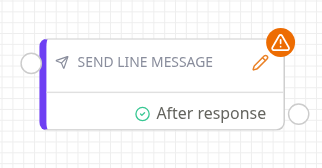
Send LINE message node
Sends a LINE message to one person. LINE is the only channel. The node shows Configuration Error until a recipient and a message are set, and, while it waits for a reply, while its suggested replies repeat or number more than three. Hover over the badge to see what is missing. The pencil icon opens the settings.
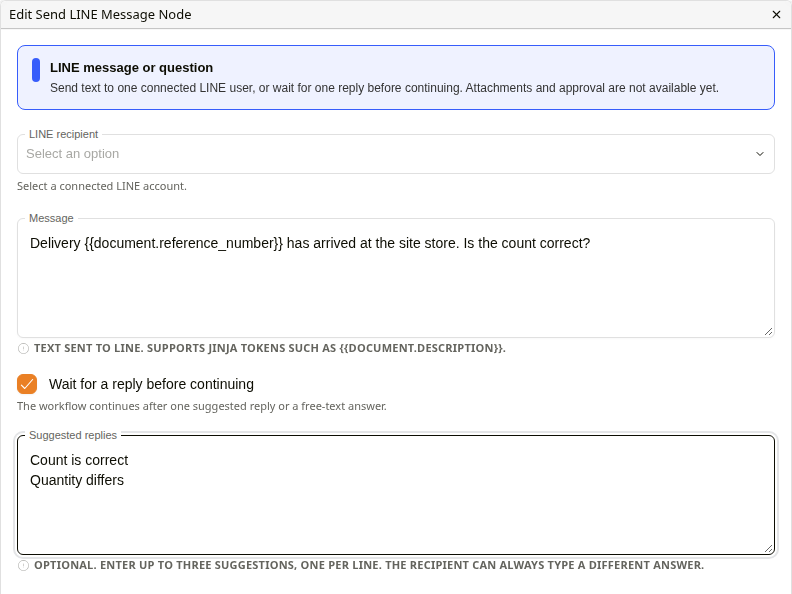
Edit Send LINE Message Node
| Setting | Description |
|---|---|
| LINE recipient | An active internal user with the Can Chat permission who has connected their LINE account. |
| Message | The text sent. It can include document values, such as {{ document.description }}. |
| Wait for a reply before continuing | Pauses the workflow until the recipient answers. The output changes from After delivery to After response. |
| Suggested replies | Up to three quick replies, one per line. The recipient can also type any answer. |
- A waiting message expires after one day, and the step then fails.
- A LINE account can have only one waiting workflow message at a time.
- Suggested replies must all be different; replies that differ only by surrounding spaces count as the same reply.
Related configuration
- Recipient Nodes: users, groups and custom field recipients
- Email Builder: creating email templates
- Workflow Nodes: the canvas and palette