Delegating Workflows
Delegation sends the workflow actions and review requests addressed to one user to someone else for a set period, for example while the user is on leave. One person can cover everything, or the delegation can choose a different person for particular documents, such as one delegate per project.
The Delegate Workflows dialog also holds the user's late escalation settings. Those are described on Late Escalation.
Who configures this
Users with the Group and User Admin permission. Delegation is set up from Admin Console > Users.
What you can do in Delegate Workflows
- Send a user's workflow actions to another user between two dates
- Choose a different delegate for documents that match a condition, such as a project
- Combine several conditions in one rule, with groups that need all of them or any one of them
- Put the conditions in order, so the first match decides
- Reuse one rule for several users
- Schedule a delegation to start on a later date, and open it again before it starts
- Hand over the actions that are already open
- End a delegation
How delegation works
A delegation has a default recipient and an end date. Everything addressed to the user goes to the default recipient until the end date. Conditional rules refine that: a rule names a delegate for the documents that match its conditions.
- The first matching rule decides. Rules are checked in the order they are listed. Work that matches no rule goes to the default recipient.
- Each document is checked on its own. A workflow with documents from different projects can send each action request to a different delegate.
- Every way of starting work is covered. Workflows started from a template, workflows started by hand, action requests added to a running workflow and the reviewers of a review round all follow the same rules. See Review Setup.
- The delegate sees where it came from. The action request in the delegate's Inbox has a Delegation row that reads From the original user, then an arrow, then the delegate.
- The delegate can open the documents. The delegate is given access to the documents the action requests are about. A delegate is not given the documents of work that went to someone else.
- The delegate is an active user. The delegate pickers offer only active users. A delegation, and a rule that names a delegate, can be saved only for a user who exists and is active.
- Nothing is delegated outside the dates. Before Effective From, after Active Until, or once the delegation is removed, work stays with the original user.
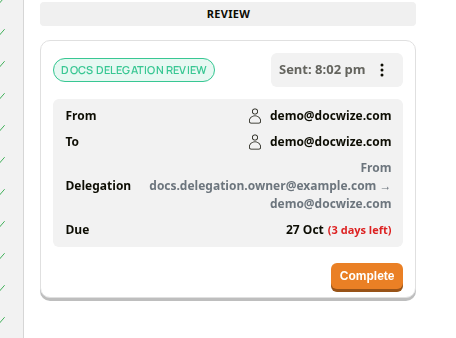 A delegated action request in the delegate's Inbox
The Delegate Workflows dialog
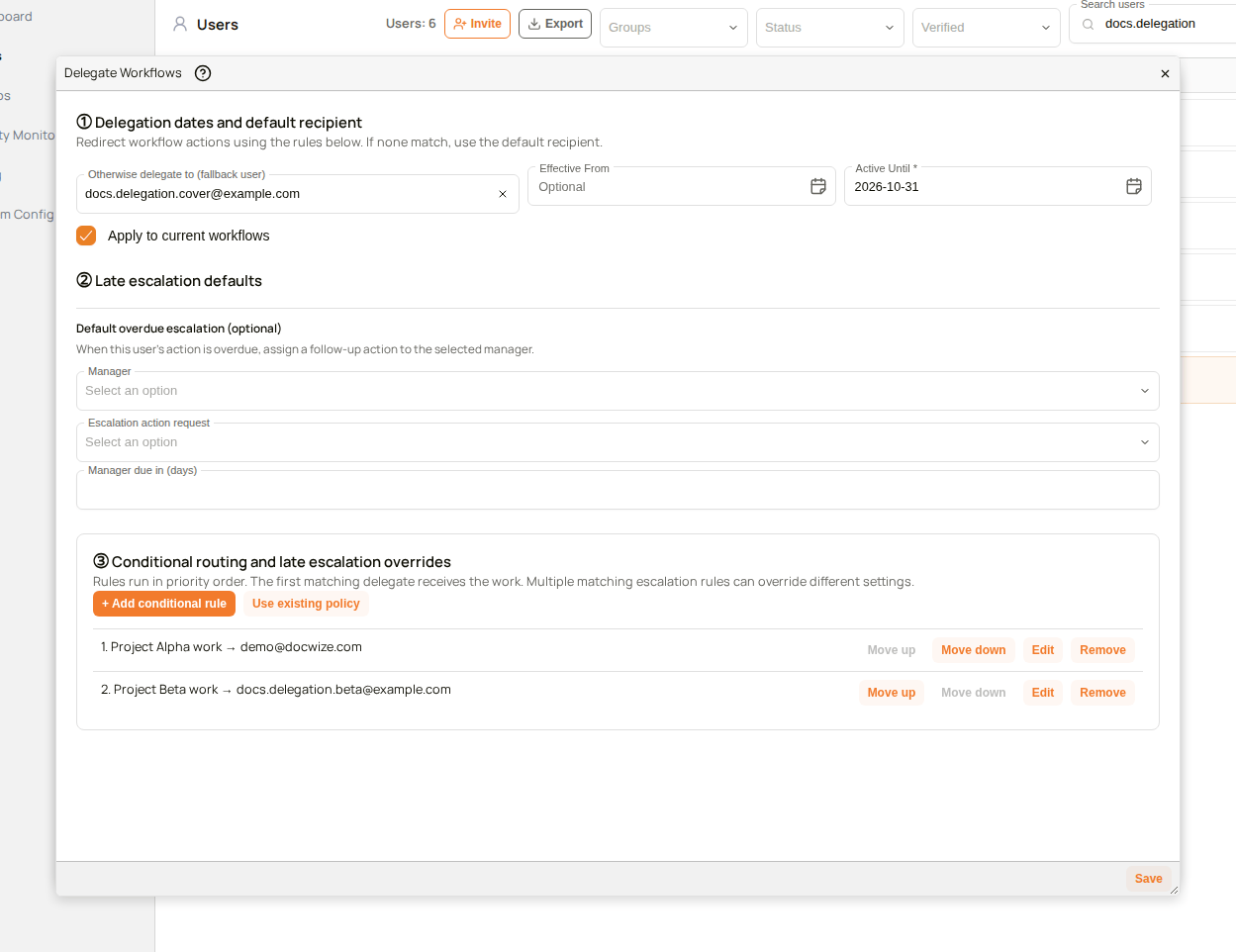
Select the gear icon next to a user on the Users page. In the Details section, select the delegation badge, which reads No Delegation until a delegation is saved. The Delegate Workflows dialog has three numbered sections.
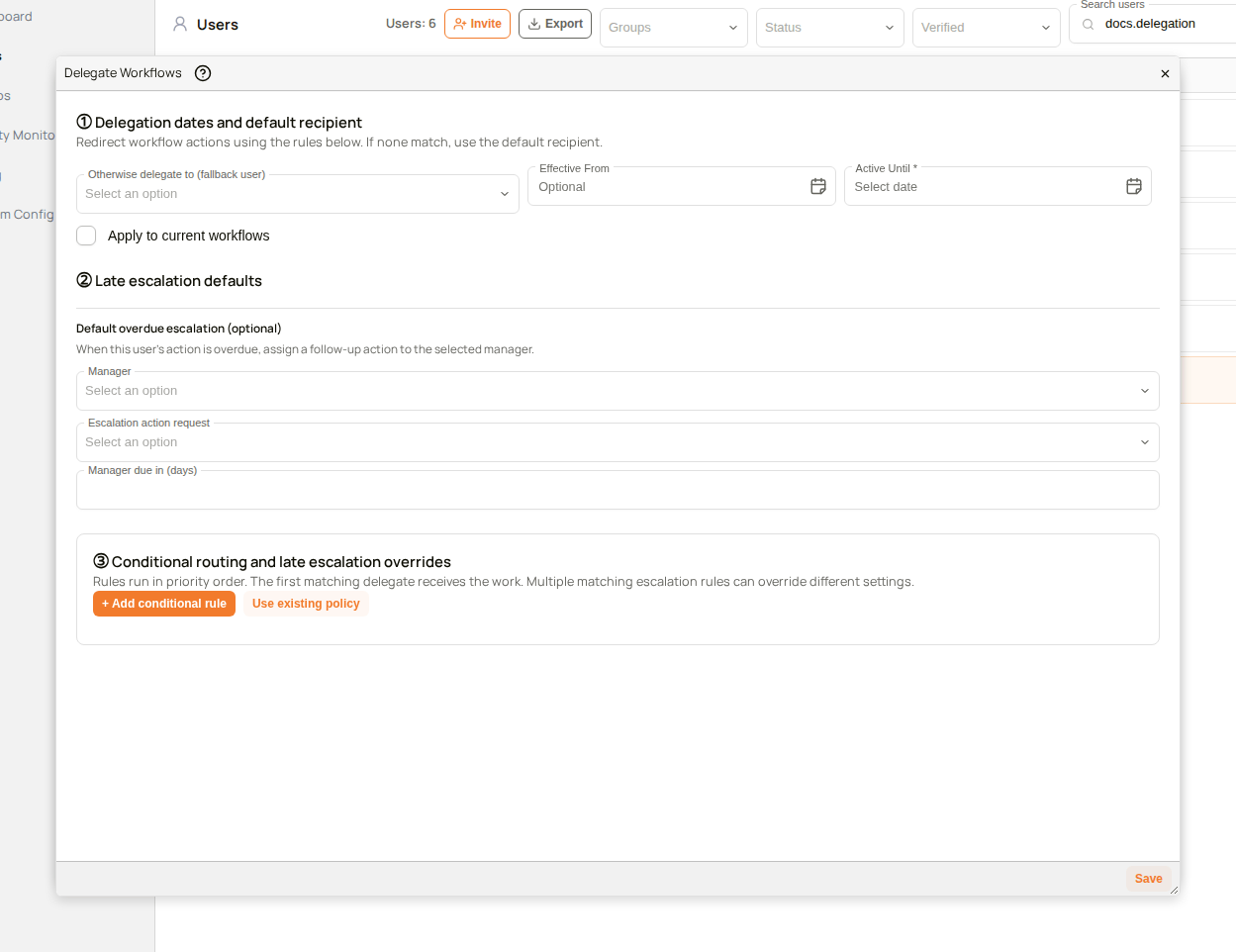 The Delegate Workflows dialog
| Section | Description |
|---|---|
| ① Delegation dates and default recipient | Who receives the work, and between which dates. See Delegation dates and default recipient. |
| ② Late escalation defaults | What happens when an action request addressed to the user is overdue. See Late Escalation. |
| ③ Conditional routing and late escalation overrides | Rules that choose a different delegate, or different escalation settings, for documents that match a condition. See Conditional rules. |
The dialog saves in the background. While it saves, the button reads Delegation in progress…, and the dialog closes by itself when the delegation is in place.
Delegation dates and default recipient
| Field | Description |
|---|---|
| Otherwise delegate to (fallback user) | The user who receives everything that no conditional rule claims. Only active users are offered. |
| Effective From | Optional. The date the delegation starts. Leave it empty to start as soon as the delegation is saved. |
| Active Until | Required. The last day of the delegation. The delegation stays active to the end of this day, and the date cannot be in the past. |
| Apply to current workflows | Hands over the user's actions that are already open, using the same rules. It is disabled while Effective From is set, because a delegation that starts later cannot take over work yet. |
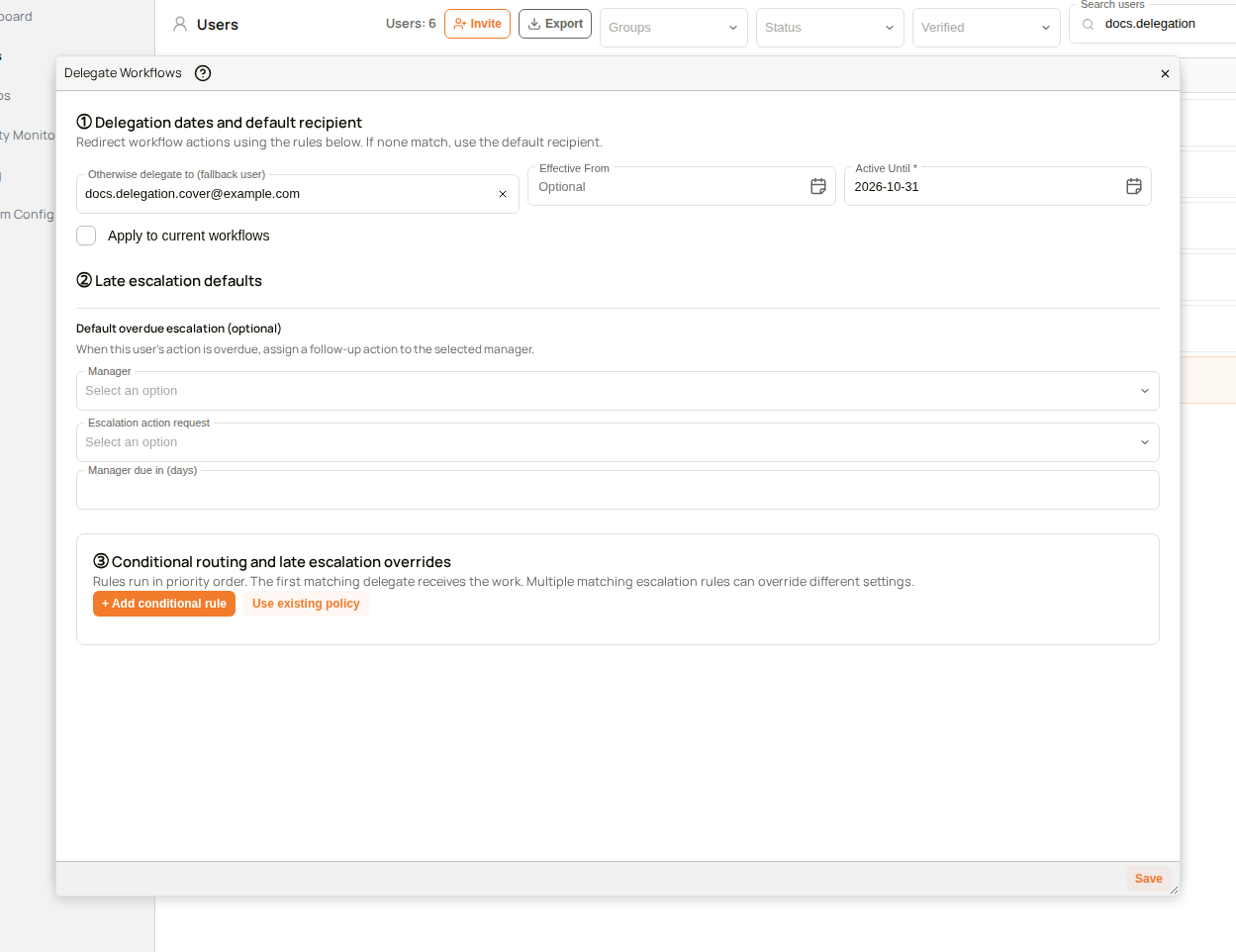 A fallback user and an Active Until date
Save stays disabled until Active Until is chosen. A date in the past is refused with the message Active Until must be today or later.
The delegation badge
After a delegation is saved, the badge in the user's Details section shows who covers and until when.
| Badge | Meaning |
|---|---|
| No Delegation | No delegation is in place. Work stays with the user. |
| Delegated to user until date | The delegation is active. |
| Scheduled delegation to user until date | The delegation starts on a later Effective From date. Until then, work stays with the user. |
 The delegation badge after saving
Conditional rules
Section ③ lists the user's rules in the order they are checked. Each rule shows its position, its name and the delegate it chooses.
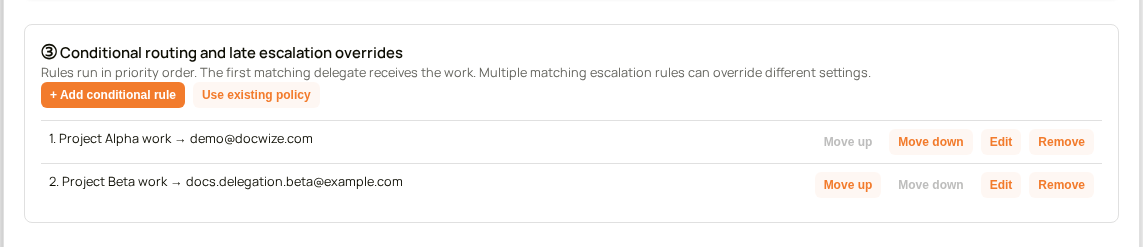 Two conditional rules, in the order they are checked
| Control | Description |
|---|---|
| + Add conditional rule | Opens the rule editor to create a new rule for this user. |
| Use existing policy | Adds a rule another user already has. See How to reuse a rule on another user. |
| Move up / Move down | Changes the rule's position. The first rule that matches a document decides. |
| Edit | Opens the rule in the rule editor. |
| Remove | Takes the rule off this user. Other users who have the same rule keep it. |
A rule is saved as soon as you select Save rule, or Apply for an existing rule. It does not wait for Save, which saves the dates and the default recipient.
The rule editor
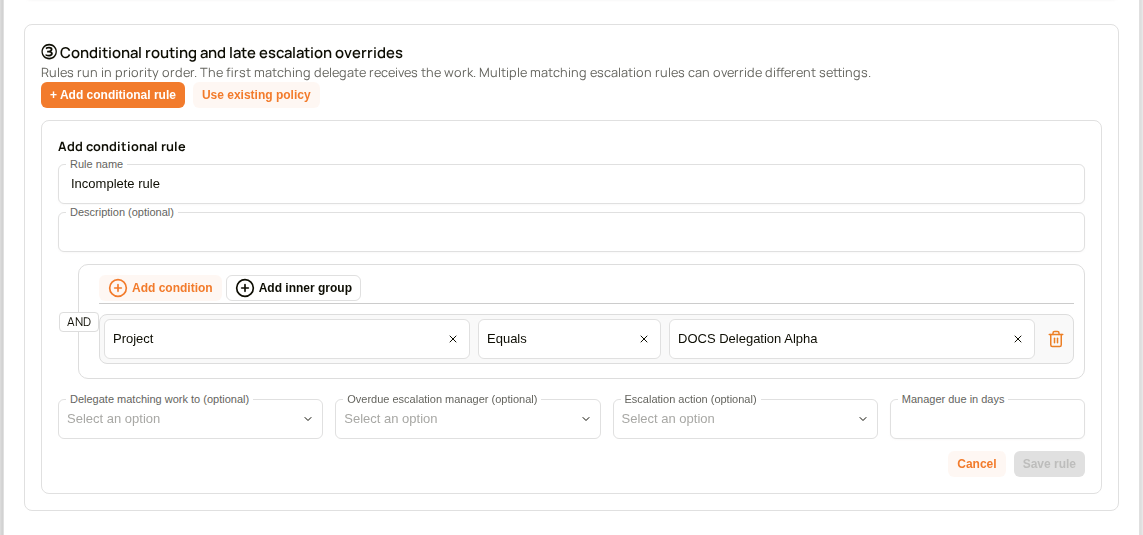 The rule editor. Save rule stays disabled until the rule is complete
| Field | Description |
|---|---|
| Rule name | Names the rule in the list. |
| Description (optional) | An optional note about the rule. |
| Add condition | Adds a condition: a document field such as Project or Description, an operator such as Equals, Not Equals or Contains, and a value. |
| Add inner group | Adds a group of conditions inside the rule. See Combining conditions. |
| AND / OR | The label on the edge of a group. Select it to change how the group's conditions are combined. |
| Delegate matching work to (optional) | The active user who receives the work for documents that match the conditions. |
| Overdue escalation manager (optional), Escalation action (optional), Manager due in days | Escalation settings for the same documents. See Late Escalation. |
| Cancel / Save rule | Save rule is available when the rule has a name, a complete condition, and a delegate or at least one escalation setting. |
A value such as a project is chosen by name from a list. No internal code is needed.
Combining conditions
A rule can hold several conditions. The label on the edge of a group says how its conditions combine. AND means a document must match every condition in the group. OR means a document that matches any one of them is enough. A new rule starts as an AND group. Add inner group puts a second group inside the first, and each group has its own label.
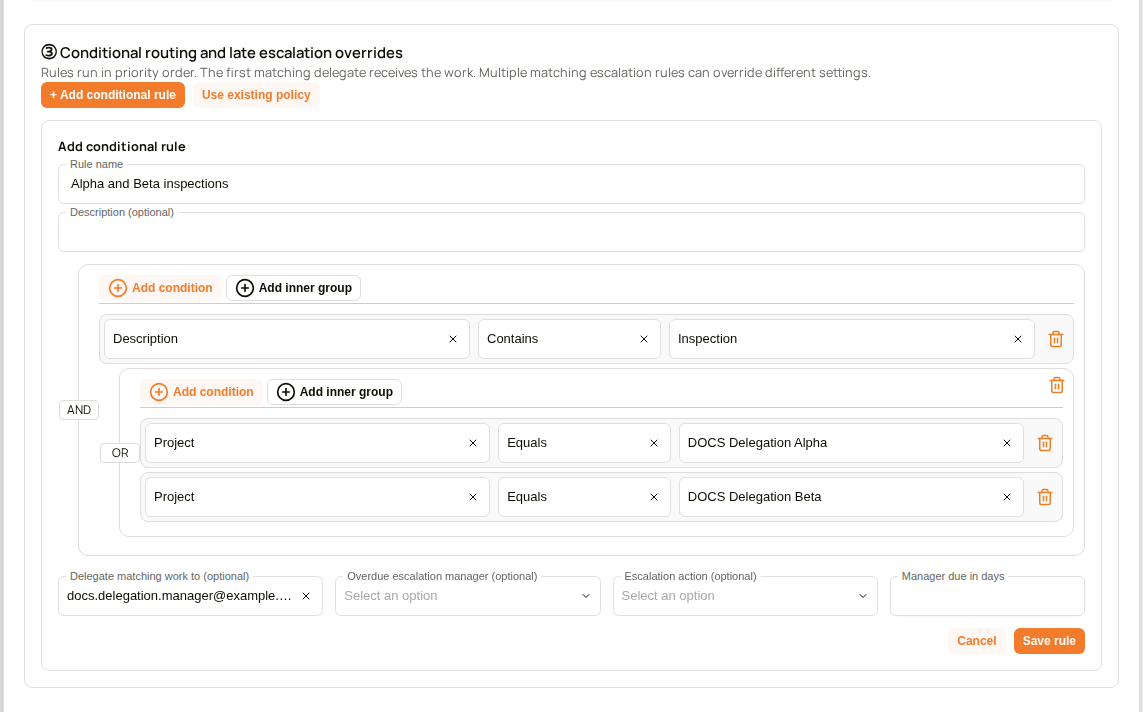 A rule with a condition and an inner OR group
For example, take a rule that sends work to Morgan when the description contains Inspection and the project is DOCS Delegation Alpha or DOCS Delegation Beta. The outer group is AND, and the inner group is OR.
| Document | Description contains Inspection | Project is Alpha or Beta | Goes to |
|---|---|---|---|
| Pump Station Inspection Report, Project Alpha | Yes | Yes | Morgan |
| Pump Station Inspection Report, Project Beta | Yes | Yes | Morgan |
| Pump Station Inspection Report, Project Gamma | Yes | No | The fallback user |
| Valve Maintenance Record, Project Alpha | No | Yes | The fallback user |
How to delegate a user's workflows
The video shows a delegation with a default recipient, an end date and one conditional rule.
Example: Delegating a user's workflows
| Step | Description |
|---|---|
| 1 | Go to Admin Console > Users and select the gear icon next to the user. |
| 2 | In the Details section, select the No Delegation badge to open Delegate Workflows. |
| 3 | In Otherwise delegate to (fallback user), choose the user who covers. |
| 4 | In Active Until, choose the last day of the delegation. |
| 5 | Optional: add conditional rules for particular documents. See How to add a conditional rule. |
| 6 | Optional: select Apply to current workflows to hand over the actions that are already open. |
| 7 | Select Save. The badge now reads Delegated to the user you chose, with the end date. |
How to add a conditional rule
| Step | Description |
|---|---|
| 1 | In section ③, select + Add conditional rule. |
| 2 | Enter a Rule name. |
| 3 | Select Add condition, then choose the field, the operator and the value. For example, Project, Equals, and the project's name. |
| 4 | In Delegate matching work to (optional), choose the user who covers documents that match. |
| 5 | Select Save rule. The rule joins the list, numbered by its position. |
| 6 | If the delegation is not yet saved, choose Active Until and select Save. A rule only routes work while a delegation is active. |
How to combine conditions in a rule
| Step | Description |
|---|---|
| 1 | In the rule editor, select Add condition and choose the field, the operator and the value. Repeat for each condition that must hold. |
| 2 | To allow alternatives, select Add inner group. |
| 3 | Select the AND label of the inner group and choose OR. |
| 4 | In the inner group, select Add condition for each alternative. |
| 5 | In Delegate matching work to (optional), choose the user who covers documents that match. |
| 6 | Select Save rule. |
How to change the order of the rules
When a document matches more than one rule, the first one in the list decides. Select Move up or Move down on a rule to change its position.
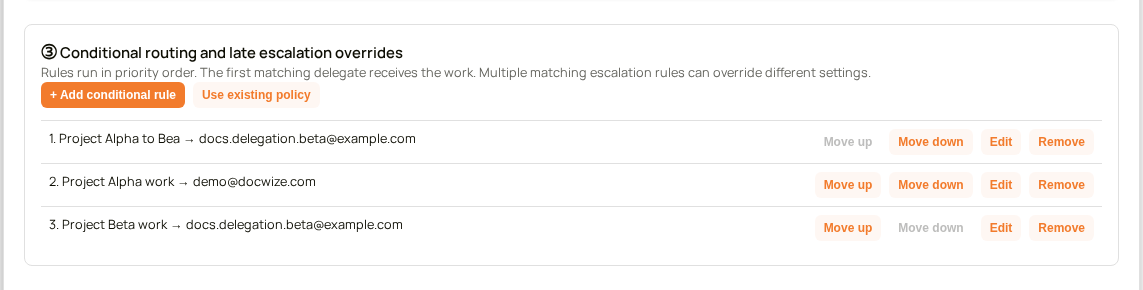 A rule moved to the top of the list
The new order applies to work that starts after the change.
How to reuse a rule on another user
A rule is shared by every user who has it. Reusing it saves building the same condition again.
| Step | Description |
|---|---|
| 1 | Open Delegate Workflows for the second user. |
| 2 | In section ③, select Use existing policy. |
| 3 | In Existing rule, choose the rule. |
| 4 | Select Apply. The rule is listed for this user. |
 Choosing an existing rule for another user
Editing a shared rule for one user saves a copy for that user. The other users keep the original unchanged.
How to schedule a delegation
Choose Effective From to start the delegation on a later date, for example before a planned absence. Apply to current workflows is disabled, and the badge reads Scheduled delegation to the user. Until the start date, all work stays with the original user, whatever rules are set.
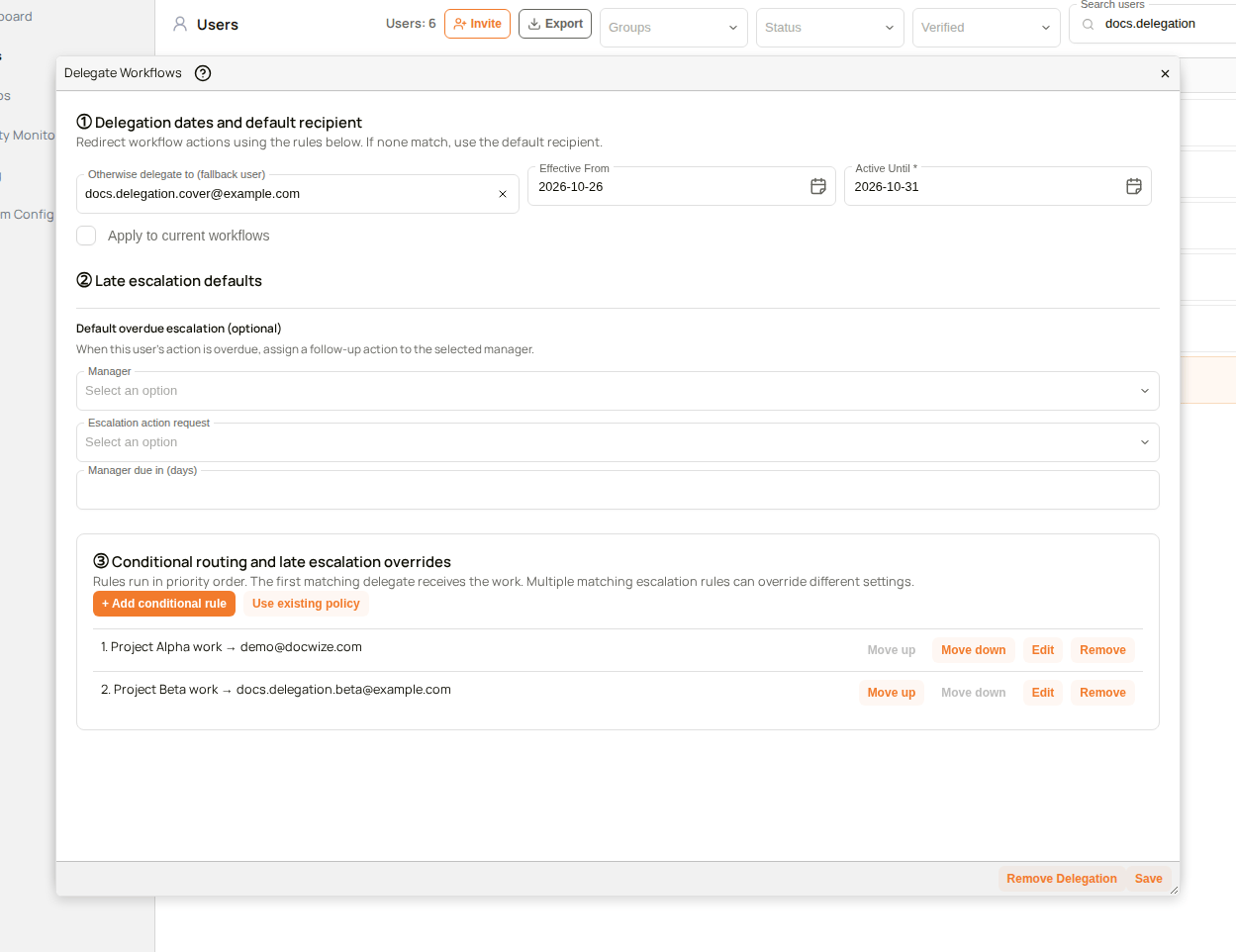 A delegation that starts on a later date
To check or change a scheduled delegation, select the badge again. The dialog shows the dates, the default recipient and the rules that were saved, and the order of the rules can be changed before the delegation starts.
How to hand over work that is already open
A delegation applies to work that starts while it is active. To hand over the actions already waiting with the user, select Apply to current workflows before you save. Each open action is checked against the rules, document by document, so the actions go to the same delegates that new work would.
 Handing over the actions that are already open
How to end a delegation
| Step | Description |
|---|---|
| 1 | Open Delegate Workflows for the user. |
| 2 | Select Remove Delegation. The badge returns to No Delegation. |
New work stays with the user from then on. The conditional rules stay attached to the user but route nothing until a new delegation is saved. Work that was already delegated stays with its delegate.
Troubleshooting
| Risk | Detail |
|---|---|
| Save is disabled | A delegation needs an Active Until date. Choose one, and make sure it is today or later. |
| Save rule is disabled | The rule needs a name, a complete condition (field, operator and value), and a delegate or at least one escalation setting. |
| New work is not being delegated | Check the badge. Before Effective From, after Active Until, or with No Delegation, work stays with the user. Rules route work only while a delegation is active. |
| A document goes to the fallback instead of a rule's delegate | The first matching rule decides, and work that matches no rule goes to the fallback. Check the rule's condition, and the order of the rules. |
| A message at the top of the dialog explains why Save was refused | The Portal refuses a delegate, a rule's delegate or an escalation manager who is not an active user. Choose a user whose Active switch is on. |
| Work was not returned after the delegation was removed | Removing a delegation stops new work being delegated. It does not take back work that was already delegated. |
Related configuration
- Users — the Users page and the user's details
- Late Escalation — the escalation settings in the same dialog
- Action Requests — the action request types that workflows send
- Completing Action Requests — how a delegate completes the request in the Inbox