Late Escalation
Late escalation keeps overdue work from stalling. When an action request addressed to a user is overdue, the Portal creates a follow-up action request for a manager. Each user has a default policy, and conditional rules can change the manager, the follow-up or the time allowed for particular documents.
The settings are in the Delegate Workflows dialog, beside the user's delegation. See Delegating Workflows for the rest of the dialog.
Who configures this
Users with the Group and User Admin permission. Late escalation is set up from Admin Console > Users.
What you can do in Late Escalation
- Name a manager who receives a follow-up when the user's action request is overdue
- Choose which action request type the follow-up is, and how many days the manager has
- Change any of the three for documents that match a condition, such as a project
- Combine several rules, each changing a different setting
- Escalate without delegating the user's work
How late escalation works
- A follow-up is created for each overdue action request. The follow-up goes to the manager, as the action request type the policy names. The manager has the number of days the policy names, counted from when the follow-up is created.
- The check runs once an hour, Monday to Saturday. A follow-up appears the next time the check runs after the action request becomes overdue.
- Each overdue action request gets one follow-up. The checks that follow do not add another while the first is still open.
- No delegation is needed. Escalation works from the policy alone.
- Delegated work is escalated by the original user. When the user's work has been delegated, an overdue action request still escalates by the policy of the user it was first addressed to. The delegate's own policy is not used.
- The manager finds the follow-up in the Inbox. It is an action request of the type the policy names.
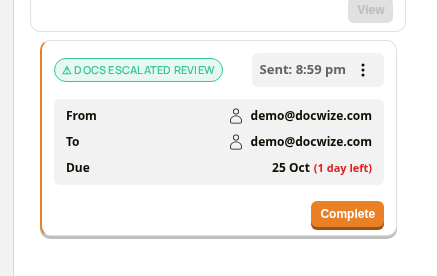 A follow-up in the manager's Inbox
The default policy
Section ② Late escalation defaults of the Delegate Workflows dialog holds the default policy. It applies to every overdue action request addressed to the user, unless a rule changes a setting for the document.
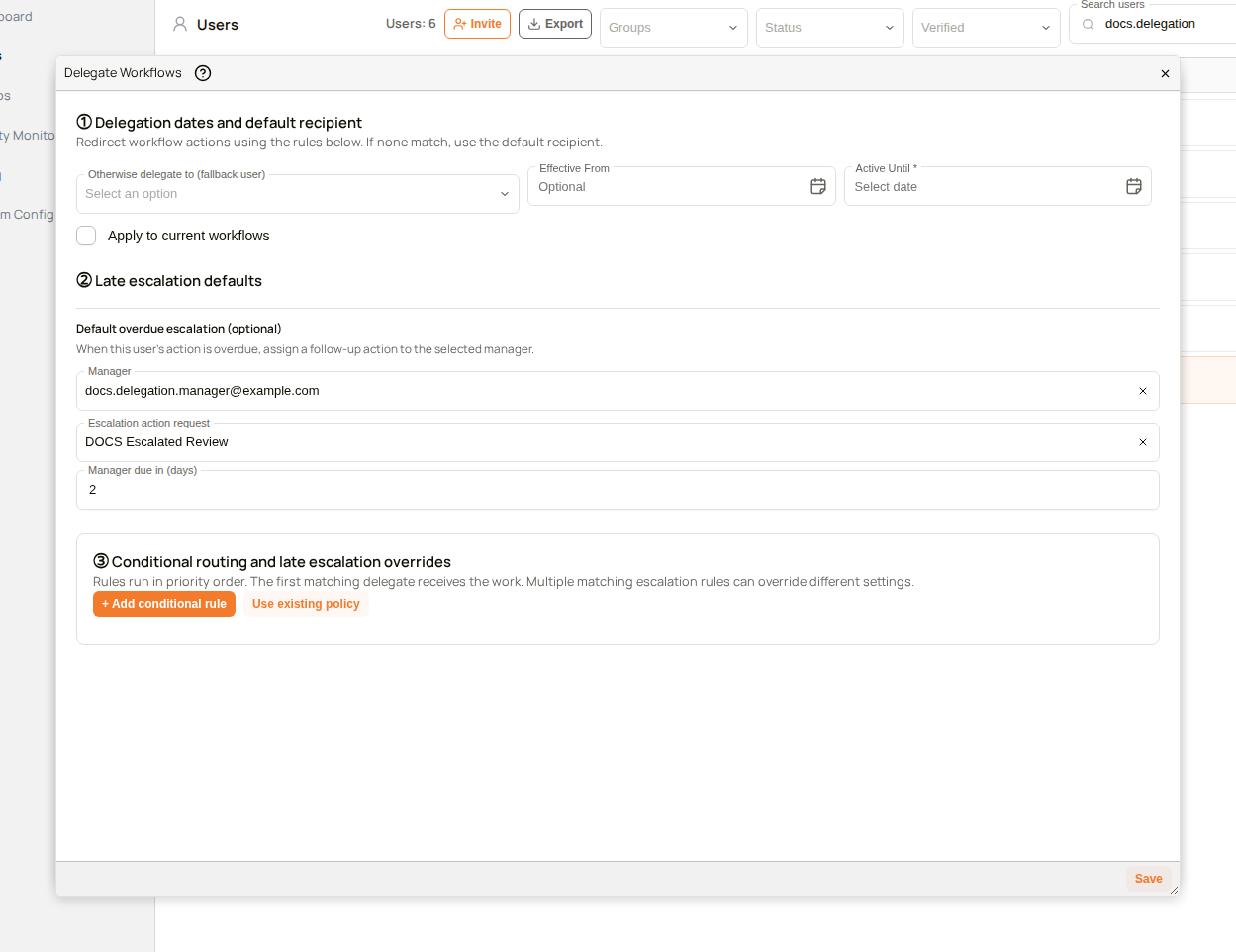 The default escalation for a user
| Field | Description |
|---|---|
| Manager | The user who receives the follow-up. Only active users are offered. |
| Escalation action request | The action request type of the follow-up. |
| Manager due in (days) | How many days the manager has, counted from when the follow-up is created. |
Escalation is saved on its own. Leave Otherwise delegate to (fallback user) and Active Until empty when the user's work is not being delegated, and select Save.
To remove a saved default policy, clear Manager, Escalation action request and Manager due in (days), leave Otherwise delegate to (fallback user) and Active Until empty, and select Save. The dialog closes, and the escalation is no longer set.
Rules that override the default
Section ③ Conditional routing and late escalation overrides holds the rules. A rule that names no delegate is an escalation override: the list shows Escalation override after its name.
 An escalation override in the list of rules
A rule matches the documents its condition describes, for example Project Equals a project. In the rule editor, three fields change the escalation for those documents.
| Field | Description |
|---|---|
| Overdue escalation manager (optional) | The manager who receives the follow-up for these documents. The manager must be an active user. |
| Escalation action (optional) | The action request type of the follow-up for these documents. |
| Manager due in days | How many days the manager has for these documents. |
A rule changes only the settings it fills in. A setting the rule leaves empty comes from the next matching rule that sets it, and then from the default policy. The editor and the other controls of section ③ are described on Delegating Workflows.
When more than one rule matches
Rules are checked in the order they are listed. For each of the three settings, the follow-up takes the value from the first matching rule that sets it. Different rules can therefore change different settings.
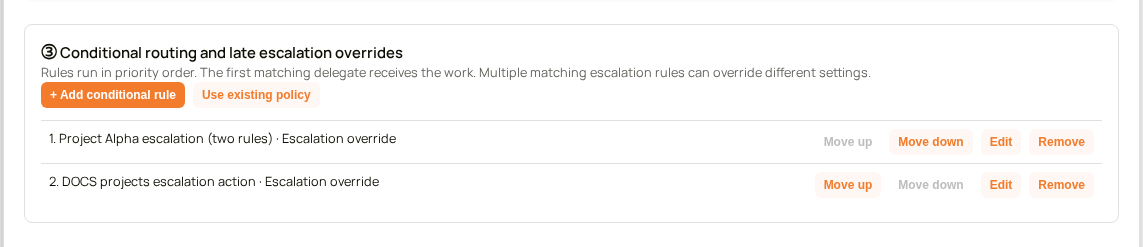 Two escalation overrides, in the order they are checked
For example, take this default policy and these two rules.
| Policy or rule | Applies to | Sets |
|---|---|---|
| Default policy | Everything | Manager Morgan, action request Escalated Review, 2 days |
| Rule 1 | Project is Project Alpha | Manager Alex, 1 day |
| Rule 2 | Project is not Project Beta | Manager Ola, action request Urgent Review |
The follow-up for an overdue action request is then:
| Document's project | Matches | Manager | Action request | Days |
|---|---|---|---|---|
| Project Alpha | Rules 1 and 2 | Alex, from rule 1 | Urgent Review, from rule 2, because rule 1 sets none | 1, from rule 1 |
| Project Beta | Neither | Morgan, from the default | Escalated Review, from the default | 2, from the default |
| Project Gamma | Rule 2 only | Ola, from rule 2 | Urgent Review, from rule 2 | 2, from the default |
Rule 2 also names a manager, Ola. For Project Alpha it is not used, because rule 1 comes first and has already chosen a manager.
How to set up late escalation
The video shows a default policy, one override rule and the dialog opened again to show them.
Example: Setting up late escalation for a user
| Step | Description |
|---|---|
| 1 | Go to Admin Console > Users and select the gear icon next to the user. |
| 2 | In the Details section, select the delegation badge to open Delegate Workflows. |
| 3 | In section ② Late escalation defaults, choose the Manager. |
| 4 | Choose the Escalation action request the manager receives. |
| 5 | Enter Manager due in (days). |
| 6 | Select Save. If the user's work is not being delegated, leave the fallback user and Active Until empty. The dialog closes. |
How to override escalation for particular documents
| Step | Description |
|---|---|
| 1 | Open Delegate Workflows for the user. |
| 2 | In section ③, select + Add conditional rule. |
| 3 | Enter a Rule name, then select Add condition and choose the field, the operator and the value. For example, Project, Equals, and the project's name. |
| 4 | Leave Delegate matching work to (optional) empty. A rule with no delegate is an escalation override. |
| 5 | Fill in the settings the rule changes: Overdue escalation manager (optional), Escalation action (optional) and Manager due in days. |
| 6 | Select Save rule. The list shows the rule with Escalation override after its name. |
| 7 | Select Save. |
To change the order in which rules are checked, use Move up and Move down. See Delegating Workflows.
Troubleshooting
| Risk | Detail |
|---|---|
| No follow-up has appeared yet | The check runs once an hour, Monday to Saturday. Wait for the next run, and check that the action request is overdue and has not been completed. |
| The follow-up went to a different manager than expected | Check the rules in order. For each setting, the follow-up takes the value from the first matching rule that sets it, and otherwise from the default policy. |
| Which manager a delegated action request escalates to | Escalation follows the policy of the user the action request was first addressed to, not the delegate's. Set the policy on that user. |
| A rule does not change the follow-up | Check that the rule's condition matches the document, and that the rule fills in at least one of the three escalation settings. |
| Save is refused, and a message at the top of the dialog gives the reason | The manager, or a rule's manager, is no longer an active user. Choose an active user as the manager, then select Save. |
Related configuration
- Delegating Workflows — send a user's workflow actions to someone else, with conditional rules
- Users — the Users page and the user's details
- Action Requests — the action request types that workflows send
- Completing Action Requests — how a manager completes a follow-up in the Inbox