System Config
System Config holds settings that an administrator sets once for the whole organisation. It holds two:
- Default language for emails sets the language of the system emails Docwize sends to people who have not chosen a language.
- Default grid columns sets the columns, their order and the sort that every document grid starts with. Each user can still change the columns of a grid for themselves. The settings here are what a grid shows until they do.
Who configures this
Users with the Manage System Config permission, which the Administrators group holds. System Config appears in the Admin Console navigation only for these users. See Permissions.
What you can do in System Config
- Choose the language of the system emails sent to people who have not chosen one
- Choose which columns the document grids show by default, and in what order
- Set the default sort, using up to three columns
- Give one grid its own columns, so that it ignores the default for all grids
- See the sort a grid inherits when it has none of its own
- Return one grid, or every grid, to its built-in columns
Default language for emails
Docwize writes each system email in the language its recipient chose as their UI language in their settings. Default language for emails, at the top of System Config, sets the language for everyone who has not chosen one, such as external users, contacts and people who have never signed in.
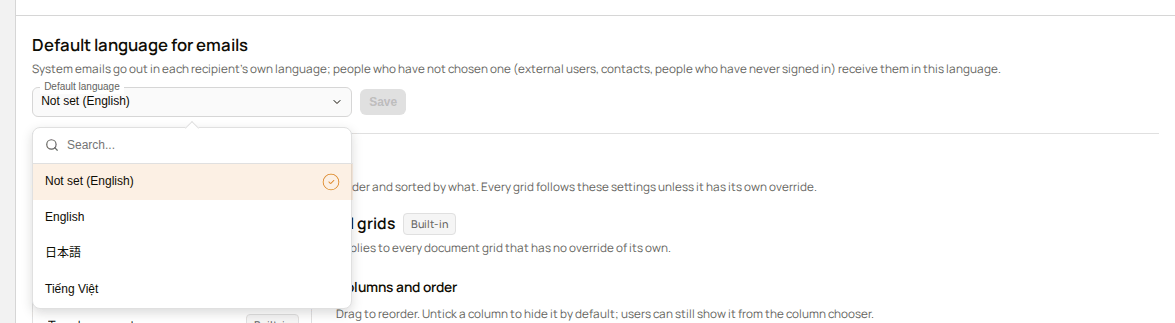
Default language for emails
| Control | What it does |
|---|---|
| Default language | The language of those emails: Not set (English), English, 日本語 (Japanese) or Tiếng Việt (Vietnamese). Each language is named in its own language. With Not set (English), the emails are in English. |
| Save | Saves the language. It is disabled until the choice changes. A message, Default language saved, confirms it. |
How the grids choose their columns
Each grid uses the first of these that applies:
- The grid's own override, saved for that grid.
- The default for all grids, saved under All grids.
- The built-in columns of the grid, which are used until anything is saved.
A grid that has an override ignores the default for all grids. A grid without an override follows it.
The status beside each grid shows which of the three applies:
| Status | Meaning |
|---|---|
| Built-in | Nothing is saved for the grid. It uses its built-in columns and order. |
| Uses default | The grid follows the default for all grids. |
| Customised | The grid has its own columns. Under All grids, it means a default is saved. |
The Default grid columns page
Select System Config in the Admin Console navigation. Default grid columns is below Default language for emails.
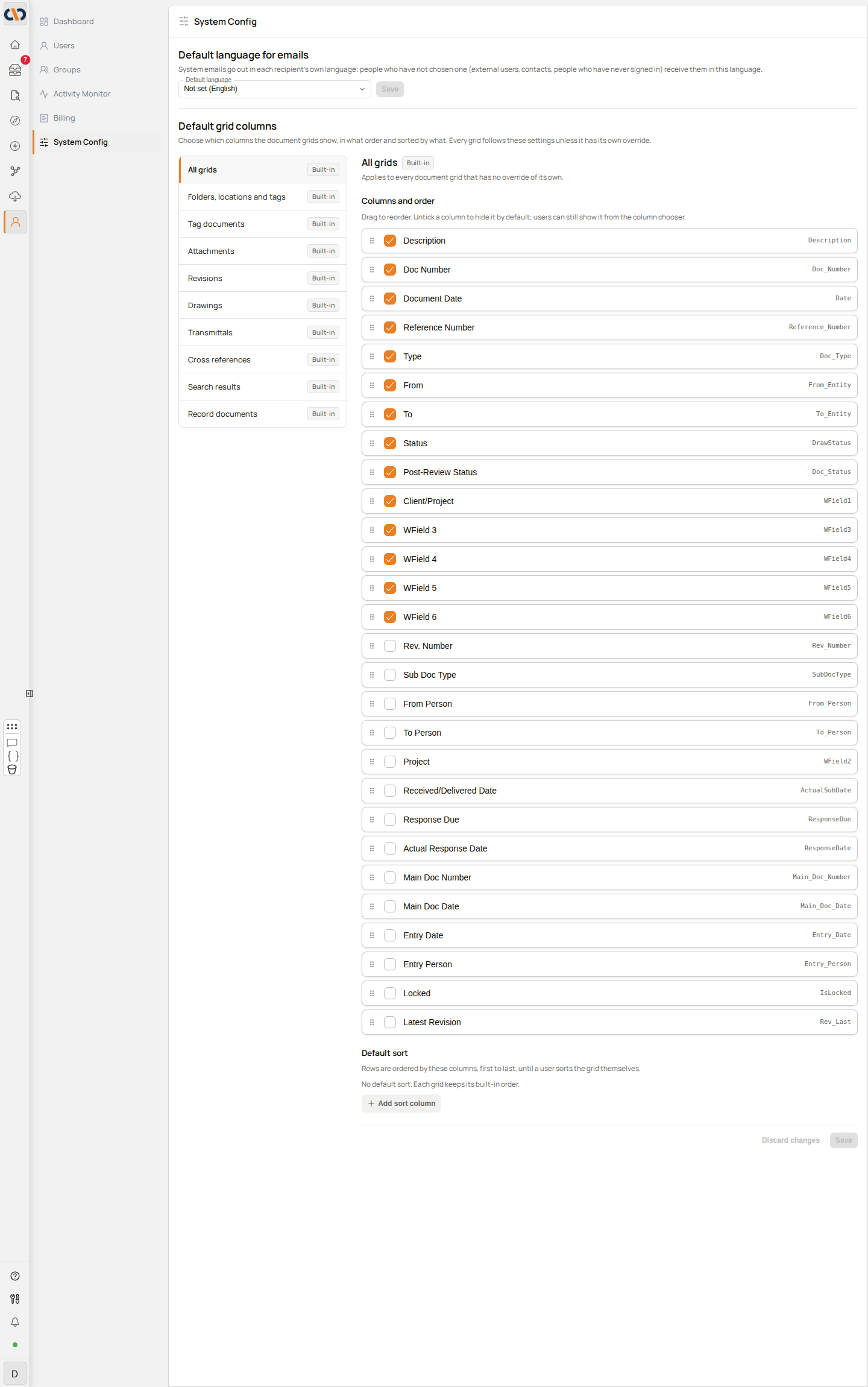
System Config: the list of grids and the columns for All grids
Default grid columns has two parts. The list of grids is on the left. The editor for the selected grid is on the right: its columns, its default sort, and the buttons that save or reset it.
The grids
All grids is selected when the page opens. It sets the default for every grid that has no override of its own. The other grids can each be given their own columns.
| Grid | Where it appears |
|---|---|
| All grids | Every grid below that has no override |
| Folders, locations and tags | The document list of the Explorer Folders, Locations and Tags tabs |
| Tag documents | The list of documents in the Tags dialog |
| Attachments | The attachments of a document |
| Revisions | The revisions of a document |
| Drawings | The drawings of a document |
| Transmittals | The transmittals of a document |
| Cross references | The cross references of a document |
| Search results | The search results |
| Record documents | The documents of a record |
Columns and order
The editor lists every column the selected grid can show, in the order the grid will use. Each row has:
| Control | What it does |
|---|---|
| Tick box | Ticked columns are shown by default. Unticked columns are hidden by default, and users can still show them from the grid's column chooser. |
| Drag handle (six dots) | Drag the row to move the column. The grid shows its columns in this order. |
The grey text at the right of a row is the column's internal name.
Under All grids the list holds every document column. The columns shown in an Explorer folder grid before anything is saved are ticked, and the rest are unticked. A column carries the same name in every grid and in this editor. Columns that hold the organisation's own field names appear under those names.
Default sort
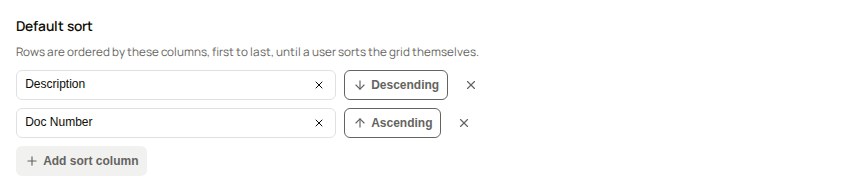
Default sort
Rows are ordered by the sort columns, first to last, until a user sorts the grid themselves. Each sort column has:
| Control | What it does |
|---|---|
| Choose a column list | Picks the column. A column already used by another sort row is not offered. |
| Ascending / Descending button | Selecting it switches the direction. |
| Remove sort column (cross) | Removes the sort column. |
Add sort column adds a sort column. It is disabled once there are three.
With no sort column, the page says No default sort. Each grid keeps its built-in order.
A grid that has an override but no sort of its own follows the sort it inherits, which is the default for all grids, or the grid's built-in sort. The page shows that sort as read-only chips under the heading Not set here. This grid follows the sort it inherits:. Saving a change to the grid's columns does not copy the inherited sort into the override.
Saving, discarding and resetting
The buttons at the foot of the editor apply to the selected grid.
| Button | What it does |
|---|---|
| Save | Saves the columns and sort. It is disabled until something has changed. A message, Grid columns saved, confirms it. |
| Discard changes | Returns the editor to what is saved. It is disabled until something has changed. |
| Reset to built-in | Shown under All grids once a default is saved. Deletes the default, after a confirmation. |
| Reset to default | Shown for a grid that has an override. Deletes the override, after a confirmation. |
Show at least one column. appears, and Save stays disabled, while no column is ticked.
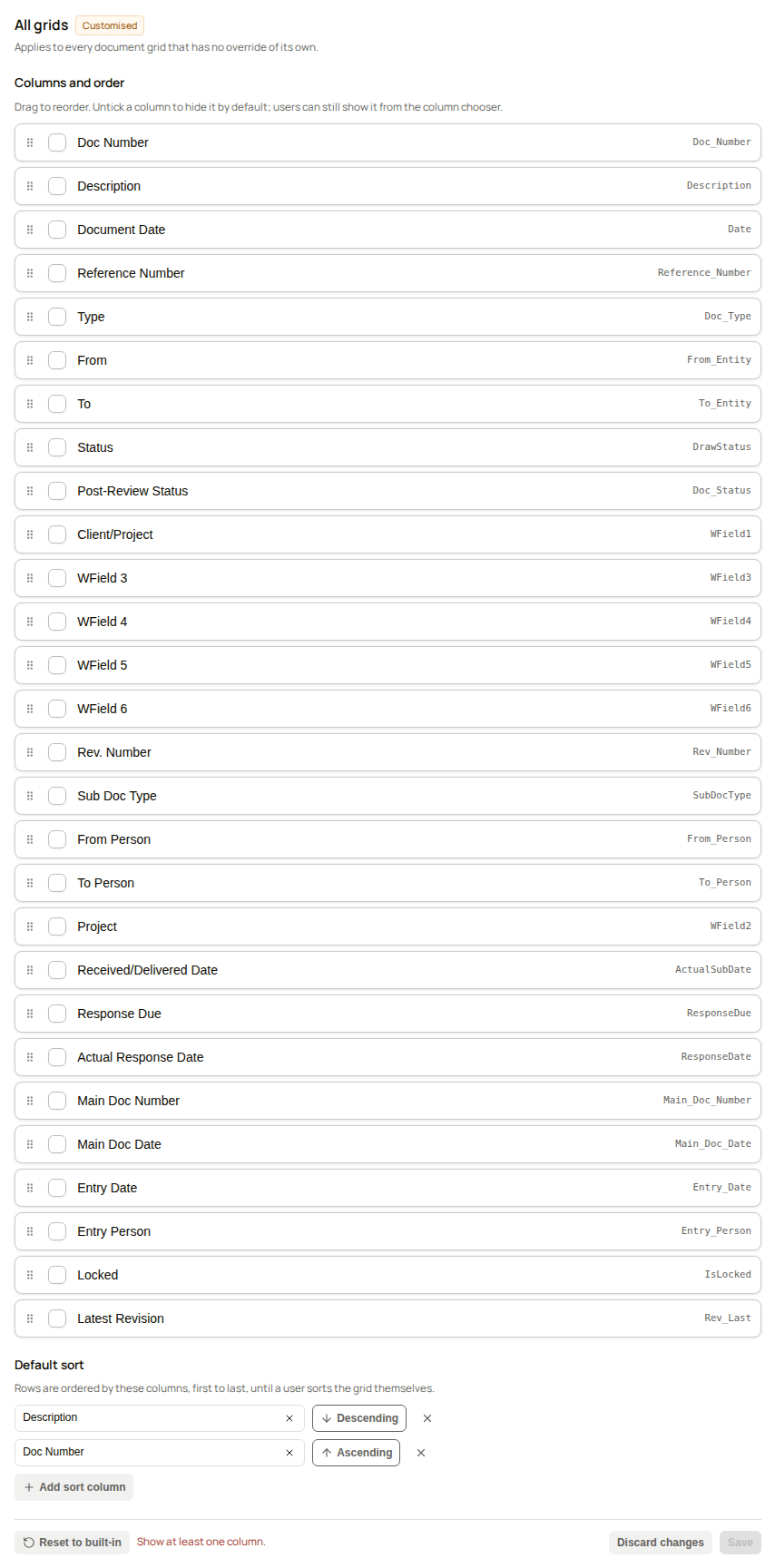
No column ticked
Selecting another grid while the editor holds unsaved changes asks Discard unsaved changes?. Keep editing returns to the editor. Discard changes opens the other grid and drops the changes.
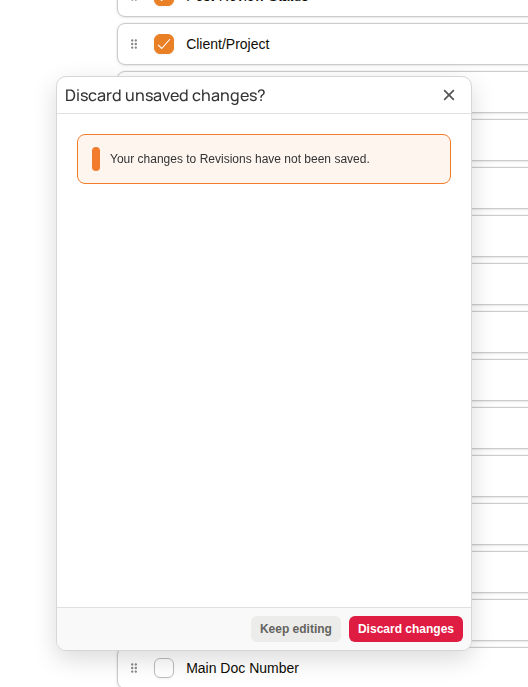
Discard unsaved changes?
How the grids follow the settings
Every grid in the list takes its columns and sort from the saved settings. The grid below is the Explorer document list of Quality Documents, after From and To were unticked, Doc Number was moved before Description, and the sort was set to Description descending, then Doc Number ascending.
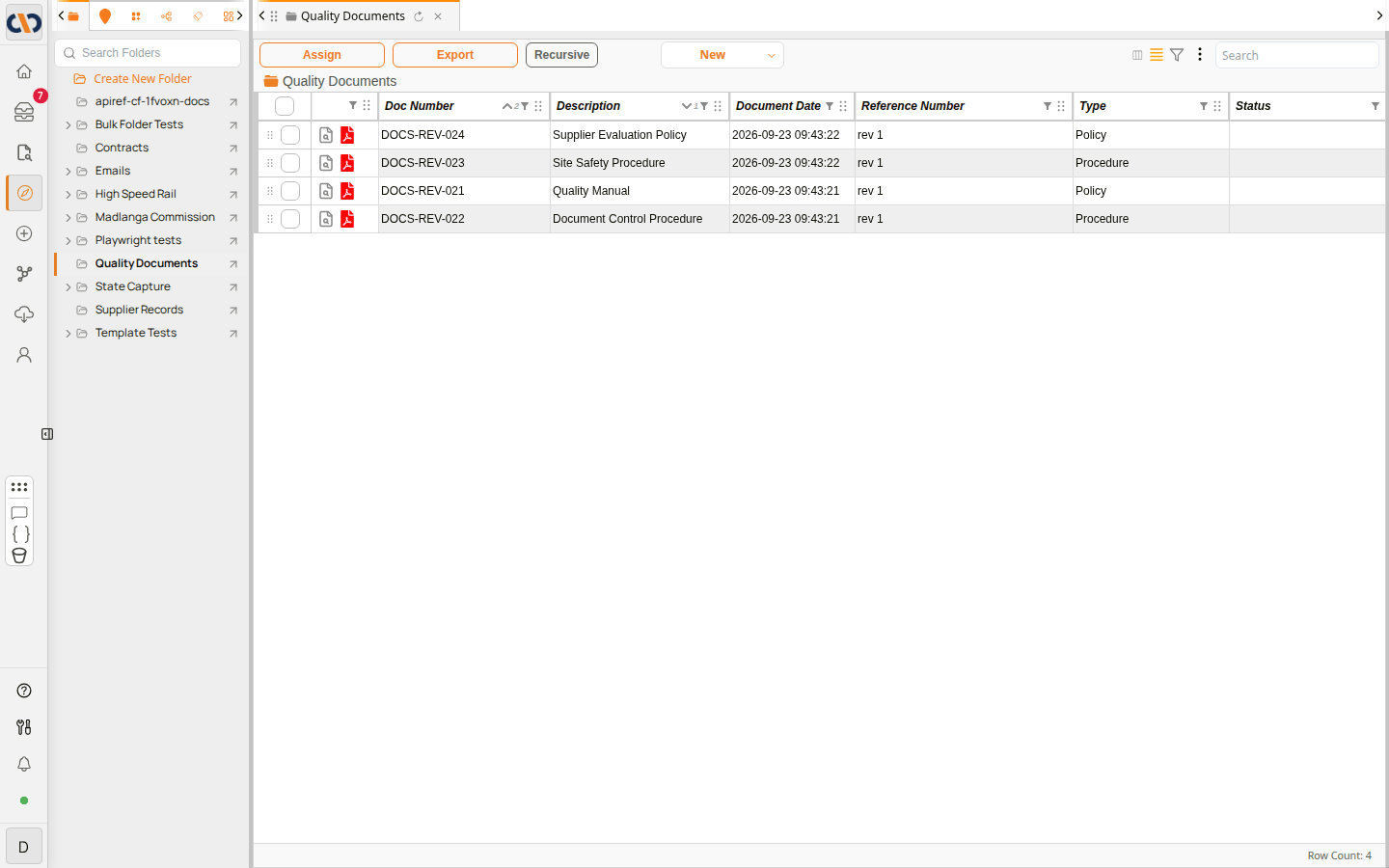
An Explorer grid following the saved default
The grid shows the columns in the saved order and leaves out the columns that were unticked. Its rows follow the default sort. The grid marks the order of the sort columns beside the sort arrow in each heading.
Users can still change their own view. A user can show a hidden column, hide a column or move one from the column chooser (the column icon in the grid toolbar). The columns a user chooses are kept in their browser and take the place of the default for that user. Reset columns to default at the foot of the column chooser forgets the user's choices and returns the grid to the settings saved here.
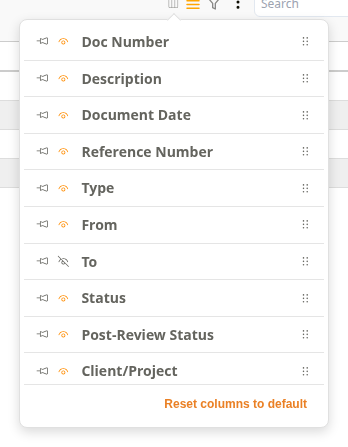
The column chooser
How to set the default language for emails
The video shows the Default language list being opened, 日本語 being chosen and saved.
Example: Setting the default language for emails
| Step | Description |
|---|---|
| 1 | Select System Config in the Admin Console navigation. |
| 2 | In Default language for emails, open the Default language list and choose the language. |
| 3 | Select Save. Default language saved confirms it. |
From then on, system emails to people who have not chosen a language are written in the saved language.
How to hide or move default columns
The video shows From and To being hidden, Doc Number moved before Description, a default sort being added, and the result in an Explorer document list.
Example: Setting the default grid columns
| Step | Description |
|---|---|
| 1 | Select System Config in the Admin Console navigation. All grids is selected. |
| 2 | Untick each column that should be hidden by default, for example From and To. |
| 3 | Drag a row by its handle to move the column. |
| 4 | Select Save. Grid columns saved confirms it, and the status beside All grids reads Customised. |
Every grid that has no override now shows the saved columns. Their status reads Uses default.
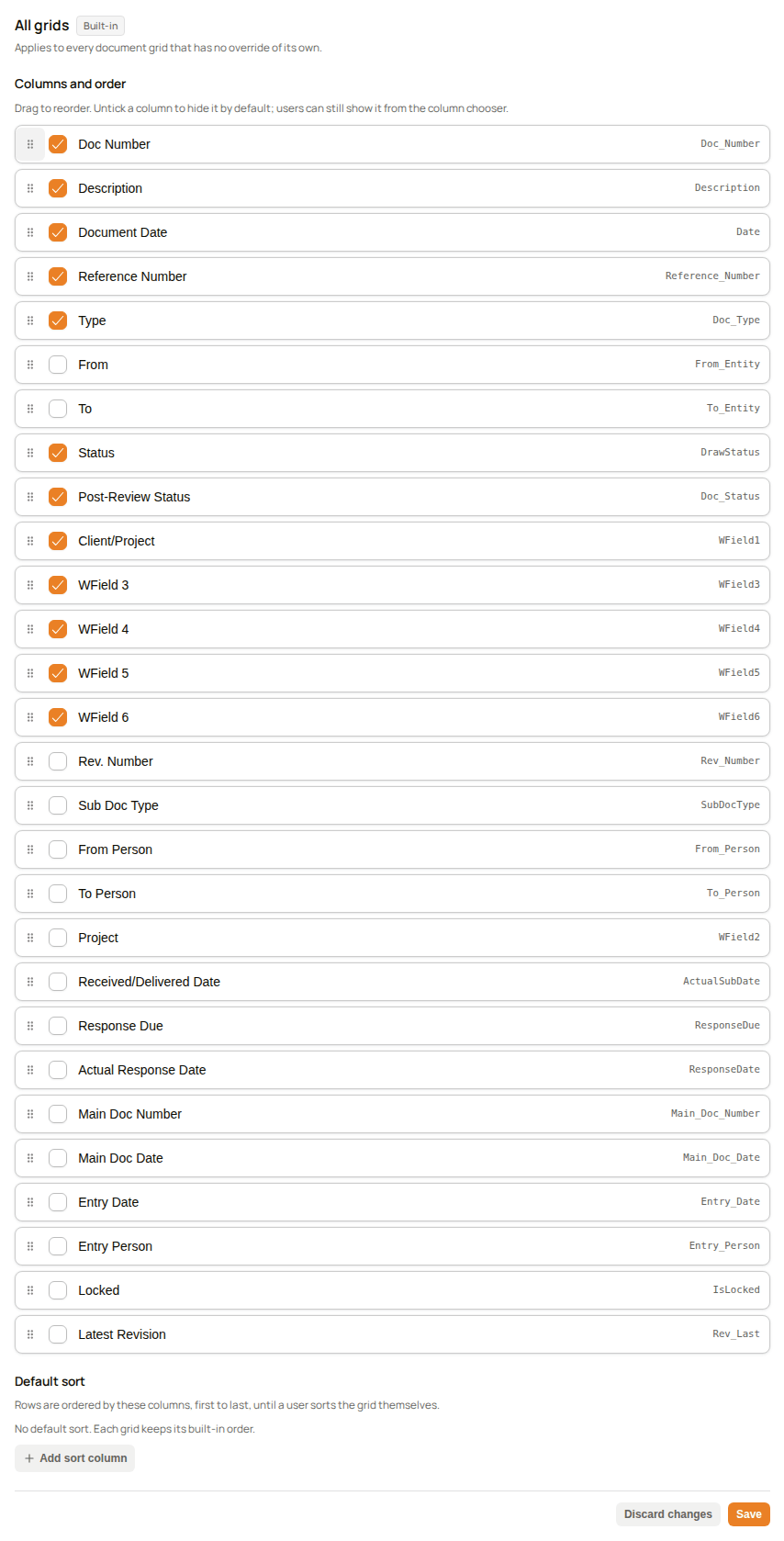
Columns changed, before saving
How to set the default sort
| Step | Description |
|---|---|
| 1 | Select System Config in the Admin Console navigation. Select the grid, or All grids. |
| 2 | In Default sort, select Add sort column. |
| 3 | In the list, choose the column. |
| 4 | Select the Ascending button to change it to Descending, if needed. |
| 5 | Add up to two more sort columns in the same way. The first one is the most significant. |
| 6 | Select Save. |
To remove a sort column, select Remove sort column (the cross) beside it, then Save.
How to give one grid its own columns
| Step | Description |
|---|---|
| 1 | Select System Config in the Admin Console navigation. |
| 2 | Select the grid in the list, for example Attachments. Its status reads Uses default. |
| 3 | Tick, untick or drag the columns. The sort section shows the sort the grid inherits. |
| 4 | Select Save. The status reads Customised, and the grid now ignores the default for all grids. |
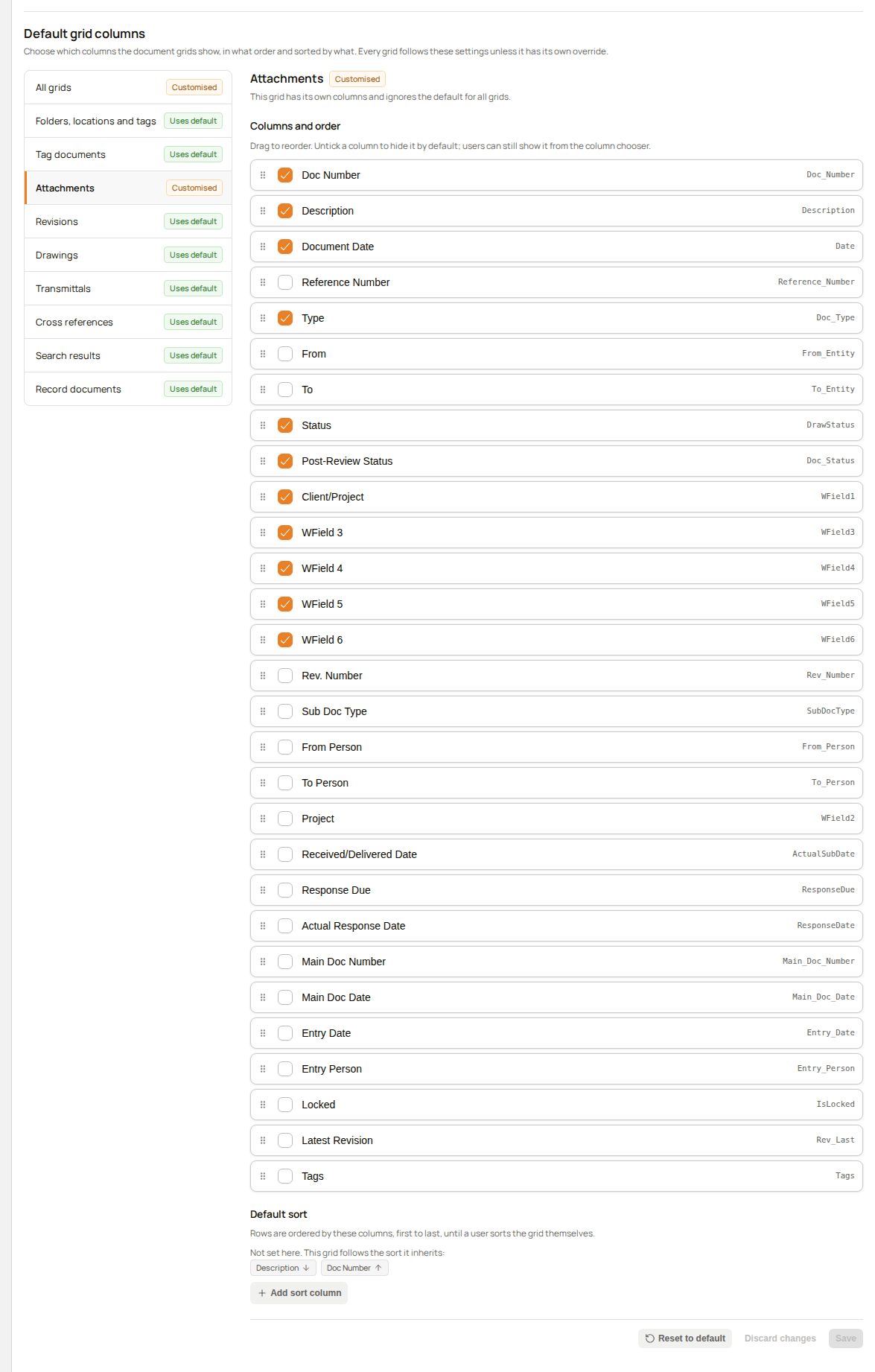
A grid with its own columns and an inherited sort
How to return a grid to the default
| Step | Description |
|---|---|
| 1 | Select the grid that has an override. Its status reads Customised. |
| 2 | Select Reset to default. |
| 3 | In Remove this override?, select Reset to default. To keep the override, select Cancel. |
Grid columns reset confirms it. The grid follows the default for all grids again, or its built-in columns when no default is saved.
How to return every grid to the built-in columns
| Step | Description |
|---|---|
| 1 | Select All grids. |
| 2 | Select Reset to built-in. |
| 3 | In Reset to the built-in columns?, select Reset to built-in. |
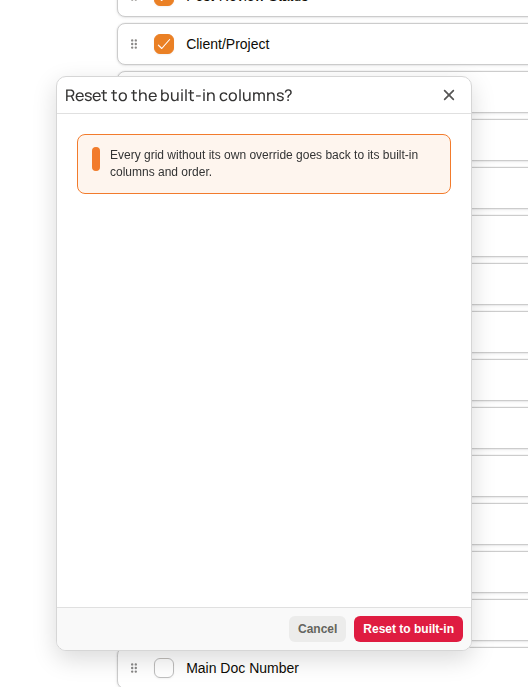
Reset to the built-in columns?
Every grid without its own override goes back to its built-in columns and order. A grid that has an override keeps it until it is reset on its own.
Related configuration
- Permissions — the Manage System Config permission
- Folders in Explorer — the document list that follows these settings
- The document grid — the grid and its column chooser
- User Settings — the UI language each user chooses, which their emails follow