Relations
Relations shows the documents and records that a document is linked to, as a graph. Each link is drawn as a line with its name on it, such as Refers to or Attachment of, so you can see how a document connects to the rest of your records. Select Show relations in a document's right-click menu. The graph opens on the Relations tab of the Exploration window.
What you can do in Relations
- See the documents and records a document links to, and the ones that link to it, as a graph
- Choose how many levels of links to show: one, two or three
- Switch between the graph and a table of the records connected to a document
- See the connected records in one tab for each type of record, with how many each tab holds
- See which document each record is connected through, how it is connected, and whether the connection is confirmed
- Read the name of each link on the graph
- Keep only one relation on the graph
- Open a document from the side panel, or preview it
- See the relations of several documents on one graph
- Find how two documents connect through the links between them
- See a message when a document has no links yet
The Relations graph
The graph starts from the document you chose. Its heading reads Relations of: and the document's name. Each linked document or record is a card, and each link is a line between two cards, labelled with its relation. An arrow shows the direction of the link: the card at the arrow's tail refers to the card at its head. The relation names come from your organisation's relation types, and are shown as they are stored.
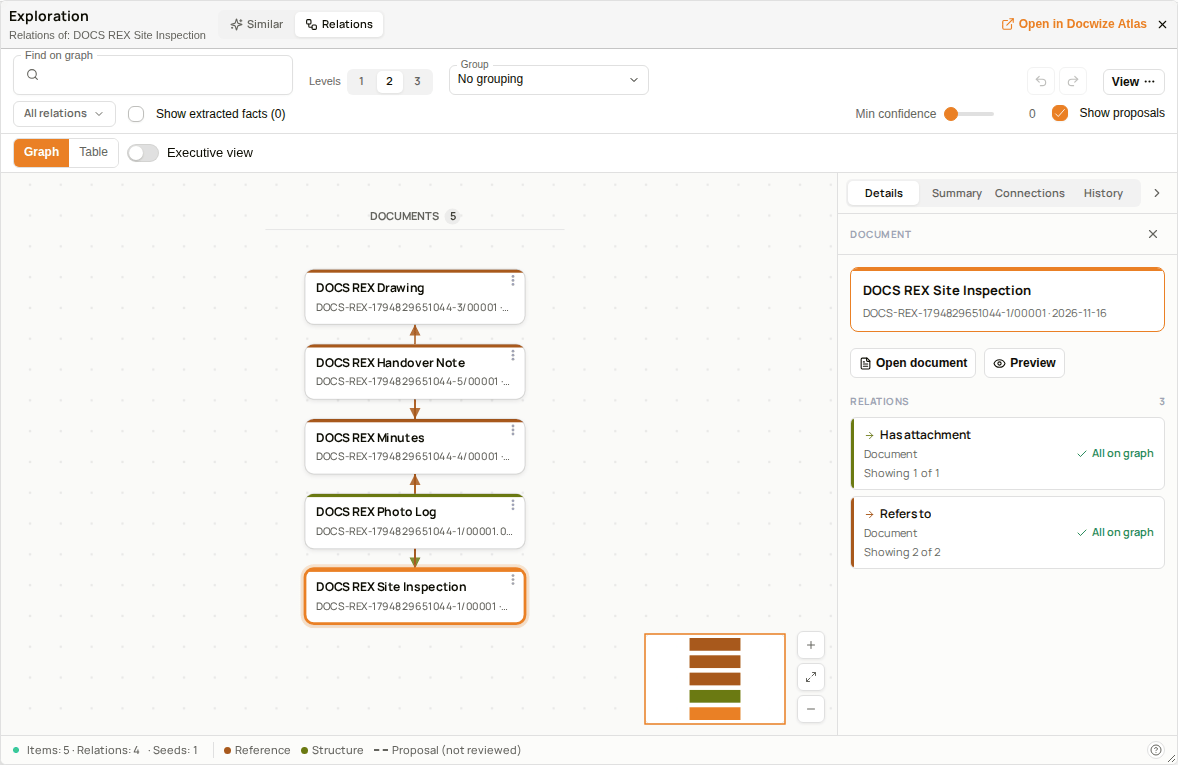 The Relations graph of a document
The status line at the bottom left counts what is on the graph: its items, relations and seeds, for example Items: 5 · Relations: 4 · Seeds: 1. The counts change when you change the levels or filter the relations. The key along the bottom shows the categories of relation, such as Reference and Structure, and what a dashed line means: Proposal (not reviewed).
Levels sets how far the graph reaches from the document. The graph opens at two levels: the documents linked to the document, and the documents linked to those. Select 1 to show only the documents linked to the document itself, or 3 to reach one level further.
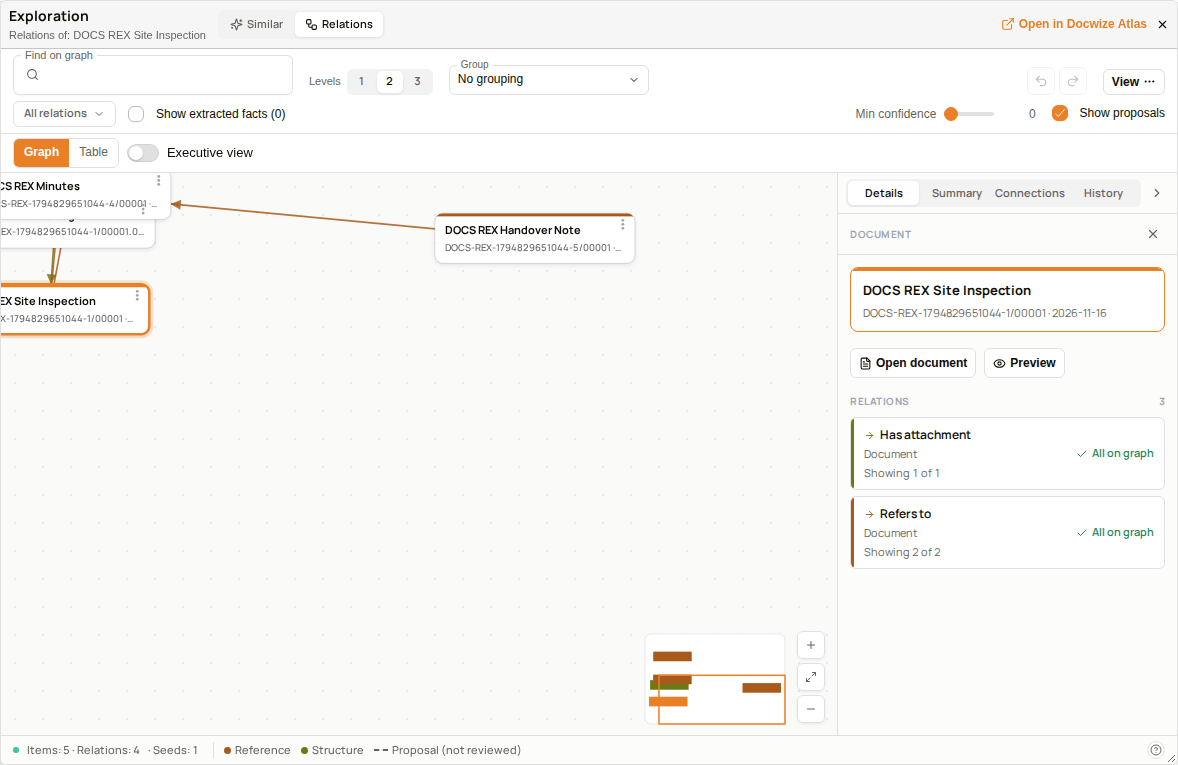 The graph at two levels
The relation picker
All relations, above the graph on the left, lists each relation on the graph with the number of links it has, such as Refers to with 3 and Attachment of with 1. Select a relation to keep only its links on the graph. The button then shows the chosen relation, for example Relations: Refers to. Select All relations to show every link again.
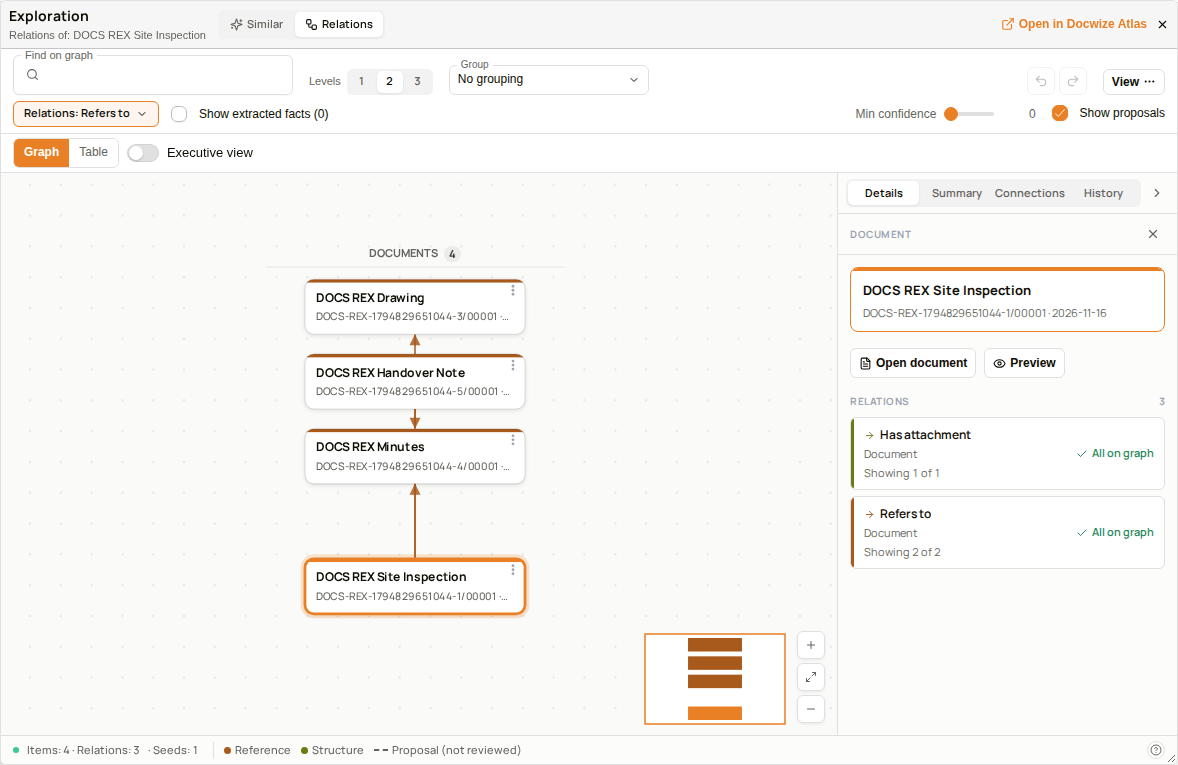 The graph filtered to Refers to
The empty state
A document with no links shows No relations yet, with the explanation Nothing is linked to this item yet, or you cannot see what it links to. Select Reload to load the graph again.
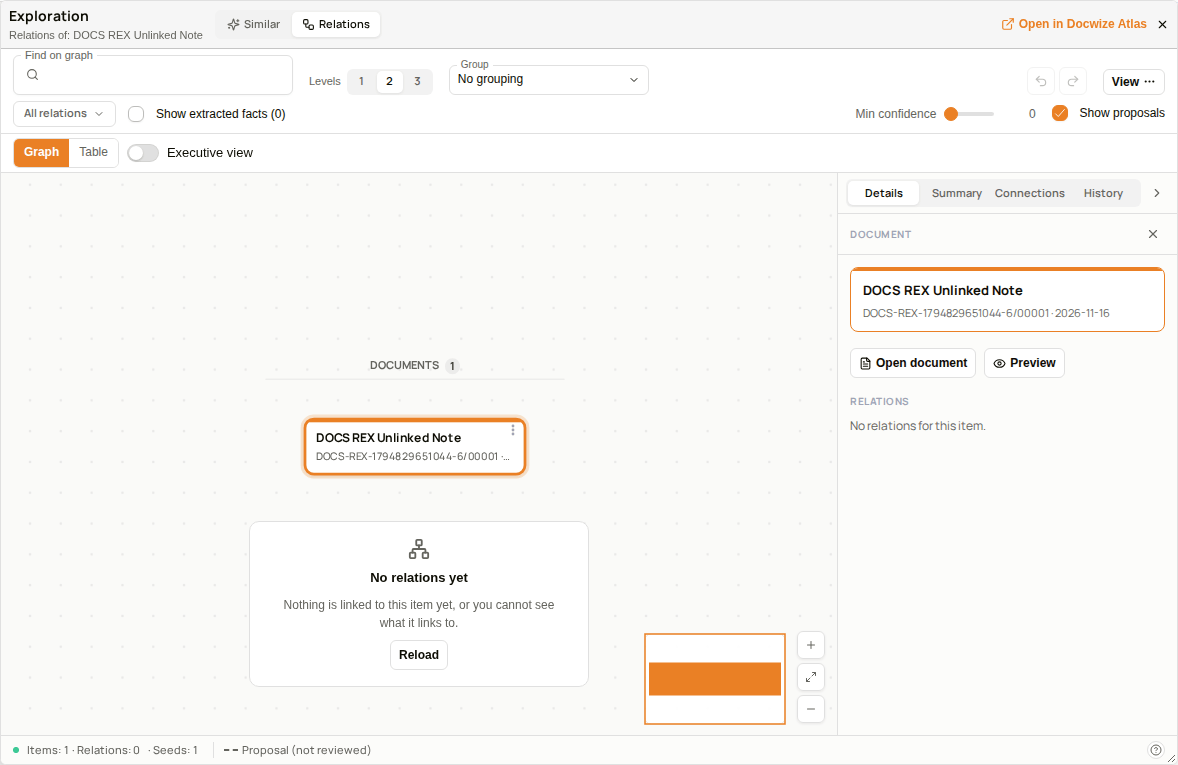 A document with no links
Table view
Select Table, next to Graph at the top of the Relations tab, to show the records connected to the document as a table instead of a graph. Select Graph to return to the graph.
The table has one tab for each type of record connected to the document, and each tab shows how many records it holds. The first tab that holds records is open when the table appears. Select another tab to list its records.
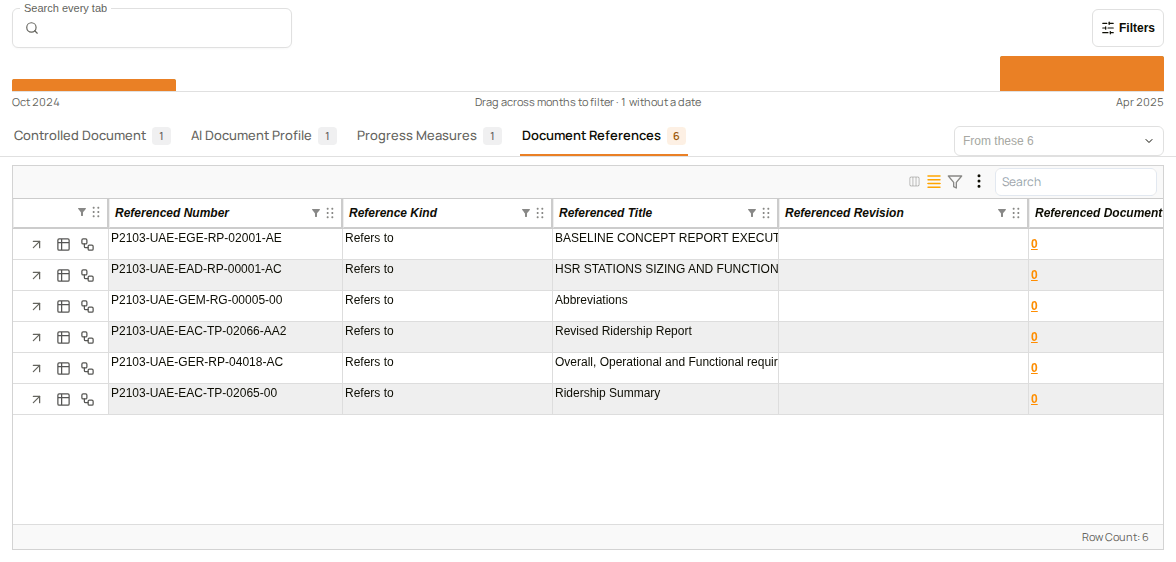 The Table view, with one tab for each type of record
| Control | What it does |
|---|---|
| Tabs | One for each type of record connected to the document, with the number of records. Select a tab to list its records. |
| Search every tab | Searches the records on every tab. |
| Filters | Opens the options for narrowing the records. |
The records on a tab
A tab lists its records in a grid, with the row count at the bottom. The number of rows is the number on the tab. The grid shows the record's own columns, followed by three columns that describe how the record is connected to the document. Scroll the grid to the right to read them.
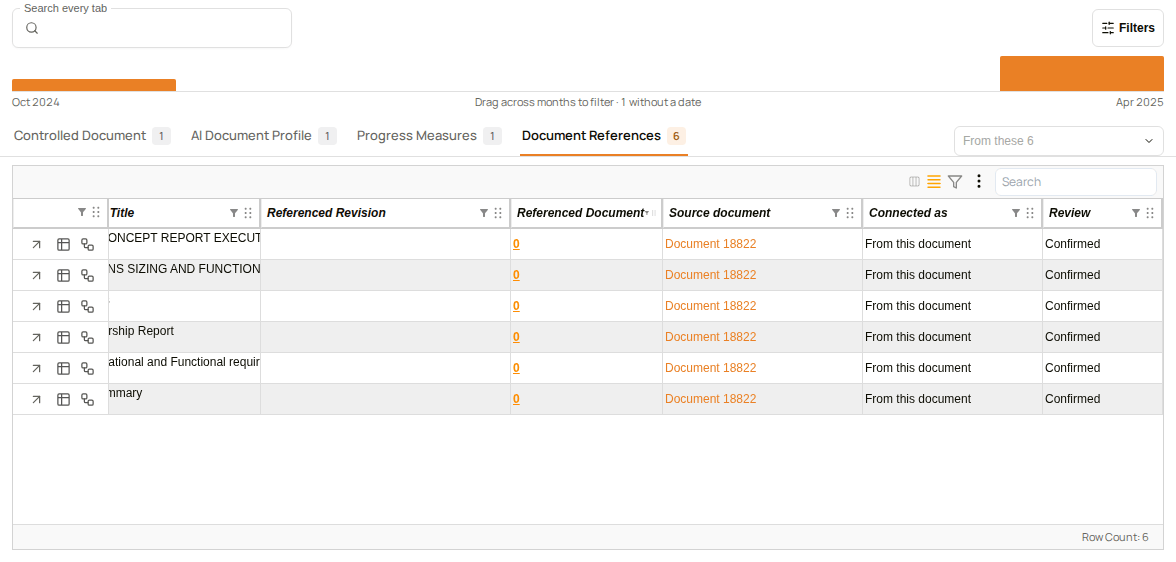 The columns that describe the connection
| Column | What it shows |
|---|---|
| Source document | The document the record is connected through, for example Document 18822. |
| Connected as | How the record is connected, for example From this document. |
| Review | Whether the connection is confirmed, for example Confirmed. |
A document with no connected records
A document with no connected records shows Nothing is connected to the document's number yet., with the button Include records from the same documents.
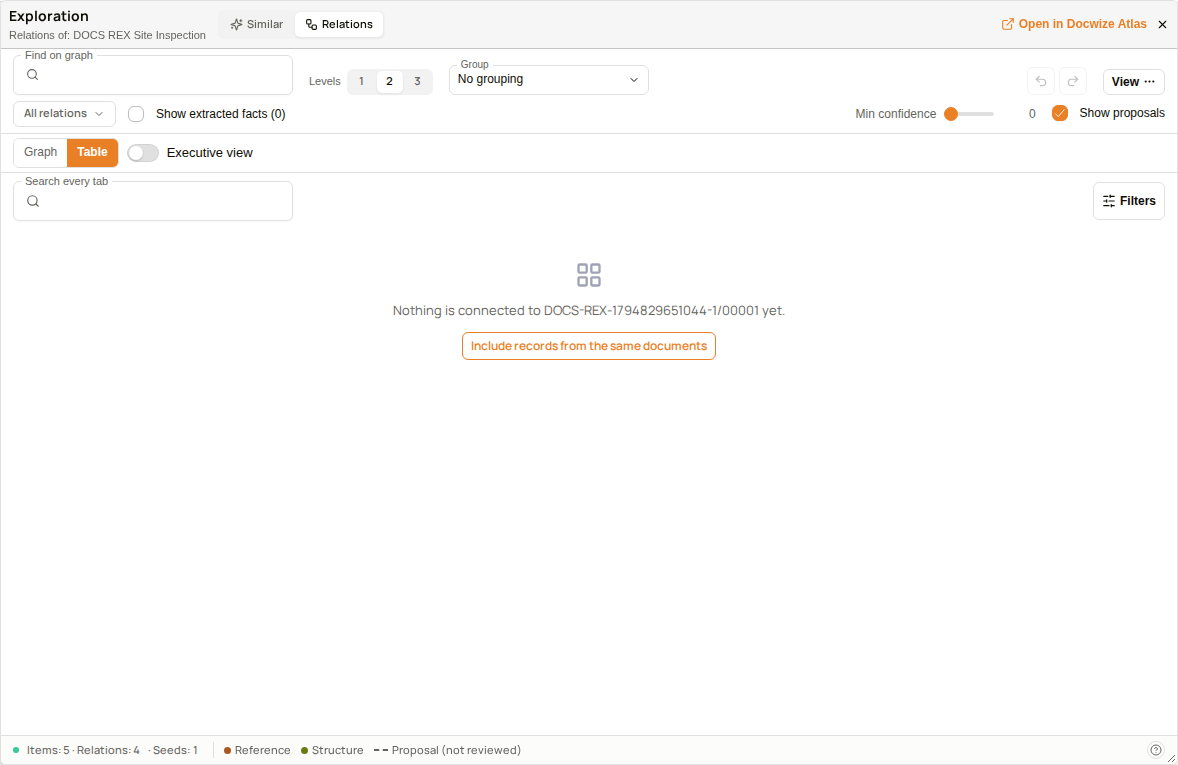 The Table view of a document with no connected records
How to see one document's relations
Use this to see every document and record a document is linked to, starting from the document itself.
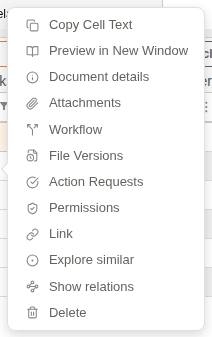 Show relations in the right-click menu
| Step | Description |
|---|---|
| 1 | In Explorer, open the folder that holds the document. |
| 2 | Right-click the document and select Show relations. |
| 3 | The Relations tab opens, headed Relations of: and the document's name, with the graph of its links. |
| 4 | To see documents further away, select 3 under Levels. To see only the documents linked to the document itself, select 1. |
The video below opens the relations of a document, changes the levels, filters them by relation, and finds how two documents connect.
Example: Seeing a document's relations, its levels and the relation filter
How to see the records connected to a document
Use this to list the records a document is connected to, one type of record at a time.
| Step | Description |
|---|---|
| 1 | In Explorer, right-click the document and select Show relations. The Relations tab opens. |
| 2 | Select Table, next to Graph. One tab for each type of record is shown, each with its number of records. |
| 3 | Select a tab to list its records. |
| 4 | Scroll the grid to the right to read Source document, Connected as and Review. |
| 5 | Select Graph to return to the graph. |
Example: Listing the records connected to a document
How to see several documents' relations
Select two or more documents to see their relations on one graph. Each selected document starts the graph, and the status line counts them as Seeds.
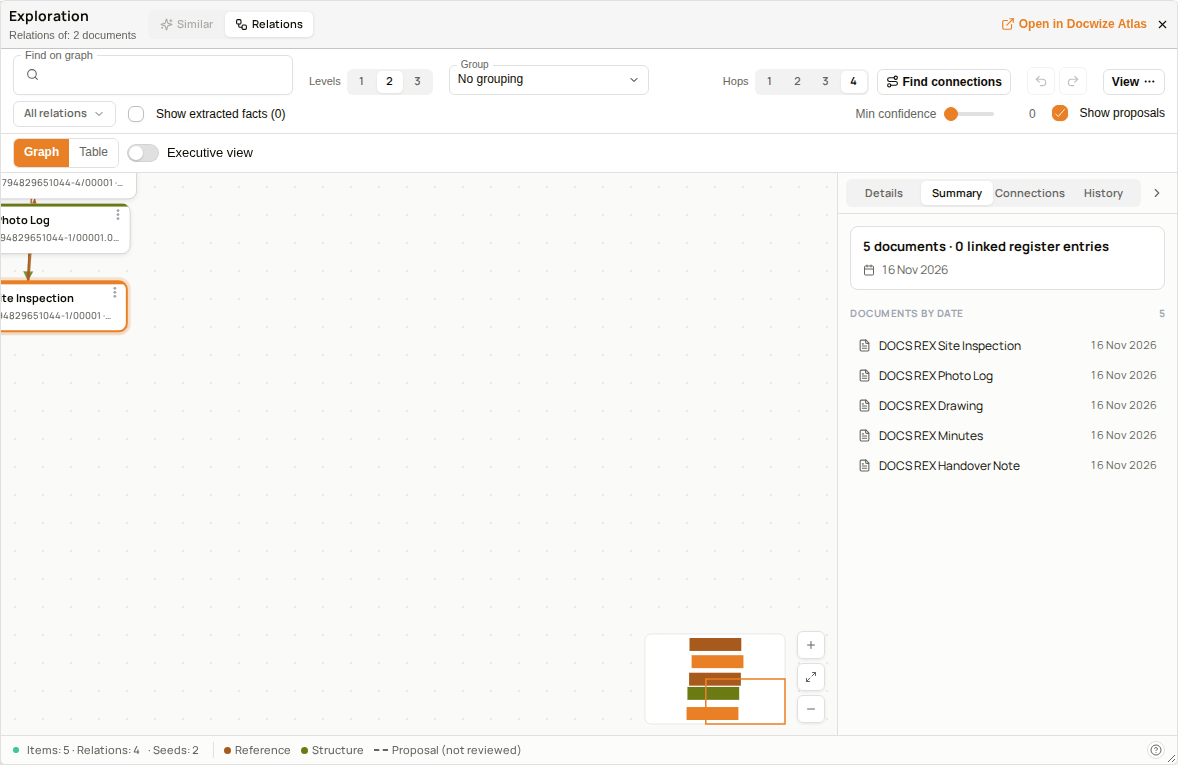 The relations of two selected documents
| Step | Description |
|---|---|
| 1 | In Explorer, tick the box at the left of each document you want. |
| 2 | Select Show relations in the toolbar above the grid. |
| 3 | The Relations tab opens, headed Relations of: and the number of documents, such as 2 documents. |
How to find how two documents connect
When the graph holds two or more documents, Find connections appears in the toolbar. It looks for chains of links between them, following links in either direction, and lists the chains under Connections.
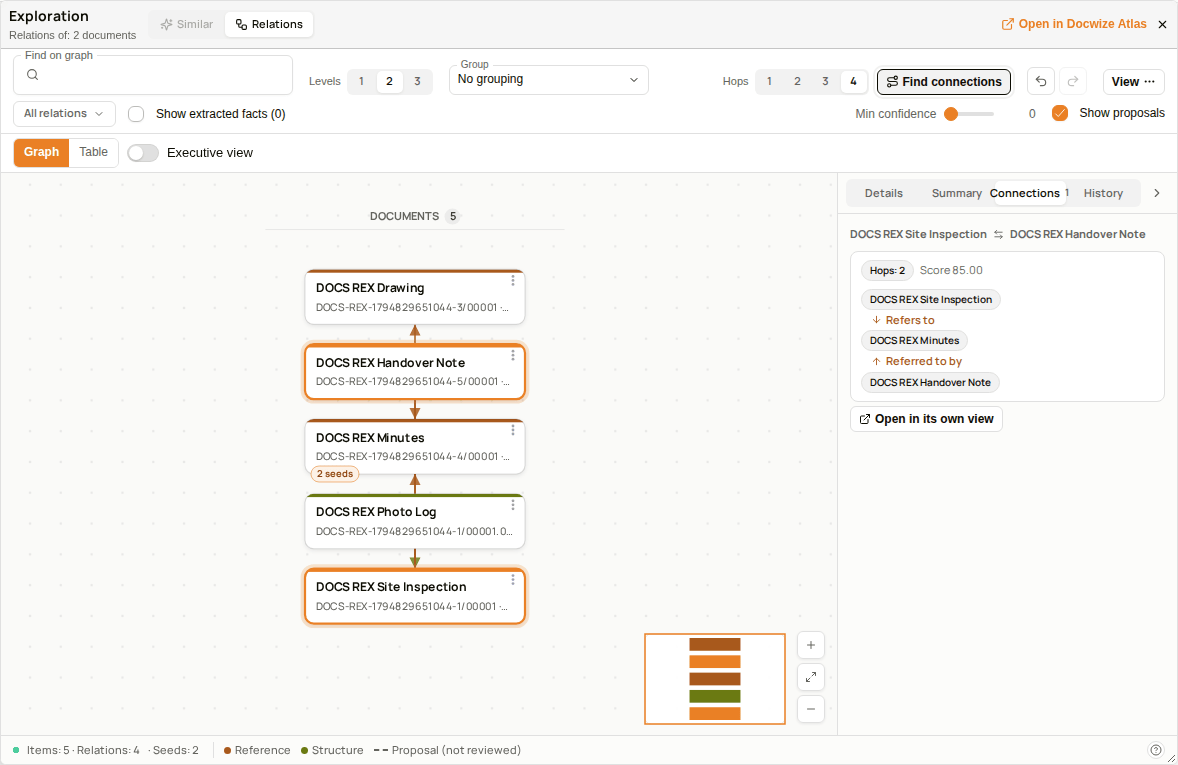 The Connections tab, with a chain of two hops
| Step | Description |
|---|---|
| 1 | Select two or more documents and select Show relations, as in the section above. |
| 2 | Select Find connections in the toolbar. |
| 3 | The Connections tab lists each chain between the documents, with its number of hops, such as Hops: 2. A chain runs from one document, through the links, to the other. |
| 4 | Select a chain to highlight it on the graph. Select Clear highlight to remove the highlight. |
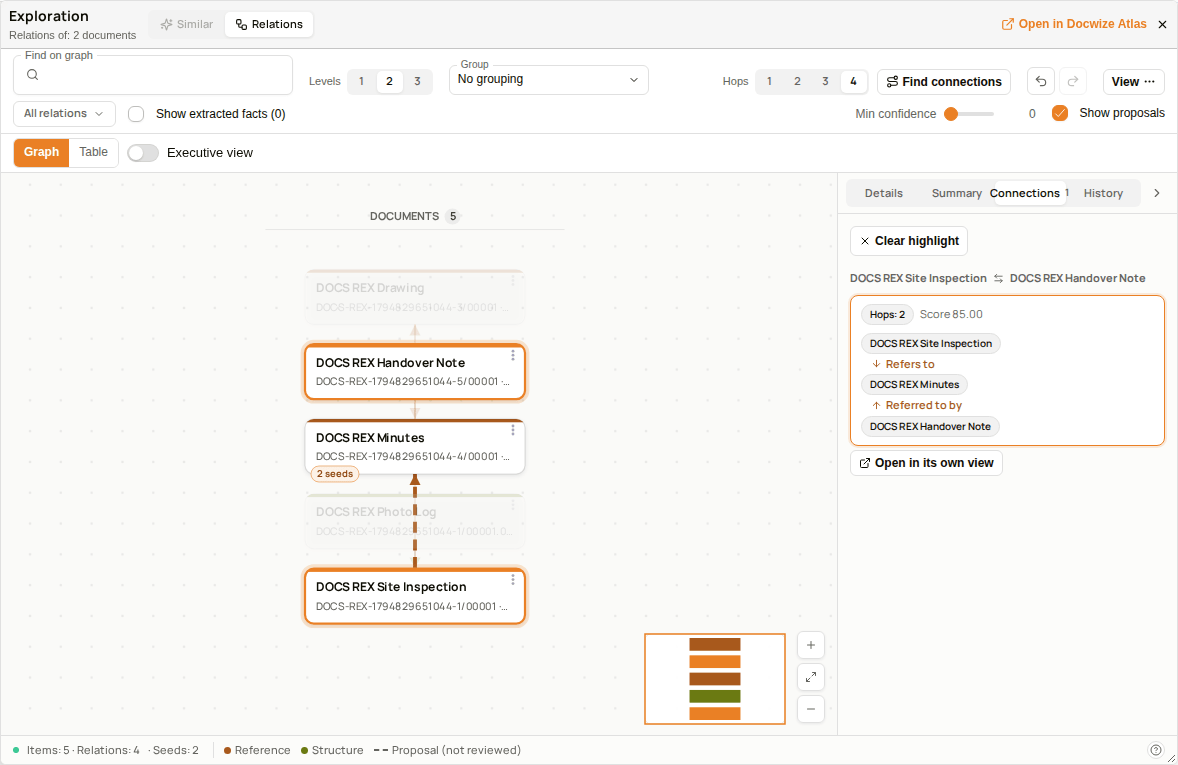 A chain highlighted on the graph
Related pages
- Cross References: create and edit the cross references that appear as links on the graph
- Explorer: overview of the Explorer module