Document Details
The Document Details dialog is where users view and manage the information connected to a Docwize document.
A “document” in Docwize refers to a collection of file(s), metadata, and relationships.
The file(s) are the actual file(s). This can include a main file, as well as file versions. The metadata contains the identity markers of the document such as the title, description, author, date created, etc. The relationships are the connections between file(s) and actions that have been performed on the file(s), such as transmittal-drawing relationships, email-attachments, etc.
Document Details can be opened by right-clicking on a document row in the grid view, or by clicking the i icon wherever it appears.
What you can do in Document Details
- View the files connected to a document, including file versions
- Review and edit document metadata
- Preview or download the main file
- Open the document in a new grid tab
- Access related sections such as attachments, revisions, workflows, and distribution
Main parts of Document Details
- Files
- Metadata
- Relationships
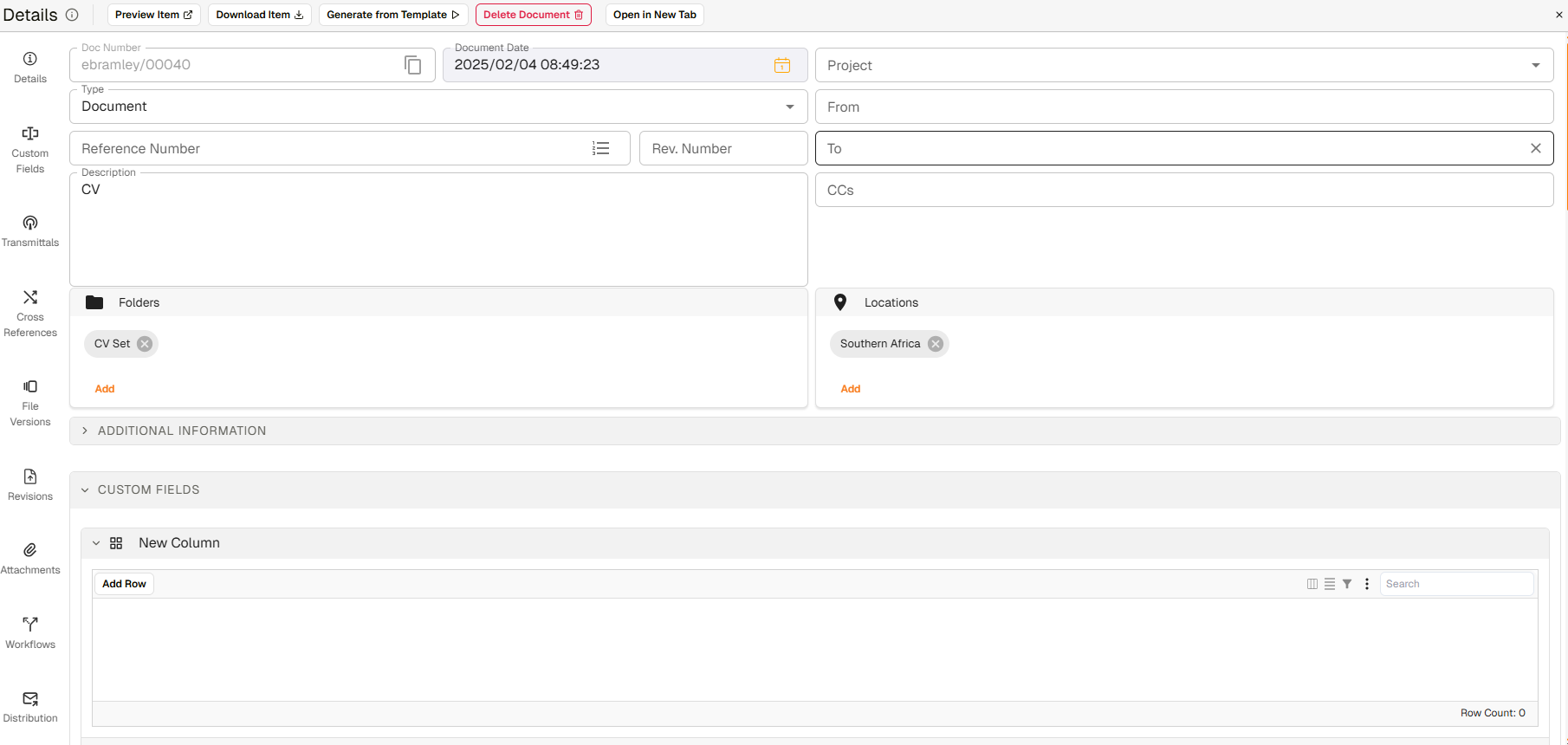
Document Details dialog
The following sections provide more detailed explanations about files, metadata, and relationships in the Document Details dialog.
Files
In Docwize, file(s) refer to file(s) that are connected to the metadata of a Docwize document. This can include a main file, as well as file versions.
Note that a Docwize “document” can exist without a specific file being connected to it. This is known as a “placeholder document”. Metadata can be placed against a document before a file is uploaded. Sometimes placeholder documents are created and workflowed , and the workflow populates the document’s file at a later stage.
File types are indicated by different icons.
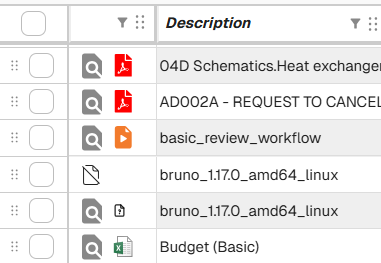
Example of grid display of document types, including one with no file.
Whether or not a document has a file, the metadata and relationships can still be accessed via the Document Details dialog.
When the dialog is open, the following icons are visible on the horizontal toolbar:
| Field | Description |
|---|---|
| Preview Item / Save Changes | Enables previewing the main file. When details are changed, this turns into "Save Changes". |
| Download Item | Enables download of the main file. |
| Generate from Template | Initiates a predefined template process if applicable. |
| Edit in Office Online | Opens the document in Office Online. |
| Delete Document | Deletes the document (may be permission-restricted). |
| Open in New Tab | Opens the document in a new Docwize grid. |
Metadata
In Docwize, certain fields are common to all documents. These are listed first in the Document Details dialog and form the metadata — the identity markers of the document.
The Doc Number is auto-generated. It is recommended that at minimum, the Description field is filled in when creating a new document. Additional fields can be added or edited later. The more metadata is captured, the more powerful the system becomes.
| Field | Description |
|---|---|
| Doc Number | A unique number assigned to the Docwize document. This is automatically generated. |
| Document Date | The date that defines the main document. It is not necessarily the date that the Docwize document was created within Docwize. |
| Project | The project the document belongs to. This affects security. If a user is assigned to a project then the user can see all documents in that project. |
| Type | The type of document. This is a dynamic set of labels that can be added to the document like "Drawing", "Specification", "Email", “Request for Information”, etc. to identify it. |
| From | Connects the document to the list of organizations and contacts in Docwize. |
| Reference Number | A reference number that can be used to link the document to other documents. If two documents have the same reference number, then they are revisions of each other. |
| Rev. Number | The revision number of the document. This is a number or letter that is incremented each time the document is revised. It is added onto the document’s Reference number. This block is green if the document is the latest revision. |
| To | Connects the document to the list of organizations and contacts in Docwize. |
| Description | A description or title of the document. It is recommended that at least this field is completed when creating a new Docwize document. |
| CCs | Connects the document to the list of organizations and contacts in Docwize. |
| Folders | Connects the document to the list of folders in Docwize. A document can be allocated to many folders. |
| Locations | Connects the document to the list of locations in Docwize. A document can be linked to many locations. |
| Additional Information | There are additional optional fields of information that can be used to store more information pertaining to a document. |
Relationships
The vertical toolbar in the Document Details dialog allows a user to explore relationships — essentially a record of how the document is used, linked, or distributed.
| Icon | Description | Icon | Description |
|---|---|---|---|
 | Opens the document details metadata section |  | Custom fields section |
 | Transmittals section |  | Cross References |
 | File Versions |  | Revisions section |
 | Attachments |  | Workflow activity |
 | Distribution |