FAQs
This page answers common user questions and points to the main documentation pages for fuller instructions.
Access and sign-in
How do I access my database?
To log on to Docwize, go to https://portal.docwize.com/. You can usually sign in with your email address and password, or by using a pre-existing Google or Microsoft account.
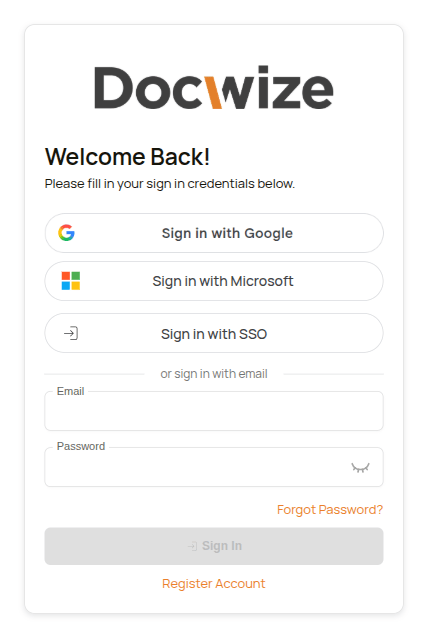
Docwize sign-in page
| Step | Description |
|---|---|
| 1 | Enter your email address and password, or choose a supported sign-in option. |
| 2 | Select your company, if prompted. |
| 3 | Continue to the homepage. |
For more detail, see Signing In.
Why can’t I sign in via Microsoft?
If you’re having trouble signing in via Microsoft, the issue may need to be resolved outside of Docwize. Try logging in at https://login.microsoftonline.com/ using the same browser. Once you have successfully logged in there, you should usually be able to sign in to Docwize with Microsoft as long as that session remains active.
How do I see who can access a document?
| Step | Description |
|---|---|
| 1 | Open the folder that holds the document in Explorer. |
| 2 | Right-click the document and select Permissions. |
| 3 | Read Who has access to see each person who can view the document and the path that gives them access. |
| 4 | Select Incomplete paths to see the people who hold only one half of a folder and project pair. |
Who can see a document, and why
For full instructions, see Access Control.
How do I move between modules?
| Step | Description |
|---|---|
| 1 | On the homepage, select the module's tile, or select the module in the sidebar. |
| 2 | To move to another module, select it in the sidebar. |
| 3 | Select Home in the sidebar to return to the homepage. |
Example: Opening Explorer and Search, then returning to the homepage
For full instructions, see Getting Around Docwize.
Working with documents
How do I bulk assign documents?
Select the relevant documents in the grid, open Assign, and choose whether to work with all or selected items. Then choose the target area, such as Details, Tags, Folders, Locations or Workflows.
For full instructions, see Assigning Docs.
How do I export documents?
Select the relevant documents in the grid, choose Export, and configure the required export options.
For full instructions, see Exports & Downloads.
How do I annotate a document?
| Step | Description |
|---|---|
| 1 | Open the document in the Preview Document window. |
| 2 | Click a tool in the annotation toolbar, for example Rectangle. |
| 3 | Drag on the page to draw the shape. |
| 4 | In the note card that opens, type a note about the annotation and click the send icon. This step is optional. |
| 5 | Close the note card. Repeat from step 2 for each annotation you want to add. |
Example: Adding document annotations
For full instructions, see Annotations.
How do I create a signature and sign a document?
| Step | Description |
|---|---|
| 1 | Navigate to the Preview Document window and to the annotation toolbar. |
| 2 | Click Signature. |
| 3 | Click Create Signature. |
| 4 | Choose Text, Draw or Upload, and create your signature. |
| 5 | Click Save. |
| 6 | To sign the document, click Signature again and click your signature. |
| 7 | Click the page where the signature should go. |
| 8 | Click Sign document at the top of the page. |
If you already have a signature, start at step 6.
Example: Creating a signature and signing a document
For full instructions, see Annotations.
How do I tag a document?
| Step | Description |
|---|---|
| 1 | Open the document in the preview, and open the Tags tab of the review panel. |
| 2 | In All Tags, find the tag. Click a tag to show its children, or use the search button. |
| 3 | Double-click the tag. Its card appears at the top of the tab. |
Example: Tagging a document and removing a tag
Tags are created in Tag Management, by users who are allowed to manage tags. See Tags in Explorer.
For full instructions, see Tags.
How do I remove a tag from a document?
| Step | Description |
|---|---|
| 1 | Open the document in the preview, and open the Tags tab of the review panel. |
| 2 | Click the x on the tag's card at the top of the tab. The tag is removed straight away. |
To stop a tag being used at all, it is disabled in Tag Management. See Tags in Explorer.
For full instructions, see Tags.
How do I add a tag to many documents at once?
| Step | Description |
|---|---|
| 1 | In the grid, tick the documents you want to tag. |
| 2 | Right-click one of them and choose Assign Tags. |
| 3 | Check that the switch at the top shows Adding Tags. |
| 4 | Type the tag's name in the search box, or find it in the tree, and click on the + beside it. |
| 5 | Click on Save. |
Example: Adding a tag to many documents
For full instructions, see Assigning Docs.
How do I add a note?
| Step | Description |
|---|---|
| 1 | Open the document in the preview, and open the Notes tab of the review panel. |
| 2 | Click the note actions button, then Add shared note or Add private note. |
| 3 | Type the note in the Docwize Notepad. |
| 4 | Click the save icon at the bottom right. |
Example: Adding a shared note
For full instructions, see Notes.
How do I add a note to a 3D model?
| Step | Description |
|---|---|
| 1 | Open the 3D model in the document preview. |
| 2 | Click Add model note in the Model notes panel. |
| 3 | Click the point on the model where the note belongs. |
| 4 | Enter a Title and Description, and choose a Status. |
| 5 | Click Save. The note is added to the list and its pin appears on the model. |
Measuring a model and adding a model note
For full instructions, see 3D Model Review.
How do I preview a document and zoom in?
| Step | Description |
|---|---|
| 1 | In the Explorer grid, click the preview icon on the document's row. |
| 2 | Use the page controls at the bottom right to move through the pages and zoom. |
| 3 | To zoom in to part of a page, hold Ctrl and drag a box around the area. |
| 4 | To see the whole width of the page again, click the zoom percentage. |
Example: Previewing a document and zooming in
For full instructions, see Document Preview.
How do I create a stamp?
| Step | Description |
|---|---|
| 1 | In the document preview, click Thumbnails, then the Toolchest tab. |
| 2 | Click the stamp icon beside Stamp Collections, enter a Name and click Create. |
| 3 | Click + on the new collection, then Select SVG File and choose the stamp's SVG file. |
| 4 | Enter a Name and click Upload. |
Example: Creating a stamp collection and uploading a stamp
For full instructions, see Stamps.
How do I add a stamp to a document?
| Step | Description |
|---|---|
| 1 | In the document preview, click Thumbnails, then the Toolchest tab, and click the stamp. |
| 2 | For a dynamic stamp, fill in the fields in the Dynamic Stamp Selector and click Apply Stamp. |
| 3 | Click the page where the stamp should go. |
| 4 | Optional: drag the stamp to move it, or drag a corner to resize it. |
Example: Adding a stamp, moving and resizing it, then adding a dynamic stamp
For full instructions, see Stamps.
How do I redact a document?
| Step | Description |
|---|---|
| 1 | Open the document in the preview. |
| 2 | Select the text to redact, right-click it and choose Redact Text. |
| 3 | For anything that is not selectable text, press X and drag a box over the area. |
| 4 | Click Burn annotations at the top of the preview toolbar. The document reloads with the black boxes as part of the file. |
Example: Redacting text and an area, then burning the redactions into the document
For full instructions, see Redaction.
How do I use a dataview?
| Step | Description |
|---|---|
| 1 | In Explorer, select the Dataviews tab, then the name of the group the dataview is in. |
| 2 | Select the dataview's name to open it. |
| 3 | To narrow the rows, type in Search at the top right of the dataview. |
| 4 | To see the rows behind a value shown in orange, select it. The Drilldown window opens. |
Example: Opening a dataview, searching it and drilling down
For full instructions, see Dataviews.
How do I filter an interface?
| Step | Description |
|---|---|
| 1 | In Explorer, select the Dataviews tab, then the name of the group the interface is in. |
| 2 | Select the interface's name to open it. |
| 3 | Select the Filters icon on the interface's left edge, then choose a value in a filter. The panels the filter applies to change to match. |
| 4 | To show everything again, select the cross next to the value you chose. |
Example: Opening an interface and filtering it
For full instructions, see Interfaces.
How do I open a virtual folder?
| Step | Description |
|---|---|
| 1 | In Explorer, select the Virtual Folders tab. |
| 2 | Select the arrow next to the virtual folder's name to show its first level, and expand further levels the same way. |
| 3 | Select a folder's name to open its documents, or Open in new tab (the arrow on the right) to keep the current tab open. |
Example: Opening a virtual folder
For full instructions, see Virtual Folders.
Uploads and document management
How do I complete a record?
| Step | Description |
|---|---|
| 1 | Navigate to the ‘Record’ selection and click on the relevant record. |
| 2 | Complete the information, as prompted to, in the record. Note: this will vary, depending on the record template that was created. |
| 3 | Click ‘Save’ to complete the record-making process. For more details on records, see the Records section. |
For full instructions, see Completing a Record.
How do I initiate an export and access downloads and bundles?
| Step | Description |
|---|---|
| 1 | Select the items you wish to export from any grid in the Docwize Portal. |
| 2 | Configure the Export options. |
| 3 | Select ‘Start Export’. |
| 4 | Navigate to the ‘Downloads’ module. |
| 5 | Click on the 'Download' icon of the relevant download. For more details on Downloading, see in the Exports and Downloads section. |
| For full instructions, see Exports & Downloads. |
How do I assemble a PDF using PDF Fusion Studio?
| Step | Description |
|---|---|
| 1 | Open PDF Fusion Studio from the sidebar popup. Drag and drop relevant documents from the Explorer or a folder view into the Source Documents panel on the left. |
| 2 | Select the documents to include using the checkboxes. |
| 3 | Click 'Merge Selected' to combine them into one output, or 'Merge With Index' to create separate outputs. To add a single document directly, click 'Add as Output'. To split a document into individual page outputs, click 'Quick Split'. The output set will appear in the Final Outputs panel on the right. |
| 4 | (Optional) Use 'Detached Viewer' to inspect the pages in an output set before generating. |
| 5 | Select a destination from the 'Bundle folder' dropdown at the bottom of the dialog. |
| 6 | Click 'Generate' on an individual output set, or 'Generate All' to produce all outputs at once. The generated PDFs will be saved to the selected folder. |
Assembling a PDF in PDF Fusion Studio
For full instructions, see PDF Fusion Studio.
How can I select documents for assigning them to tags/workflows/gridlinks etc?
Users can select one or multiple documents for assigning documents:
-
Individual Selection: Select the box by the relevant document, ticking it for selection
-
Section Selection: Click on the box of the first relevant document in the selection. Hold down the 'Shift' key. Click the last document in the relevant selection.
-
Select All: Click on the upper-most box in the Doc Grid to select all documents
For full instructions, see Assigning Docs.
How do I create a blank document in Explorer?
| Step | Description |
|---|---|
| 1 | Open the folder in Explorer, click New and select Document. |
| 2 | Enter a Description and choose a Document Type. |
| 3 | Optional: under File to create (optional), choose Word (.docx), Excel (.xlsx) or PowerPoint (.pptx) to create a blank file for the document. |
| 4 | Click Save. The document is added to the folder and its Document Details open. |
| 5 | Optional: to add the document's file, click Upload Item in the header of Document Details, select the file and click Open. When Preview Item and Download Item appear, the file is attached. |
Creating a blank document in a folder and uploading its file
For full instructions, see Upload in Folder View.
How do I bulk upload files or a folder in Explorer?
| Step | Description |
|---|---|
| 1 | Open the folder in Explorer, click New and select Bulk Upload Files or Bulk Upload Folder. |
| 2 | Select the files or the folder on your computer. They open in the Bulk Uploader. |
| 3 | Optional: on Edit Metadata, change any file's details. |
| 4 | Click Start Upload. When it finishes, close the Bulk Uploader. |
Bulk uploading files into a folder
For full instructions, see Upload in Folder View.
How do I drag and drop files into a folder?
| Step | Description |
|---|---|
| 1 | Open the folder in Explorer. |
| 2 | Drag the files from your computer onto the folder, and release them when it shows Drop files here to upload to this folder. |
| 3 | In the Bulk Uploader, click Start Upload. |
Dragging files from File Explorer into a folder
For full instructions, see Upload in Folder View.
How do I upload documents from the New module?
| Step | Description |
|---|---|
| 1 | In the New module, click New Document(s). |
| 2 | Click Click here to upload files and select your files, or drag files into the dialog. |
| 3 | Go to Folders and click the folder the documents belong in. |
| 4 | Optional: go to Locations and click a location. |
| 5 | Click Start Upload, then Close when every file has uploaded. |
Uploading documents from the New module
For full instructions, see Upload via the New Module.
How do I edit and save a document's details?
| Step | Description |
|---|---|
| 1 | Open the document's Document details. |
| 2 | Change the field, for example Description. Save Changes appears as the first button in the toolbar. |
| 3 | Click Save Changes. Your changes are saved and the button disappears again. |
Editing and Saving Document Details
For full instructions, see Document Details.
How do I upload a file version?
| Step | Description |
|---|---|
| 1 | Right-click the document in Explorer and select File Versions. |
| 2 | Click Replace File and choose the new file. |
| 3 | Click Confirm. The previous file stays in the register. |
Replacing a File Version
For full instructions, see File Versions.
How do I upload an attachment to a file?
| Step | Description |
|---|---|
| 1 | Right-click the document in Explorer and select Attachments. |
| 2 | Click Add Attachment and select one or more files from your device. |
| 3 | In the Upload Documents window, check each file's Document Type and details, clicking Next after each step. |
| 4 | On the Folders step, assign at least one folder, then click Next. |
| 5 | The Locations step is optional. Click Finish, wait for the upload to complete and close the window. The attachment appears in the register. |
Adding an Attachment
For full instructions, see Attachments.
How do I create a new revision of a document?
| Step | Description |
|---|---|
| 1 | Open the document's Document Details and go to Revisions. |
| 2 | Click New Revision. |
| 3 | Click the box at the top and choose the new revision's file. |
| 4 | Check the Next Revision Number and the Metadata Duplication Options. |
| 5 | Click Save. The new revision becomes the latest revision, and its Document Details opens. |
Creating a New Revision
For full instructions, see Revisions.
How do I prepare a transmittal?
| Step | Description |
|---|---|
| 1 | Open the transmittal's Document Details and drag the window to one side. |
| 2 | In Explorer, right-click each drawing or document being issued. Point to the open transmittal at the top of the menu and click Add as drawing (transmittal). |
| 3 | Go to New and open Recent Activity. In the transmittal's row, click Send, then Generate Transmittal. |
| 4 | Choose a Template and click Save. The dialog shows Transmittal Generated. |
Preparing a Transmittal
For full instructions, see Transmittals.
Records and workflows
How do I open a workflow in my Inbox?
| Step | Description |
|---|---|
| 1 | Select Inbox in the sidebar. |
| 2 | In the list on the left, select the workflow, then select one of its documents. |
| 3 | If an action request is waiting for you on that document, it opens straight away. Reply to it, or close it to look at the rest of the workflow first. |
Example: Opening a workflow in the Inbox
For full instructions, see Inbox.
How do I create a record template?
| Step | Description |
|---|---|
| 1 | Navigate to ‘Manage Records’ and select ‘Create a new record’. |
| 2 | Name your record and select which user groups can access the record to be able to complete it. |
| 3 | Type in your preferred name for a record section and select the type of section it is. Repeat until you have added all relevant sections. |
| 4 | Select your preferred settings (visible or hidden, optional or required) for each section. |
| 5 | If applicable, add additional options pertaining to the field. (For example, if you add a ‘Custom Field’ section, you need to select the relevant custom field template.) |
| 6 | Click ‘Save’. |
| 7 | Optional: click the ‘View Live Preview’ button to view your record template. For more details on records, see the Records section. |
Record template creation is a configuration task. For more detail, see the relevant configuration pages under Records and Custom Fields.
How do I create an 'Action Request' for a workflow?
To create a new 'Action Request', complete the following steps:
| Step | Description |
|---|---|
| 1 | Navigate to the 'Action Request Editor' dialog. |
| 2 | Click on the 'plus' button. |
| 3 | Name the action request. |
| 4 | Add relevant response options. |
| 5 | Optional: configure reply options. For more details, see the Workflows configuration section. |
How do I create a Lookup List?
| Step | Description |
|---|---|
| 1 | Go to 'Custom Fields' and create a gridlink custom field template with the relevant field(s) for the lookup list. The field(s) will become the key(s), or column name(s) in the lookup list. Save the custom field. See Create New Custom Field Template for more detailed instructions. |
| 2 | Click on 'Add Row' and populate the register with the row(s) relevant to the lookup list's column(s). |
| 3 | Go to the 'Query Lab'. Drag and drop the relevant custom field into the Query lab canvas. Select which row(s) need to be visible. Test the query and use the tools in the righthand section to refine it. Save the relevant query. See Query Builder for more detailed instructions. |
| 4 | Go to the 'Lookup List Builder' and select the relevant virtual view/custom field template(s) and save. |
| 5 | Create and/or navigate to an already-created custom field template where the lookup list needs to appear. Select 'LookupList' as the 'Field Type' and select the relevant Lookup List name. |
How do I add a field in the list manager?
| Step | Description |
|---|---|
| 1 | Navigate to the ‘Manage Lists’ section. |
| 2 | Select the relevant list. |
| 3 | Click on the ‘Add’ button and complete the relevant fields, saving changes. |
Here is an example of adding a field to the list manager:
Adding a Field to the List Manager
How do I edit a field in the list manager?
| Step | Description |
|---|---|
| 1 | Navigate to the ‘Manage Lists’ section. |
| 2 | Select the relevant list. |
| 3 | Click on the tick box of the relevant field to edit. |
| 4 | Click on the ‘Edit’ button. |
| 5 | Edit the field, saving changes. |
Here is an example of editing a field in the list manager:
Editing a Field in the List Manager
How do I delete a field in the list manager?
| Step | Description |
|---|---|
| 1 | Navigate to the ‘Manage Lists’ section. |
| 2 | Select the relevant list. |
| 3 | Click on the tick box of the relevant field to delete. |
| 4 | Click on the ‘Delete’ button. |
| 5 | Note: If there are documents linked to the field, one has to reassign them to another option prior to deleting the field. |
Here is an example of deleting a field in the list manager:
Deleting a Field in the List Manager
Oliver
How do I approve a change Oliver proposes?
| Step | Description |
|---|---|
| 1 | Ask Oliver to make a change, for example to replace a document's file. |
| 2 | When the Approval required card appears, check the Summary and the details. |
| 3 | Click Approve to make the change, or Reject to cancel it. |
Approving a change Oliver proposes
For full instructions, see Oliver Chat.
How do I upload a new version of a document from Oliver?
| Step | Description |
|---|---|
| 1 | Open a chat about the document. Its Context shows the document. |
| 2 | Click the paperclip icon and choose the new file. |
| 3 | Tick Upload as a new version of <file>, type a message and click Send. |
Uploading a new version from Oliver
For full instructions, see Oliver Chat.